Intermediate PowerPoint · Tutorial 9 of 9
PowerPoint Intermediate Capstone: Build a 12-Slide Tutoring Lesson Deck
Plan, build, and share a 12-slide tutoring lesson using a custom Slide Master, sections, clean data, a diagram, media, purposeful animation, and an accessibility pass.
- Level
- Intermediate
- Time
- 13 min read
- Updated:
- Applies to:
- PowerPoint for Microsoft 365, PowerPoint 2024, PowerPoint 2021, PowerPoint for the web
What you'll learn
- Plan a 12-slide lesson around clear learning objectives
- Build the deck on a custom Slide Master with at least four layouts and named sections
- Combine a clean data slide, a diagram, media, and purposeful animation in one deck
- Run an accessibility and preflight pass and export PPTX and PDF
- Assess your own work against a rubric and explain your design choices
This project pulls the whole Intermediate path together. You will build a real 12-slide tutoring lesson that a learner could follow and another tutor could pick up and teach. The goal is not decoration: it is a deck that is structured, readable, accessible, and easy to maintain.
Plan for two to four hours, spread over a few sessions. Pick a subject you know well enough to teach for 20 minutes, such as fractions, the water cycle, Spanish greetings, or CPR basics.
The scenario
A tutoring center has asked you to create a lesson deck for one 20 to 30 minute session. Other tutors will reuse it, so it must be built on a proper template, not formatted slide by slide. Some learners will review it at home as a PDF, and at least one learner uses a screen reader.
Your deliverables:
- A
.pptxfile built on your own Slide Master, with speaker notes on every content slide. - A
.pdfexport (notes pages are a bonus) for learners. - A short reflection (see the last section) explaining your choices.
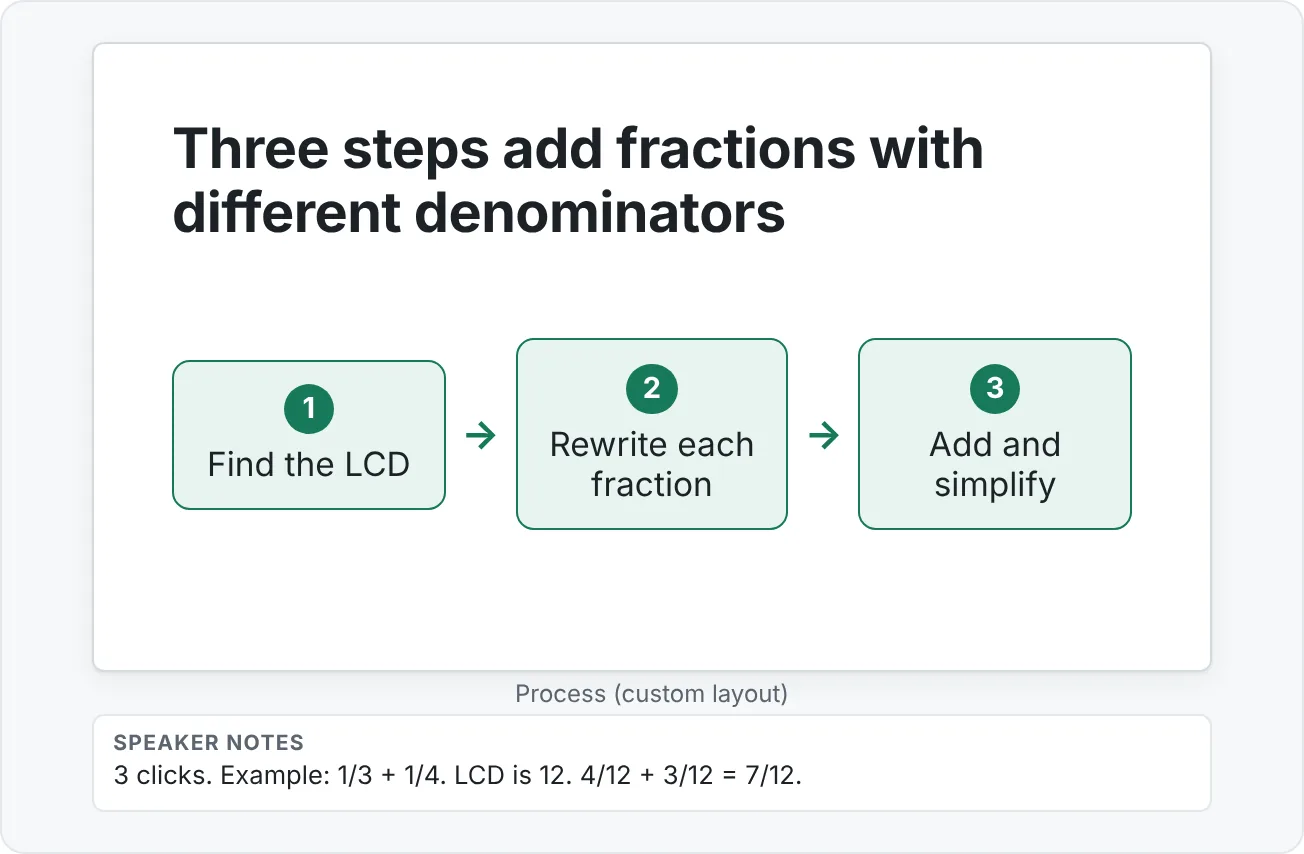
The running example on this page is a lesson called Adding fractions with unlike denominators, but use your own topic.
Required slides
Build these 12 slides, in this order. Group them into sections (for example Start, Learn, Practice, Wrap-up).
| # | Slide | What it must do |
|---|---|---|
| 1 | Title | Lesson name, tutor name, date |
| 2 | Learning objectives | 2 or 3 objectives starting with verbs ("Add fractions with unlike denominators") |
| 3 | Prior knowledge check | One or two quick questions that reveal what learners already know |
| 4 | Concept explanation | The core idea, one takeaway title, one visual |
| 5 | Example | A worked example, revealed step by step |
| 6 | Guided practice | A problem you solve together, with prompts |
| 7 | Data or comparison | A cleaned-up chart or table that makes one claim |
| 8 | Diagram or process | A diagram or SmartArt replacement showing steps or relationships |
| 9 | Practice challenge | A problem learners try on their own |
| 10 | Review quiz | Two or three questions; answers on click or on the next slide |
| 11 | Summary | The key ideas in three points or fewer |
| 12 | Next steps | Homework, resources, or the next lesson |
Requirements checklist
Your deck must meet every item below. Tick them off as you go.
Structure
- A custom Slide Master with at least four layouts you use (for example: Title, Objectives, Content + Visual, Section Divider, Process).
- Sections that group the slides.
- Consistent fonts, colors, and footer elements, set on the master.
Content
- Every slide has a unique, takeaway-style title.
- One cleaned-up chart or table (slide 7): no 3D, no clutter, labeled directly, title states the claim.
- One diagram or SmartArt replacement (slide 8).
- One media element (a short video clip) or recorded narration on at least one slide.
- Purposeful animation on at least one slide (a step-by-step reveal is ideal).
- Speaker notes on every content slide, including click counts for animated slides.
Quality and sharing
- Accessibility Checker run, with every error fixed and every remaining warning noted in your reflection.
- Alt text on every meaningful image, chart, and diagram; decorative items marked decorative.
- Spell check and an Outline View title read-through done.
- Exported as PPTX and PDF.
Step-by-step build plan
Work in this order. Each step builds on skills from one tutorial in the path.
- Plan on paper (15 min). Write the 12 titles as full-sentence takeaways. If the titles alone tell the lesson's story, your structure is right. (slide-design-basics)
- Build the master (30 min). Open View then Master Views then Slide Master. Set theme fonts and colors, then create or edit at least four layouts and rename them. Close the master view. (slide-master-and-layouts)
- Create the slides and sections (20 min). Add 12 slides using your layouts. Add sections with Home then Slides then Section then Add Section and rename them.
- Write the content (45 min). Fill titles, short text, and speaker notes. Align objects with Align and Distribute, and group related shapes. (align-and-arrange-objects)
- Build slide 7 (20 min). Insert or paste the chart, remove clutter, highlight the one bar or line that matters, and put the claim in the title. (charts-and-data-slides)
- Build slide 8 (15 min). Create the process diagram with shapes or SmartArt. (diagrams-and-smartart)
- Add media (15 min). Insert a short clip set to In Click Sequence with a poster frame, or record narration for one slide. Add captions or a transcript in the notes. (audio-video-and-recording)
- Add motion (15 min). Animate the worked example (slide 5) or the process (slide 8) step by step. Apply one quiet transition to all slides. Test every click. (animations-and-transitions)
- Review and fix (30 min). Ask someone to comment, resolve the comments, run spell check, the Accessibility Checker, and the Reading Order Pane. (review-accessibility-and-sharing)
- Export (10 min). Save the PPTX, run Compress Media if needed, and export a PDF with File then Export then Create PDF/XPS Document.
Common capstone mistakes
These are the problems reviewers see most often in this project. Check for each before you score yourself.
- Formatting on the slide instead of the master. If you changed a font on slide 4 by hand, other tutors will not get that change when they add slides. Move the change to the layout or master.
- Layouts you never use. Four layouts is the minimum in use. Delete unused layouts from the master so the Layout menu stays short and clear.
- Topic titles. "Example" and "Practice" are labels, not takeaways. Try "Rewrite 1/3 as 4/12 before you add" instead.
- A chart that decorates instead of argues. If you cannot say the chart's claim in one sentence, it is not ready.
- Motion everywhere. One or two step-by-step reveals beat twelve animated slides. Leave titles static.
- Notes written only for you. "Do the thing" will not help another tutor. Write what to say, what to ask, and how many clicks the slide has.
- Skipping the second device. Open the PPTX and PDF on another computer or phone before you call it finished. Missing fonts and media show up there first.
Rubric
Score yourself honestly on each criterion. "Ready" on every row means you have completed the Intermediate level. "Strong" is the target if you plan to move on to Advanced.
| Criterion | Emerging | Ready | Strong |
|---|---|---|---|
| Structure | Slides are formatted one at a time. | Layouts and sections organize the deck. | The master system makes the deck easy to maintain and reuse. |
| Design | Visual hierarchy is uneven; fonts or colors drift. | Design choices are consistent and readable. | Slides feel polished and built for this audience. |
| Data | Data is present but cluttered. | The data display is readable. | The data slide makes one clear claim, stated in its title. |
| Media and motion | Media or animation distracts. | Media and animation support meaning. | Motion clearly improves understanding (sequence, focus, or change). |
| Accessibility | Many checker issues remain. | Most issues are fixed; the rest are noted. | Accessibility is part of the design process: alt text, reading order, contrast, and captions are handled throughout. |
| Notes and sharing | Notes are missing; one file format only. | Notes on content slides; PPTX and PDF exported. | Notes let another tutor teach the lesson; each format matches its audience. |
The last row is an addition to the core rubric: it checks that the deck can be handed off, which is the point of a reusable lesson.
Reflection prompts
Write three to six sentences for each prompt. Keep the reflection with your files; it is useful when you review your own progress later.
- Structure. Which layouts did you create on the master, and how would another tutor use them to add a new slide?
- Data. What claim does slide 7 make? What did you remove from the original chart, and why?
- Motion and media. For each animation and media element, what does it help the learner understand? What did you decide not to animate?
- Accessibility. What did the Accessibility Checker find? What did you fix, what is left, and why?
- Audience. Who gets the PPTX and who gets the PDF? What would you change if this were delivered as a recorded video instead of a live lesson?
If you have a study partner, swap decks and score each other with the rubric before comparing with your own scores.
Practice
Practice
Build your 12-slide lesson deck
- Choose a topic and write 12 takeaway titles, one per required slide.
- Build a Slide Master with at least four renamed layouts and your theme fonts and colors.
- Create the 12 slides from those layouts and group them into at least three named sections.
- Write the slide content and speaker notes, keeping text short and objects aligned.
- Build the data slide (7) with one highlighted value and a claim in the title.
- Build the process or diagram slide (8).
- Add one video clip or one recorded narration, with captions or a transcript.
- Add a step-by-step reveal on slide 5 or 8, apply one transition to all slides, and test every click.
- Get comments from a reviewer, resolve them, then run spell check, the Accessibility Checker, and the Reading Order Pane.
- Save the PPTX, compress media if the file is large, and export a PDF.
- Score yourself with the rubric and write your reflection.
Fix-this-slide bonus: take your weakest slide, duplicate it, and redesign the copy. Keep both versions side by side and note three things you changed.
Check your understanding0 of 4 correct
Pick an answer to see whether it's right and why.
You finish the deck and realize the footer logo is in a slightly different spot on six slides. What is the best fix?
Repeated elements belong on the master, so they appear in the same place everywhere and only need to be changed once.
Your slide 7 chart shows four weeks of quiz scores with 3D bars, a legend, and the title 'Data'. Which change does the most to move it from Emerging to Strong?
The Strong level asks for a data slide that makes a clear claim. Removing clutter, highlighting the key value, and stating the claim in the title achieve that.
The Accessibility Checker shows no errors, but you added a video without captions. Under the rubric, how should you rate Accessibility?
No errors is not the whole story: the checker lists missing captions as a warning, not an error. Treating accessibility as part of design means fixing warnings like this and checking what the checker misses.
Every slide in your deck has a different animation, and the title on each slide flies in. A reviewer says it feels busy. Which revision best matches 'Motion improves comprehension'?
Motion should reveal sequence or focus attention. Keeping only purposeful reveals and a consistent transition supports understanding without distraction.
You're ready to move on when
Tick each one off as you go. Your ticks are saved in this browser only.
Related
Sources and further reading
Was this guide helpful? Spot a mistake? Send feedback · admin@arumsoft.com