Intermediate PowerPoint · Tutorial 4 of 9
How to Make Clear, Honest Charts and Data Slides in PowerPoint
Write the data takeaway first, pick the right chart, clean up defaults, bring charts in from Excel safely, and avoid misleading visuals.
- Level
- Intermediate
- Time
- 16 min read
- Updated:
- Applies to:
- PowerPoint for Microsoft 365, PowerPoint 2024, PowerPoint 2021, PowerPoint for the web
What you'll learn
- Write a claim-led title before choosing a chart
- Match bar, column, line, scatter, table, or diagram to the message
- Clean up a default chart with direct labels and one highlighted series
- Choose between embedding, linking, and pasting an Excel chart as a picture
- Spot and fix misleading axes, missing units, and 3D distortion
A default chart answers no question. It shows every number at the same weight, with a legend to decode, a title like "Chart 1," and gridlines everywhere. The audience has to do the analysis while you talk.
A good data slide does the analysis for them. The title says what the data means, the chart type fits that message, and one highlighted element proves it. This page walks through that process using a running example: a school's after-school reading program, with monthly attendance and test-score data in Excel.
Start with the data message
Before you insert anything, write one sentence that says what the data shows. That sentence becomes the slide title. Four questions help you find it:
- What changed? "Attendance doubled after we moved sessions to Tuesday."
- What is bigger or smaller? "Grade 4 reads the most minutes per week."
- What pattern matters? "Scores rise most in the first six weeks, then level off."
- What decision should the audience make? "Extend the program to grade 3 next term."
Compare these titles for the same chart:
| Topic title (weak) | Claim title (strong) |
|---|---|
| Attendance by Month | Attendance doubled after the Tuesday schedule change |
| Reading Scores | Program students gained 12 points; others gained 4 |
| Survey Results | Most parents want a second weekly session |
If you cannot write a claim, you may not have a point yet. Look at the data again, or use a table and let the audience explore.
Choose the right display
Pick the chart after you know the message. Each type answers a different kind of question:
| Message | Best display | Reading-program example |
|---|---|---|
| Ranking (which is biggest?) | Bar chart (horizontal), sorted | Minutes read by grade, highest first |
| Comparing a few categories | Column chart | Students enrolled at three schools |
| Trend over time | Line chart | Average score each month |
| Relationship between two measures | Scatter plot | Minutes read vs score gain per student |
| Exact values people will look up | Table | Score by student group and term |
| Process or relationship, not numbers | Diagram | How a student enters the program |
A few practical rules:
- Horizontal bar charts handle long category names better than columns.
- Line charts need an ordered axis, usually time. Do not use a line for unrelated categories.
- Pie charts only work for a few parts of one whole. With more than a handful of slices, use a sorted bar chart.
- If the audience needs exact numbers, a clean table beats a chart with every value labeled.
To insert a chart, use Insert then Illustrations then Chart, pick a type, and type or paste your numbers into the small worksheet that opens. To change type later, select the chart and use Chart Design › Type › Change Chart Type.
When a table is the better answer
If the audience will compare exact numbers ("which group scored 71 and which scored 74?"), use a table instead of a chart. Keep it presentation-ready: no more than about five rows and four columns on one slide, numbers right-aligned so digits line up, units in the header ("Score (out of 100)"), and the one row that matters highlighted with a light accent fill. Put the claim in the title just as you would for a chart.
Clean up default charts
Default charts are a starting point. Five cleanup moves make most charts presentation-ready. Select the chart and use the Chart Elements button (the plus sign beside the chart) plus the Chart Design and Format tabs.
- Remove clutter. In Chart Elements, uncheck Gridlines (or keep only light major gridlines), remove the chart title if your slide title already says it, and delete any border or shadow.
- Simplify axes. Fewer, rounder axis numbers. Right-click the axis, choose Format Axis, and set Units › Major to a sensible step. If bars carry data labels, you can often delete the value axis entirely.
- Use direct labels. Check Data Labels in Chart Elements, and label lines at their right end instead of using a legend. Then delete the legend. Viewers should not have to match colors to a key.
- Highlight one series or point. Format all bars or lines in a neutral gray. Then click the key bar once (selects the series) and again (selects just that bar), and set Format › Shape Fill to your accent color.
- Put the message in the title. Use the slide title for the claim and keep a short label inside the chart only if it helps.
Bring charts from Excel into PowerPoint
Often the data and chart already live in Excel. Copy the chart in Excel (Ctrl+C), paste it on the slide (Ctrl+V), and then click the Paste Options button that appears. You have five choices:
| Paste option | What you get | Updates when Excel changes? |
|---|---|---|
| Use Destination Theme & Embed Workbook | Editable chart in your deck's colors and fonts, with a copy of the workbook inside the file | No, it is a copy |
| Keep Source Formatting & Embed Workbook | Same, but keeps Excel's look | No |
| Use Destination Theme & Link Data | Editable chart in your deck's style, connected to the Excel file | Yes, when refreshed |
| Keep Source Formatting & Link Data | Linked, keeps Excel's look | Yes, when refreshed |
| Picture | An image of the chart | No, and it cannot be edited |
How to choose
- Embed when you want to edit the chart in PowerPoint and the numbers are final. Use Chart Design › Data › Edit Data to change values.
- Link when the Excel file will keep changing (a monthly report) and you want the slide to follow. After the data changes, select the chart and click Chart Design › Data › Refresh Data.
- Picture when the chart is final and you want a small, uneditable file, or when you share outside your team.
For a linked object (rather than a native chart), you can also copy in Excel and use Home then Clipboard then Paste then Paste Special, then choose Paste link and Microsoft Excel Chart Object.
Understand the update risk
Links are useful and fragile:
- A link stores a file path. If the Excel file is renamed, moved, or emailed without the workbook, the chart cannot update. Manage links in File › Info › Edit Links to Files (under Related Documents), where you can update, change the source, or break a link.
- When someone opens a deck with links, PowerPoint may ask whether to update them. If they click update and the source changed, your numbers change before the meeting.
- An embedded chart can carry more of the workbook than you think. Check the embedded data with Edit Data before sending a deck outside your organization, so you do not share hidden sheets or confidential numbers.
Data ethics for slides
A chart can be accurate and still mislead. Your audience trusts that the visual shape matches the numbers. Protect that trust with four habits.
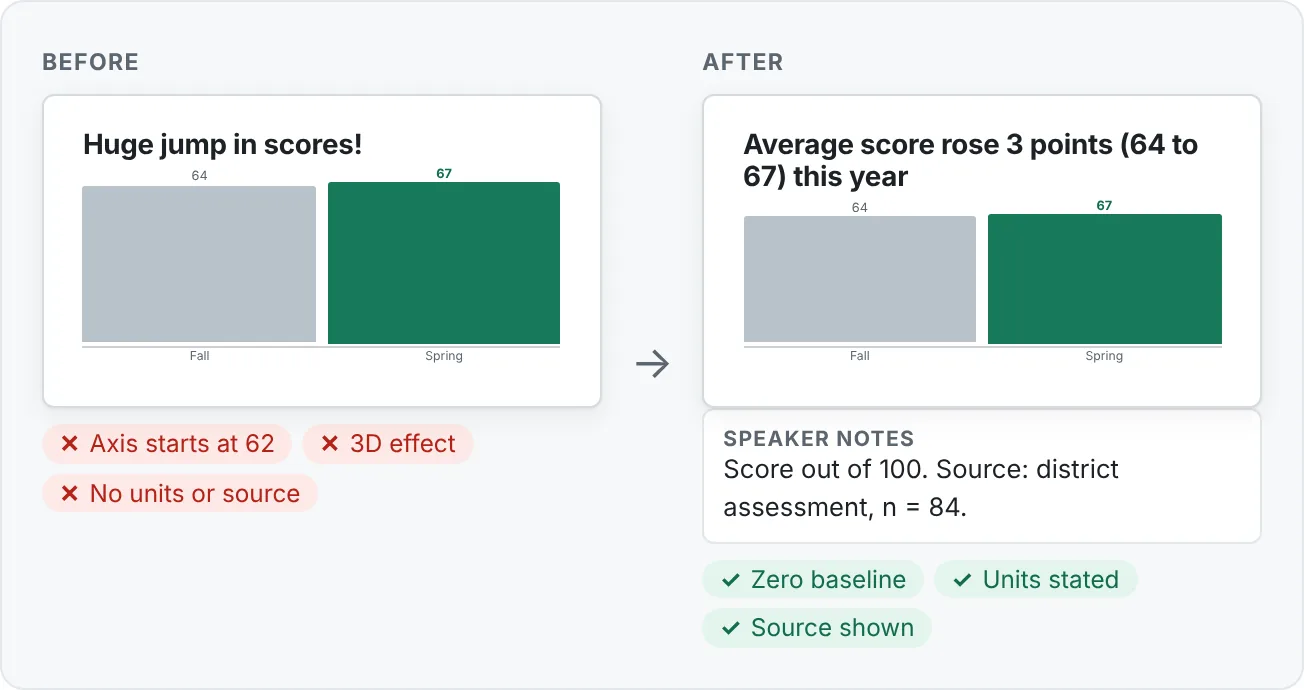
- Do not crop axes deceptively. Bar and column lengths are compared from the baseline, so the value axis on a bar or column chart should start at zero. If PowerPoint auto-starts an axis at 60, a change from 64 to 66 looks huge. Fix it in Format Axis › Axis Options › Bounds › Minimum. (Line charts can use a non-zero axis when the change matters, but say so clearly.)
- Label units. "Score" out of what? "Minutes" per day or week? Put units in the axis title or the labels: "Average minutes read per week."
- Show the source where needed. Add a small label line, such as "Source: district reading assessment, fall 2026, n = 84 students." Small samples deserve to be visible.
- Avoid 3D charts. 3D perspective makes front bars look bigger and hides values behind others. Use the 2D version of the same type.
Honest charts are also more persuasive in the long run. If one person in the room spots a cropped axis, they will doubt every other slide.
Common data slide mistakes
- Topic titles. "Q3 Results" makes the audience find the point. Write the claim.
- Too many series. Six colored lines become spaghetti. Highlight one, gray the rest, or split into several small slides.
- Legend far from the data. Use direct labels instead.
- Every data label turned on. Label the values that matter, not all 40.
- Pasting a picture you will need to update. Next month you will rebuild it. Embed or link instead.
- Linking without telling anyone. If a colleague moves the Excel file, the link breaks quietly. Note the source path in the speaker notes.
- Unsorted bars. For rankings, sort the data in the worksheet so bars go from largest to smallest.
- Charts as decoration. If the chart does not prove the title, remove it or change the title.
Practice
Practice
Build a 4-slide data mini-report
Guided practice: create a four-slide data mini-report about an after-school program (use the sample numbers below or your own data).
Sample data, average attendance by month: Sep 22, Oct 24, Nov 47, Dec 49. Average score: Sep 61, Oct 66, Nov 70, Dec 73.
- In Excel, type the data and make one column chart (attendance) and one line chart (score).
- Write a claim title for each chart before you paste anything.
- Paste the attendance chart with Use Destination Theme & Embed Workbook. Paste the score chart with Use Destination Theme & Link Data.
- Clean up both charts: remove gridlines, add data labels, delete the legend, gray all bars, and highlight the key months in your accent color.
- Check the value axis starts at zero on the column chart, add units, and add a source line.
- Change one number in Excel, return to PowerPoint, and click Refresh Data on the linked chart. Confirm only the linked chart changed.
- Add a title slide and a final slide with the decision you recommend.
Independent challenge: take any spreadsheet you use (grades, budget, sports stats) and turn it into three claim-led slides. Use a different display for at least two of them (for example, a sorted bar chart and a table). For each slide, write a note explaining why that display fits the claim, and list one misleading choice you deliberately avoided.
Check your understanding0 of 4 correct
Pick an answer to see whether it's right and why.
You want to show which of 12 sales regions sold the most last quarter. Region names are long. Which display fits best?
Ranking many categories with long names is what sorted horizontal bars do best. A pie with 12 slices and a line across unrelated regions both hide the ranking.
A monthly status deck pulls numbers from an Excel file that finance updates every week. You want the slides to stay current with little rework. Which paste option fits?
Linking keeps the chart connected to the workbook so you can refresh it, and Use Destination Theme matches your deck's look.
A column chart shows scores of 64 and 67, and the second bar looks three times taller than the first. What is the most likely problem?
A cropped value axis exaggerates small differences in bar length. Setting the axis minimum to zero makes the bars match the numbers.
You are emailing a deck to an outside client. It contains a chart pasted with Keep Source Formatting & Embed Workbook from an internal budget file. What should you check first?
Embedding stores workbook data inside the deck. Check it before sharing, or paste the final chart as a picture.
You're ready to move on when
Tick each one off as you go. Your ticks are saved in this browser only.
Related
Sources and further reading
Was this guide helpful? Spot a mistake? Send feedback · admin@arumsoft.com