Intermediate PowerPoint · Tutorial 5 of 9
How to Use SmartArt, Diagrams, and Icons in PowerPoint
Pick the right diagram for an idea, turn bullets into SmartArt, build cleaner diagrams with shapes and connectors, and make them accessible.
- Level
- Intermediate
- Time
- 15 min read
- Updated:
- Applies to:
- PowerPoint for Microsoft 365, PowerPoint 2024, PowerPoint 2021, PowerPoint for the web
What you'll learn
- Match an idea to a process, cycle, hierarchy, relationship, matrix, timeline, or comparison diagram
- Convert a bullet list to SmartArt and change its layout and colors
- Build a clean process diagram from shapes and connectors
- Use icons consistently as scanning aids
- Write alt text and a text summary so diagrams are accessible
Some ideas are easier to see than to read. A process, a hierarchy, or a cycle described in five bullets forces the audience to build the picture in their heads. A good diagram builds it for them.
The trap is decoration: a SmartArt graphic chosen because it looks nice, with arrows that imply a sequence that does not exist. This page shows you how to choose the structure first, use SmartArt as a fast starting point, build your own diagrams when SmartArt gets in the way, and make the result readable for everyone. The running example is a library's "How to borrow an e-book" training deck.
Choose a diagram type
Start by asking how the parts of your idea relate. The relationship decides the diagram, not the other way around.
| Idea relationship | Diagram type | Library example |
|---|---|---|
| Steps in order, with a start and end | Process | Sign in, search, borrow, download |
| Steps that repeat | Cycle | Borrow, read, return, borrow again |
| Levels of authority or categories within categories | Hierarchy | Library system, branches, departments |
| Overlap or connection between groups | Relationship (Venn, radial) | Patrons who use both print and e-books |
| Two dimensions at once | Matrix (2 x 2) | Easy vs hard to find, used often vs rarely |
| Events placed in time | Timeline | E-book service launch milestones |
| Two or three options side by side | Comparison | E-book vs audiobook vs print |
Quick checks:
- Arrows mean order or cause. If the items can happen in any order, do not use arrows. Use a list or grid.
- A cycle needs a real loop. If step 4 does not lead back to step 1, use a process.
- Hierarchy means "belongs to." Do not use an org chart shape for a list of equal topics.
Use SmartArt as a starting point
SmartArt turns text into a diagram that stays linked to that text. Add a bullet and a new shape appears. It is fast, and it keeps everything aligned. Its weakness is that its built-in styles can look generic, and some layouts are hard to adjust precisely.
Convert a bullet list to SmartArt
- Click inside a text placeholder with your bullets (keep each bullet short, 1 to 4 words).
- Click Home then Paragraph then Convert to SmartArt.
- Hover over the options for a live preview, or choose More SmartArt Graphics to see every category (List, Process, Cycle, Hierarchy, Relationship, Matrix, Pyramid, Picture).
- Pick a layout from the matching category, for example Basic Chevron Process.
To start from scratch instead, use Insert then Illustrations then SmartArt.
Edit text, layout, and colors
- Text Pane: click the small arrow on the left edge of the graphic to open it. Press Enter for a new shape and Tab to demote a line to a lower level.
- Change layout: on the SmartArt Design tab, open the Layouts gallery. Your text carries over, so you can test Process vs Cycle in seconds.
- Change colors: SmartArt Design › Change Colors. The options come from your theme colors, so a good theme gives you good choices. For more control, select a single shape and use Format › Shape Fill to highlight one step in the accent color.
- Simplify style: avoid 3D and heavy bevels in SmartArt Styles. A flat style reads better.
- Start over: SmartArt Design › Reset Graphic removes manual formatting.
Ungroup only when necessary
If you need full control (custom spacing, unusual shapes), use SmartArt Design › Convert › Convert to Shapes. The result is a group of ordinary shapes you can ungroup with Ctrl+Shift+G. This is one-way: you lose the automatic layout and the Text Pane, so finish your text first and convert last.
Build diagrams with shapes and connectors
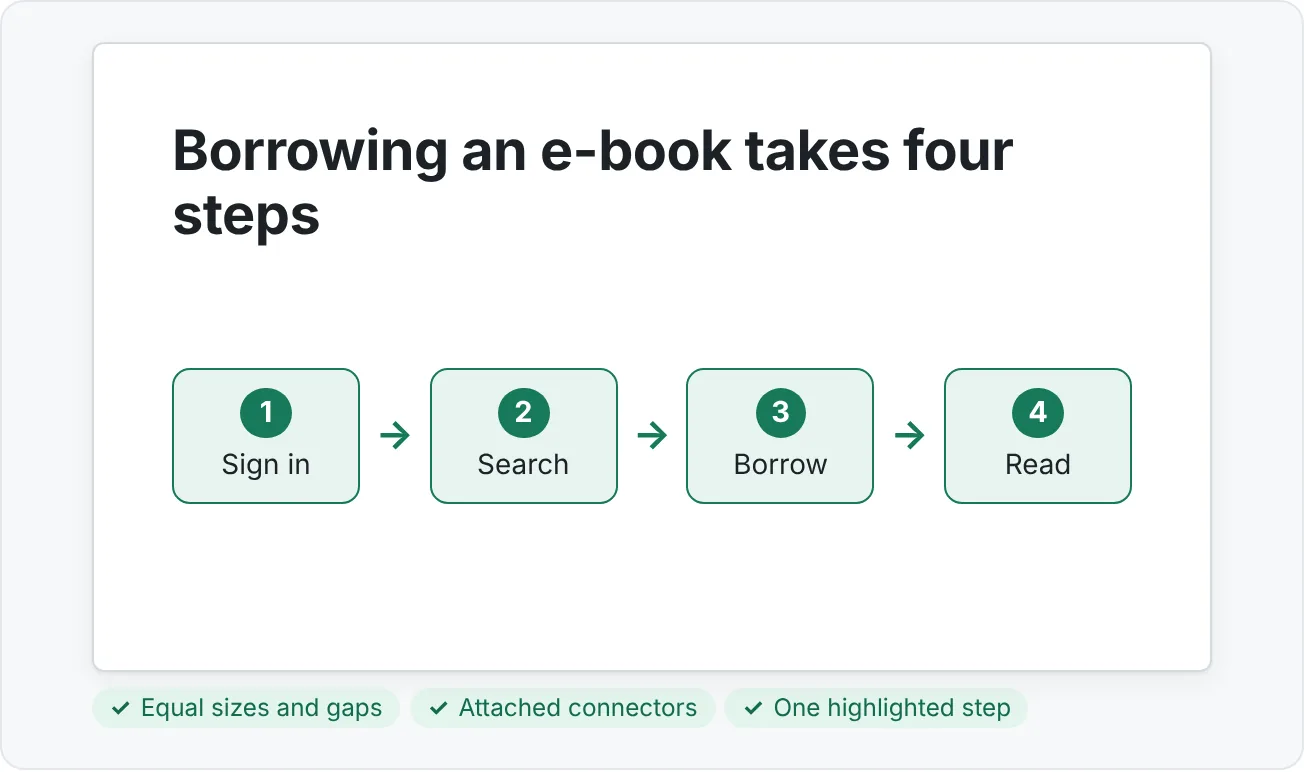
When SmartArt fights you, build the diagram yourself. It takes a few minutes longer and gives you exactly what you want. Here is a four-step process for the e-book deck.
- Draw one step. Insert then Illustrations then Shapes › Rectangle: Rounded Corners. Type "Sign in." Set the fill, a font from your theme, and no outline (or a thin one).
- Duplicate it. Press Ctrl+D three times and edit the labels: Search, Borrow, Read.
- Align and space. Select all four, then Home then Drawing then Arrange then Align › Align Middle and Distribute Horizontally.
- Connect them. From the Shapes gallery, choose a line or arrow from the Lines group (a straight arrow or Connector: Elbow Arrow). Hover over the first shape until gray connection points appear, drag from the right-side point to the left-side point of the next shape. The ends turn green or show handles when attached.
- Style the connectors once. Format one arrow, then copy its formatting to the others with Format Painter or Ctrl+Shift+C and Ctrl+Shift+V.
- Highlight one step if the slide is about that step, using your accent color.
- Group and name. Group the shapes and connectors, and rename the group "Borrow process" in the Selection Pane (Alt+F10).
Attached connectors stay attached: move a shape and the arrow follows. That is the difference between a connector and a loose line.
The same method works for other diagram types
- Timeline: draw one long thin line across the slide, then place small circles on it for each event. Use Distribute Horizontally only if the events are evenly spaced in time; if they are not, position them by date so the gaps stay honest. Put the date above each circle and a two- or three-word label below.
- 2 x 2 matrix: draw one square, duplicate it three times, and arrange the four in a grid with equal gutters. Label the two axes outside the grid ("Used often" to "Used rarely" across, "Easy to find" to "Hard to find" down). Put items in the quadrants as short labels, and shade only the quadrant you want to discuss.
- Comparison: two or three equal columns, each with the same parts in the same order (icon, name, three short facts). Matching rows make differences easy to spot.
In every case, start with alignment and spacing, then add color last, and only where it means something.
Labels and consistent styles
- Keep labels short and parallel (all verbs, or all nouns).
- Use the same shape, size, fill, and font for items at the same level.
- Put explanations under the shapes in smaller text, or in the speaker notes, not inside crowded shapes.
Use icons as scanning aids
Icons help the audience find and remember items, as long as they are consistent. Insert them with Insert then Illustrations then Icons, search by keyword, and select several at once before clicking Insert.
Rules that keep icons helpful:
- Same visual style. Do not mix outline and filled icons, or flat icons and 3D clip art, on one slide.
- Same size. Select all icons and set the same height and width on the Graphics Format tab (Size group).
- Same placement. Icon always above the label, or always to the left. Align and distribute them like any other object.
- Same color. Recolor with Graphics Format › Graphics Fill, usually your primary or a dark neutral.
- Literal and clear. A magnifying glass for search works. An abstract swirl for "innovation" does not.
- Supporting, not replacing. Always keep a text label. Icons alone are ambiguous.
Make diagrams accessible
A diagram works only if everyone in your audience can get its meaning, including people using screen readers and people viewing a low-quality projector or a small phone screen.
- Descriptive slide title. The title should state what the diagram shows: "Borrowing an e-book takes four steps," not "Diagram."
- Meaningful labels. Use real words in the shapes, not "Step A" with a legend.
- Alt text for complex visuals. Right-click the diagram's outer border and choose View Alt Text (for SmartArt, click the outer border so you describe the whole graphic, not one shape). Describe the structure and the order, for example: "Process diagram with four steps: sign in, search, borrow, read. Borrow is highlighted."
- Decorative items. Purely decorative shapes or icons can be marked Mark as decorative in the Alt Text pane so screen readers skip them.
- Text summary. For a complex diagram, add a one or two sentence summary in the speaker notes or on a following slide.
- Do not rely on color alone. If the highlighted step is the only orange one, also make it bold or add a label like "You are here."
Finally, run Review then Accessibility then Check Accessibility. It flags missing alt text and helps you check reading order.
Common diagram mistakes
- Choosing by looks. A pretty cycle for a one-way process tells the audience something false.
- Long sentences inside shapes. SmartArt shrinks text to fit, so long labels become tiny. Keep labels to a few words.
- Default SmartArt everywhere. The same blue chevrons on every slide look like a template. Change colors and styles to match your theme.
- Converting to shapes too early. You lose the Text Pane and automatic layout. Finish the content first.
- Loose lines instead of connectors. Move a shape and the arrow is left behind.
- Mixed icon styles. Outline and filled icons, or icons from different sources, look accidental.
- No alt text. A process diagram with no alt text is a blank space for a screen reader user.
Practice
Practice
Build a "how it works" slide
Guided practice: create a "how it works" slide using icons and a process diagram.
- Start a Title Only slide. Title: "Borrowing an e-book takes four steps."
- Type four bullets in a text box or placeholder: Sign in, Search, Borrow, Read. Convert them with Home then Paragraph then Convert to SmartArt and try two different process layouts.
- Now build the same process with shapes: four rounded rectangles, aligned and distributed, joined by attached arrow connectors.
- Add one icon above each step (Insert then Illustrations then Icons). Make them the same size, color, and style, and align them with the shapes.
- Highlight the Borrow step with your accent color and bold text.
- Group the diagram, name it in the Selection Pane, and add alt text that describes the steps in order.
- Compare the SmartArt and hand-built versions. Keep the one that is clearer and delete the other.
Independent challenge: find or make a slide that uses heavy SmartArt (3D styles, many levels, long text). Redesign it as a custom visual using shapes, connectors, and icons. Choose the diagram type on purpose using the table on this page. Write two sentences in the notes: why this diagram type fits the idea, and what you changed to make it easier to read.
Check your understanding0 of 4 correct
Pick an answer to see whether it's right and why.
A slide explains that a school's grading process goes: assign, submit, grade, give feedback, and the feedback shapes the next assignment. Which diagram fits best?
The steps loop back: feedback shapes the next assignment. A cycle shows that repetition; a hierarchy or matrix would imply relationships that are not there.
You want to try a Process layout and a Cycle layout for the same SmartArt text, then still edit the wording later. What should you avoid doing first?
Convert to Shapes is one-way. You lose the Text Pane and the ability to switch layouts, so do it only after the content and layout are final.
On a hand-built diagram, the arrows stay behind when you move the boxes. What went wrong?
Connectors attached to connection points follow their shapes. Loose lines are independent objects that do not move with the boxes.
A screen reader user reports that your process slide reads as "Rounded Rectangle 3, Arrow 7, Rounded Rectangle 4..." What is the best fix?
Group-level alt text gives the meaning in one clear description, and marking connectors decorative removes noise from the reading order.
You're ready to move on when
Tick each one off as you go. Your ticks are saved in this browser only.
Related
Sources and further reading
Was this guide helpful? Spot a mistake? Send feedback · admin@arumsoft.com