PowerPoint Basics · Tutorial 4 of 8
How to Add Pictures, Shapes, Icons, and Screenshots in PowerPoint
Insert pictures without stretching them, crop them to the point, and add shapes, icons, and annotated screenshots that make a slide clearer.
- Level
- Beginner
- Time
- 15 min read
- Updated:
- Applies to:
- PowerPoint for Microsoft 365, PowerPoint 2024, PowerPoint 2021, PowerPoint for the web
What you'll learn
- Insert pictures from your computer or stock images and resize them without distortion
- Crop a picture, crop it to a shape, and use Fill and Fit
- Draw shapes, arrows, and callouts and format their fill and outline
- Add a consistent set of icons and give them alt text or mark them decorative
- Capture a screenshot, crop it, highlight where to click, and keep private details out
Before you start
A good picture or a simple shape can explain in a glance what three bullets cannot. A stretched photo, a random clip-art icon, or a blurry screenshot does the opposite: it makes the whole deck look careless.
In this tutorial you will add visuals to the Video Calls Made Easy workshop deck: a photo, a three-step process made of shapes, a row of icons, and an annotated screenshot that shows exactly where to tap. Every visual has to earn its place by making the slide clearer.
Insert a picture
Select the slide, then go to Insert then Images then Pictures and choose where the picture comes from.
- This Device inserts a file from your computer. Use your own photos whenever you can; a real photo of the community center beats a generic stock one.
- Stock Images (Microsoft 365) opens a library of photos, icons, and illustrations you can use in your Office documents.
- Online Pictures searches the web. Results are not automatically free to reuse, so check the license before you use one.
If the slide has a content placeholder, you can also click the small Pictures icon inside it. The picture then lands in the placeholder's position, which keeps your layout tidy. The Picture with Caption and Two Content layouts are built for this.
Use high-resolution images. A small or blurry image looks worse when projected. A photo that looks sharp when it fills your laptop screen is usually fine. Avoid screenshots of thumbnails or images copied from a web search preview.
Resize without stretching
A selected picture has eight round handles: four at the corners and four on the sides.
- Corner handles resize the picture and keep its proportions (its aspect ratio).
- Side handles squash or stretch it in one direction. Faces get wide, circles become ovals, and everyone in the room notices.
So: always resize from a corner. Holding Shift while you drag a corner guarantees the proportions stay locked.
If a picture is already stretched, select it and choose Picture Format then Adjust then Reset Picture then Reset Picture & Size. It returns to its original shape (and loses any formatting), and you can resize it again properly.
To set an exact size, type a value into Height or Width in Picture Format then Size. As long as Lock aspect ratio is on (it is by default for pictures; check it with the small arrow at the bottom-right corner of the Size group), the other value updates to match.
Crop and fit pictures
Cropping cuts away the parts of a picture that do not support your point. It is the single best way to make a photo feel intentional.
Select the picture, then click Picture Format then Size then Crop. Black crop handles appear at the edges and corners.
- Drag a crop handle inward to trim that edge. Drag a corner handle to trim two edges at once.
- Drag the picture itself (inside the crop area) to change what shows.
- Click Crop again, or press Esc, to finish.
The arrow under Crop gives you more options:
| Option | What it does | Use it for |
|---|---|---|
| Crop | Trims the edges you drag | Removing empty background or distractions |
| Crop to Shape | Puts the picture inside a shape, like a circle | Round headshots, a softer look |
| Aspect Ratio | Crops to a set proportion, like 1:1 or 16:9 | Making several photos the same shape |
| Fill | Fills the crop area completely, trimming what does not fit | Pictures in placeholders that must be full |
| Fit | Fits the whole picture inside the crop area, leaving space | Logos or images that must not be cut off |
Cropped areas are only hidden, not deleted, so you can always recrop. If you want them gone for good (for example, to shrink file size), use Picture Format then Adjust then Compress Pictures and tick Delete cropped areas of pictures.
Draw shapes and simple callouts
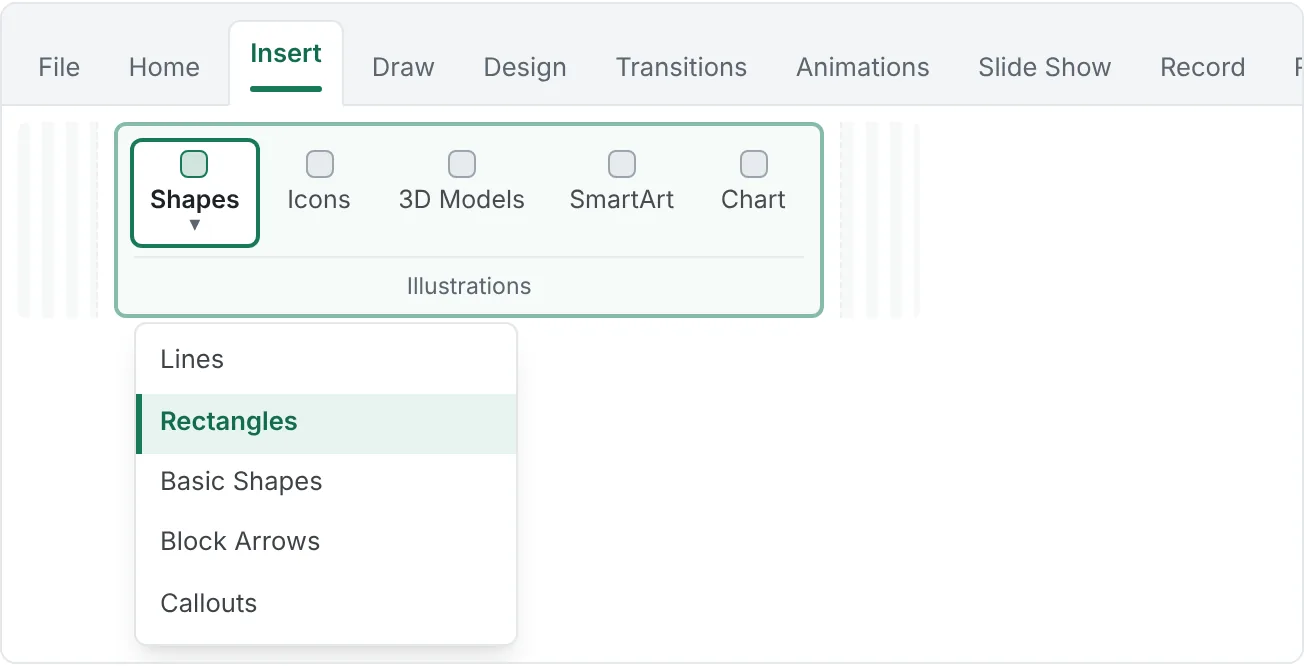
Shapes are for highlighting, framing, and connecting ideas. Find them at Insert then Illustrations then Shapes.
The shapes beginners need:
- Rectangles (and rounded rectangles) for boxes, steps, and labels
- Lines and arrows to connect things or point at something
- Block Arrows (like the chevron) for a simple process
- Callouts, the speech-bubble shapes, for a short comment pointing at something
Drawing tips: click a shape, then drag on the slide. Hold Shift while dragging to get a perfect square or circle, or a perfectly straight line. To put text inside a shape, select it and start typing.
Formatting: select the shape and use the Shape Format tab: Shape Format then Shape Styles then Shape Fill sets the inside color, and Shape Outline sets the border color and weight. Pick one fill color from your theme and use it for every step so the shapes read as a set.
Build a three-step process: draw one rounded rectangle, type Find the link, and format it. Then press Ctrl+D twice to duplicate it, edit the text in the copies (Allow camera and mic, Say hello), and add arrows between them. Select all three boxes and use Shape Format then Arrange then Align to Align Middle and Distribute Horizontally.
Use icons that clarify, not decorate
Icons are small, simple symbols. Used well, they help people find and remember ideas. Used badly, they are clutter.
Insert them with Insert then Illustrations then Icons. Search for a word like microphone, select one or more icons, and click Insert. Icons arrive as scalable graphics, so they stay sharp at any size, and you can recolor them with Graphics Format then Graphics Styles then Graphics Fill.
Three rules for icons:
- Each icon must mean something. A microphone icon next to "Unmute" helps. A random lightbulb next to "Tips" does not.
- Keep one style. Do not mix outline icons with solid ones, or Microsoft icons with clip art from elsewhere. Use the same color and size for every icon in a row.
- Pair icons with words. An icon alone can be misread. A short label underneath removes the guesswork.
Alt text. Screen reader users need a description of any icon or picture that carries meaning. Right-click it and choose View Alt Text (called Edit Alt Text in some versions), then write a short description, like "Microphone icon". If the icon is purely decorative because the label already says everything, tick Mark as decorative instead. Do the same for pictures.
Screenshots that show where to click
For a software lesson, a screenshot with a highlight box is often the clearest slide you can make.
- Open the app or web page you want to show and get it into the right state (for example, the video-call screen with the buttons visible).
- Back in PowerPoint, go to Insert then Images then Screenshot.
- Click a thumbnail under Available Windows to insert the whole window, or choose Screen Clipping, then drag across just the area you need.
- Crop to the relevant area with Picture Format then Size then Crop. A smaller, focused image is easier to read than a full screen shrunk down.
- Add a highlight box: draw a rectangle over the button, set Shape Format then Shape Styles then Shape Fill then No Fill, and give it a thick, bright Shape Outline (around 3 pt). Add an arrow or a short callout if needed.
- Select the screenshot and the highlight box and press Ctrl+G to group them, so they move together.
Common visual mistakes
| Mistake | What it looks like | Fix |
|---|---|---|
| Resizing from a side handle | Stretched faces, oval logos | Reset Picture & Size, then resize from a corner |
| Using a tiny or low-resolution image | Blurry, pixelated photo on the projector | Use the original file or a larger stock image |
| Uncropped photos | The subject is small and the background distracts | Crop tight around what matters |
| Clip art and icons in mixed styles | The slide looks pieced together | Pick one icon set, color, and size |
| Icons with no clear meaning | Decoration that adds nothing | Delete them, or choose icons that match the label |
| Shapes in five different colors | No visual pattern | Use one theme color for all shapes of the same job |
| Full-screen screenshots shrunk to fit | Unreadable menus and tiny text | Use Screen Clipping and crop to the area you need |
| Screenshots with private data | Names, emails, or messages exposed | Clean the screen before capturing; check the image after |
| No alt text | Screen reader users miss the meaning | Add alt text, or mark as decorative |
Practice
Practice
Build a 4-slide visual tutorial
Guided practice
Add four slides to your video-call-workshop.pptx (or teach any app you know).
- Topic title: use the Title Slide or Picture with Caption layout. Insert a photo with Insert then Images then Pictures then This Device or Stock Images. Resize it from a corner only, then crop it so the subject fills the frame.
- Screenshot with highlight: open the app you are teaching, then use Insert then Images then Screenshot then Screen Clipping to capture just the important area. Crop it, add a rectangle with No Fill and a thick outline around the button, add a takeaway title, and group them with Ctrl+G. Check the image for private information.
- Three icons explaining steps: insert three icons from Insert then Illustrations then Icons in one style. Make them the same size and color, add a short label under each, and align them with Align Middle and Distribute Horizontally. Add alt text or mark them as decorative.
- Recap with picture: use Two Content. Put three short recap bullets on one side and a cropped picture on the other. Try Crop to Shape with an oval, and decide whether it helps.
Crop it three ways: duplicate your title photo twice. Crop one tight, one wide, and one to a circle. Keep the version that best supports the message and delete the others.
Independent challenge: fix this broken slide
Make a slide with a deliberately stretched picture, three icons in different styles and colors, and boxes placed by eye. Duplicate it, then fix the copy: reset and resize the picture, swap the icons for one consistent set, and align everything.
Reflect: for each visual on your four slides, write one sentence explaining what it helps the audience understand. Delete any visual you cannot justify.
Check your understanding0 of 4 correct
Pick an answer to see whether it's right and why.
A photo looks too wide for the right half of your slide. What is the best way to make it fit?
Cropping changes the picture's shape without distorting it. Dragging side or top handles stretches the image.
You are making a 'where to click' slide for a video-call app. Which approach is clearest and safest?
A focused, cropped screenshot with a highlight box shows exactly where to click, and checking for names keeps private information off the slide.
A slide has a star icon next to 'Mute', an envelope next to 'Camera', and a house next to 'Leave'. What is the main problem?
Icons should help people recognize the idea. Icons that do not match their labels add confusion. Use icons that represent each action, in one consistent style.
Each icon in your row has a text label underneath that says exactly what it means. What should you do about alt text for the icons?
When nearby text already says what the icon means, marking it decorative stops screen readers from repeating it. Leaving it blank and unmarked will be flagged by the Accessibility Checker.
You're ready to move on when
Tick each one off as you go. Your ticks are saved in this browser only.
Related
Sources and further reading
Was this guide helpful? Spot a mistake? Send feedback · admin@arumsoft.com