Checkboxes and Pictures in Cells in Excel
Add tick boxes that count themselves, strike through finished tasks, and place pictures inside cells so they sort and filter with their rows.
- Level
- Beginner
- Time
- 10 min read
- Updated:
- Applies to:
- Excel for Microsoft 365, Excel for the web (checkboxes); Excel for Microsoft 365, Excel 2024 (pictures in cells, IMAGE)
What you'll learn
- Insert checkboxes in cells and tick them with the mouse or Space
- Count ticked boxes and show progress with COUNTIF
- Strike through finished tasks with conditional formatting
- Place a picture in a cell, or show one from the web with IMAGE
- Add alt text and choose between pictures in and over cells
Before you start
Two recent Excel features put things inside a cell that used to float on top of the sheet. A checkbox in a cell holds TRUE when it's ticked and FALSE when it isn't, so formulas can count it and conditional formatting can react to it. A picture in a cell behaves like a value: it stays with its row when you sort, filter or resize. Select a checkbox and press Space to tick it.
Both are new, so check your version first. Checkboxes in cells are in Microsoft 365 only (Windows, Mac and the web). Pictures in cells and the IMAGE function are in Microsoft 365 and Excel 2024. Older versions use the Developer tab checkbox described further down.
The examples use this event to-do list.
| A | B | C | D | |
|---|---|---|---|---|
| 1 | Task | Owner | Due | Done |
| 2 | Book venue | Mia | 2026-11-02 | TRUE |
| 3 | Send invitations | Leo | 2026-11-05 | TRUE |
| 4 | Order catering | Mia | 2026-11-10 | FALSE |
| 5 | Print name tags | Sam | 2026-11-12 | TRUE |
| 6 | Set up sound | Leo | 2026-11-14 | FALSE |
| 7 | Prepare slides | Sam | 2026-11-15 | FALSE |
Where to find it
Checkboxes are on the Insert tab, in the Cell Controls group.
Pictures in cells are under Pictures in the Illustrations group, which has two choices: Place over Cells (the classic floating picture) and Place in Cell.
Add checkboxes to a list
Select the cells
Select D2:D7. Checkboxes work best in empty cells: Excel turns each empty cell into an empty box with the value FALSE.
Insert the checkboxes
Go to Insert then Cell Controls then Checkbox. A box appears in each cell. Cells that already held TRUE or FALSE become ticked or empty boxes; numbers and text are left as they are.
Tick them
Click a box to tick it, or select the cell and press Space. Select several checkbox cells and press Space to toggle them all at once. Tick D2, D3 and D5.
A B C D 1 Task Owner Due Done 2 Book venue Mia 2026-11-02 TRUE 3 Send invitations Leo 2026-11-05 TRUE 4 Order catering Mia 2026-11-10 FALSE 5 Print name tags Sam 2026-11-12 TRUE 6 Set up sound Leo 2026-11-14 FALSE 7 Prepare slides Sam 2026-11-15 FALSE Three tasks ticked. The formula bar shows TRUE for D2: a ticked box is just the value TRUE with checkbox formatting.
A checkbox is a kind of cell formatting. The value underneath is an ordinary TRUE or FALSE, so typing TRUE in the cell ticks the box, and Format Painter copies checkboxes to other cells. A checkbox on a cell that holds a formula shows the formula's result, but you can't tick it by hand.
Remove checkboxes
Select the cells and press Delete. If every box is empty, the checkboxes are removed. If some are ticked, the first Delete clears the ticks and a second one removes the boxes. To keep the TRUE and FALSE values but lose the boxes, use Home then Editing then Clear then Clear Formats.
Count ticked boxes
Because ticked boxes are TRUE, COUNTIF counts them:
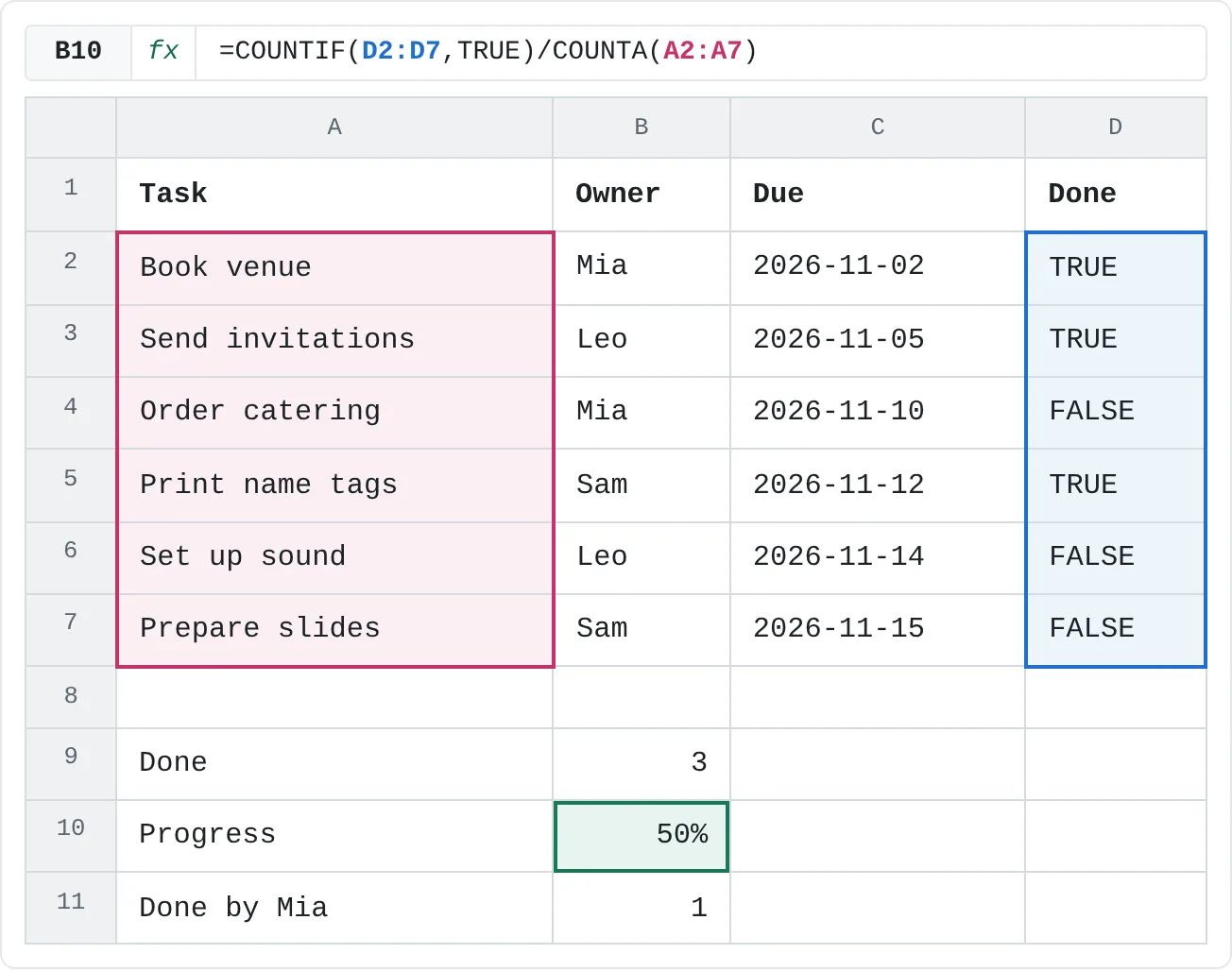
=COUNTIF(D2:D7,TRUE)With the three ticks above, it returns 3. Divide by the number of tasks to show progress, and format the cell as a percentage:
=COUNTIF(D2:D7,TRUE)/COUNTA(A2:A7)| A | B | C | D | |
|---|---|---|---|---|
| 1 | Task | Owner | Due | Done |
| 2 | Book venue | Mia | 2026-11-02 | TRUE |
| 3 | Send invitations | Leo | 2026-11-05 | TRUE |
| 4 | Order catering | Mia | 2026-11-10 | FALSE |
| 5 | Print name tags | Sam | 2026-11-12 | TRUE |
| 6 | Set up sound | Leo | 2026-11-14 | FALSE |
| 7 | Prepare slides | Sam | 2026-11-15 | FALSE |
| 8 | ||||
| 9 | Done | 3 | ||
| 10 | Progress | 50% | ||
| 11 | Done by Mia | 1 |
Other formulas work the same way: =COUNTIF(D2:D7,FALSE) counts what's left, =IF(D2,"Done","To do") labels a row, and =SUMIF(D2:D7,TRUE,E2:E7) would add up the amounts in a column E for ticked rows only.
Strike through finished tasks
Conditional formatting can gray out or cross out a task as soon as its box is ticked.
Select the tasks
Select A2:C7, the cells to format (not the checkboxes).
Create a formula rule
Go to Home then Styles then Conditional Formatting then New Rule and choose Use a formula to determine which cells to format. Type the formula below. The
$keeps every cell in the row looking at column D.=$D2=TRUEA formula rule that applies when the checkbox in the same row is ticked. Choose strikethrough
Click Format..., open the Font tab, tick Strikethrough and pick a gray Color if you like. Click OK twice. Tick or untick a box and the row changes straight away.
Older versions: the Developer tab checkbox
Before checkboxes in cells, Excel had a Check Box form control: a small object that floats over the sheet and writes TRUE or FALSE into a linked cell. It works in every desktop version.
Show the Developer tab
Go to File then Options then Customize Ribbon, tick Developer in the list on the right and click OK.
Draw a checkbox
Go to Developer then Controls then Insert and click Check Box under Form Controls. Click on the sheet to place it. To change its label, right-click it and choose Edit Text.
Link it to a cell
Right-click the checkbox, choose Format Control and open the Control tab. Click in Cell link, click the cell that should hold the result, such as D2, and click OK. Ticking the box now puts TRUE in D2.
The Control tab links the floating checkbox to D2, which then holds TRUE or FALSE.
| Checkbox in a cell | Developer tab Check Box | |
|---|---|---|
| Versions | Microsoft 365 | All desktop versions |
| Where the value lives | In the cell itself | In a separate linked cell |
| Sort, filter, fill down | Moves and copies with the cell | Floats; each copy needs its own cell link |
If someone opens your file in a version without checkboxes in cells, they see the TRUE and FALSE values instead of boxes, and your formulas still work.
Put pictures in cells
A picture placed in a cell is part of the cell, like a number. A picture placed over cells floats on top and is positioned on its own.
| Place in Cell | Place over Cells | |
|---|---|---|
| Size | Fits inside the cell, keeping its shape | Any size you drag it to |
| Sort and filter | Moves with its row | Doesn't follow the rows |
| In formulas | Can be referenced like a value | No |
| Best for | Product lists, staff lists, catalogs | Logos, diagrams, annotated screenshots |
Select the cell
In the product list below, click C2.
Insert the picture
Go to Insert then Illustrations then Pictures then Place in Cell, choose This Device, pick a photo and click Insert. If you pick several pictures, each one goes into its own cell, starting from C2, and replaces whatever was in those cells.
Make it bigger
The picture shrinks to fit the cell. Make the row taller and the column wider and the picture grows with them.
A B C D E 1 Code Product Picture Price Stock 2 L-01 Desk lamp (picture) 18.5 24 3 L-02 Floor lamp (picture) 49 8 4 C-01 Office chair (picture) 120 5 5 S-01 Bookshelf (picture) 85 12 6 S-02 Storage box (picture) 9.9 60 A product list with a photo in each cell of C2:C6, marked (picture) here. Sort by price and every photo stays next to its product.
To convert a floating picture, right-click it and choose Place in Cell; it moves into the cell under its top-left corner. To go the other way, right-click the cell and choose Picture in Cell › Place over Cells. To paste a copied picture into a cell, right-click the cell and look under Paste Options for the in-cell choice; plain Ctrl+V pastes it over the cells.
Add alt text
Screen readers can't describe a photo on their own. Right-click the cell with the picture, choose the Alt Text command (its exact wording varies by version) and type a short description, such as Black metal desk lamp.
Show a picture from the web with IMAGE
The IMAGE function shows a picture from a web address inside the cell. Nothing is inserted from your computer: the cell holds a formula, so you can fill it down a whole list of addresses.
=IMAGE("https://www.example.com/images/desk-lamp.png","Desk lamp")- source: the picture's address. It must start with
https://. Supported formats include PNG, JPG, GIF, BMP and WEBP. - alt_text (optional): the description screen readers read out.
- sizing (optional): 0 fits the picture in the cell and keeps its shape (the default), 1 fills the cell, 2 keeps the original size, 3 uses the height and width you give in pixels.
If the address is in a cell, refer to it: =IMAGE(F2,B2) uses the link in F2 and the product name in B2 as alt text. #CONNECT! means the picture couldn't be downloaded, and #BLOCKED! means your security settings block it. Addresses that need a sign-in don't work.
Real-world scenarios
A catalog the sales team can sort
An online shop keeps one row per product with a photo, the price and the stock count. Staff sort by stock to see what to reorder.
| A | B | C | D | E | |
|---|---|---|---|---|---|
| 1 | Code | Product | Picture | Price | Stock |
| 2 | L-01 | Desk lamp | (picture) | 18.5 | 24 |
| 3 | L-02 | Floor lamp | (picture) | 49 | 8 |
| 4 | C-01 | Office chair | (picture) | 120 | 5 |
| 5 | S-01 | Bookshelf | (picture) | 85 | 12 |
| 6 | S-02 | Storage box | (picture) | 9.9 | 60 |
With Place in Cell, sorting by Stock keeps every photo next to its product. Floating pictures would stay where they were and end up beside the wrong rows.
A reading log that adds up pages
A student ticks off books from a summer reading list and wants to know how many pages that adds up to.
| A | B | C | |
|---|---|---|---|
| 1 | Book | Pages | Read |
| 2 | The Giver | 180 | TRUE |
| 3 | Wonder | 240 | TRUE |
| 4 | Poems for Spring | 96 | FALSE |
| 5 | Holes | 312 | TRUE |
| 6 | Hatchet | 150 | FALSE |
| 7 | Pages read | 732 |
=SUMIF(C2:C6,TRUE,B2:B6) returns 732: 180 + 240 + 312. Ticking another book updates the total at once.
A packing list for a holiday
A family packing list has a checkbox for each item. The last row says how much is still to pack.
| A | B | |
|---|---|---|
| 1 | Item | Packed |
| 2 | Passport | TRUE |
| 3 | Phone charger | FALSE |
| 4 | Sunscreen | TRUE |
| 5 | Swimsuit | TRUE |
| 6 | Medicine | FALSE |
| 7 | Rain jacket | TRUE |
| 8 | Travel adapter | FALSE |
| 9 | Sunglasses | TRUE |
| 10 | Still to pack | 3 |
=COUNTIF(B2:B9,FALSE) counts the empty boxes: 3. Add the strikethrough rule from earlier and the list crosses itself off as you pack.
Common mistakes
- Counting ticks with
COUNTA. An empty box still holds FALSE, soCOUNTA(D2:D7)counts every checkbox, ticked or not, andCOUNTignores TRUE and FALSE altogether. UseCOUNTIF(D2:D7,TRUE). - Checkboxes that don't appear. The cells held text or numbers. Checkboxes show only on empty cells and cells with TRUE or FALSE. Clear the cells and insert them again.
- Pressing Delete once and expecting the boxes to go. The first press clears ticks. Press it again.
- Copying Developer tab checkboxes. The copies stay linked to the original cell, so ticking one ticks them all. Set each copy's Cell link, or switch to checkboxes in cells.
- Pictures over cells in a list. They don't follow sorting or filtering. Right-click each one and choose Place in Cell.
- Sharing with older versions. People without these features see TRUE and FALSE instead of boxes, and an error such as #UNKNOWN! instead of a picture in a cell.
Practice
Practice
Build a to-do list that tracks itself
- Type the to-do list from the top of this page, leaving D2:D7 empty.
- Insert checkboxes in D2:D7 and tick three tasks with Space.
- In B9, count the ticked boxes, and in B10 show the share of tasks done as a percentage.
- Add a conditional formatting rule that strikes through the task, owner and date of ticked rows.
- Add a column E called Photo and place a picture from your computer in E2 with Place in Cell. Give it alt text.
- Sort the list by Due, newest first, and check that the picture and the ticks stayed with their rows.
Try it0 of 3 done
- In B9, count the ticked boxes in D2:D7.
- In B10, divide the ticked boxes by the number of tasks in A2:A7 to get the progress.
- In B11, count Mia's tasks that are ticked.
Click a dashed cell, type a formula in the bar and press Enter.
| A | B | C | D | |
|---|---|---|---|---|
| 1 | Task | Owner | Due | Done |
| 2 | Book venue | Mia | 2026-11-02 | TRUE |
| 3 | Send invitations | Leo | 2026-11-05 | TRUE |
| 4 | Order catering | Mia | 2026-11-10 | FALSE |
| 5 | Print name tags | Sam | 2026-11-12 | TRUE |
| 6 | Set up sound | Leo | 2026-11-14 | FALSE |
| 7 | Prepare slides | Sam | 2026-11-15 | FALSE |
| 8 | ||||
| 9 | Done | |||
| 10 | Progress | |||
| 11 | Done by Mia |
Related
Was this guide helpful? Spot a mistake? Send feedback · admin@arumsoft.com