Merge & Center and Wrap Text in Excel
Center a title over a table, fit long text inside a cell with Wrap Text and line breaks, and avoid the problems merged cells cause.
- Level
- Beginner
- Time
- 9 min read
- Updated:
- Applies to:
- Excel for Microsoft 365, Excel 2021, Excel 2019, Excel for the web
What you'll learn
- Merge cells to center a title, and unmerge them again
- Center a title with Center Across Selection instead of merging
- Wrap long text inside a cell and add a line break where you want one
- Find and fix merged cells that stop a list from sorting
Before you start
Two alignment commands solve most "this text doesn't fit" problems. Merge & Center joins several cells into one and centers the text across them, which is the usual way to put a title over a table. Wrap Text keeps long text inside its own cell by breaking it onto several lines. Merging has side effects that wrapping doesn't, so this guide also shows Center Across Selection, which gives the same centered title without merging anything. For a line break in a particular place, press Alt+Enter while you type.
Where to find them
Both commands are in the Alignment group of the Home tab. The small arrow next to Merge & Center opens a menu with the other merge options.
- Home then Alignment then Wrap Text turns wrapping on or off for the selected cells.
- Home then Alignment then Merge & Center merges the selection and centers its text. Clicking it again on a merged cell unmerges it.
- Right-click the selection and choose Format Cells, or press Ctrl+1, then open the Alignment tab. It has Wrap text and Merge cells check boxes and the Horizontal list, where Center Across Selection lives.
Merge and center a title
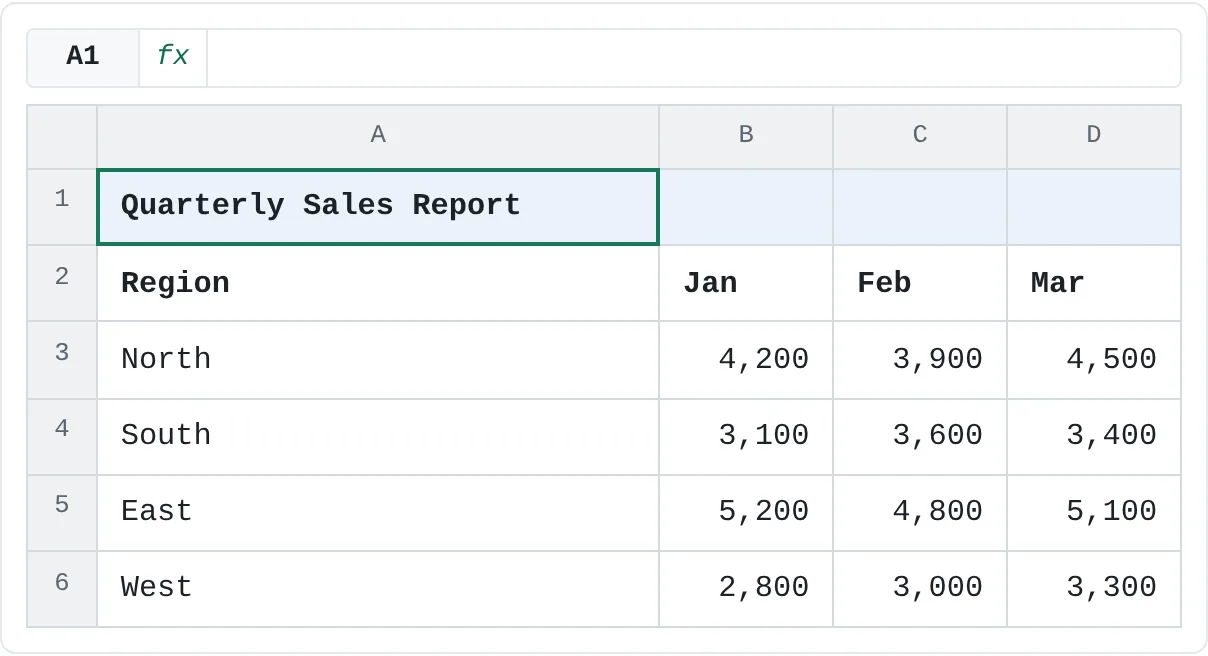
The report below has its title in A1 and the table underneath in A2:D6.
Select the title and the cells it should span
Select A1:D1: the title cell plus the empty cells to its right, as wide as the table.
A B C D 1 Quarterly Sales Report 2 Region Jan Feb Mar 3 North 4,200 3,900 4,500 4 South 3,100 3,600 3,400 5 East 5,200 4,800 5,100 6 West 2,800 3,000 3,300 Before: the title sits in A1 at the left edge. A1:D1 is selected. Click Merge & Center
Click Home then Alignment then Merge & Center. The four cells become one cell, still called A1, and the title is centered over columns A to D.
If more than one of the selected cells holds a value, Excel warns that merging keeps only the upper-left value and discards the others. Click Cancel if you didn't expect that message, and move the other values out first.
The other choices in the Merge & Center menu:
| Option | What it does |
|---|---|
| Merge & Center | Merges the selection into one cell and centers the text. |
| Merge Across | Merges each selected row separately. Selecting A1:D3 gives three merged cells: A1:D1, A2:D2 and A3:D3. |
| Merge Cells | Merges into one cell but keeps the text's existing alignment. |
| Unmerge Cells | Splits a merged cell back into separate cells. The text stays in the upper-left cell. |
Why merged cells cause trouble
A merged cell is one cell pretending to be several. That breaks things you'll want to do later:
- Sorting stops. If a list contains merged cells of different sizes, Excel refuses to sort it and says that all the merged cells need to be the same size.
- Selections grow. Click inside a merged title and drag down, and the selection widens to every column the merge covers.
- Only one cell holds the value. In this list, "East" belongs to rows 2 and 3, but after merging A2:A3 only A2 contains it. A3 is empty, so a filter or a
COUNTIFon column A misses Store 2.
| A | B | C | |
|---|---|---|---|
| 1 | Region | Store | Sales |
| 2 | East | Store 1 | 5,200 |
| 3 | Store 2 | 4,100 | |
| 4 | West | Store 3 | 3,900 |
| 5 | Store 4 | 4,600 |
To fix a list like this, select column A, open the Merge & Center menu and choose Unmerge Cells. Then type the region into every row it belongs to.
| A | B | C | |
|---|---|---|---|
| 1 | Region | Store | Sales |
| 2 | East | Store 1 | 5,200 |
| 3 | East | Store 2 | 4,100 |
| 4 | West | Store 3 | 3,900 |
| 5 | West | Store 4 | 4,600 |
To find merged cells hiding in a big sheet, press Ctrl+F, click Options, click Format, tick Merge cells on the Alignment tab, click OK and then Find All.
Center a title without merging
Center Across Selection centers text over several cells but leaves them as separate cells. You get the look of Merge & Center with none of the side effects.
Select the title and the empty cells beside it
Select A1:D1. The title must be in the leftmost cell and the other cells must be empty.
Open Format Cells
Press Ctrl+1 and click the Alignment tab.
Choose Center Across Selection
In the Horizontal list, choose Center Across Selection and click OK.
Format Cells, Alignment tab: Horizontal set to Center Across Selection, with Merge cells left unticked.
The title now appears centered over A1:D1, but click B1 and you'll see it's still an ordinary empty cell. You can select, sort and fill columns as usual. It works only across a row (there's no vertical version), and it stops at the first cell that isn't empty. To undo it, set Horizontal back to General.
Wrap long text in a cell
When a heading is longer than its column is wide, it spills into the next cell, or is cut off if that cell isn't empty. Here B1 is cut off by C1.
| A | B | C | |
|---|---|---|---|
| 1 | Name | Hours th | Overtime hours |
| 2 | Mia | 40 | 0 |
| 3 | Noah | 45 | 5 |
| 4 | Olivia | 38 | 0 |
Select the cells
Select B1:C1.
Click Wrap Text
Click Home then Alignment then Wrap Text. Each heading breaks onto as many lines as it needs, and row 1 grows taller to fit.
A B C 1 Name Hours this week Overtime hours 2 Mia 40 0 3 Noah 45 5 4 Olivia 38 0 After: both headings wrap onto two lines inside their own cells, and the columns stay narrow.
Where the text breaks depends on the column width. Make a column wider and the text rewraps onto fewer lines.
Put a line break exactly where you want it
To choose where a line ends, edit the cell (double-click it or press F2), click where the new line should start and press Alt+Enter. Excel turns on Wrap Text for that cell for you. Press Enter when you've finished, as usual.
Real-world scenarios
An address block on an invoice
An invoice needs the customer's name, street and city in one cell, each on its own line. Type the name, press Alt+Enter, type the street, press Alt+Enter again and type the city.
| A | B | |
|---|---|---|
| 1 | Bill to | Harbor Supply Co. 18 Market Street Portland, OR 97201 |
| 2 | Invoice no. | INV-2041 |
| 3 | Date | 2026-10-12 |
The address is one value, so it copies, prints and fills into a mail merge as a single block. Each line ends exactly where you pressed Alt+Enter, whatever the column width.
An assignment tracker that stays readable
The descriptions in column B are long. Instead of making column B very wide, give it a sensible width and turn on Wrap Text for B2:B4.
| A | B | C | |
|---|---|---|---|
| 1 | Subject | Assignment | Due |
| 2 | History | Read chapter 4 and answer questions 1-6 | 2026-10-15 |
| 3 | Biology | Lab report on plant cells with one labeled diagram | 2026-10-17 |
| 4 | English | Write a 300-word review of the class novel | 2026-10-20 |
The whole tracker fits on one screen and prints on one page across. If a row doesn't grow after you wrap, its height was set by hand earlier: choose Home then Cells then Format then AutoFit Row Height.
City headings over a trip budget
A trip budget has Plan and Actual columns for each city. The city names in B1 and D1 should sit centered over their two columns. Select B1:E1, press Ctrl+1 and choose Center Across Selection.
| A | B | C | D | E | |
|---|---|---|---|---|---|
| 1 | Paris | Rome | |||
| 2 | Item | Plan | Actual | Plan | Actual |
| 3 | Hotel | 600 | 640 | 450 | 430 |
| 4 | Food | 300 | 280 | 250 | 270 |
| 5 | Transport | 120 | 150 | 90 | 80 |
One selection handles both cities: each name is centered across the empty cells to its right, up to the next cell that has something in it. Because nothing is merged, you can still select column C on its own, or sort the rows under the headings.
Common mistakes
- Merging inside a data list. Merged cells in the rows of a list stop sorting and leave blanks that filters and formulas miss. Keep merges, if any, for titles above the data.
- Losing values when you merge. Only the upper-left value survives. If Excel warns you, cancel and move the other values first.
- A wrapped row that doesn't grow. The row height was set manually, or the cell is merged. Use AutoFit Row Height for the first; for a merged cell, drag the row taller yourself, because AutoFit doesn't size rows for merged cells.
- Center Across Selection that does nothing. The cells to the right aren't empty, even if they look it (a space counts). Clear them and try again.
- Expecting Wrap Text to make the column wider. Wrap Text changes the row height, not the column width. Widen the column yourself if the text breaks into too many lines.
Practice
Practice
Lay out a small report
Type the quarterly sales report from this page into a new sheet, then:
- Merge and center the title over A1:D1. Click B1 and notice that you can't select it on its own.
- Unmerge the title, then center it with Center Across Selection instead. Click B1 again.
- Change the header B2 to
January sales totaland turn on Wrap Text for it. - In an empty cell, type your name and address on three lines using Alt+Enter.
- Merge A3:A4 (click OK at the warning), then try to sort the table by column B and read the message. Undo the merge with Ctrl+Z.
Related
Was this guide helpful? Spot a mistake? Send feedback · admin@arumsoft.com