IEEE Two-Column Conference Paper Template for Word
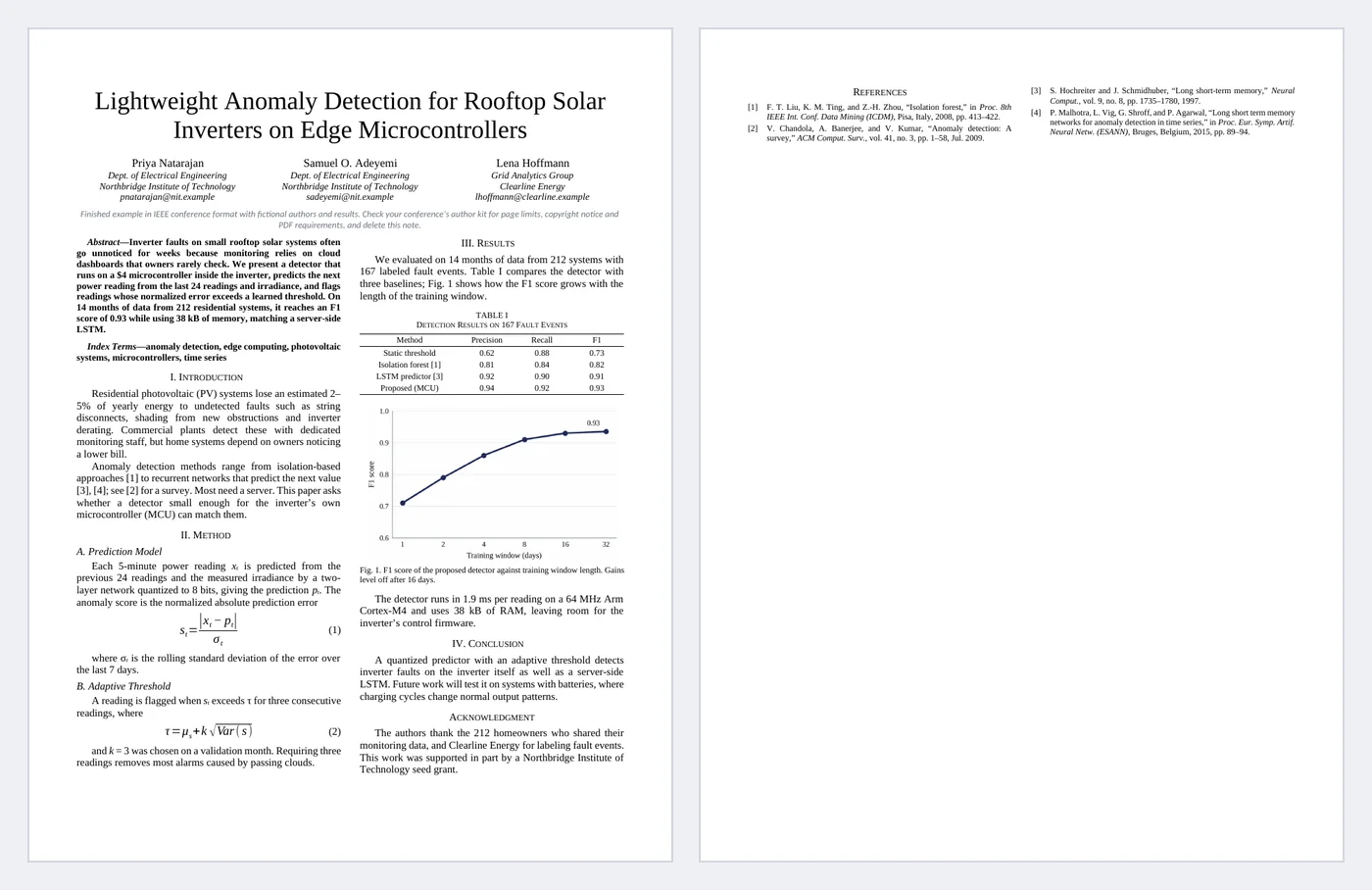
IEEE conference papers look the way they do because of a handful of Word features: section breaks that switch from one column to two on the same page, list numbering that makes I., II., III. headings, equations on a tab-stopped line with the number at the right, and caption fields for tables and figures. This template is a finished two-page example (fictional study, real references) with all of them set up, so you replace the text instead of fighting the layout.
- Pages:
- 2
- Works with:
- Word for Microsoft 365, Word 2016 or later, Word for Mac (Word for the web can fill in fields)
- Updated:
What you can do with it
- One-column title and three-author block, then a continuous section break into two columns
- Abstract and Index Terms in bold 9 pt, headings numbered I., II. in small caps and A., B. in italics
- Two real Word equations with right-aligned (1), (2) numbers from SEQ Equation fields
- TABLE I caption above the table, Fig. 1 caption below the chart, and references numbered [1]–[4]
What's inside
The document has 2 pages. Each part below is a heading in the file, so you can jump to it from the Navigation Pane (View > Navigation Pane).
| Part | What it covers | What you write |
|---|---|---|
| Title block (one column) | Who and what | Title, three authors with department, organization and email |
| Abstract and Index Terms | The paper in a paragraph and its keywords | Bold 9 pt, italic labels |
| Body (two columns) | Introduction to Conclusion | Roman-numeral sections, lettered subsections, numbered equations |
| Results | Evidence | TABLE I with small-caps title; Fig. 1 with caption |
| Back matter | Thanks and sources | Acknowledgment, [1]-numbered references, balanced final columns |
Before you start
- Download your conference’s author kit: page limit, paper size (US letter or A4), copyright notice, and PDF settings (often IEEE PDF eXpress) may differ from this sample.
- Prepare figures at least 300 dpi and wide enough for one column (3.5 in) or both columns (7.16 in).
- Number references in the order you cite them.
Step-by-step guide
Replace the title and authors
Type over the title and each author’s name, department, organization and email. Delete the third author’s cell contents if you have two authors.
Write the abstract and index terms
Keep the italic “Abstract—” and “Index Terms—” labels and type your text after the dash.
Write the sections
Pick Heading 1 for sections and Heading 2 for subsections; the I., II. and A., B. numbers follow.
Edit the equations
Click inside an equation to edit it in Word’s equation editor. Copy an equation line to add another; its number updates when you update fields.
Replace the table and figure
Type over the table, right-click the chart > Change Picture for your figure, and edit both captions.
Finish the references and export
Edit the [1]–[4] entries, update fields (Ctrl+A, F9), delete the gray note and export to PDF as your conference requires.
Field and control map
Every content control and field in the document, in the order they appear. Gray-boxed fields in Word are the content controls.
| Name | Type | Where | Value in the sample |
|---|---|---|---|
| Paper title | Text | Body | Lightweight Anomaly Detection for Rooftop Solar Inverters on Edge Microcontrollers |
| Author 1 name | Text | Body | Priya Natarajan |
| Author 1 department | Text | Body | Dept. of Electrical Engineering |
| Author 1 organization | Text | Body | Northbridge Institute of Technology |
| Author 1 email | Text | Body | pnatarajan@nit.example |
| Author 2 name | Text | Body | Samuel O. Adeyemi |
| Author 2 department | Text | Body | Dept. of Electrical Engineering |
| Author 2 organization | Text | Body | Northbridge Institute of Technology |
| Author 2 email | Text | Body | sadeyemi@nit.example |
| Author 3 name | Text | Body | Lena Hoffmann |
| Author 3 department | Text | Body | Grid Analytics Group |
| Author 3 organization | Text | Body | Clearline Energy |
| Author 3 email | Text | Body | lhoffmann@clearline.example |
| Index terms | Text | Body | anomaly detection, edge computing, photovoltaic systems, microcontrollers, time series |
{ SEQ Equation \* ARABIC } | Field | Body | 1, 2, I, 1 |
Every field, control and style, explained
The code in each card is read straight from the .docx file (the XML Word stores, or the field code you see with Alt+F9), so it is exactly what the template contains.
<w:type w:val="continuous"/>
<w:cols w:space="360" w:num="2" w:equalWidth="true"/>
The title and author block is a one-column section. A continuous section break then starts a two-column section for the body, so both layouts share the first page. A final continuous section break balances the two columns on the last page.
Piece by piece
<w:type w:val="continuous"/>- The new section starts on the same page, not a new one.
<w:cols w:num="2" w:space="360"/>- Two equal columns with 0.25 inch between them.
<w:pgMar w:top="1080" w:left="900" w:right="900"/>- IEEE US-letter margins: 0.75 in top, 0.625 in sides.
In the sample: Page 1: one-column title block, then two columns
How it is used: Type in the body as usual; text flows from the left column to the right. Press Ctrl+Shift+Enter for a column break if you need one.
How to change it: Layout > Columns changes the number of columns for the section the cursor is in. Home > Show/Hide (Ctrl+Shift+8) shows the section breaks.
Learn this: How to Use Section Breaks, Columns, and Different Headers in Word →<w:lvl w:ilvl="0" w:tentative="1">
<w:start w:val="1"/>
<w:numFmt w:val="upperRoman"/>
<w:suff w:val="space"/>
<w:lvlText w:val="%1."/>
<w:lvlJc w:val="center"/>
<w:pPr>
<w:ind w:left="0" w:hanging="0"/>
</w:pPr>
</w:lvl>
<w:lvl w:ilvl="1" w:tentative="1">
<w:start w:val="1"/>
<w:numFmt w:val="upperLetter"/>
<w:suff w:val="space"/>
<w:lvlText w:val="%2."/>
<w:lvlJc w:val="left"/>
<w:pPr>
<w:ind w:left="288" w:hanging="288"/>
</w:pPr>
</w:lvl>Section headings are numbered I., II., III. in small capitals, and subsections A., B. in italics. The numbers come from a multilevel list, so they renumber when you add or move a section.
Piece by piece
<w:numFmt w:val="upperRoman"/>- Level 1 counts I, II, III.
<w:numFmt w:val="upperLetter"/>- Level 2 counts A, B, C and restarts under each section.
<w:suff w:val="space"/>- A space, not a tab, after the number.
<w:smallCaps/>- Heading 1 text in small capitals.
In the sample: Introduction, Method, Prediction Model
How it is used: Type a heading and pick Heading 1 or Heading 2; the number appears. Acknowledgment and References are Heading 1 without a number.
How to change it: Right-click the number > Adjust List Indents, or Home > Multilevel List > Define New List, to change the format.
Learn this: How to Use Bullets, Numbered Lists, and Tabs in Word →{ SEQ Equation \* ARABIC }
<w:style w:type="paragraph" w:styleId="Equation">
<w:name w:val="Equation"/>
<w:basedOn w:val="Normal"/>
<w:pPr>
<w:tabs>
<w:tab w:val="center" w:pos="2520"/>
<w:tab w:val="right" w:pos="5040"/>
</w:tabs>
<w:spacing w:after="80" w:before="80" w:line="240" w:lineRule="auto"/>
</w:pPr>
</w:style>Each equation is a real Word equation (Office Math) centered with a tab stop, with its number in parentheses at the right margin. The number is a SEQ Equation field, so equations renumber when you add one.
Piece by piece
<w:tab w:val="center" w:pos="2520"/>- Center tab in the middle of the column for the equation.
<w:tab w:val="right" w:pos="5040"/>- Right tab at the column edge for the number.
<m:oMath>- The equation itself, editable in Word’s equation editor.
SEQ Equation- A counter for equations, separate from tables and figures.
In the sample: 2 numbered equations: (1) … (2)
How it is used: Copy an equation line, click inside the equation and edit it, or delete it and press Alt+= to insert a new one between the tabs.
How to change it: To cite an equation in the text, use References > Cross-reference on the number, or type it as (1).
Learn this: How to Add a Table of Contents, Captions, and Cross-References in Word →<w:lvl w:ilvl="0" w:tentative="1">
<w:start w:val="1"/>
<w:numFmt w:val="decimal"/>
<w:lvlText w:val="[%1]"/>
<w:lvlJc w:val="left"/>
<w:pPr>
<w:ind w:left="360" w:hanging="360"/>
</w:pPr>
</w:lvl>References are numbered [1], [2], [3] by a list format, in the order they are first cited in the text. Delete or insert a reference and the numbers update; in-text citations like [3] are typed by you.
Piece by piece
<w:lvlText w:val="[%1]"/>- The number in square brackets.
<w:ind w:left="360" w:hanging="360"/>- Hanging indent so text lines up after the number.
<w:sz w:val="16"/>- 8-point text, as IEEE requires for references.
In the sample: 4 references, [1] to [4]
How it is used: Add a reference by pressing Enter at the end of the last one. Check that the in-text numbers still match.
How to change it: For many references, a reference manager with the IEEE style can insert and number them for you.
Learn this: How to Add Footnotes, Citations, and a Bibliography in Word →{ SEQ Table \* ROMAN }Each table caption uses a SEQ field that counts tables in order. Insert a new captioned table in the middle and every later caption renumbers.
Piece by piece
SEQ Table- A counter named "Table". Every SEQ Table field adds 1.
\* ARABIC- Show the counter as 1, 2, 3.
In the sample: 1 caption(s): Table I
How it is used: Captions are what a "see Table 2" cross-reference points to (References > Cross-reference).
How to change it: References > Insert Caption adds a new one. If numbers look stale, press Ctrl+A then F9 to update all fields.
Learn this: How to Add a Table of Contents, Captions, and Cross-References in Word →<w:sdtPr>
<w:alias w:val="Paper title"/>
<w:tag w:val="paper_title"/>
<w:text/>
</w:sdtPr>Names, numbers and other details people change every time are plain text content controls. Click one and type: the text replaces the sample, keeps the formatting, and the field still shows its name when selected.
Piece by piece
<w:alias w:val="…"/>- The title shown on the control’s tab when you click it.
<w:tag w:val="…"/>- A machine-readable name, useful for mail merge or code.
<w:text/>- Plain text: one line, one format, so pasted text cannot break the layout.
<w:showingPlcHdr/>- Present when the field shows gray placeholder text instead of a value.
In the sample: Paper title = Lightweight Anomaly Detection for Rooftop Solar Inverters on Edge Microcontrollers
How it is used: 14 in this template: Paper title, Author 1 name, Author 1 department, Author 1 organization, Author 1 email, Author 2 name, Author 2 department, Author 2 organization, Author 2 email, Author 3 name, Author 3 department, Author 3 organization, Author 3 email, Index terms. Use Developer > Design Mode to see every control at once, or the Selection Pane to jump between them.
How to change it: Developer > Properties changes the title, tag and placeholder. To show the Developer tab: File > Options > Customize Ribbon > Developer.
Learn this: How to Create Fillable Forms with Content Controls in Word →{ SEQ Figure \* ARABIC }Figures are pictures in line with the text, kept with the caption below them. The caption number is a SEQ Figure field, so figures renumber like tables do, and a table of figures can be built from them.
Piece by piece
SEQ Figure- A counter named "Figure", separate from the Table counter.
keepNext- The picture paragraph stays on the same page as its caption.
In the sample: 1 figure(s); captions read Figure 1 …
How it is used: To replace the chart, right-click it > Change Picture. Keep the picture "In Line with Text" so the caption follows it.
How to change it: References > Insert Table of Figures lists every caption with page numbers.
Learn this: How to Build an Index, Table of Figures, and Bookmarks in Word →<w:style w:type="paragraph" w:styleId="Guidance">
<w:name w:val="Guidance"/>
<w:basedOn w:val="Normal"/>
<w:pPr>
<w:spacing w:after="120" w:before="120" w:line="240" w:lineRule="auto"/>
<w:jc w:val="center"/>
</w:pPr>
<w:rPr>
<w:i/>
<w:iCs/>
<w:color w:val="6B7280"/>
<w:sz w:val="17"/>
</w:rPr>
</w:style>Instructions for whoever fills in the template use a Guidance style (gray italics). Delete them before you send the document; with a style, Find and Replace can remove them all at once.
Piece by piece
<w:i/>- Italic.
<w:color w:val="6B7280"/>- Gray text.
In the sample: One note under the title block.
How it is used: Home > Replace > More > Format > Style > Guidance finds every note.
How to change it: Right-click Guidance in the Styles gallery > Modify.
Learn this: How to Use Styles and the Navigation Pane in Word →Tips and limits
- Do not put page numbers, headers or footers in a camera-ready IEEE conference paper unless the conference asks.
- Abbreviate “Fig. 1” in text and captions, but write “Figure 1” at the start of a sentence.
- Wide tables and figures can span both columns: put them in a one-column section between two continuous section breaks.
- IEEE uses an em dash after the Abstract and Index Terms labels; keep the formatting when you paste text.
- Equation numbers, TABLE I and Fig. 1 are fields. If one shows the wrong number, select all and press F9.
Learn the skills behind this template
Was this guide helpful? Spot a mistake? Send feedback · admin@arumsoft.com