Subcontractor Bid Leveling Matrix for Excel
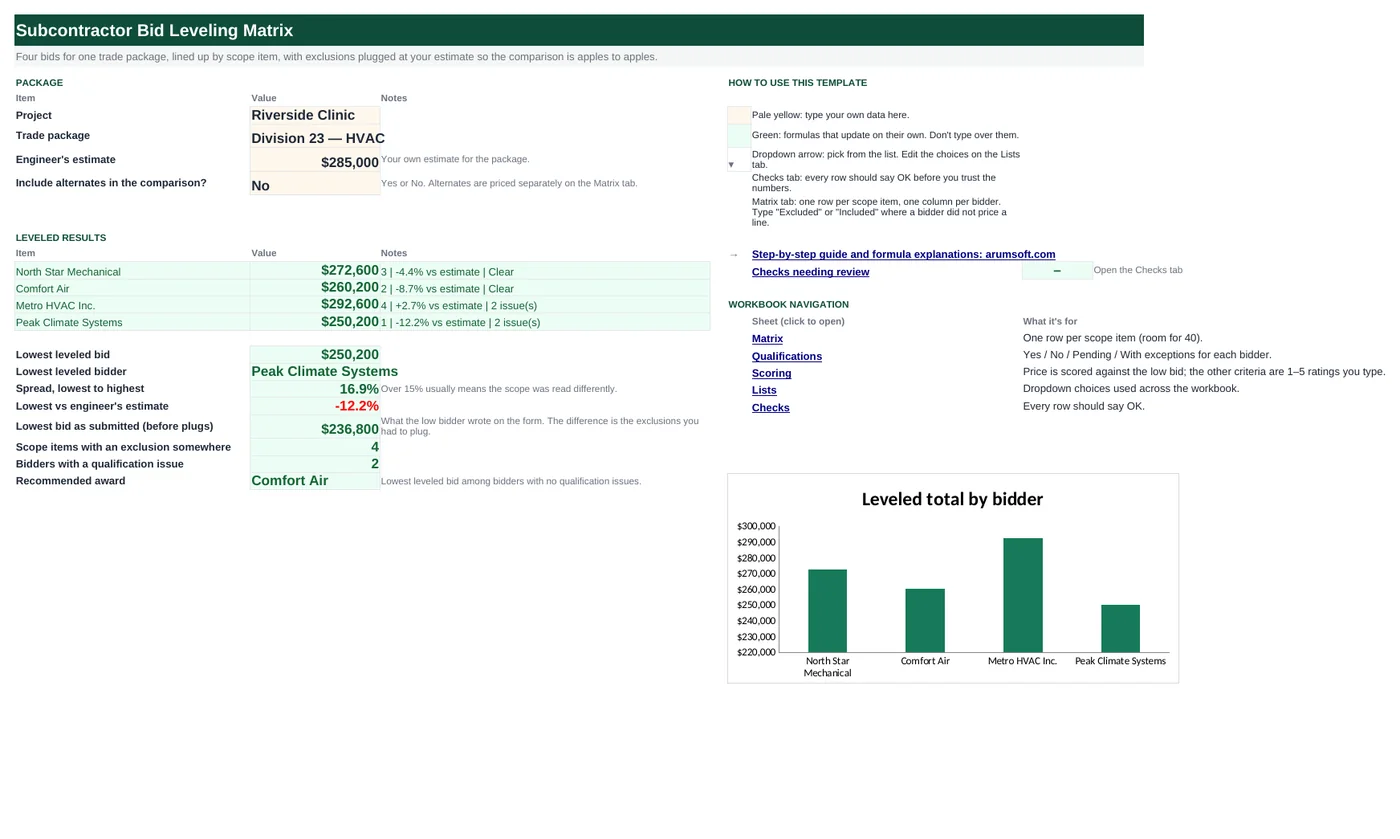
The low bid is rarely the low bid once you add back what it excluded. This workbook lays four bids side by side, one row per scope item, marks every "Excluded" and "No bid", plugs each gap with your own estimate so totals compare fairly, ranks the leveled totals, checks each bidder's qualifications, and recommends an award among the bidders that are clear. An optional scoring tab weights price against schedule, experience, safety and completeness.
- Sheets:
- 6
- Works with:
- Excel for Microsoft 365, Excel 2016 or later, Excel for Mac and Excel for the web
- Updated:
What you can do with it
- One row per scope item, one column per bidder, with Excluded / Included / No bid handling
- Plugs for exclusions so the leveled total is apples to apples
- Leveled totals, rank, spread and comparison with the engineer's estimate
- Qualification checklist and an optional weighted score
What's inside
The workbook has 6 sheets. You only type on a few of them; the rest calculate.
| Sheet | What it's for | You enter | Calculated for you |
|---|---|---|---|
| Start Here | Package and leveled results | Project, package, engineer's estimate, include alternates? | Each bidder's leveled total, rank, variance, qualification status; lowest bid and bidder, spread, lowest as submitted, exclusions count, recommended award |
| Matrix | Scope items × bidders (40 rows) | CSI section, item, type, each bidder's price or Excluded / Included / No bid, your plug | Exclusions count, low, high, spread per line; base, plugs, alternates, leveled total, variance, rank, qualification status per bidder |
| Qualifications | Checklist (10 rows) | Yes / No / Pending / With exceptions per bidder | Nothing (counted on the Matrix tab) |
| Scoring | Weighted scoring | Weights and 1–5 ratings | Price score, weighted score, rank |
| Lists | Dropdowns | Item types, qualification answers | Nothing |
| Checks | Six checks | Nothing | OK or Review |
Before you start
- Break the package into scope items the way the specs do (CSI sections) so every bidder's proposal can be mapped to the same rows.
- Read each bid's exclusions and clarifications and decide, line by line, whether it is priced, included at no charge, or excluded.
- Have your own estimate for each line that anyone excluded; that is the plug.
Step-by-step guide
Describe the package
Start Here B6–B9: project, trade package, engineer's estimate, and whether alternates count in the comparison.
List the scope items
Matrix tab: CSI section, description and type (Base or Alternate) per row. Rename the bidder columns in row 4.
Enter each bid line by line
A price, or the words Excluded, Included or No bid. Excluded and No bid lines turn red and are counted; the lowest price on each line turns green.
Plug the gaps
Column H: your estimate for any line a bidder excluded. It is added to that bidder's total so leaving scope out does not win the job.
Check qualifications
Qualifications tab: bond, schedule, insurance, references, safety. Anything other than Yes counts as an issue on the Matrix tab and on Start Here.
Read the results
Start Here ranks leveled totals, shows the spread and the variance to your estimate, and names the lowest bidder with no qualification issues. The Scoring tab adds a weighted view if price is not the only criterion.
Formula map
Every formula in the workbook, grouped by the sheet and column it lives in. A column of copied formulas counts once; the range it covers is shown.
| Sheet | Cells | Functions | What it computes | Reads | Feeds |
|---|---|---|---|---|---|
| Matrix | I5 copied down to row 44 | IF, COUNTIF | Exclusions on the line | — | Start Here B23 counts lines where this is above zero. |
| Matrix | L5 copied down to row 44 | IF, OR | Spread on the line | J5, K5 | Lines over 15% are highlighted; they usually mean the scope was read differently. |
| Matrix | D45 copied across to column G | SUMIF | Base bid as submitted | — | The number on the bid form. |
| Matrix | D46 copied across to column G | SUMPRODUCT | Plugs for excluded base items | — | Added to the base bid for the leveled total. |
| Matrix | D48 copied across to column G | arithmetic | Leveled total | D45, D46, D47 | Ranked, charted and compared with the estimate. |
| Matrix | D50 copied across to column G | RANK | Rank | D48 | Shown on Start Here beside each bidder. |
| Matrix | D51 | IF, COUNTIF | Qualification status | — | The recommended award only considers Clear bidders. |
| Start Here | B25 | IFERROR, INDEX, MATCH, MINIFS | Recommended award | — | In the sample the lowest bidder has two open qualification issues, so the award goes to the second-lowest. |
| Scoring | C5 | IF, ROUND, MIN | Price score | — | Weighted with the other criteria in row 11. |
| Scoring | C11 copied across to column F | SUMPRODUCT | Weighted score | — | Ranked in row 12. |
Every formula, explained
Each formula below is copied straight from the file, so what you read here is exactly what the cell contains. Click any cell in Excel to see it in the formula bar.
=IF(B5="", "", COUNTIF(D5:G5,
    "Excluded")+COUNTIF(D5:G5,
    "No bid"))
Counts how many bidders wrote Excluded or No bid on this item.
Piece by piece
COUNTIF(D5:G5, "Excluded")- Excluded entries.
+COUNTIF(D5:G5, "No bid")- No-bid entries.
With the sample data: I5 result 0
How it is used: Start Here B23 counts lines where this is above zero.
How to change it: Nothing to change.
Learn this: How to Use COUNTIF and COUNTIFS in Excel →=IF(OR(J5="", J5=0), "", K5/J5-1)Highest price divided by lowest, minus one. Text entries are ignored by MIN and MAX.
Piece by piece
J5- MIN of the numeric bids.
K5- MAX of the numeric bids.
K5/J5-1- Spread as a percentage.
With the sample data: J5 = 5,400, K5 = 6,800 → L5 result 25.9%
How it is used: Lines over 15% are highlighted; they usually mean the scope was read differently.
How to change it: Change 0.15 in the conditional format to your own threshold.
Learn this: How to Use MIN and MAX in Excel →=SUMIF($C$5:$C$44, "Base", D5:D44)Adds the numeric prices on Base lines for this bidder. SUMIF ignores text, so Excluded and Included contribute nothing here.
Piece by piece
$C$5:$C$44, "Base"- Base lines only.
D5:D44- This bidder's prices.
With the sample data: D45 result 272,600
How it is used: The number on the bid form.
How to change it: Nothing to change.
Learn this: How to Use SUMIF and SUMIFS in Excel →=SUMPRODUCT(($C$5:$C$44="Base")*((D5:D44="Excluded")+(D5:D44="No bid")),
$H$5:$H$44)For every Base line this bidder excluded or did not bid, adds your plug from column H.
Piece by piece
($C$5:$C$44="Base")- Base lines.
(D5:D44="Excluded")+(D5:D44="No bid")- 1 where this bidder left the line out.
$H$5:$H$44- Your plug amounts.
SUMPRODUCT(…)- Multiply and add.
With the sample data: D46 result 0
How it is used: Added to the base bid for the leveled total.
How to change it: Nothing to change.
Learn this: How to Use SUMIF and SUMIFS in Excel →=D45+D46+D47Base bid plus plugs plus alternates (if included).
Piece by piece
D45- Base as submitted.
+D46- Plugs.
+D47- Alternates, or 0 when Start Here B9 is No.
With the sample data: D45 = 272,600, D46 = 0, D47 = 0 → D48 result 272,600
How it is used: Ranked, charted and compared with the estimate.
How to change it: Nothing to change.
Learn this: How to Write Basic Formulas in Excel →=RANK(D48, $D$48:$G$48, 1)Rank of this bidder's leveled total among the four, lowest first.
Piece by piece
D48- This bidder's leveled total.
$D$48:$G$48- All four.
1- Ascending: lowest = 1.
With the sample data: D48 = 272,600 → D50 result 3
How it is used: Shown on Start Here beside each bidder.
How to change it: Nothing to change.
Learn this: Essential Excel Functions: SUM, AVERAGE, COUNT, MIN and MAX →=IF(COUNTIF(Qualifications!B5:B14,
"No")+COUNTIF(Qualifications!B5:B14,
"Pending")+COUNTIF(Qualifications!B5:B14,
"With exceptions")=0, "Clear",
COUNTIF(Qualifications!B5:B14,
"No")+COUNTIF(Qualifications!B5:B14,
"Pending")+COUNTIF(Qualifications!B5:B14,
"With exceptions")&" issue(s)")Counts No, Pending and With exceptions answers on the Qualifications tab for this bidder; Clear when there are none.
Piece by piece
COUNTIF(Qualifications!B5:B14, "No")- Failed items.
+COUNTIF(…, "Pending")- Unverified items.
+COUNTIF(…, "With exceptions")- Conditional items.
=0 → "Clear"- Otherwise "n issue(s)".
With the sample data: D51 result Clear
How it is used: The recommended award only considers Clear bidders.
How to change it: To let Pending through, drop that COUNTIF.
Learn this: How to Use COUNTIF and COUNTIFS in Excel →=IFERROR(INDEX(Matrix!$D$4:$G$4,
MATCH(MINIFS(Matrix!$D$48:$G$48, Matrix!$D$51:$G$51, "Clear"), Matrix!$D$48:$G$48, 0)),
"None clear")The lowest leveled total among bidders whose qualification status is Clear, then the bidder name on that column.
Piece by piece
MINIFS(Matrix!$D$48:$G$48, Matrix!$D$51:$G$51, "Clear")- Lowest leveled total with Clear status.
MATCH(…, Matrix!$D$48:$G$48, 0)- Which column.
INDEX(Matrix!$D$4:$G$4, …)- The bidder name.
IFERROR(…, "None clear")- When nobody is clear.
With the sample data: B25 result Comfort Air
How it is used: In the sample the lowest bidder has two open qualification issues, so the award goes to the second-lowest.
How to change it: Nothing to change.
Learn this: How to Use MIN and MAX in Excel →=IF(Matrix!D$48=0, 0, ROUND(5*MIN(Matrix!$D$48:$G$48)/Matrix!D$48,
1))Five points for the lowest leveled bid, scaled down for higher bids: 5 × lowest ÷ this bid.
Piece by piece
MIN(Matrix!$D$48:$G$48)- Lowest leveled total.
/Matrix!D$48- Divided by this bidder's total.
ROUND(5*…, 1)- Out of 5, one decimal.
With the sample data: C5 result 4.6
How it is used: Weighted with the other criteria in row 11.
How to change it: Nothing to change.
Learn this: How to Round Numbers in Excel: ROUND, ROUNDUP and ROUNDDOWN →=SUMPRODUCT($B$5:$B$9, C5:C9)Each criterion's score times its weight, added up.
Piece by piece
$B$5:$B$9- Weights (must total 100%).
C5:C9- This bidder's scores.
SUMPRODUCT(…)- Multiply pairs and add.
With the sample data: C11 result 4.5
How it is used: Ranked in row 12.
How to change it: Change the weights to your procurement policy.
Learn this: How to Use SUMIF and SUMIFS in Excel →Tips and limits
- Capacity: 40 scope items, 4 bidders, 10 qualification items. For a fifth bidder, insert a column before H on the Matrix tab and copy the formulas in rows 45–51 and the Qualifications and Scoring columns.
- "Included" means the bidder covers the scope inside another line at no extra charge; it needs no plug. "Excluded" always does.
- A spread over 15% on a single line usually means two bidders read the drawings differently. Ask before you award.
- Keep the engineer's estimate honest; a bid 12% under it is either a sharp bidder or a missed scope.
- This levels one trade package. Make a copy per package (Division 23, 26, 09 …) rather than mixing trades in one matrix.
Learn the skills behind this template
Was this guide helpful? Spot a mistake? Send feedback · admin@arumsoft.com