Construction Punch List and Deficiency Log for Excel
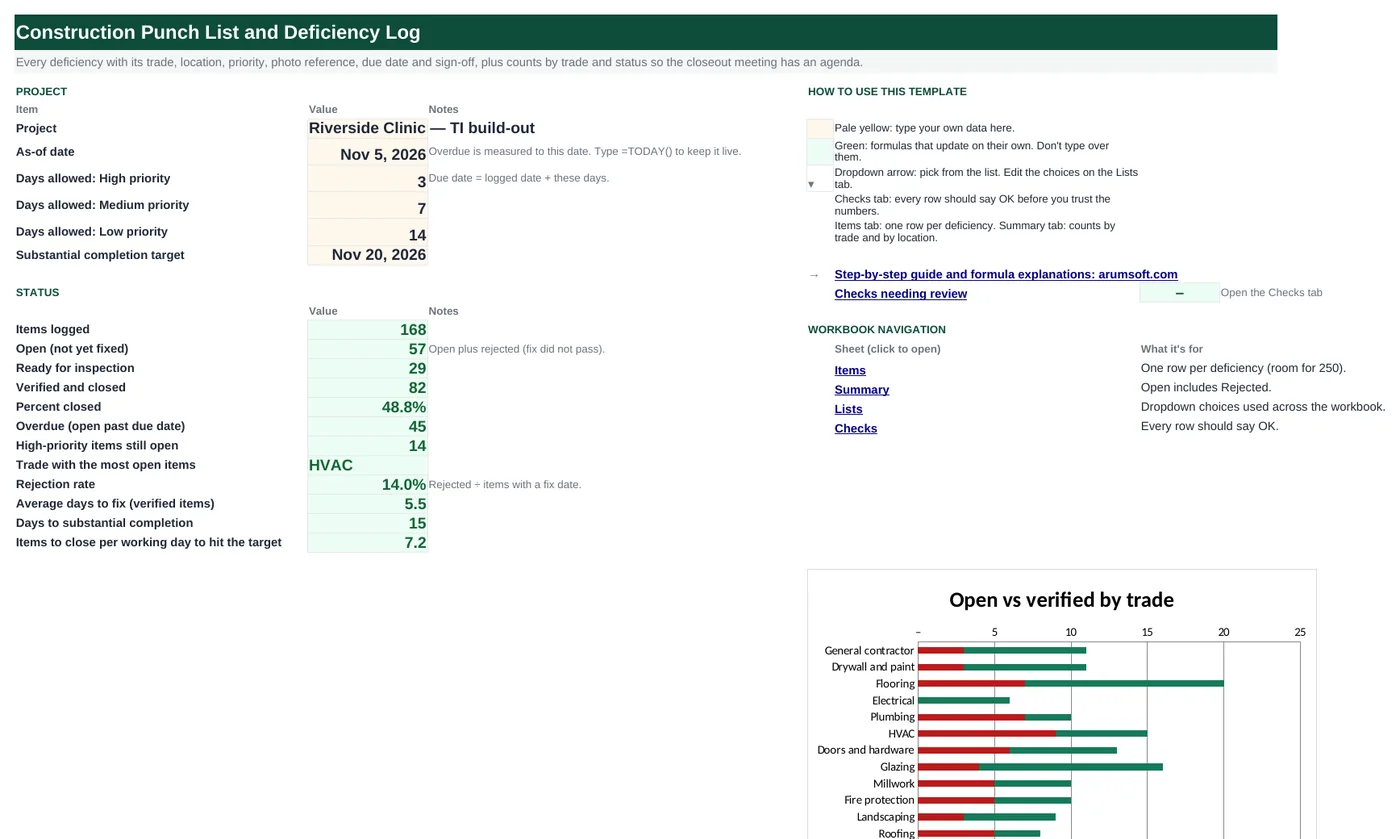
A punch list only works when each item has a trade, a due date and a clear status. This workbook logs every deficiency with its location, trade, priority and photo reference, sets the due date from the priority, tracks Open → Ready for inspection → Verified (or Rejected), flags what is overdue, and rolls it up by trade for the subcontractor meeting and by location for the walk-through. Start Here tells you how many items a day must close to make the completion date.
- Sheets:
- 5
- Works with:
- Excel for Microsoft 365, Excel 2016 or later, Excel for Mac and Excel for the web
- Updated:
Construction Punch List and Deficiency Log.xlsx
Free to download. No sign-up needed.
What you can do with it
- 168 sample items with trade, location, priority, photo ref and status
- Due date by priority (3 / 7 / 14 days) and an Overdue flag against the as-of date
- Counts by trade (open, ready, verified, overdue) and by location
- Rejection rate, average days to fix, and the closing rate needed per working day
What's inside
The workbook has 5 sheets. You only type on a few of them; the rest calculate.
| Sheet | What it's for | You enter | Calculated for you |
|---|---|---|---|
| Start Here | Project settings and status | As-of date, days allowed by priority, completion target | Counts by status, % closed, overdue, high-priority open, trade with most open, rejection rate, average days to fix, days and items per day to target |
| Items | One row per deficiency (250) | Item #, logged date, location, trade, description, priority, logged by, photo ref, status, fixed on, verified on, notes | Due date, timing, days to fix, age |
| Summary | By trade and by location | Nothing | Total, open, ready, verified, overdue, % closed per trade; total, open, verified, % closed per location |
| Lists | Dropdowns | Locations, trades, priorities, statuses | Nothing |
| Checks | Six data checks | Nothing | OK or Review |
Before you start
- Agree the location names and trade names with the GC so everyone logs the same way; put them on the Lists tab.
- Decide how many days each priority gets: the sample uses 3 / 7 / 14.
- Number photos the way your camera or app does and type that number in Photo ref.
Step-by-step guide
Set the project
Start Here B7 as-of date (type =TODAY() to keep it live), B8–B10 days allowed for High / Medium / Low, B11 the substantial completion target.
Log items on the walk
Items tab: item number, date, location and trade (dropdowns), description, priority, who logged it, photo ref. The due date calculates from the priority.
Update statuses
Status flows Open → Ready for inspection (sub says fixed; enter Fixed on) → Verified (inspector signs off; enter Verified on). Rejected sends it back to open.
Read the timing column
Closed, Overdue, Due <date>, or Awaiting sign-off, from the status and the as-of date. Overdue rows turn red.
Use the Summary
By trade for the sub meeting: open, ready, overdue, % closed. By location for the next walk.
Watch the finish line
Start Here B25–B26: days to the target and items per working day that must close to get there. The Checks tab catches duplicate numbers, missing fields, verified items without dates, and date-order errors.
Formula map
Every formula in the workbook, grouped by the sheet and column it lives in. A column of copied formulas counts once; the range it covers is shown.
| Sheet | Cells | Functions | What it computes | Reads | Feeds |
|---|---|---|---|---|---|
| Items | M5 copied down to row 254 | IF | Due date | B5, F5 | The timing column compares it with the as-of date. |
| Items | N5 copied down to row 254 | IF, AND, OR, TEXT | Timing | I5, J5, M5 | Counted on Start Here B20 and the Summary tab; colored by conditional formatting. |
| Items | O5 copied down to row 254 | IF, OR | Days to fix | J5, B5 | Averaged on Start Here B24 for verified items. |
| Start Here | B16 | COUNTIF | Open items | — | The headline backlog. |
| Start Here | B21 | COUNTIFS | High-priority items still open | — | The first list for the morning meeting. |
| Start Here | B23 | IF, COUNTIF | Rejection rate | — | A high rate means subs are calling work done too early. |
| Start Here | B24 | IFERROR, AVERAGEIFS | Average days to fix | — | A pace figure for forecasting. |
| Start Here | B26 | IF, NETWORKDAYS, ROUND | Items to close per working day | B15, B18, B7, B11 | Compare with the actual daily closing pace. |
| Summary | C5 copied down to row 16 | IF, COUNTIFS | Open by trade | — | Start Here B22 names the trade with the largest value; charted on Start Here. |
| Checks | B5 | IF, SUMPRODUCT, COUNTIF | Item numbers are unique | — | Duplicates break photo and sign-off references. |
Every formula, explained
Each formula below is copied straight from the file, so what you read here is exactly what the cell contains. Click any cell in Excel to see it in the formula bar.
=IF(B5="", "", B5+IF(F5="High",
    'Start Here'!$B$8, IF(F5="Medium", 'Start Here'!$B$9, 'Start Here'!$B$10)))
Logged date plus the days allowed for the item's priority, read from Start Here B8–B10.
Piece by piece
B5- Logged date.
F5="High" → 'Start Here'!$B$8- Days for High.
F5="Medium" → 'Start Here'!$B$9- Days for Medium.
otherwise 'Start Here'!$B$10- Days for Low.
With the sample data: B5 = Oct 6, 2026, F5 = Low → M5 result Oct 20, 2026
How it is used: The timing column compares it with the as-of date.
How to change it: Change the days on Start Here, not here.
Learn this: How to Use the IF Function in Excel →=IF(A5="", "", IF(I5="Verified",
"Closed", IF(AND(OR(J5="", I5="Rejected"), M5<'Start Here'!$B$7), "Overdue", IF(OR(J5="", I5="Rejected"), "Due "&TEXT(M5, "mmm d"), "Awaiting sign-off"))))Closed when verified; Overdue when still open (no fix date, or rejected) and past due; otherwise the due date, or Awaiting sign-off when a fix is logged.
Piece by piece
I5="Verified"- Closed.
OR(J5="", I5="Rejected")- Still open.
M5<'Start Here'!$B$7- Past the due date.
"Due "&TEXT(M5, "mmm d")- Readable due date.
With the sample data: I5 = Rejected, J5 = Oct 17, 2026, M5 = Oct 20, 2026 → N5 result Overdue
How it is used: Counted on Start Here B20 and the Summary tab; colored by conditional formatting.
How to change it: Nothing to change.
Learn this: How to Use the IF Function in Excel →=IF(OR(A5="", J5=""), "", J5-B5)Fixed date minus logged date, blank until fixed.
Piece by piece
J5=""- Not fixed yet: show nothing.
J5-B5- Days between.
With the sample data: J5 = Oct 17, 2026, B5 = Oct 6, 2026 → O5 result 11
How it is used: Averaged on Start Here B24 for verified items.
How to change it: Nothing to change.
Learn this: Text and Date Functions in Excel →=COUNTIF(Items!$I$5:$I$254,
"Open")+COUNTIF(Items!$I$5:$I$254,
"Rejected")Open plus Rejected, since a rejected fix is open again.
Piece by piece
COUNTIF(Items!$I$5:$I$254, "Open")- Open.
+COUNTIF(…, "Rejected")- Rejected.
With the sample data: B16 result 57
How it is used: The headline backlog.
How to change it: Nothing to change.
Learn this: How to Use COUNTIF and COUNTIFS in Excel →=COUNTIFS(Items!$F$5:$F$254,
"High", Items!$I$5:$I$254,
"<>Verified")High-priority items whose status is anything but Verified.
Piece by piece
Items!$F$5:$F$254, "High"- High priority.
Items!$I$5:$I$254, "<>Verified"- Not yet verified.
With the sample data: B21 result 14
How it is used: The first list for the morning meeting.
How to change it: Nothing to change.
Learn this: How to Use COUNTIF and COUNTIFS in Excel →=IF(COUNTIF(Items!$J$5:$J$254,
"<>")=0, 0, COUNTIF(Items!$I$5:$I$254,
"Rejected")/COUNTIF(Items!$J$5:$J$254,
"<>"))Rejected items divided by items that have a fix date, i.e. the share of fixes that failed inspection.
Piece by piece
COUNTIF(Items!$J$5:$J$254, "<>")- Items with a fix date.
COUNTIF(Items!$I$5:$I$254, "Rejected")- Rejected.
IF(…=0, 0, …)- Avoid dividing by zero.
With the sample data: B23 result 14.0%
How it is used: A high rate means subs are calling work done too early.
How to change it: Nothing to change.
Learn this: How to Use COUNTIF and COUNTIFS in Excel →=IFERROR(AVERAGEIFS(Items!$O$5:$O$254,
Items!$I$5:$I$254, "Verified"),
0)Average of the Days to fix column over verified items only.
Piece by piece
Items!$O$5:$O$254- Days to fix.
Items!$I$5:$I$254, "Verified"- Verified items only.
IFERROR(…, 0)- Zero when none are verified yet.
With the sample data: B24 result 5.49
How it is used: A pace figure for forecasting.
How to change it: Nothing to change.
Learn this: How to Use AVERAGEIF and AVERAGEIFS in Excel →=IF(NETWORKDAYS(B7, B11)<=0,
"Past target", ROUND((B15-B18)/NETWORKDAYS(B7, B11),
1))Items not yet verified divided by working days between the as-of date and the target.
Piece by piece
NETWORKDAYS(B7, B11)- Working days to the target.
<=0 → "Past target"- Target already passed.
(B15-B18)/…- Unverified items per working day.
ROUND(…, 1)- One decimal.
With the sample data: B15 = 168, B18 = 82, B7 = Nov 5, 2026, B11 = Nov 20, 2026 → B26 result 7.2
How it is used: Compare with the actual daily closing pace.
How to change it: Add a holidays range as the third NETWORKDAYS argument.
Learn this: Text and Date Functions in Excel →=IF(A5="", "", COUNTIFS(Items!$D$5:$D$254,
A5, Items!$I$5:$I$254, "Open")+COUNTIFS(Items!$D$5:$D$254,
A5, Items!$I$5:$I$254, "Rejected"))Open plus Rejected for the trade in column A.
Piece by piece
Items!$D$5:$D$254, A5- Trade matches.
Items!$I$5:$I$254, "Open"- Open.
+COUNTIFS(…, "Rejected")- Rejected.
With the sample data: C5 result 3
How it is used: Start Here B22 names the trade with the largest value; charted on Start Here.
How to change it: Nothing to change.
Learn this: How to Use COUNTIF and COUNTIFS in Excel →=IF(SUMPRODUCT((Items!$A$5:$A$254<>"")*(COUNTIF(Items!$A$5:$A$254, Items!$A$5:$A$254)>1))=0,
"OK", "Review")Counts item numbers that appear more than once.
Piece by piece
COUNTIF(Items!$A$5:$A$254, Items!$A$5:$A$254)>1- TRUE for duplicates.
(Items!$A$5:$A$254<>"")*…- Ignore blank rows.
SUMPRODUCT(…)=0- None.
With the sample data: B5 result OK
How it is used: Duplicates break photo and sign-off references.
How to change it: Nothing to change.
Learn this: How to Use COUNTIF and COUNTIFS in Excel →Tips and limits
- Capacity: 250 items. Extend with Ctrl+H ($254). The Items tab has an AutoFilter on row 4: filter by trade before the sub meeting and by location before a walk.
- Keep one row per deficiency even when a sub fixes ten at once; the counts and the rejection rate depend on it.
- Photo ref is just a label; keep the photos in a shared folder named by item number so anyone can find them.
- Set the as-of date to =TODAY() for daily use and to a fixed date for a report, so the overdue count does not change under you.
- Export the Summary by trade as the agenda for the closeout meeting; it is the list each sub needs to hear.
Learn the skills behind this template
Was this guide helpful? Spot a mistake? Send feedback · admin@arumsoft.com