Construction Draw Schedule and Lien Waiver Tracker for Excel
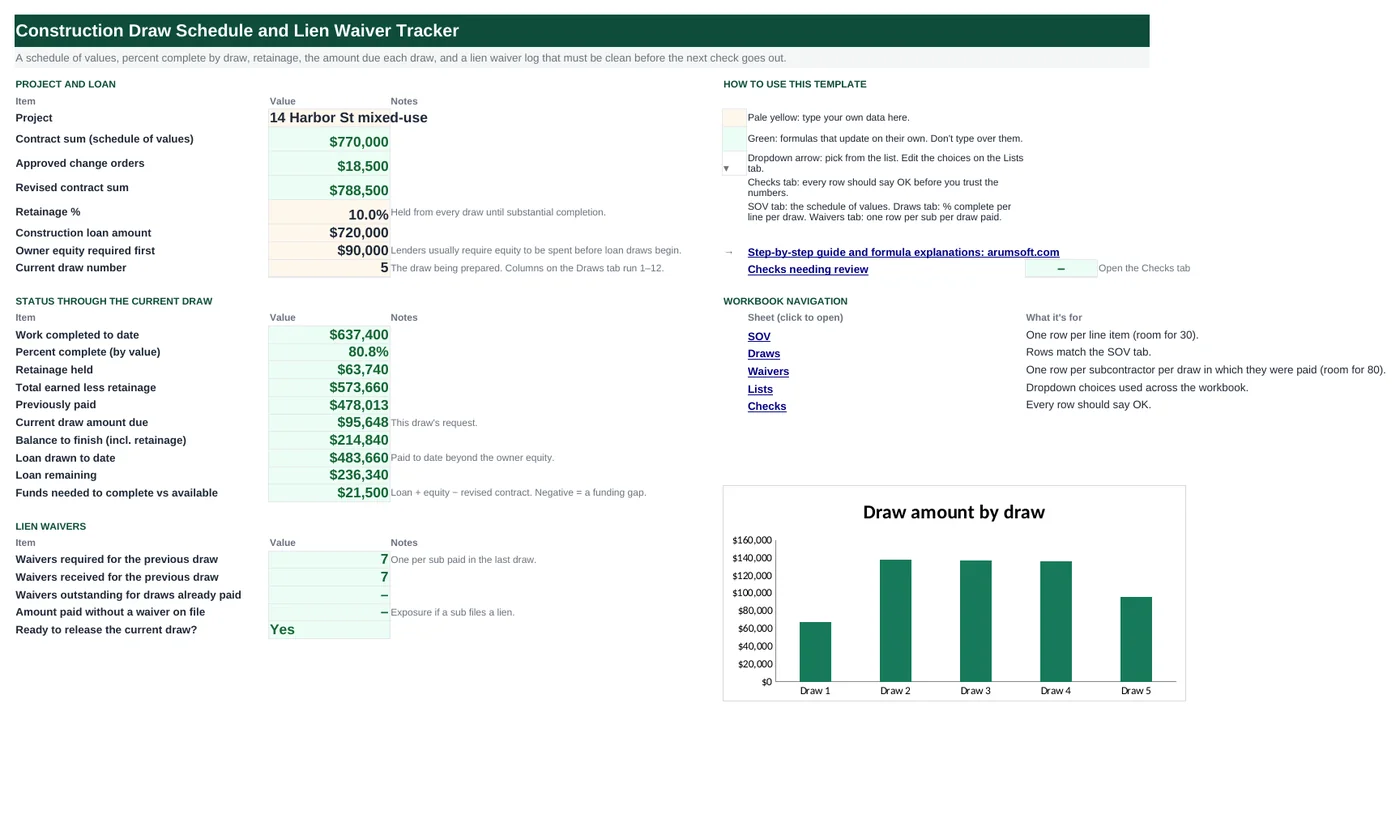
A draw request is percent complete turned into money, less retainage, less what has already been paid. This workbook holds the schedule of values, a grid of cumulative percent complete for every line at every draw, and the arithmetic that produces each draw amount. A lien waiver log records every subcontractor payment and flags the ones with no waiver on file, so the Start Here sheet can say whether the next draw is safe to release.
- Sheets:
- 6
- Works with:
- Excel for Microsoft 365, Excel 2016 or later, Excel for Mac and Excel for the web
- Updated:
Construction Draw Schedule and Lien Waiver Tracker.xlsx
Free to download. No sign-up needed.
What you can do with it
- Schedule of values with change orders and percent of contract
- Cumulative percent complete per line per draw, converted to completed value, retainage and draw amount
- Loan drawn vs owner equity, balance to finish and a funding-gap check
- A lien waiver log with outstanding count and dollars exposed, plus a ready-to-release verdict
What's inside
The workbook has 6 sheets. You only type on a few of them; the rest calculate.
| Sheet | What it's for | You enter | Calculated for you |
|---|---|---|---|
| Start Here | Project, loan and the current draw | Retainage %, loan amount, owner equity, current draw number | Contract and revised sums, completed to date, % complete, retainage, previously paid, current draw, balance to finish, loan drawn and remaining, funding gap, waiver counts, ready-to-release |
| SOV | Schedule of values (30 lines) | Item, description, subcontractor, scheduled value, change orders | Revised value, % of contract, completed to date |
| Draws | Cumulative % complete per line per draw (12 draws) | Draw dates, percentages | Completed to date, retainage, earned less retainage, paid to date, draw amount, % complete per draw |
| Waivers | One row per sub per draw paid (80) | Subcontractor, draw #, waiver type, through date, amount, waiver received date | Status, paid and outstanding by sub |
| Lists | Dropdowns | Waiver types | Nothing |
| Checks | Six data checks | Nothing | OK or Review |
Before you start
- Have the signed schedule of values (AIA G703 or your own) with every line and its subcontractor.
- Know the retainage rate in the contract and the lender's equity-first requirement.
- Agree with the lender on draw dates; the Draws tab assumes one column per draw.
Step-by-step guide
Enter the schedule of values
SOV tab: item number, description, subcontractor and scheduled value per line; approved change orders in column E. Revised value and percent of contract calculate.
Set retainage, loan and equity
Start Here B10–B12. B13 is the draw you are preparing now.
Type percent complete per draw
Draws tab: for each line, the cumulative percent complete at each draw date (row 3). The summary rows turn it into completed value, retainage, earned less retainage, and the draw amount.
Read the current draw
Start Here B17–B26: work completed, retainage held, previously paid, the current draw amount, balance to finish, loan drawn vs equity, and whether loan + equity still covers the revised contract.
Log lien waivers
Waivers tab: one row per subcontractor per draw in which they were paid, with the amount and the date their waiver came in. Status stays Outstanding until a date is entered.
Check before releasing
Start Here B30–B34 count waivers for the previous draw and anything still outstanding for draws already paid, with the dollars exposed. The Checks tab adds percent-complete sanity checks and the funding test.
Formula map
Every formula in the workbook, grouped by the sheet and column it lives in. A column of copied formulas counts once; the range it covers is shown.
| Sheet | Cells | Functions | What it computes | Reads | Feeds |
|---|---|---|---|---|---|
| SOV | F5 copied down to row 34 | IF | Revised value | D5, E5 | Percent complete is applied to this, not the original value. |
| SOV | H5 copied down to row 34 | IF, INDEX | Completed to date | F5 | A per-line view of the Draws tab total. |
| Draws | F36 | IF, SUMPRODUCT, IFERROR | Completed to date in draw 5 | — | Retainage and the draw amount follow from it. |
| Draws | F40 copied across to column M | IF | Draw amount | F38, E38 | What the pay application asks for. |
| Start Here | B21 | IF, INDEX | Previously paid | B13 | Current draw = earned less retainage − this. |
| Start Here | B24 | MAX | Loan drawn to date | B20, B12 | Loan remaining subtracts it from the loan amount. |
| Start Here | B26 | arithmetic | Funds needed to complete vs available | B11, B12, B9 | Tested on the Checks tab. |
| Waivers | H5 copied down to row 84 | IF | Waiver status | F5 | Counted and summed on Start Here and in the per-sub table. |
| Start Here | B33 | SUMIFS | Amount paid without a waiver on file | B13 | Your lien exposure in dollars. |
| Checks | B5 | IF, SUMPRODUCT, IFERROR | Percent complete never decreases | — | A decrease would produce a negative draw amount. |
Every formula, explained
Each formula below is copied straight from the file, so what you read here is exactly what the cell contains. Click any cell in Excel to see it in the formula bar.
=IF(A5="", "", D5+E5)Scheduled value plus approved change orders.
Piece by piece
D5- Scheduled value.
+E5- Change orders.
With the sample data: D5 = 48,000, E5 = 0 → F5 result 48,000
How it is used: Percent complete is applied to this, not the original value.
How to change it: Nothing to change.
Learn this: How to Write Basic Formulas in Excel →=IF(A5="", "", F5*INDEX(Draws!$B5:$M5, 1, 'Start Here'!$B$13))Revised value times the cumulative percent complete in the current draw's column, picked with INDEX by draw number.
Piece by piece
F5- Revised value.
INDEX(Draws!$B5:$M5, 1, 'Start Here'!$B$13)- Percent complete in the current draw column.
With the sample data: F5 = 48,000 → H5 result 36,000
How it is used: A per-line view of the Draws tab total.
How to change it: Nothing to change.
Learn this: How to Use INDEX and MATCH in Excel →=IF(F$3="", "", SUMPRODUCT(IFERROR(SOV!$F$5:$F$34*F5:F34, 0)))Multiplies every line's revised value by its cumulative percent complete and adds them up. IFERROR makes blank rows count as zero.
Piece by piece
SOV!$F$5:$F$34- Revised values.
F5:F34- Cumulative % complete for this draw.
SUMPRODUCT(IFERROR(…*…, 0))- Multiply pairs and add, ignoring blanks.
IF(F$3="", "", …)- Blank until the draw has a date.
With the sample data: F36 result 637,400
How it is used: Retainage and the draw amount follow from it.
How to change it: Nothing to change.
Learn this: How to Use SUMIF and SUMIFS in Excel →=IF(F36="", "", F38-E38)Earned less retainage this draw minus earned less retainage last draw.
Piece by piece
F38- Earned less retainage through this draw.
-E38- Same figure through the previous draw.
With the sample data: F38 = 573,660, E38 = 478,012.5 → F40 result 95,647.5
How it is used: What the pay application asks for.
How to change it: Nothing to change.
Learn this: How to Write Basic Formulas in Excel →=IF(B13<=1, 0, INDEX(Draws!$B$39:$M$39, 1, B13-1))Looks up the cumulative paid-to-date in the column one draw before the current one; zero for the first draw.
Piece by piece
B13<=1- First draw: nothing paid yet.
INDEX(Draws!$B$39:$M$39, 1, B13-1)- Paid to date in the previous draw column.
With the sample data: B13 = 5 → B21 result 478,012.5
How it is used: Current draw = earned less retainage − this.
How to change it: Nothing to change.
Learn this: How to Use INDEX and MATCH in Excel →=MAX(0, B20-B12)Payments so far beyond the owner equity that had to go in first.
Piece by piece
B20- Total earned less retainage (paid to date).
-B12- Owner equity required first.
MAX(0, …)- Zero while equity is still being spent.
With the sample data: B20 = 573,660, B12 = 90,000 → B24 result 483,660
How it is used: Loan remaining subtracts it from the loan amount.
How to change it: Nothing to change.
Learn this: How to Use MIN and MAX in Excel →=B11+B12-B9Loan plus equity minus the revised contract sum. Negative means change orders have outrun the budget.
Piece by piece
B11+B12- All funding sources.
-B9- Revised contract sum.
With the sample data: B11 = 720,000, B12 = 90,000, B9 = 788,500 → B26 result 21,500
How it is used: Tested on the Checks tab.
How to change it: Add a contingency line to B12 if the lender holds one.
Learn this: How to Write Basic Formulas in Excel →=IF(A5="", "", IF(F5="", "Outstanding", "Received"))Outstanding until a received date is entered.
Piece by piece
A5=""- Blank row: show nothing.
F5=""- No received date.
With the sample data: F5 = Jul 18, 2026 → H5 result Received
How it is used: Counted and summed on Start Here and in the per-sub table.
How to change it: Nothing to change.
Learn this: How to Use the IF Function in Excel →=SUMIFS(Waivers!$E$5:$E$84,
Waivers!$H$5:$H$84, "Outstanding",
Waivers!$B$5:$B$84, "<"&B13)Adds payments whose waiver is outstanding, for draws already paid (draw number below the current one).
Piece by piece
Waivers!$E$5:$E$84- Amounts paid.
Waivers!$H$5:$H$84, "Outstanding"- No waiver yet.
Waivers!$B$5:$B$84, "<"&B13- Draws before the current one.
With the sample data: B13 = 5 → B33 result 0
How it is used: Your lien exposure in dollars.
How to change it: Nothing to change.
Learn this: How to Use SUMIF and SUMIFS in Excel →=IF(SUMPRODUCT(IFERROR((Draws!$C$5:$M$34<>"")*(Draws!$C$5:$M$34<Draws!$B$5:$L$34), 0))=0,
"OK", "Review")Compares every draw column with the one before it across all lines; any decrease means a typo or a reversed entry.
Piece by piece
Draws!$C$5:$M$34<Draws!$B$5:$L$34- TRUE where a later draw is lower than the earlier one.
*(Draws!$C$5:$M$34<>"")- Ignore blank future draws.
SUMPRODUCT(IFERROR(…, 0))=0- No decreases.
With the sample data: B5 result OK
How it is used: A decrease would produce a negative draw amount.
How to change it: Nothing to change.
Learn this: How to Use SUMIF and SUMIFS in Excel →Tips and limits
- Capacity: 30 lines, 12 draws, 80 waiver rows. For more lines, insert rows above row 34 on both the SOV and Draws tabs; the summary rows stay at 36–41.
- Percentages are cumulative. If a line is 60% at draw 3, type 60% again at draw 4 if nothing happened; leaving it blank counts as 0% and produces a negative draw.
- Retainage is usually released at substantial completion. Add a final column with retainage set to 0 by changing Start Here B10 for that draw only.
- Stored materials (delivered, not installed) are usually billed separately on the G703. Add a line to the SOV for them if your lender allows it.
- This tracks waivers; it is not a waiver form. Use the form your state requires (many states prescribe exact language) and record the date it arrived here.
Learn the skills behind this template
Was this guide helpful? Spot a mistake? Send feedback · admin@arumsoft.com