Startup and SaaS Cash Flow Forecast for Excel: MRR, Burn and Runway
Put your assumptions on one sheet: starting cash, customers, churn, price and monthly costs. The forecast builds 12 months of customers, MRR, cash in and out, net burn, ending cash and runway.
- Sheets:
- 5
- Works with:
- Excel for Microsoft 365, Excel 2016 or later, Excel for Mac and Excel for the web
- Updated:
What you can do with it
- Model customers and MRR from new sign-ups, churn and ARPU
- Plan fixed costs, costs that scale with revenue, and new hires
- See net burn, ending cash and runway for each month
- Add funding rounds and one-off costs in the month they happen
What's inside
The workbook has 5 sheets. You only type on a few of them; the rest calculate.
| Sheet | What it's for | You enter | Calculated for you |
|---|---|---|---|
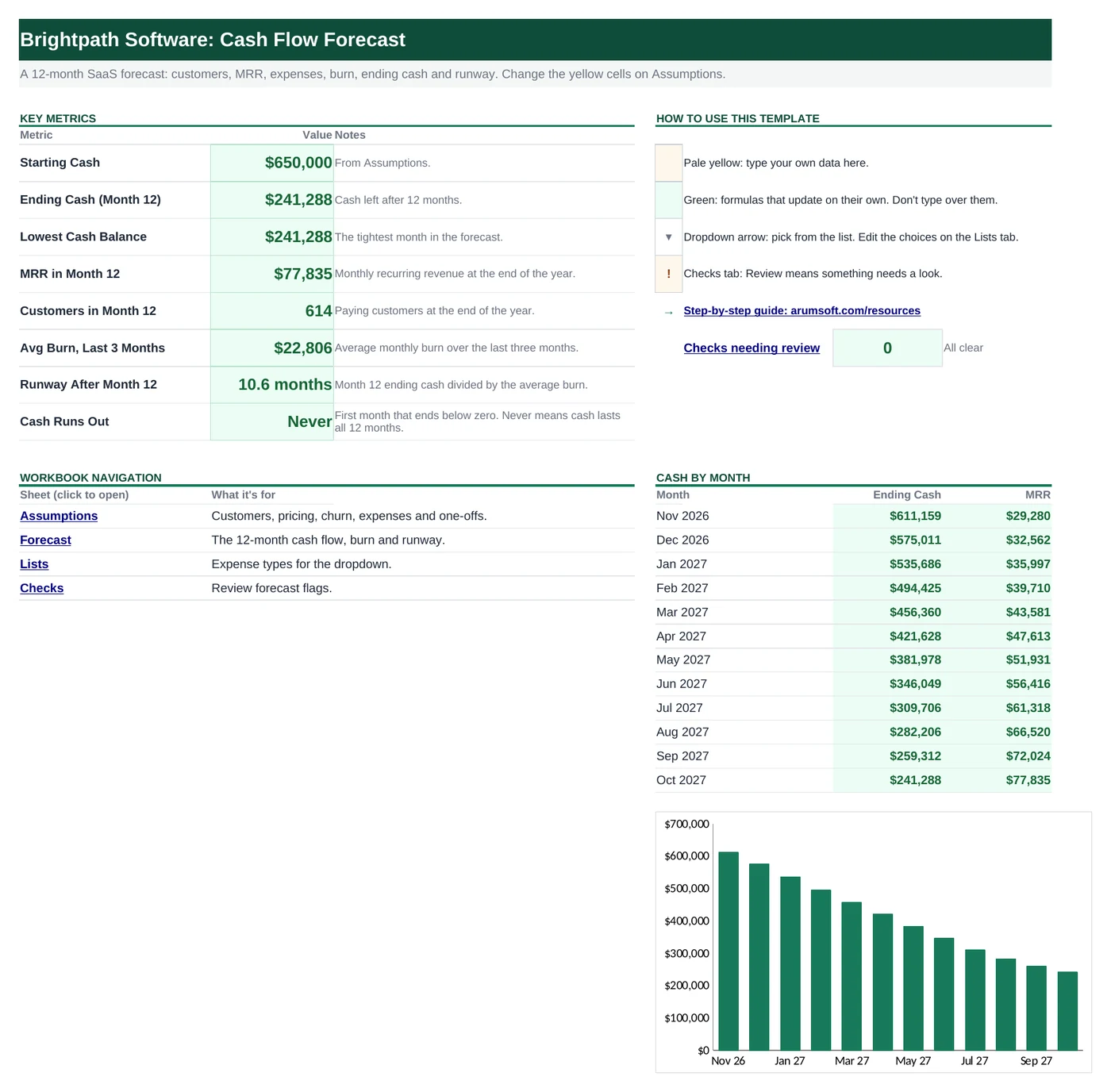
| Start Here | Dashboard with eight key numbers and cash by month | Nothing | Starting and ending cash, lowest balance, month 12 MRR and customers, average burn, runway, cash-out month |
| Assumptions | Every input for the forecast | Start month, starting cash, customers, growth, churn, ARPU, other income, expenses, one-off items | Month labels for the one-off grid |
| Forecast | The 12-month cash flow | Nothing | Customers, MRR, cash in, each expense, net cash flow, net burn, ending cash, runway |
| Lists | Expense types for the dropdown | Nothing (keep the two types) | Nothing |
| Checks | Six forecast checks | Nothing | OK or Review for each check |
Before you start
The template works as soon as you open it. Cell colors tell you what each cell is for:
- Open the file. If Excel shows a yellow Protected View bar, click Enable Editing. Files downloaded from the internet always open this way.
- Save your own copy with File› then Save As so you always have the original to start over from.
- Replace the sample company. Everything you type is on Assumptions, so overwrite the yellow cells there with your own numbers. Forecast has no inputs.
Step-by-step guide
Work through these in order the first time. After that, you'll mostly repeat the regular update steps.
Set the start and your cash
On Assumptions, type your company name, the First forecast month (the 1st of the month, for example
2026-11-01) and your Starting cash, the money in the bank at the start of that month.Describe your customers and pricing
Under Customers and revenue, enter:
- Starting customers: paying customers today.
- New customers in month 1 and the monthly Growth in new customers. With 30 and 6%, month 2 brings 32 new customers, month 3 brings 34, and so on.
- Monthly churn: the share of customers who cancel each month.
- ARPU: average monthly revenue per customer, and an optional monthly ARPU change for price rises or upsells.
- Other income per month: services or other regular income.
List your monthly expenses
In the Monthly expenses table, add one row per cost category and pick a Type:
- Fixed: type a Monthly Amount, plus an optional Growth / Month (for example 3% for an ad budget that rises each month).
- % of revenue: type a % of Revenue for costs that grow with sales, such as hosting or card processing fees.
Starts in Month (1 to 12) delays a cost. Use it for planned hires: a new engineer starting in month 4 adds nothing for months 1 to 3.
Add funding and one-off items
The One-off cash items by month grid has a column for each month. Type Funding received in the month a round closes, Other one-off income such as a grant, and One-off expenses such as laptops or an annual software bill.
Read the forecast
Forecast shows each month across the top: customers (starting, new, churned, ending), ARPU and MRR, cash in, each expense line, then the result. Net burn is how much more you spend than you earn, before funding. Ending cash turns red if it drops below zero, and Runway at this burn shows how many months the cash would last at that month's burn.
Check the dashboard
Start Here summarizes the year: Ending Cash (Month 12), the Lowest Cash Balance, MRR and Customers in Month 12, the average burn over the last three months, the Runway After Month 12 at that burn, and Cash Runs Out, the first month that ends below zero (Never if cash lasts all 12 months).
Test scenarios
Change one assumption at a time and watch the runway: double the churn, delay a hire, cut the ad budget. Save a copy of the file for each scenario you want to keep. Checks warns you when cash goes below zero or runway after month 12 drops under six months.
How the formulas work
You don't need to understand the formulas to use the template, but they're a good way to learn. Click any cell in Excel to see its formula in the formula bar.
=ROUND(N(Assumptions!$B$11)*(1+N(Assumptions!$B$12))^1, 0)Month 1 new customers grown by the monthly rate, once per month that has passed (the exponent is 1 in month 2, 2 in month 3 and so on). ROUND keeps whole customers.
Learn this: How to Round Numbers in Excel: ROUND, ROUNDUP and ROUNDDOWN →=IF(Assumptions!$A$20="", 0, IF(4<MAX(1,N(Assumptions!$F$20)), 0,
IF(Assumptions!$B$20="% of revenue", ROUND(N(Assumptions!$D$20)*E$13, 2),
ROUND(N(Assumptions!$C$20)*(1+N(Assumptions!$E$20))^(4-MAX(1,N(Assumptions!$F$20))), 2))))Zero before the start month. A % of revenue cost multiplies that month's subscription revenue in row 13; a fixed cost grows by its monthly rate from its start month. The $ signs lock the Assumptions row and row 13 while the formula copies across.
Learn this: Relative, Absolute and Mixed References in Excel →=MAX(0, B32-(B17-B15))Total cash out less cash in, with funding (row 15) taken out so a new round doesn't hide your burn. MAX shows 0 in months where you earn more than you spend.
Learn this: How to Use MIN and MAX in Excel →=IF(AVERAGE(Forecast!$K$35:$M$35)<=0, "No burn",
Forecast!$M$37/AVERAGE(Forecast!$K$35:$M$35))Month 12 ending cash divided by the average burn of the last three months. Averaging smooths out a single unusual month.
Learn this: How to Use the IF Function in Excel →Tips and limits
- MRR here is ending customers × ARPU, and it is treated as cash received in the same month. If customers pay annually or late, your real cash timing will differ.
- The forecast covers 12 months. Runway After Month 12 extends it with a simple estimate based on recent burn.
- Up to 12 expense lines. For more detail, group small costs into one line such as "Software and tools".
- Taxes, loan repayments and inventory are not modeled. Add them as expense lines or one-off expenses if they matter for your business.
Learn the skills behind this template
Was this guide helpful? Spot a mistake? Send feedback · admin@arumsoft.com