Excel Wedding Budget Planner: Costs, Vendor Deadlines and Guest Count
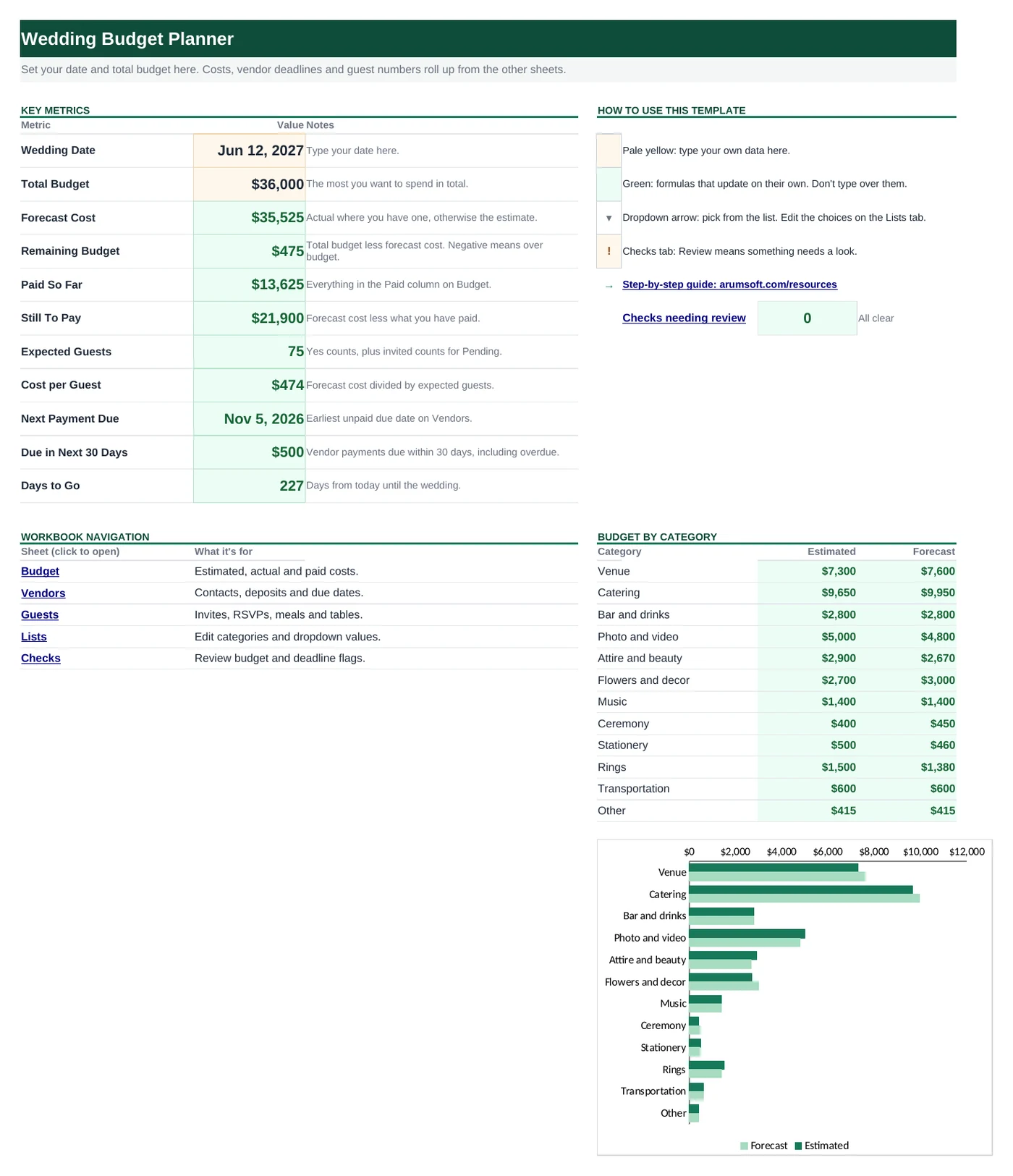
Set your total budget, list every cost with an estimate and the real price, and track vendor deposits and due dates. The dashboard shows what is left, what is still owed and your cost per guest.
- Sheets:
- 6
- Works with:
- Excel for Microsoft 365, Excel 2016 or later, Excel for Mac and Excel for the web
- Updated:
What you can do with it
- Compare estimated and actual costs by category
- See your remaining budget and what is still owed
- Track vendor deposits, final payments and due dates
- Count expected guests and your cost per guest
What's inside
The workbook has 6 sheets. You only type on a few of them; the rest calculate.
| Sheet | What it's for | You enter | Calculated for you |
|---|---|---|---|
| Start Here | Your date and budget, eleven key numbers and budget by category | Wedding date and total budget | Forecast cost, remaining budget, paid, still to pay, guests, cost per guest, next payment, days to go |
| Budget | One row per cost (room for 80) | Category, item, estimated, actual, paid | Forecast, still owed, variance |
| Vendors | Contacts and payment deadlines (room for 40) | Vendor, category, contact details, contract total, deposit, due dates, paid Yes/No | Paid, still owed, next due date and amount, status |
| Guests | One row per household or party (room for 200) | Name, side, invited, RSVP, attending, meal, table | Expected guests |
| Lists | Dropdown choices: categories, sides, RSVP answers, meals | Your categories and meal options | Nothing |
| Checks | Seven checks on money, deadlines and guests | Nothing | OK or Review for each check |
Before you start
The template works as soon as you open it. Cell colors tell you what each cell is for:
- Open the file. If Excel shows a yellow Protected View bar, click Enable Editing. Files downloaded from the internet always open this way.
- Save your own copy with File› then Save As so you always have the original to start over from.
- Clear the sample data on Budget, Vendors and Guests. Select the yellow cells and press Delete; don't delete the green formula columns.
Step-by-step guide
Work through these in order the first time. After that, you'll mostly repeat the regular update steps.
Set your date and total budget
On Start Here, type your Wedding Date in
B6and your Total Budget inB7, the most you want to spend in total. Every other number on the dashboard updates from these and the other sheets.List your costs with estimates
On Budget, add one row per cost: pick a Category, name the Item and type an Estimated amount. Early on, estimates are all you need.
The categories come from Lists. Rename them to match how you think about the day.
Add the real price when you book
When you sign a contract or get a final quote, type it in Actual. Forecast then uses the actual price instead of the estimate, and Variance shows the difference (negative, in red, means it cost more than planned).
Each time you pay something, add it to Paid. Still Owed is the forecast less what you have paid.
Track vendors and due dates
On Vendors, add each booked vendor with their contact details, Contract Total, Deposit and the Deposit Due and Final Due dates. When you pay, change Deposit Paid or Final Paid to Yes.
Next Due and Next Amount show the next payment, and Status shows Overdue, Due soon (within 30 days), Upcoming or Paid.
Build the guest list
On Guests, add one row per household or party with the number Invited. As replies arrive, set RSVP to Yes, No or Pending and type how many are Attending.
Expected counts the attending number for Yes, 0 for No and the invited number while Pending, so your headcount is never too low.
Read the dashboard
Start Here shows Forecast Cost, Remaining Budget (red if you are over), Paid So Far, Still To Pay, Expected Guests, Cost per Guest, the Next Payment Due, the amount Due in Next 30 Days and Days to Go. The Budget by category table and chart compare estimates with the forecast.
Review the Checks sheet
Checks flags a forecast over budget, overdue vendor payments, unpaid vendors with no due date, overpayments, budget lines without a category and guests with more attending than invited.
How the formulas work
You don't need to understand the formulas to use the template, but they're a good way to learn. Click any cell in Excel to see its formula in the formula bar.
=IF(AND(B5="", C5="", D5=""), "", IF(D5="", N(C5), D5))Use the actual price when there is one, otherwise the estimate. Adding up this column gives a total that gets more accurate as you book vendors.
Learn this: How to Use the IF Function in Excel →=IF(E20="", "", SUMIFS(Budget!$C$5:$C$84, Budget!$A$5:$A$84, E20))Adds the Estimated amounts of every Budget row whose Category matches the name in column E. The Forecast column next to it does the same with Budget column E.
Learn this: How to Use SUMIF and SUMIFS in Excel →=IF(A5="", "", IF(M5<=0, "Paid", IF(N5="", "No date",
IF(N5<TODAY(), "Overdue", IF(N5-TODAY()<=30, "Due soon", "Upcoming")))))Nothing owed means Paid. Otherwise the next due date is compared with TODAY(): past it is Overdue, within 30 days is Due soon.
Learn this: How to Use TODAY and NOW in Excel →=IF(A5="", "", IF(D5="No", 0, IF(D5="Yes", IF(E5="", N(C5), N(E5)), N(C5))))Nested IFs pick the right count for each RSVP answer. Pending guests count at the invited number until they reply.
Learn this: How to Use the IF Function in Excel →Tips and limits
- Capacity: 80 budget lines, 40 vendors and 200 guest rows. Budget, Vendors and Guests are Excel tables, so you can filter and sort them with the header arrows.
- Only the first 12 categories on Lists appear in the Budget by category table on Start Here. Keep the ones you use most at the top.
- Due in Next 30 Days and the vendor status use TODAY(), so they change each day you open the file.
- Cost per Guest divides the whole forecast by expected guests. It includes costs that don't depend on headcount, such as attire and rings.
Learn the skills behind this template
Was this guide helpful? Spot a mistake? Send feedback · admin@arumsoft.com