Employee Shift Roster Template for Excel: Weekly Hours, Overtime and Coverage
Pick a shift code for each person and day. The roster adds up worked and paid hours, flags overtime, estimates labor cost and checks that every day has enough people on shift.
- Sheets:
- 5
- Works with:
- Excel for Microsoft 365, Excel 2016 or later, Excel for Mac and Excel for the web
- Updated:
What you can do with it
- Build a weekly roster with shift codes from a dropdown
- Get each person's worked hours, paid hours and overtime
- See how many people are on shift each day against what you need
- Estimate the week's labor cost, including overtime
What's inside
The workbook has 5 sheets. You only type on a few of them; the rest calculate.
| Sheet | What it's for | You enter | Calculated for you |
|---|---|---|---|
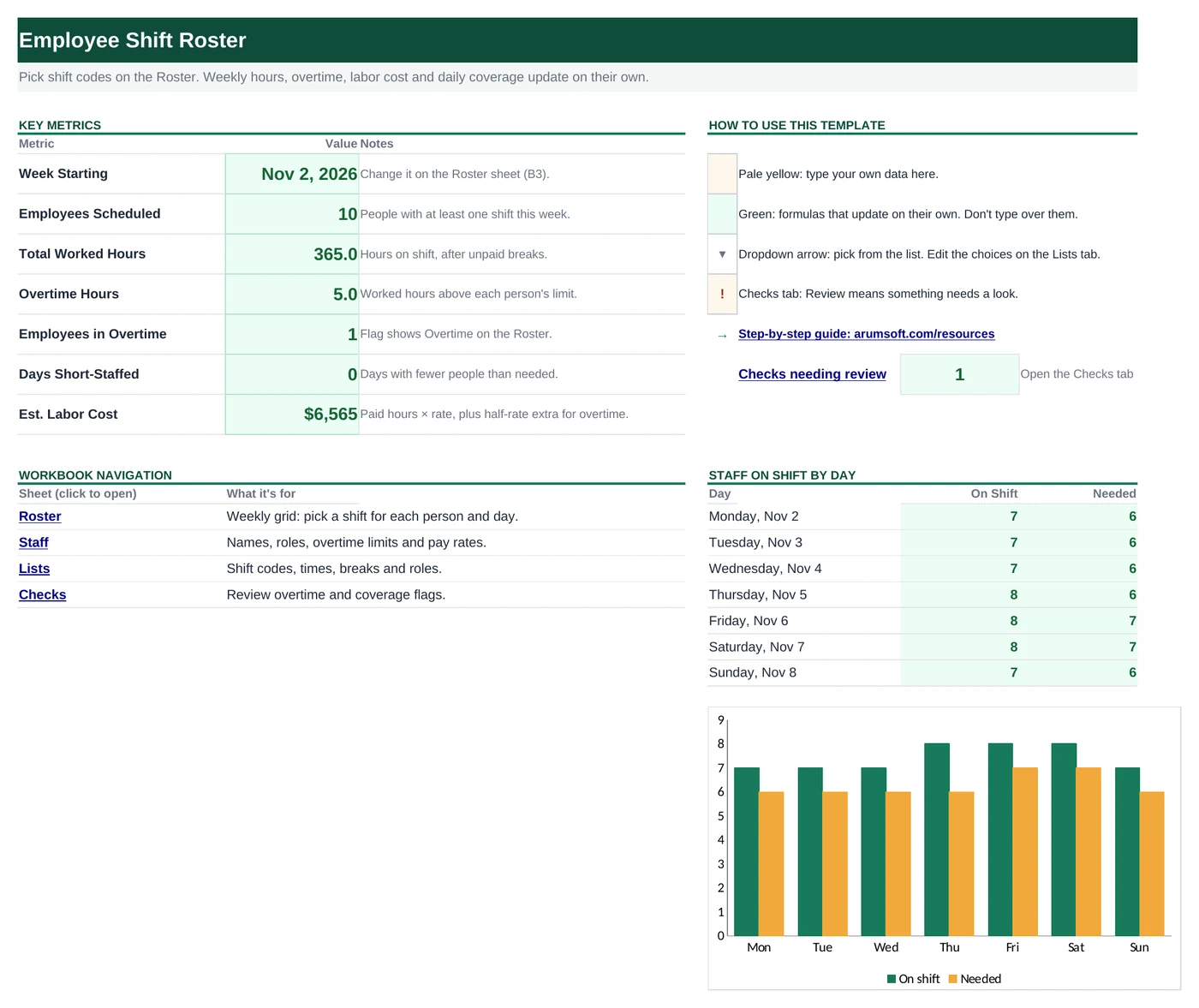
| Start Here | Dashboard with seven key numbers and staff on shift by day | Nothing | Week starting, employees scheduled, worked hours, overtime, days short-staffed, labor cost |
| Roster | The weekly grid (30 employees × 7 days) and coverage by day | Week starting date, a shift code per person and day, staff needed per day | Worked hours, paid hours, overtime, days on, estimated pay, flag, coverage |
| Staff | One row per employee (room for 30) | Name, role, overtime limit, hourly rate | Nothing |
| Lists | The shift table and roles | Shift codes, names, start and end times, breaks, leave hours, On Shift Yes/No, roles | Paid hours and worked hours per shift |
| Checks | Six roster checks | Nothing | OK or Review for each check |
Before you start
The template works as soon as you open it. Cell colors tell you what each cell is for:
- Open the file. If Excel shows a yellow Protected View bar, click Enable Editing. Files downloaded from the internet always open this way.
- Save your own copy with File› then Save As so you always have the original to start over from.
- Replace the sample team on Staff and clear the shift codes on Roster (select the yellow grid and press Delete). Names on the Roster come from Staff, row by row.
Step-by-step guide
Work through these in order the first time. After that, you'll mostly repeat the regular update steps.
Set up your shifts
On Lists, the shift table defines every code. For each shift, type a Code (E, D, L and so on), a Shift Name, the Start and End times and the unpaid Break (min). Paid Hours is calculated: a 6:00 AM to 2:00 PM shift with a 30-minute break is 7.5 hours. Night shifts that end after midnight work too.
Codes without times, such as PTO or SICK, use Leave Hours instead. Set On Shift? to Yes for codes where the person is actually working; only those count toward coverage and overtime.
Add your team
On Staff, add each employee with a Role, the Overtime After (hrs/week) limit (for example 40) and an Hourly Rate. The roster lists them in the same order.
Pick the week
On Roster, type the first day of the week in
B3. The seven day headings update to show the dates, with weekend headings in a darker color.Fill in the roster
Click a yellow cell and pick a code from the dropdown, or type it. Working shifts turn green and OFF turns grey. For each person, the roster shows:
- Worked Hours: shifts marked On Shift = Yes.
- Paid Hours: worked hours plus paid leave such as PTO.
- Overtime: worked hours above that person's limit.
- Days On, Est. Pay and a Flag: Overtime, No day off, Check code (for a code that isn't in the shift table) or OK.
Check coverage
Below the grid, Coverage by day counts each shift code per day. Type how many people you need each day in the Staff needed row. Status shows OK or, for example, Short 1 in red when a day has too few people on shift.
Read the dashboard
Start Here shows Employees Scheduled, Total Worked Hours, Overtime Hours, Employees in Overtime, Days Short-Staffed and Est. Labor Cost, with a chart of staff on shift against staff needed for each day.
Plan the next week
To keep past weeks, right-click the Roster tab, choose Move or Copy, tick Create a copy, and rename the copy, for example
Roster Nov 2. Then change the date and codes on the original Roster. The dashboard and Checks always read the sheet named Roster.
How the formulas work
You don't need to understand the formulas to use the template, but they're a good way to learn. Click any cell in Excel to see its formula in the formula bar.
=IF(A5="", 0, IF(AND(ISNUMBER(C5), ISNUMBER(D5)),
   ROUND(MOD(D5-C5, 1)*24-N(E5)/60, 2), N(F5)))
Excel stores times as fractions of a day. MOD(End − Start, 1) gives the length even when the shift crosses midnight; × 24 turns it into hours, and the break is taken off in hours.
Learn this: Number and Date Formats in Excel →=IF(A5="", "", SUMPRODUCT(SUMIF(Lists!$A$5:$A$20, C5:I5, Lists!$I$5:$I$20)))SUMIF looks up the hours for each of the seven codes in the row, and SUMPRODUCT adds the seven results. No helper columns needed.
Learn this: How to Use SUMIF and SUMIFS in Excel →=SUMPRODUCT(COUNTIF(C$5:C$34, Lists!$A$5:$A$20)*(Lists!$G$5:$G$20="Yes"))COUNTIF counts how many people have each code that day, and multiplying by (On Shift = "Yes") keeps only the working shifts, so OFF and PTO aren't counted.
Learn this: How to Use COUNTIF and COUNTIFS in Excel →=IF(A5="", "", MAX(0, J5-IF(Staff!$C5="", 40, Staff!$C5)))Worked hours above the person's limit on Staff, or 40 if the limit is blank. MAX stops it from going negative.
Learn this: How to Use MIN and MAX in Excel →Tips and limits
- Overtime here is weekly hours above each person's limit, and Est. Pay adds half the hourly rate for those hours. Overtime and break rules vary by location and contract, so adjust the limits to the rules that apply to you.
- Capacity: 30 employees and 16 shift codes. One roster sheet covers one week.
- Codes are matched without regard to case, so d and D both count as the Day shift.
- The Roster is set to print on one landscape page, including the coverage table.
Learn the skills behind this template
Was this guide helpful? Spot a mistake? Send feedback · admin@arumsoft.com