RACI Matrix Template for Excel
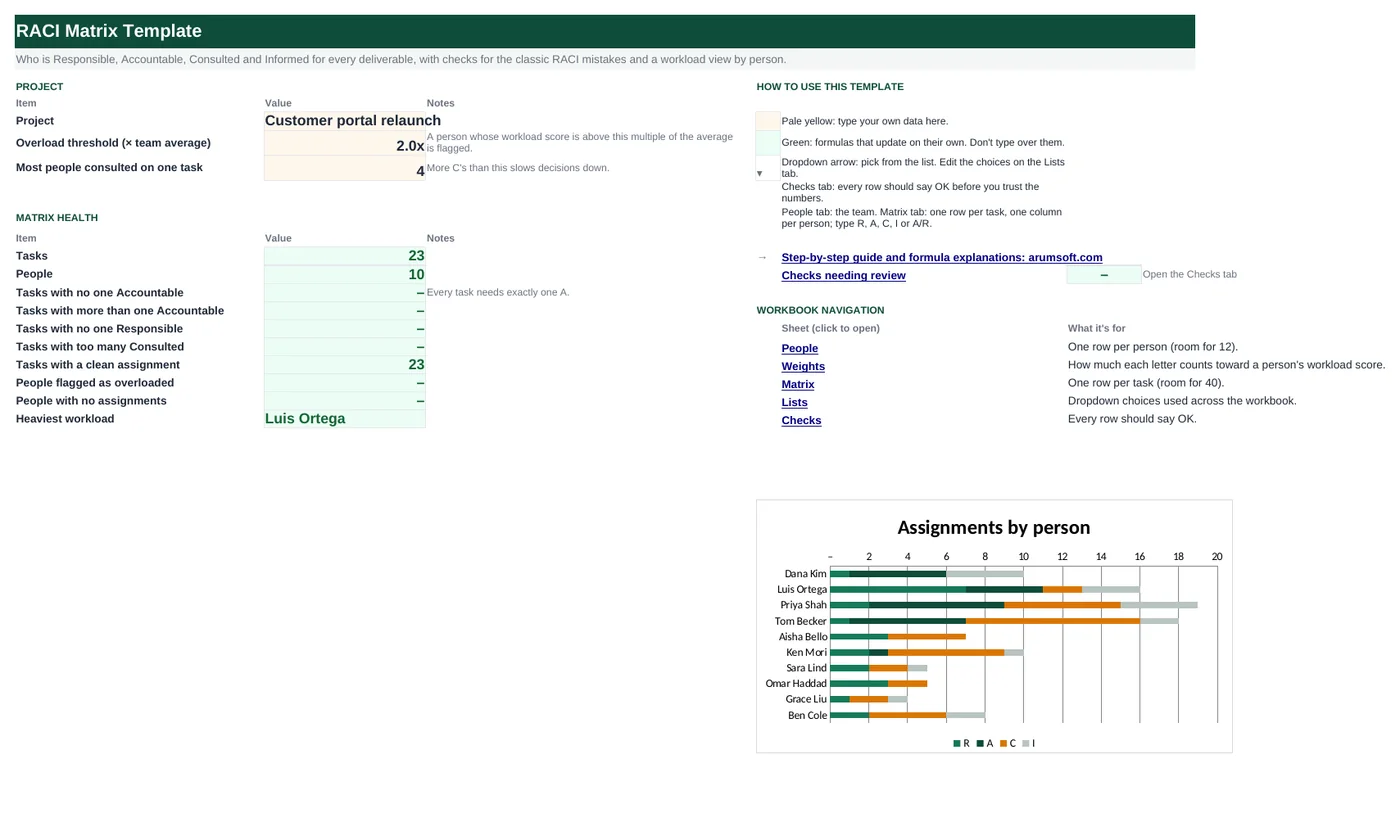
A RACI chart only helps if it follows the rules: one Accountable per task, at least one Responsible, and not so many Consulted that nothing moves. This workbook checks every row for you as you fill it in, and adds up each person's load with weights (doing the work counts more than being informed) so you can see who is stretched before the project starts.
- Sheets:
- 6
- Works with:
- Excel for Microsoft 365, Excel 2016 or later, Excel for Mac and Excel for the web
- Updated:
What you can do with it
- Up to 40 tasks by phase against 12 people, with R / A / C / I / A/R dropdowns and color coding
- Every task checked: No A, Multiple A, No R, Too many C or OK
- R, A, C and I counts per person with a weighted workload score and load vs the team average
- Overloaded and unassigned people flagged, with a stacked chart of roles by person
What's inside
The workbook has 6 sheets. You only type on a few of them; the rest calculate.
| Sheet | What it's for | You enter | Calculated for you |
|---|---|---|---|
| Start Here | Settings and the health check | Project name, overload threshold, most people consulted per task | Task and people counts, tasks breaking each rule, clean tasks, overloaded and unassigned people, heaviest workload |
| People | Team list (12) | Name, role, department | R, A, C, I counts, workload score, load vs average, status |
| Weights | Effort weight per role | Weight for R, A, C and I | Nothing |
| Matrix | Tasks × people (40 × 12) | Phase, task, one letter per person | R, A, C, I counts per task and the status |
| Lists | Dropdowns | Letters and phases | Nothing |
| Checks | Six data checks | Nothing | OK or Review |
Before you start
- List the people involved, including sponsors and approvers who only need to be informed.
- Break the project into deliverables or decisions, not activities: "Approve budget", not "Budget meetings".
- Agree on the meaning of A in your team: the one person who signs off and answers for the result.
Step-by-step guide
Name the project and set the limits
Start Here B6–B8: project name, the overload threshold (2.0 = twice the team average) and the most people you want consulted on one task.
List the team
People tab: name, role and department. Their names flow into the matrix headers automatically.
Fill the matrix
Matrix tab: phase and task in columns A and B, then pick R, A, C, I or A/R under each person involved. Leave the rest blank.
Fix the flagged tasks
Column S turns red on any task with no A, two A's, no R or too many C's. Fix those until every row says OK.
Check the load
People tab columns H–J show each person's weighted score and how it compares with the average. Rebalance anyone marked Overloaded.
Share it
Start Here shows the health check at a glance. Print the Matrix tab for the kickoff meeting.
Formula map
Every formula in the workbook, grouped by the sheet and column it lives in. A column of copied formulas counts once; the range it covers is shown.
| Sheet | Cells | Functions | What it computes | Reads | Feeds |
|---|---|---|---|---|---|
| Matrix | O6 copied down to row 45 | IF, COUNTIF | Responsible count per task | O6 | The status column needs at least one R. |
| Matrix | P6 copied down to row 45 | IF, COUNTIF | Accountable count per task | P6 | Zero or more than one is flagged in column S. |
| Matrix | S6 copied down to row 45 | IF | Assignment status | P6, O6, Q6 | Colored red or green, and counted on Start Here B14–B18. |
| People | D5 | IF, COUNTIF | R count per person | D5 | Feeds the workload score. E5:G5 count A, C and I the same way. |
| People | H5 copied down to row 16 | IF | Workload score | D5, E5, F5, G5 | Compared with the team average in column I. |
| People | I5 copied down to row 16 | IF, OR, AVERAGE | Load vs team average | H5 | Above the threshold on Start Here B7 = Overloaded. |
| People | J5 copied down to row 16 | IF | Person status | H5, I5 | Counted on Start Here B19 and B20. |
| Start Here | B21 | IFERROR, INDEX, MATCH, MAX | Heaviest workload | — | The first person to rebalance when a new task arrives. |
Every formula, explained
Each formula below is copied straight from the file, so what you read here is exactly what the cell contains. Click any cell in Excel to see it in the formula bar.
=IF(B6="", "", COUNTIF(C6:N6, "R")+COUNTIF(C6:N6, "A/R"))Counts the people marked R on this task, plus anyone marked A/R (accountable and doing the work).
Piece by piece
COUNTIF(C6:N6, "R")- Plain R cells across the twelve people.
+COUNTIF(C6:N6, "A/R")- A/R counts as Responsible too.
IF(B6="", "", …)- Blank when the task row is empty.
With the sample data: O6 = 1 → O6 result 1
How it is used: The status column needs at least one R.
How to change it: Nothing to change.
Learn this: How to Use COUNTIF and COUNTIFS in Excel →=IF(B6="", "", COUNTIF(C6:N6, "A")+COUNTIF(C6:N6, "A/R"))Counts A and A/R cells on the row. A clean RACI has exactly one.
Piece by piece
COUNTIF(C6:N6, "A")- Accountable only.
+COUNTIF(C6:N6, "A/R")- Accountable and doing it.
With the sample data: P6 = 1 → P6 result 1
How it is used: Zero or more than one is flagged in column S.
How to change it: Nothing to change.
Learn this: How to Use COUNTIF and COUNTIFS in Excel →=IF(B6="", "", IF(P6=0, "No A",
IF(P6>1, "Multiple A", IF(O6=0, "No R", IF(Q6>'Start Here'!$B$8, "Too many C", "OK")))))Tests the four RACI rules in order and returns the first one broken: no Accountable, more than one Accountable, no Responsible, or more Consulted than your limit.
Piece by piece
P6=0- No one owns the outcome: "No A".
P6>1- Two owners: "Multiple A".
O6=0- No one does the work: "No R".
Q6>'Start Here'!$B$8- Too many people to ask: "Too many C".
"OK"- Everything passes.
With the sample data: P6 = 1, O6 = 1, Q6 = 1 → S6 result OK
How it is used: Colored red or green, and counted on Start Here B14–B18.
How to change it: Set the Consulted limit on Start Here B8.
Learn this: How to Use the IF Function in Excel →=IF(A5="", "", COUNTIF(Matrix!C$6:C$45,
"R")+COUNTIF(Matrix!C$6:C$45,
"A/R"))Counts how many tasks this person is Responsible for, reading down their column of the matrix.
Piece by piece
Matrix!C$6:C$45- This person's column (the row is locked with $, the column moves as you fill right).
"R" and "A/R"- Both count as doing the work.
With the sample data: D5 = 1 → D5 result 1
How it is used: Feeds the workload score. E5:G5 count A, C and I the same way.
How to change it: Nothing to change.
Learn this: Relative, Absolute and Mixed References in Excel →=IF(A5="", "", D5*Weights!$B$5+E5*Weights!$B$6+F5*Weights!$B$7+G5*Weights!$B$8)Weights each role by how much effort it takes: R counts most, A next, C a little, I almost nothing.
Piece by piece
D5*Weights!$B$5- R count × 3.
+E5*Weights!$B$6- A count × 2.
+F5*Weights!$B$7- C count × 1.
+G5*Weights!$B$8- I count × 0.25.
With the sample data: D5 = 1, E5 = 5, F5 = 0, G5 = 4 → H5 result 14
How it is used: Compared with the team average in column I.
How to change it: Change the weights on the Weights tab to match how your team works.
Learn this: How to Write Basic Formulas in Excel →=IF(OR(A5="", AVERAGE($H$5:$H$16)=0),
"", H5/AVERAGE($H$5:$H$16))Divides this person's score by the average score of everyone listed. 1.0 means an average load.
Piece by piece
AVERAGE($H$5:$H$16)- Team average, ignoring blank rows.
H5/…- This person relative to it.
OR(A5="", …=0)- Avoids dividing by zero on an empty sheet.
With the sample data: H5 = 14 → I5 result 87.8%
How it is used: Above the threshold on Start Here B7 = Overloaded.
How to change it: Nothing to change.
Learn this: How to Use the AVERAGE Function in Excel →=IF(A5="", "", IF(H5=0, "Unassigned",
IF(I5>'Start Here'!$B$7, "Overloaded", "OK")))Unassigned when the score is zero, Overloaded when the load ratio exceeds the threshold, otherwise OK.
Piece by piece
H5=0- Not on any task.
I5>'Start Here'!$B$7- Above 2× average by default.
With the sample data: H5 = 14, I5 = 87.8% → J5 result OK
How it is used: Counted on Start Here B19 and B20.
How to change it: Change the threshold on Start Here B7.
Learn this: How to Use the IF Function in Excel →=IFERROR(INDEX(People!$A$5:$A$16,
MATCH(MAX(People!$H$5:$H$16), People!$H$5:$H$16, 0)),
"")Finds the highest workload score and returns the name on that row.
Piece by piece
MAX(People!$H$5:$H$16)- Highest score.
MATCH(…, People!$H$5:$H$16, 0)- Its position.
INDEX(People!$A$5:$A$16, …)- The name.
With the sample data: B21 result Luis Ortega
How it is used: The first person to rebalance when a new task arrives.
How to change it: Nothing to change.
Learn this: How to Use INDEX and MATCH in Excel →Tips and limits
- Capacity: 40 tasks and 12 people. To add people, insert columns inside C:N on the Matrix tab and rows inside the People table so ranges stretch.
- A/R is for small tasks where the owner also does the work. If one person has many A/R tasks, they are probably a bottleneck.
- Weights are a judgement call. If Consulted means hours of review in your team, raise C to 2.
- Keep Informed lists short. If everyone is I on everything, send a status report instead.
- Revisit the matrix at each phase gate; responsibilities drift as people join and leave.
Learn the skills behind this template
Was this guide helpful? Spot a mistake? Send feedback · admin@arumsoft.com