Construction Equipment Utilization and Fuel Log for Excel
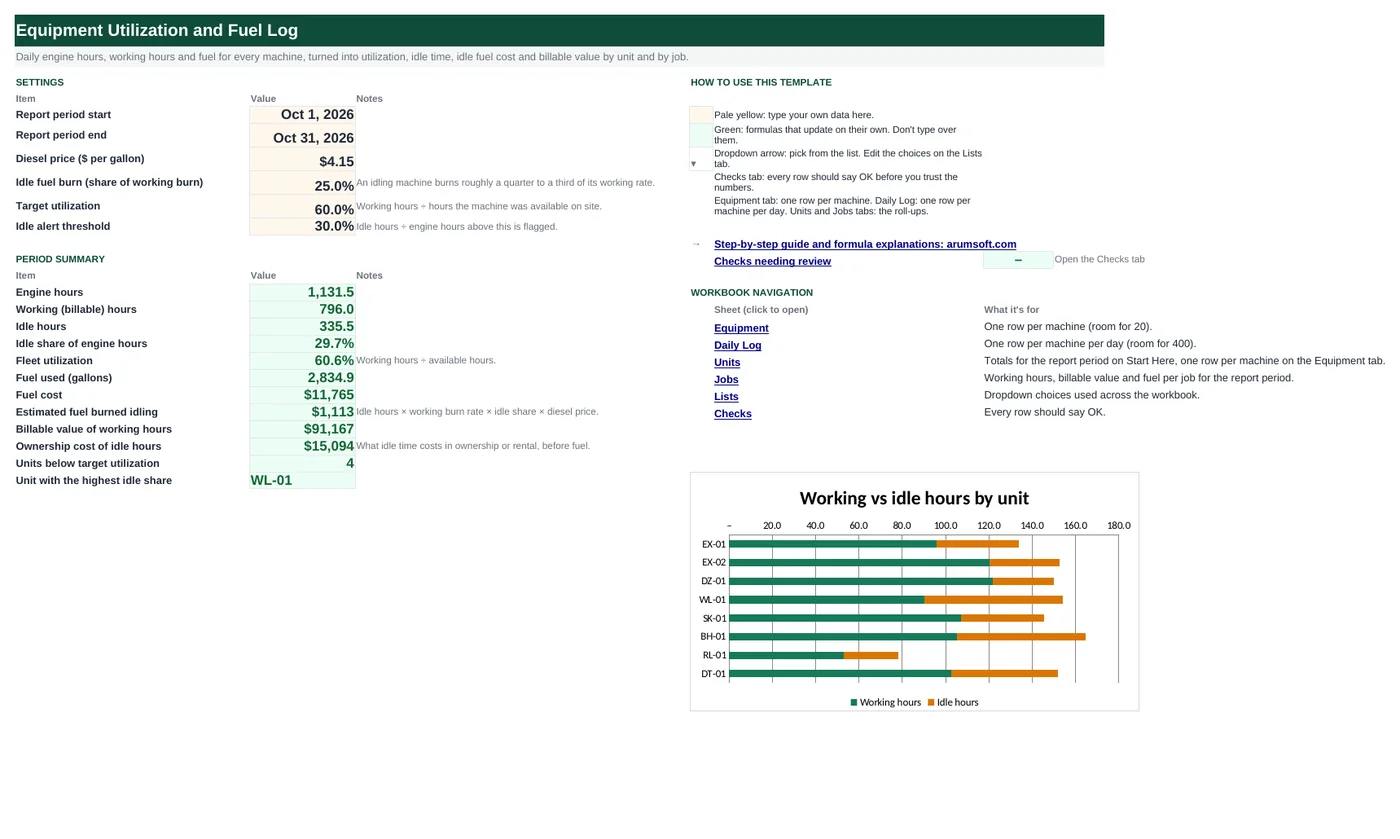
A machine that is running but not working burns fuel and ownership cost and earns nothing. This workbook takes one line per machine per day (hour meter start and end, productive hours, fuel added) and turns it into engine hours, idle hours, idle share and utilization for each unit, the fuel burned idling, the ownership cost of idle time, and the billable value of the work, by machine and by job. Rented units that sit unused most days are flagged for calling off rent.
- Sheets:
- 7
- Works with:
- Excel for Microsoft 365, Excel 2016 or later, Excel for Mac and Excel for the web
- Updated:
What you can do with it
- Engine, working and idle hours from the hour meter, with a daily flag for high idle or impossible readings
- Utilization against your target, by unit, with On target / Under-used / Off rent? status
- Fuel used, gallons per engine hour, idle fuel cost and idle ownership cost
- Working hours, fuel and billable value by job for job-cost reports
What's inside
The workbook has 7 sheets. You only type on a few of them; the rest calculate.
| Sheet | What it's for | You enter | Calculated for you |
|---|---|---|---|
| Start Here | Settings and the period summary | Period start and end, diesel price, idle burn share, utilization target, idle alert threshold | Engine, working and idle hours, idle share, fleet utilization, fuel and fuel cost, idle fuel cost, billable value, idle ownership cost, units below target, worst idler |
| Equipment | Machine register (20) | Unit, description, owned or rented, ownership cost per hour, billable rate, fuel burn | Nothing |
| Daily Log | One row per machine per day (400) | Date, unit, job, hours available, meter start and end, working hours, fuel added, operator | Engine hours, idle hours, idle %, flag |
| Units | Roll-up by machine | Nothing | Days on site and logged, hours, idle %, fuel, gal per hour, idle fuel cost, billable value, idle ownership cost, utilization, status |
| Jobs | Roll-up by job | Nothing | Engine, working and idle hours, fuel, fuel cost, billable value |
| Lists | Dropdowns | Ownership types, jobs | Nothing |
| Checks | Six data checks | Nothing | OK or Review |
Before you start
- List each machine with what an hour of ownership (or rental) costs and what you bill an hour of work at.
- Decide where "working hours" come from: telematics, the operator's time card or the foreman's daily report. Engine hours come from the hour meter.
- Put your job names on the Lists tab so the log and the Jobs tab match.
Step-by-step guide
Set the period and rates
Start Here B6–B11: period start and end, diesel price, the idle burn share (about a quarter of working burn), the utilization target and the idle alert threshold.
Register the machines
Equipment tab: unit, description, owned or rented, ownership cost per hour, billable rate per hour, fuel burn per working hour.
Log every machine every day
Daily Log: date, unit, job, hours available (the shift), hour meter start and end, working hours, fuel added, operator. Engine hours, idle hours and idle % calculate; the flag column catches high idle and impossible readings.
Read the Units tab
For the period: hours available, engine, working and idle hours, fuel, gallons per engine hour, idle fuel cost, billable value, idle ownership cost and utilization, with a status per machine.
Read the Jobs tab
Working hours, fuel and billable value per job, for job cost and equipment billing.
Act on Start Here
Fleet utilization, idle share, what idling cost in fuel and ownership, which unit idles most, and how many are under target. "Off rent?" marks a unit logged on fewer than half the working days.
Formula map
Every formula in the workbook, grouped by the sheet and column it lives in. A column of copied formulas counts once; the range it covers is shown.
| Sheet | Cells | Functions | What it computes | Reads | Feeds |
|---|---|---|---|---|---|
| Daily Log | J5 copied down to row 404 | IF | Engine hours | F5, E5 | Idle hours and every total use it. |
| Daily Log | K5 copied down to row 404 | IF, MAX | Idle hours | J5, G5 | Idle % and the idle fuel and ownership costs come from it. |
| Daily Log | M5 copied down to row 404 | IF | Flag | G5, J5, D5, L5 | Red for data errors, amber for high idle; the Checks tab counts the errors. |
| Units | F5 copied down to row 24 | IF, SUMIFS | Engine hours in the period | — | Columns E, G and J use the same criteria for available hours, working hours and fuel. |
| Units | D5 copied down to row 24 | IF, COUNTIFS | Days logged | — | Compared with working days in the period for the Off rent? test. |
| Units | L5 | IF | Idle fuel cost | H5 | Summed on Start Here B22. |
| Units | O5 copied down to row 24 | IF, OR | Utilization | G5, E5 | Compared with the target for the status. |
| Units | P5 copied down to row 24 | IF | Status | O5, D5, C5 | Counted on Start Here B25; colored by conditional formatting. |
| Jobs | G5 copied down to row 14 | IF, SUMPRODUCT, IFERROR, SUMIF | Billable value by job | — | Equipment billing to each job. |
| Start Here | B26 | IFERROR, INDEX, MATCH, MAX | Unit with the highest idle share | — | Where to start the conversation with the operator. |
Every formula, explained
Each formula below is copied straight from the file, so what you read here is exactly what the cell contains. Click any cell in Excel to see it in the formula bar.
=IF(B5="", "", F5-E5)Hour meter at the end of the day minus the reading at the start.
Piece by piece
F5- Meter end.
-E5- Meter start.
With the sample data: F5 = 3,103.9, E5 = 3,096 → J5 result 7.9
How it is used: Idle hours and every total use it.
How to change it: Nothing to change.
Learn this: How to Write Basic Formulas in Excel →=IF(B5="", "", MAX(0, J5-G5))Engine hours minus working hours, never below zero.
Piece by piece
J5-G5- Engine running but not working.
MAX(0, …)- Guards against working hours entered higher than engine hours.
With the sample data: J5 = 7.9, G5 = 5.2 → K5 result 2.7
How it is used: Idle % and the idle fuel and ownership costs come from it.
How to change it: Nothing to change.
Learn this: How to Use MIN and MAX in Excel →=IF(B5="", "", IF(G5>J5, "Working > engine",
IF(J5>D5, "Over available", IF(L5>'Start Here'!$B$11, "High idle", ""))))Three tests in order: working hours above engine hours (impossible), engine hours above hours available (meter or shift error), then idle share above the alert threshold.
Piece by piece
G5>J5- Working > engine.
J5>D5- Over available.
L5>'Start Here'!$B$11- High idle.
With the sample data: G5 = 5.2, J5 = 7.9, D5 = 9, L5 = 34.2% → M5 result High idle
How it is used: Red for data errors, amber for high idle; the Checks tab counts the errors.
How to change it: Change the threshold on Start Here B11.
Learn this: How to Use the IF Function in Excel →=IF(A5="", "", SUMIFS('Daily Log'!$J$5:$J$404,
'Daily Log'!$B$5:$B$404,
A5, 'Daily Log'!$A$5:$A$404,
">="&'Start Here'!$B$6, 'Daily Log'!$A$5:$A$404,
"<="&'Start Here'!$B$7))Adds engine hours for this unit with dates inside the Start Here period.
Piece by piece
'Daily Log'!$J$5:$J$404- Engine hours to add.
'Daily Log'!$B$5:$B$404, A5- Unit matches.
'Daily Log'!$A$5:$A$404, ">="&'Start Here'!$B$6- On or after the period start.
…, "<="&'Start Here'!$B$7- On or before the period end.
With the sample data: F5 result 133.7
How it is used: Columns E, G and J use the same criteria for available hours, working hours and fuel.
How to change it: Change the period on Start Here, not here.
Learn this: How to Use SUMIF and SUMIFS in Excel →=IF(A5="", "", COUNTIFS('Daily Log'!$B$5:$B$404,
A5, 'Daily Log'!$A$5:$A$404,
">="&'Start Here'!$B$6, 'Daily Log'!$A$5:$A$404,
"<="&'Start Here'!$B$7))Counts log rows for this unit inside the period.
Piece by piece
'Daily Log'!$B$5:$B$404, A5- Unit matches.
date criteria- Same period window as the sums.
With the sample data: D5 result 17
How it is used: Compared with working days in the period for the Off rent? test.
How to change it: Nothing to change.
Learn this: How to Use COUNTIF and COUNTIFS in Excel →=IF(A5="", "", H5*Equipment!F5*'Start Here'!$B$9*'Start Here'!$B$8)Idle hours times the machine's working burn rate, times the share of that rate an idling engine uses, times the diesel price.
Piece by piece
H5- Idle hours.
*Equipment!F5- Gallons per working hour.
*'Start Here'!$B$9- Idle burn share (25%).
*'Start Here'!$B$8- Diesel price.
With the sample data: H5 = 38 → L5 result 165.58
How it is used: Summed on Start Here B22.
How to change it: If telematics gives you idle fuel directly, log it and SUMIFS it instead.
Learn this: Relative, Absolute and Mixed References in Excel →=IF(OR(A5="", E5=0), "", G5/E5)Working hours divided by hours available on site.
Piece by piece
E5=0- Not available: blank.
G5/E5- Working ÷ available.
With the sample data: G5 = 95.7, E5 = 153 → O5 result 62.5%
How it is used: Compared with the target for the status.
How to change it: To measure against engine hours instead, divide by F5.
Learn this: How to Use the IF Function in Excel →=IF(O5="", "", IF(O5>='Start Here'!$B$10,
"On target", IF(D5<C5*0.5, "Off rent?", "Under-used")))On target at or above the target; Off rent? when below target and logged on fewer than half the working days; Under-used otherwise.
Piece by piece
O5>='Start Here'!$B$10- Meets the target.
D5<C5*0.5- Logged on under half the working days.
With the sample data: O5 = 62.5%, D5 = 17, C5 = 22 → P5 result On target
How it is used: Counted on Start Here B25; colored by conditional formatting.
How to change it: Change 0.5 to your own off-rent rule.
Learn this: How to Use the IF Function in Excel →=IF(A5="", "", SUMPRODUCT(('Daily Log'!$C$5:$C$404=A5)*('Daily Log'!$A$5:$A$404>='Start Here'!$B$6)*('Daily Log'!$A$5:$A$404<='Start Here'!$B$7)*IFERROR('Daily Log'!$G$5:$G$404*SUMIF(Equipment!$A$5:$A$24, 'Daily Log'!$B$5:$B$404, Equipment!$E$5:$E$24), 0)))For every log row on this job inside the period, working hours times that machine's billable rate (looked up with SUMIF, which acts as a lookup when unit codes are unique), added up.
Piece by piece
('Daily Log'!$C$5:$C$404=A5)- Job matches.
('Daily Log'!$A$5:$A$404>='Start Here'!$B$6)*(…<=…$B$7)- Inside the period.
SUMIF(Equipment!$A$5:$A$24, 'Daily Log'!$B$5:$B$404, Equipment!$E$5:$E$24)- Billable rate for each row's unit.
'Daily Log'!$G$5:$G$404*…- Working hours × rate.
SUMPRODUCT(… IFERROR(…, 0))- Add it all, ignoring blank rows.
With the sample data: G5 result 30,380
How it is used: Equipment billing to each job.
How to change it: Nothing to change.
Learn this: How to Use SUMIF and SUMIFS in Excel →=IFERROR(INDEX(Units!$A$5:$A$24,
MATCH(MAX(Units!$I$5:$I$24), Units!$I$5:$I$24, 0)),
"")Finds the largest idle % on the Units tab and returns the unit code.
Piece by piece
MAX(Units!$I$5:$I$24)- Highest idle share.
MATCH(…, Units!$I$5:$I$24, 0)- Its row.
INDEX(Units!$A$5:$A$24, …)- The unit.
With the sample data: B26 result WL-01
How it is used: Where to start the conversation with the operator.
How to change it: Nothing to change.
Learn this: How to Use INDEX and MATCH in Excel →Tips and limits
- Capacity: 20 machines, 400 log rows (about one month for a fleet of 18). Start a new file each month, or extend with Ctrl+H ($404).
- Engine hours are only as good as the meter readings. Read the meter at the same time every day, before the first start.
- Idle burn varies by machine; 25% of working burn is a fair default for diesel equipment. Telematics systems usually report idle fuel directly.
- Idle ownership cost (Units column N) is the cost of a machine sitting on the job, not just idling: it is the strongest argument for moving or returning a unit.
- Billable value is at your internal or billing rate; it is not revenue unless the contract pays by the hour.
Learn the skills behind this template
Was this guide helpful? Spot a mistake? Send feedback · admin@arumsoft.com