Fleet Preventive Maintenance and Inspection Log for Excel
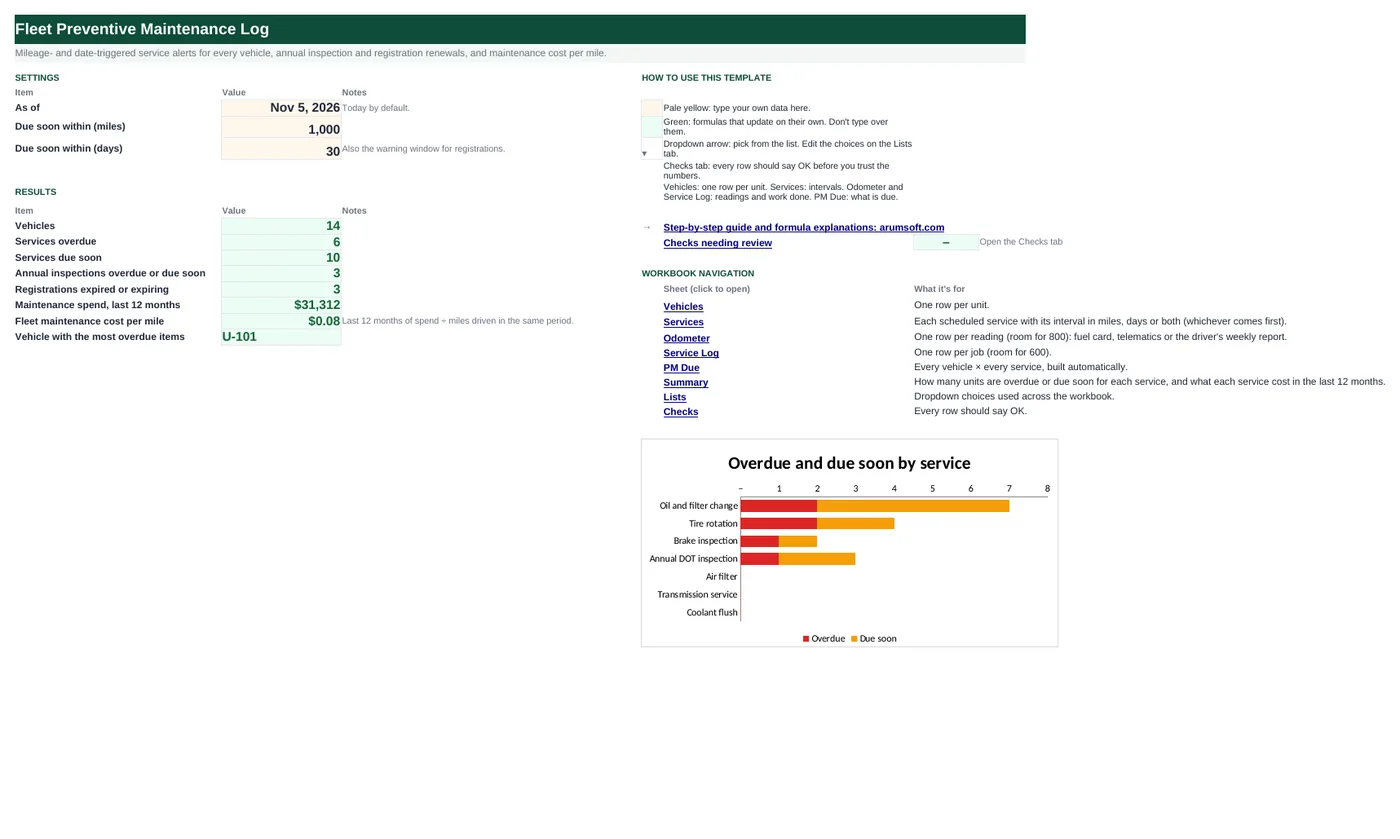
Preventive maintenance works when nobody has to remember it. Enter odometer readings as they come in and log each job as it is done, and this workbook builds a due list of every vehicle against every scheduled service. Each line knows the last time the work was done, the odometer at the time, the next due mileage and date, and flags itself Overdue or Due soon. Registrations and annual inspections get the same treatment, and the costs roll up to cost per mile.
- Sheets:
- 9
- Works with:
- Excel for Microsoft 365, Excel 2016 or later, Excel for Mac and Excel for the web
- Updated:
What you can do with it
- Due list of every vehicle × every service, generated automatically with INDEX, INT and MOD
- Next due by miles or days, whichever comes first, with Overdue and Due soon flags
- Current odometer, miles per day and miles in the last 12 months from the readings log
- Registration renewal alerts, maintenance spend and cost per mile per vehicle
What's inside
The workbook has 9 sheets. You only type on a few of them; the rest calculate.
| Sheet | What it's for | You enter | Calculated for you |
|---|---|---|---|
| Start Here | Settings and results | As-of date (today), due-soon miles and days | Vehicles, overdue, due soon, inspections due, registrations expiring, 12-month spend, cost per mile, worst vehicle |
| Vehicles | One row per unit (40) | Unit, type, description, VIN, plate, location, registration expiry | Current odometer, last reading, miles per day, miles in 12 months, registration status, spend, cost per mile, overdue items |
| Services | Service schedule (12) | Service, interval in miles and/or days, notes | Nothing |
| Odometer | Readings (800) | Date, unit, odometer | Check that readings never go backwards |
| Service Log | Jobs (600) | Date, unit, service, odometer, cost, vendor | Scheduled or repair |
| PM Due | Every unit × every service (480) | Nothing | Last done, odometer then, next due miles and date, miles and days left, status |
| Summary | By service | Nothing | Overdue, due soon, jobs and cost in the last 12 months |
| Lists | Vehicle types | Types | Nothing |
| Checks | Six data checks | Nothing | OK or Review |
Before you start
- Take the intervals from each manufacturer's maintenance schedule (severe service if the vehicles idle a lot or tow).
- Decide where odometer readings come from: fuel cards, telematics or a weekly driver report.
- Enter the last time each service was done on each vehicle, with the odometer, so the due list starts from real history.
Step-by-step guide
Set the alert windows
Start Here B7 and B8: how many miles or days ahead counts as Due soon.
Register vehicles
Vehicles tab: unit, type, description, VIN, plate, location and registration expiry.
Set the schedule
Services tab: each service with its interval in miles, days or both. Leave the one that does not apply blank.
Log readings and jobs
Odometer tab for readings; Service Log for every job with the odometer. Use the service names exactly as on the Services tab.
Plan the week
PM Due tab: filter Status for Overdue and Due soon.
Review cost
Vehicles columns M–N and the Summary tab: spend and cost per mile over the last 12 months.
Formula map
Every formula in the workbook, grouped by the sheet and column it lives in. A column of copied formulas counts once; the range it covers is shown.
| Sheet | Cells | Functions | What it computes | Reads | Feeds |
|---|---|---|---|---|---|
| PM Due | A5 copied down to row 484 | IFERROR, INDEX, INT, ROW, COUNTA | Unit for each row | — | B5 uses MOD(ROW()-5, services)+1 to cycle through the services the same way. |
| PM Due | C5 copied down to row 484 | IF, COUNTIFS, MAXIFS | Last done | A5, B5 | Next due date = last done + interval days. |
| PM Due | H5 copied down to row 484 | IF | Miles left | E5, G5 | Negative means overdue. |
| PM Due | L5 copied down to row 484 | IF, OR, AND | Status | C5, H5, I5 | Counted on Start Here and the Summary tab. |
| Vehicles | H5 copied down to row 44 | IF, MAX, MAXIFS | Current odometer | A5 | Every miles-left figure uses it. |
| Vehicles | K5 copied down to row 44 | IF, IFERROR, INDEX, MATCH | Miles in the last 12 months | H5 | Cost per mile = 12-month spend ÷ these miles. |
| Vehicles | L5 copied down to row 44 | IF | Registration status | G5 | Counted on Start Here B16. |
| Odometer | D5 copied down to row 804 | IF, MAXIFS | Reading check | B5, C5 | The first check counts these. |
Every formula, explained
Each formula below is copied straight from the file, so what you read here is exactly what the cell contains. Click any cell in Excel to see it in the formula bar.
=IFERROR(INDEX(Vehicles!$A$5:$A$44,
         INT((ROW()-5)/COUNTA(Services!$A$5:$A$16))+1)&"",
         "")
Generates the vehicle list repeated once per service: rows 1–7 are the first vehicle, 8–14 the second, and so on.
Piece by piece
ROW()-5- Row number counting from 0.
COUNTA(Services!$A$5:$A$16)- Number of services (7).
INT(…/…)+1- Which vehicle: 0–6 → 1, 7–13 → 2.
INDEX(Vehicles!$A$5:$A$44, …)- Its unit number.
IFERROR(…&"", "")- Blank past the last vehicle.
With the sample data: A5 result U-101
How it is used: B5 uses MOD(ROW()-5, services)+1 to cycle through the services the same way.
How to change it: Nothing to change; add vehicles or services and the list grows.
Learn this: How to Use INDEX and MATCH in Excel →=IF(A5="", "", IF(COUNTIFS('Service Log'!$B$5:$B$604, A5, 'Service Log'!$C$5:$C$604, B5)=0,
"", MAXIFS('Service Log'!$A$5:$A$604, 'Service Log'!$B$5:$B$604, A5, 'Service Log'!$C$5:$C$604, B5)))Latest date this service appears in the log for this vehicle.
Piece by piece
MAXIFS('Service Log'!$A$5:$A$604, 'Service Log'!$B$5:$B$604, A5, 'Service Log'!$C$5:$C$604, B5)- Most recent date for unit and service.
COUNTIFS(…)=0- Never logged: blank.
With the sample data: A5 = U-101, B5 = Oil and filter change → C5 result Dec 8, 2025
How it is used: Next due date = last done + interval days.
How to change it: Nothing to change.
Learn this: How to Use MIN and MAX in Excel →=IF(E5="", "", E5-G5)Next due mileage (odometer at last service + interval) minus the current odometer.
Piece by piece
E5 = D5+J5- Next due mileage.
-G5- Current odometer, looked up from the Vehicles tab.
With the sample data: E5 = 89,266, G5 = 92,087 → H5 result -2,821
How it is used: Negative means overdue.
How to change it: Nothing to change.
Learn this: How to Write Basic Formulas in Excel →=IF(A5="", "", IF(C5="", "No record",
IF(OR(AND(H5<>"", H5<0), AND(I5<>"", I5<0)), "Overdue", IF(OR(AND(H5<>"", H5<='Start Here'!$B$7), AND(I5<>"", I5<='Start Here'!$B$8)), "Due soon", "OK"))))Overdue if past either the mileage or the date; Due soon if inside either warning window; OK otherwise.
Piece by piece
C5=""- No record of this service.
OR(AND(H5<>"", H5<0), AND(I5<>"", I5<0))- Past miles or days.
OR(AND(H5<>"", H5<='Start Here'!$B$7), AND(I5<>"", I5<='Start Here'!$B$8))- Within the warning window.
With the sample data: C5 = Dec 8, 2025, H5 = -2,821, I5 = -152 → L5 result Overdue
How it is used: Counted on Start Here and the Summary tab.
How to change it: Change the windows on Start Here.
Learn this: How to Use AND and OR in Excel →=IF(A5="", "", MAX(MAXIFS(Odometer!$C$5:$C$804, Odometer!$B$5:$B$804, A5),
MAXIFS('Service Log'!$D$5:$D$604, 'Service Log'!$B$5:$B$604, A5)))The highest reading for the unit in either the odometer log or the service log.
Piece by piece
MAXIFS(Odometer!$C$5:$C$804, Odometer!$B$5:$B$804, A5)- Highest odometer reading.
MAXIFS('Service Log'!$D$5:$D$604, 'Service Log'!$B$5:$B$604, A5)- Highest odometer on a job.
MAX(…, …)- Whichever is later.
With the sample data: A5 = U-101 → H5 result 92,087
How it is used: Every miles-left figure uses it.
How to change it: Nothing to change.
Learn this: How to Use MIN and MAX in Excel →=IF(A5="", "", H5-IFERROR(INDEX(Odometer!$C$5:$C$804, MATCH(1, INDEX((Odometer!$B$5:$B$804=A5)*(Odometer!$A$5:$A$804>='Start Here'!$B$6-365), 0), 0)),
H5))Current odometer minus the first reading on or after one year ago.
Piece by piece
(Odometer!$B$5:$B$804=A5)*(Odometer!$A$5:$A$804>='Start Here'!$B$6-365)- 1 for this unit's readings in the last year.
MATCH(1, INDEX(…, 0), 0)- The first of them (readings are in date order).
INDEX(Odometer!$C$5:$C$804, …)- That reading.
H5-…- Miles since.
With the sample data: H5 = 92,087 → K5 result 11,225
How it is used: Cost per mile = 12-month spend ÷ these miles.
How to change it: Nothing to change.
Learn this: How to Use INDEX and MATCH in Excel →=IF(A5="", "", IF(G5="", "Missing",
IF(G5<'Start Here'!$B$6, "Expired", IF(G5-'Start Here'!$B$6<='Start Here'!$B$8, "Renew now", "OK"))))Expired, Renew now if inside the warning window, otherwise OK.
Piece by piece
G5<'Start Here'!$B$6- Expired.
G5-'Start Here'!$B$6<='Start Here'!$B$8- Renew now.
With the sample data: G5 = Feb 9, 2027 → L5 result OK
How it is used: Counted on Start Here B16.
How to change it: Nothing to change.
Learn this: How to Use the IF Function in Excel →=IF(A5="", "", IF(C5<MAXIFS($C$4:C4, $B$4:B4, B5),
"Lower than before", "OK"))Flags a reading lower than an earlier reading for the same unit (a typo or a swapped unit number).
Piece by piece
MAXIFS($C$4:C4, $B$4:B4, B5)- Highest earlier reading for this unit (expanding range).
C5<…- Lower: "Lower than before".
With the sample data: B5 = U-101, C5 = 80,565 → D5 result OK
How it is used: The first check counts these.
How to change it: Fix the reading or unit.
Learn this: How to Use MIN and MAX in Excel →Tips and limits
- Capacity: 40 vehicles × 12 services (480 due-list rows), 800 readings, 600 jobs.
- Service names on the log must match the Services tab exactly; anything else is treated as a repair, which is how unscheduled work is tracked.
- Commercial vehicles over 10,000 lb need a periodic (annual) inspection under 49 CFR 396.17; keep the inspection report with the unit file.
- B6 is =TODAY(); the due list moves every day without any edits.
- Cost per mile here covers maintenance only; add fuel, tires and depreciation for total cost of ownership.
Learn the skills behind this template
Was this guide helpful? Spot a mistake? Send feedback · admin@arumsoft.com