CAPA Corrective Action Log for Excel (ISO 9001)
A finding is not closed when the action is done; it is closed when you have checked the action worked. This log follows each finding from the day it is raised to that verified close. Due dates come from the severity, the effectiveness check date comes from the completion date, and the status works itself out: Open, Overdue, Waiting to verify, Verify now, Not effective or Closed. Summaries by source, ISO clause, root cause and month show where the system keeps failing.
- Sheets:
- 5
- Works with:
- Excel for Microsoft 365, Excel 2016 or later, Excel for Mac and Excel for the web
- Updated:
What you can do with it
- One row per finding with source, ISO clause, area, severity, root cause category, root cause and action
- Due date from severity (Major 30, Minor 60, Observation 90 days) unless you set one
- Effectiveness check date and an automatic six-step status, days open and on-time completion
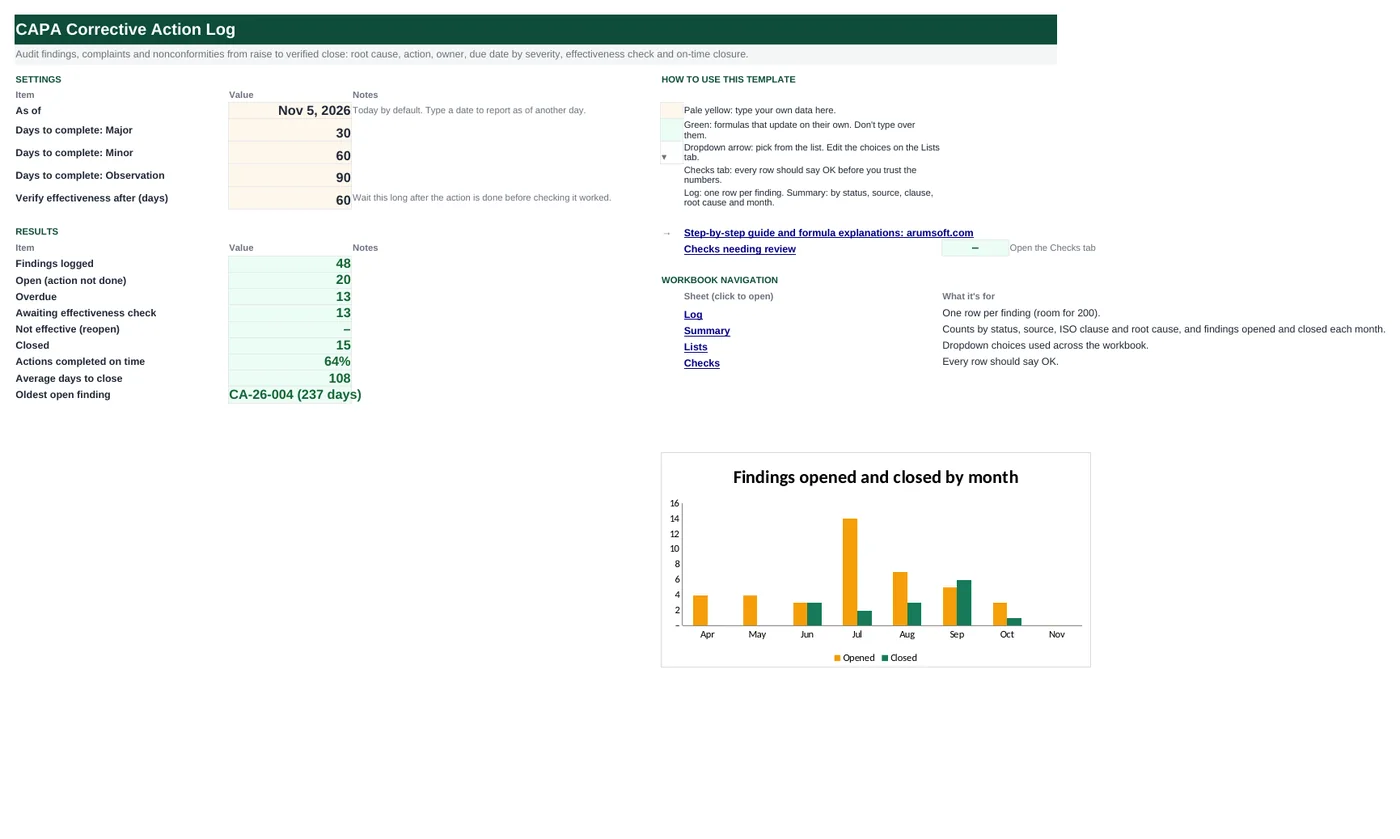
- Summaries by status, source, clause, root cause and month, with an opened-vs-closed chart
What's inside
The workbook has 5 sheets. You only type on a few of them; the rest calculate.
| Sheet | What it's for | You enter | Calculated for you |
|---|---|---|---|
| Start Here | Settings and results | As-of date (today by default), days to complete per severity, days before verifying | Findings, open, overdue, awaiting verification, not effective, closed, on-time %, average days to close, oldest open |
| Log | One row per finding (200) | Raised date, source, clause, area, finding, severity, cause category, root cause, action, owner, action done, target date (optional), effective?, verified by, closed | ID, due date, verify-on date, status, days open, on time? |
| Summary | Breakdowns | Nothing | By status, source, ISO clause, root cause, and opened/closed/open per month |
| Lists | Dropdowns | Sources, clauses, severities, cause categories, areas | Nothing |
| Checks | Six data checks | Nothing | OK or Review |
Before you start
- Agree what Major, Minor and Observation mean in your system and how long each may take.
- Use one root-cause method (5 whys or a fishbone) and keep the category list short.
- Decide who verifies effectiveness and how: a follow-up audit, a data trend or a sample check.
Step-by-step guide
Set the rules
Start Here B7–B10: days to complete for each severity and how long to wait before verifying.
Log the finding
Log tab: date raised, source, ISO clause, area, a one-line description, severity and owner. The ID and due date appear.
Find the root cause
Pick the category (method, machine, material, people, measurement, environment) and write the root cause in one line.
Act
Write the corrective action and enter the date it was done. The verify-on date appears.
Verify
On or after the verify-on date, enter Yes or No in Effective? and who checked. No reopens it as Not effective.
Close and review
Enter the closed date. Start Here and the Summary tab show the backlog, on-time rate and repeat causes.
Formula map
Every formula in the workbook, grouped by the sheet and column it lives in. A column of copied formulas counts once; the range it covers is shown.
| Sheet | Cells | Functions | What it computes | Reads | Feeds |
|---|---|---|---|---|---|
| Log | A5 copied down to row 204 | IF, TEXT, COUNTIF | Finding ID | B5 | A stable reference for meetings and audit reports. |
| Log | N5 copied down to row 204 | IF, INDEX, MATCH | Due date | M5, G5, B5 | Drives Overdue and the on-time measure. |
| Log | S5 copied down to row 204 | IF | Status | R5, P5, L5, O5, N5 | Every count on Start Here and the Summary tab reads this column. |
| Log | T5 copied down to row 204 | IF | Days open | R5, B5 | Average days to close and the oldest open finding use it. |
| Log | U5 copied down to row 204 | IF | Action on time? | L5, N5 | Start Here B20 is the share on time. |
| Summary | D21 copied down to row 30 | IF, COUNTIFS | Open findings per ISO clause | — | Shows which parts of the standard need attention before the next audit. |
| Summary | D41 copied down to row 48 | COUNTIFS, EOMONTH | Open at month end | — | The backlog trend for management review. |
| Start Here | B22 | IFERROR, INDEX, MATCH, MAXIFS | Oldest open finding | — | Usually the first item on the review agenda. |
Every formula, explained
Each formula below is copied straight from the file, so what you read here is exactly what the cell contains. Click any cell in Excel to see it in the formula bar.
=IF(B5="", "", "CA-"&TEXT(B5,
    "yy")&"-"&TEXT(COUNTIF($B$5:B5, "<>"),
    "000"))
Builds an ID from the year raised and a running count: CA-26-001.
Piece by piece
TEXT(B5, "yy")- Two-digit year.
COUNTIF($B$5:B5, "<>")- How many findings so far, counting this one.
TEXT(…, "000")- Three digits with leading zeros.
With the sample data: B5 = Mar 6, 2026 → A5 result CA-26-001
How it is used: A stable reference for meetings and audit reports.
How to change it: Change the prefix "CA-" if you use another.
Learn this: Text and Date Functions in Excel →=IF(B5="", "", IF(M5<>"",
M5, B5+INDEX('Start Here'!$B$7:$B$9, MATCH(G5, Lists!$C$5:$C$7, 0))))Your own target date if you entered one; otherwise the raised date plus the days allowed for the severity.
Piece by piece
M5<>""- Manual target wins.
MATCH(G5, Lists!$C$5:$C$7, 0)- Position of the severity (Major, Minor, Observation).
INDEX('Start Here'!$B$7:$B$9, …)- Days for that severity.
B5+…- Added to the raised date.
With the sample data: M5 = —, G5 = Major, B5 = Mar 6, 2026 → N5 result Apr 5, 2026
How it is used: Drives Overdue and the on-time measure.
How to change it: Change the days on Start Here.
Learn this: How to Use INDEX and MATCH in Excel →=IF(B5="", "", IF(R5<>"",
"Closed", IF(P5="No", "Not effective", IF(L5<>"", IF('Start Here'!$B$6>=O5, "Verify now", "Waiting to verify"), IF('Start Here'!$B$6>N5, "Overdue", "Open")))))Works through the life of a finding: Closed if a close date exists; Not effective if verification said No; once the action is done, Verify now or Waiting to verify depending on the date; otherwise Overdue or Open.
Piece by piece
R5<>""- Closed.
P5="No"- Not effective.
L5<>"", 'Start Here'!$B$6>=O5- Action done and verify date reached: Verify now.
'Start Here'!$B$6>N5- Past the due date: Overdue.
With the sample data: R5 = Jun 15, 2026, P5 = Yes, L5 = Apr 6, 2026, O5 = Jun 5, 2026, N5 = Apr 5, 2026 → S5 result Closed
How it is used: Every count on Start Here and the Summary tab reads this column.
How to change it: Nothing to change.
Learn this: How to Use the IF Function in Excel →=IF(B5="", "", IF(R5<>"", R5, 'Start Here'!$B$6)-B5)Days from raised to closed, or to the as-of date while it is still open.
Piece by piece
IF(R5<>"", R5, 'Start Here'!$B$6)- End date.
-B5- Less the raised date.
With the sample data: R5 = Jun 15, 2026, B5 = Mar 6, 2026 → T5 result 101
How it is used: Average days to close and the oldest open finding use it.
How to change it: Nothing to change.
Learn this: How to Use TODAY and NOW in Excel →=IF(L5="", "", IF(L5<=N5, "On time", "Late"))Compares the date the action was done with the due date.
Piece by piece
L5<=N5- Done by the due date: On time; otherwise Late.
With the sample data: L5 = Apr 6, 2026, N5 = Apr 5, 2026 → U5 result Late
How it is used: Start Here B20 is the share on time.
How to change it: Nothing to change.
Learn this: How to Use the IF Function in Excel →=IF(A21="", "", COUNTIFS(Log!$D$5:$D$204,
A21, Log!$S$5:$S$204, "Open")+COUNTIFS(Log!$D$5:$D$204,
A21, Log!$S$5:$S$204, "Overdue"))Counts findings for this clause that are Open or Overdue.
Piece by piece
COUNTIFS(Log!$D$5:$D$204, A21, Log!$S$5:$S$204, "Open")- Open.
+COUNTIFS(…, "Overdue")- Plus overdue.
With the sample data: D21 result 2
How it is used: Shows which parts of the standard need attention before the next audit.
How to change it: Nothing to change.
Learn this: How to Use COUNTIF and COUNTIFS in Excel →=COUNTIFS(Log!$B$5:$B$204,
"<="&EOMONTH(A41, 0))-COUNTIFS(Log!$R$5:$R$204,
"<="&EOMONTH(A41, 0))Findings raised by the end of the month minus findings closed by then.
Piece by piece
COUNTIFS(Log!$B$5:$B$204, "<="&EOMONTH(A41, 0))- Raised by month end.
-COUNTIFS(Log!$R$5:$R$204, "<="&EOMONTH(A41, 0))- Closed by month end.
With the sample data: D41 result 12
How it is used: The backlog trend for management review.
How to change it: Nothing to change.
Learn this: Text and Date Functions in Excel →=IFERROR(INDEX(Log!$A$5:$A$204,
MATCH(MAXIFS(Log!$T$5:$T$204, Log!$L$5:$L$204, ""), Log!$T$5:$T$204, 0))&" ("&MAXIFS(Log!$T$5:$T$204,
Log!$L$5:$L$204, "")&" days)",
"")The finding with the most days open among those with no action done.
Piece by piece
MAXIFS(Log!$T$5:$T$204, Log!$L$5:$L$204, "")- Most days open where the action is not done.
MATCH(…, Log!$T$5:$T$204, 0)- Its row.
INDEX(Log!$A$5:$A$204, …)&" ("&…&" days)"- ID and age.
With the sample data: B22 result CA-26-004 (237 days)
How it is used: Usually the first item on the review agenda.
How to change it: Nothing to change.
Learn this: How to Use INDEX and MATCH in Excel →Tips and limits
- Capacity: 200 findings. Start a new file each year and carry open items over.
- B6 is =TODAY(), so statuses move on their own; type a date to report as of an audit.
- Write the root cause as a cause, not a restated problem: "No backup auditor assigned", not "Audit not done".
- Not effective means the root cause was wrong or the action was too weak: raise a new action rather than extending the old one.
- The ISO clause list covers common 9001:2015 clauses; edit it on the Lists tab for 14001, 45001 or your own system.
Learn the skills behind this template
Was this guide helpful? Spot a mistake? Send feedback · admin@arumsoft.com