Contractor Estimate and Invoice Template for Excel with Markup, Tax and Deposits
Enter the job once: your business, the client and the line items. The workbook adds your markup, discount and sales tax and lays out a one-page estimate and a one-page invoice, ready to print or save as PDF.
- Sheets:
- 7
- Works with:
- Excel for Microsoft 365, Excel 2016 or later, Excel for Mac and Excel for the web
- Updated:
What you can do with it
- Price labor, materials, equipment and subcontracts in one list
- Add a markup by item type, a discount and sales tax
- Print a one-page estimate with a deposit amount
- Turn the same job into an invoice using actual quantities
What's inside
The workbook has 7 sheets. You only type on a few of them; the rest calculate.
| Sheet | What it's for | You enter | Calculated for you |
|---|---|---|---|
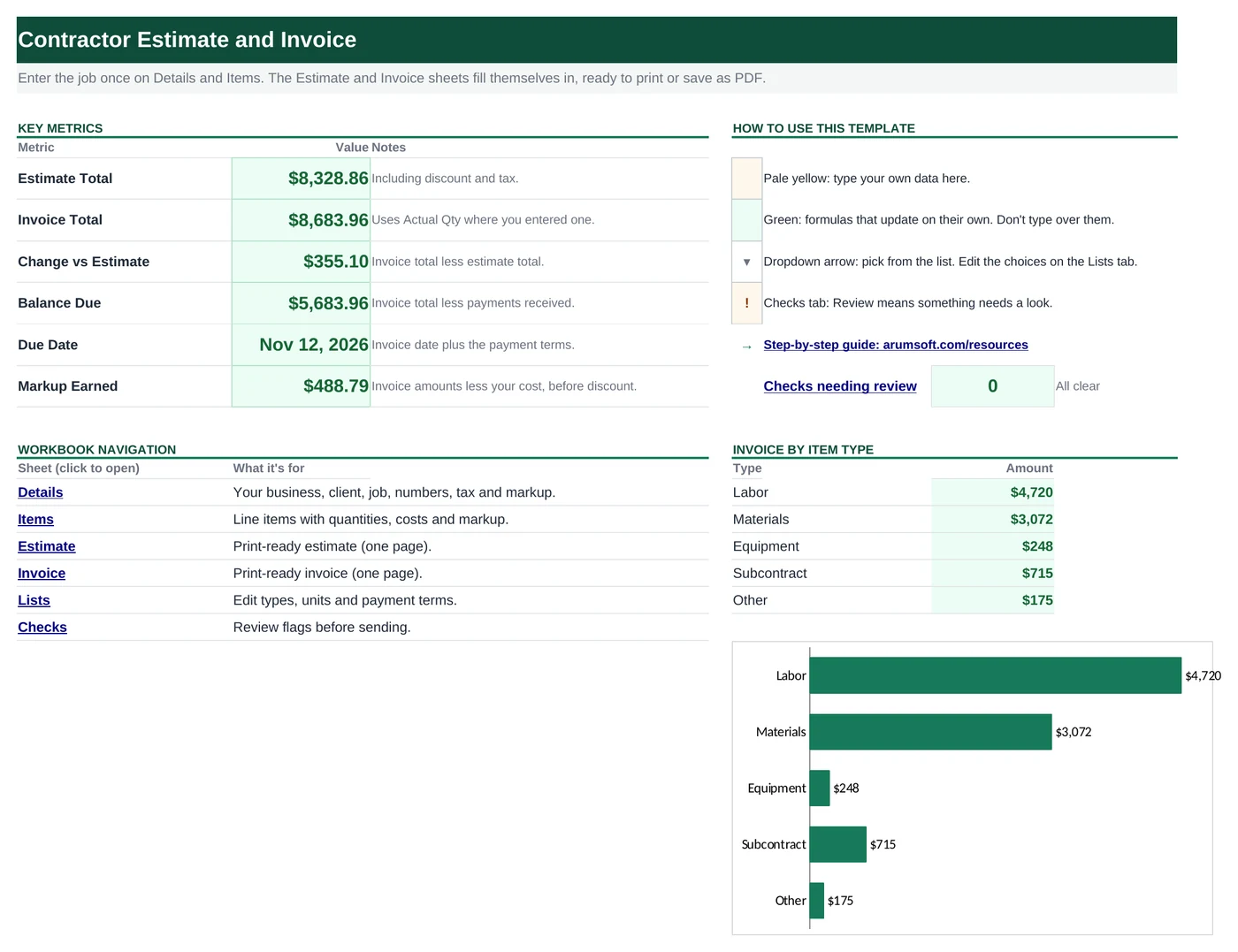
| Start Here | Dashboard with six key numbers and invoice by item type | Nothing | Estimate total, invoice total, change, balance due, due date, markup earned |
| Details | Your business, client, job, numbering, tax, discount and markup | Everything about the job except the line items | Item type names in the markup table |
| Items | One row per line item (room for 25) | Type, description, unit, estimated qty, cost per unit, actual qty, taxable | Markup %, price per unit, estimate amount, invoice qty and amount |
| Estimate | One-page estimate to print or save as PDF | Nothing | Lines, subtotal, discount, tax, total, deposit to start |
| Invoice | One-page invoice to print or save as PDF | Nothing | Invoice number, due date, lines, totals, balance due |
| Lists | Dropdown choices: item types, units, payment terms | Your units and terms | Nothing |
| Checks | Seven checks before you send | Nothing | OK or Review for each check |
Before you start
The template works as soon as you open it. Cell colors tell you what each cell is for:
- Open the file. If Excel shows a yellow Protected View bar, click Enable Editing. Files downloaded from the internet always open this way.
- Save your own copy with File› then Save As so you always have the original to start over from.
- Clear the sample job. Replace the sample client and job on Details and the sample lines on Items. Clear contents only (press Delete); the Estimate and Invoice show Items rows by position.
Step-by-step guide
Work through these in order the first time. After that, you'll mostly repeat the regular update steps.
Fill in your business once
On Details, type your Business name, address, phone, email and license or tax ID. These print at the top of every estimate and invoice, so you only do this the first time.
Set your Markup by item type on the right of the same sheet, for example 15% on materials and 10% on equipment. Labor is usually 0% because your hourly rate already includes your margin.
Enter the client and the job
Still on Details, fill in the Client block, the Job name, Job site address and a plain-language Description of work. Add the Estimate number, Estimate date, how many days the price is Valid for and the Deposit required to start (for example
30%).Under Tax and discount, type your Sales tax rate and any Discount on this job. Use 0% if there is none.
List the line items
On Items, add one row per line:
- Type: Labor, Materials, Equipment, Subcontract or Other.
- Description and Unit (hr, ea, sq ft and so on).
- Est. Qty and Cost / Unit: for labor, your hourly rate; for materials, what you pay.
- Taxable: Yes or No. Which items are taxable depends on your state or country, so check your local rules.
Markup %, Price / Unit and Estimate Amount fill in on their own. Clients see the price per unit with your markup included; they don't see your cost.
Print or save the estimate
Open Estimate. It shows your header, the client, the job, every line, the totals and the Deposit to start, with a signature line. Use File› then Print or File› then Save As and choose PDF. The page is already set to fit on one sheet.
Record actual quantities when the job is done
Back on Items, type an Actual Qty for any line that changed, for example 14 hours instead of 12. Lines without one keep the estimated quantity. Invoice Qty and Invoice Amount update, and Start Here shows the Change vs Estimate.
Create the invoice
On Details, set the Invoice prefix (for example
INV-), the Invoice number, the Invoice date and the Payment terms. Enter the Deposit received and any Other payments received.Invoice shows the invoice number, the due date (invoice date plus the terms), the lines with actual quantities, the totals and the Balance due. Print it or save it as PDF the same way.
Check before you send
Checks looks for lines without a type, quantity, cost or Taxable answer, a missing client name, a tax rate or discount outside 0 to 100%, payments larger than the invoice, and an invoice that is past due.
How the formulas work
You don't need to understand the formulas to use the template, but they're a good way to learn. Click any cell in Excel to see its formula in the formula bar.
=IF(B5="", "", IFERROR(INDEX(Details!$E$6:$E$10,
   MATCH(A5, Details!$D$6:$D$10, 0)), 0))
MATCH finds the line's Type in the markup table on Details, and INDEX returns the markup next to it. IFERROR gives 0% if the type isn't in the table.
Learn this: How to Use INDEX and MATCH in Excel →=IF(B5="", "", ROUND(N(E5)*(1+F5), 2))Your cost plus the markup, rounded to cents so the line amounts on the estimate add up exactly.
Learn this: How to Round Numbers in Excel: ROUND, ROUNDUP and ROUNDDOWN →=ROUND(SUMIFS(Items!$H$5:$H$29, Items!$L$5:$L$29, "Yes")
*(1-N(Details!$B$40))*N(Details!$B$39), 2)SUMIFS adds only the lines marked Taxable = Yes. The discount is applied first, then the tax rate. The Invoice uses the same formula on the invoice amounts.
Learn this: How to Use SUMIF and SUMIFS in Excel →=IF(Details!$B$33="", "", Details!$B$33
+ IFERROR(VLOOKUP(Details!$B$34, Lists!$D$5:$E$12, 2, FALSE), 0))VLOOKUP finds the payment terms (for example Net 15) on Lists and returns the number of days, which is added to the invoice date.
Learn this: How to Use VLOOKUP in Excel →Tips and limits
- Capacity: 25 line items, which fits one printed page. For a bigger job, group small items into one line such as "Trim and finish materials".
- Markup is set by item type. If one item needs a different markup, adjust its Cost / Unit or give it the Other type with its own rate.
- The template calculates one sales tax rate on lines you mark taxable. Sales tax rules for contractors differ by state and country, so confirm with your accountant or tax office.
- To add a payment term such as Net 45, type it under Payment Terms on Lists with its days in Terms Days next to it.
Learn the skills behind this template
Was this guide helpful? Spot a mistake? Send feedback · admin@arumsoft.com