Excel Gantt Chart Template: Bars That Draw Themselves from Your Task List
Type each task with a start date and a duration. The end dates, status and Gantt bars are calculated for you, on a daily or weekly timeline that starts wherever you like.
- Sheets:
- 5
- Works with:
- Excel for Microsoft 365, Excel 2016 or later, Excel for Mac and Excel for the web
- Updated:
What you can do with it
- Turn a task list into a Gantt chart without drawing anything
- Switch between a daily and a weekly timeline
- See done and remaining work in each bar, plus milestones
- Count durations in calendar days or workdays
What's inside
The workbook has 5 sheets. You only type on a few of them; the rest calculate.
| Sheet | What it's for | You enter | Calculated for you |
|---|---|---|---|
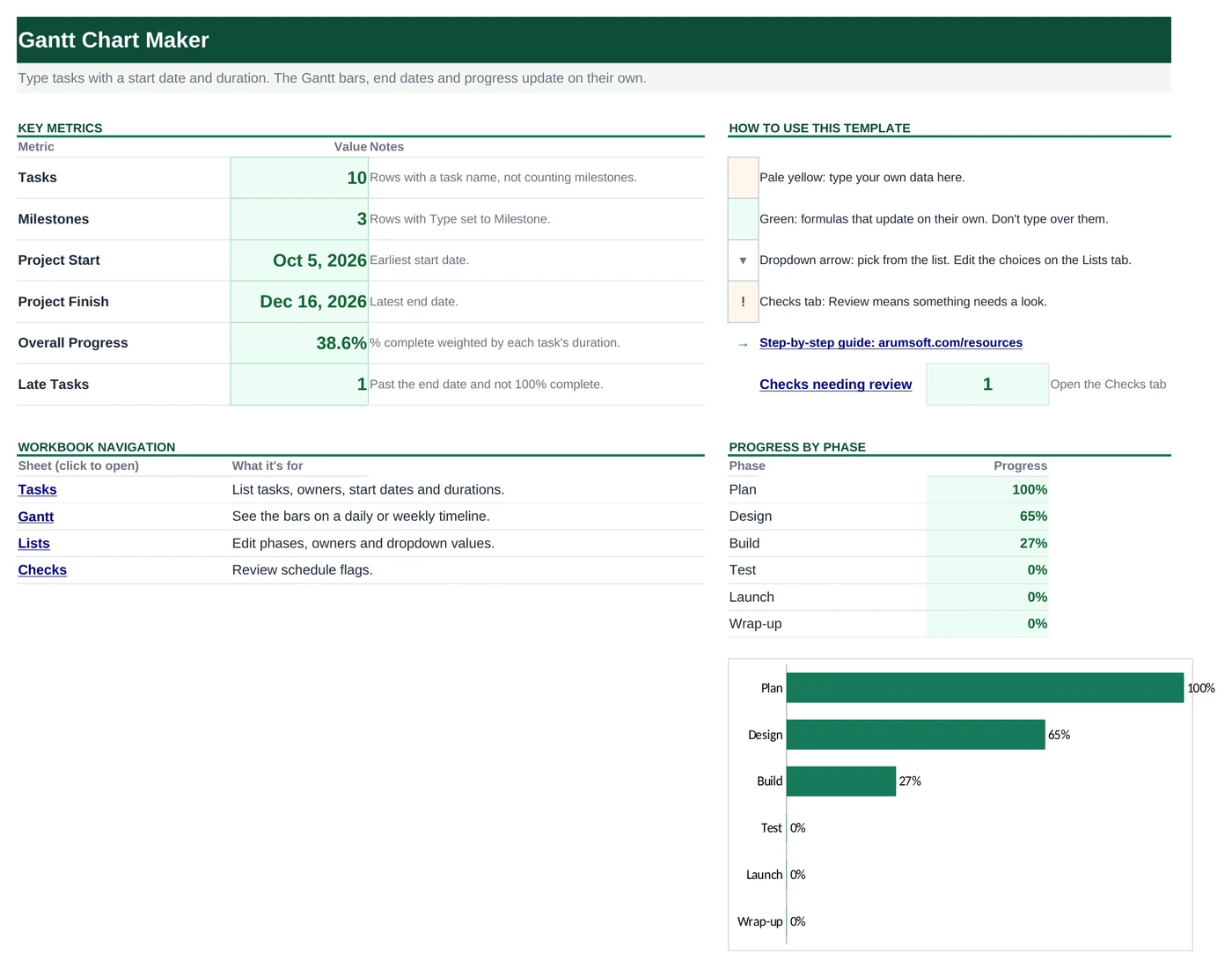
| Start Here | Dashboard with six key numbers and progress by phase | Nothing | Tasks, milestones, project start and finish, overall progress, late tasks |
| Tasks | One row per task or milestone (room for 60) | Phase, task, owner, type, start, duration, % complete | End date and status (Complete, In Progress, Late or Not Started) |
| Gantt | The chart: 52 columns of days or weeks | First date (B3) and scale (D3) | Bars, milestones and a red column for today |
| Lists | Dropdown choices: phases, owners, types and settings | Your phases and team names | Nothing |
| Checks | Six schedule checks | Nothing | OK or Review for each check |
Before you start
The template works as soon as you open it. Cell colors tell you what each cell is for:
- Open the file. If Excel shows a yellow Protected View bar, click Enable Editing. Files downloaded from the internet always open this way.
- Save your own copy with File› then Save As so you always have the original to start over from.
- Clear the sample data. Replace the sample tasks on Tasks with your own. Clear contents only (press Delete); don't delete rows, because each row on Gantt shows the task in the same row on Tasks.
Step-by-step guide
Work through these in order the first time. After that, you'll mostly repeat the regular update steps.
Set up phases and owners
On Lists, replace the sample Phases (Plan, Design, Build and so on) with the stages of your project, and the sample Owners with your team. The dropdowns on Tasks update right away.
Leave Types, Scale and Duration Counts as they are; formulas look for those exact words.
Add your tasks
On Tasks, add one row per task:
- Phase and Owner: pick from the dropdowns.
- Task: a short name. It becomes the label on the Gantt chart.
- Type: Task, or Milestone for a single date such as a sign-off or launch.
- Start: the first day of the task.
- Duration (days): how long it takes, for example
5. Milestones don't need one. - % Complete: type
40%or0.4.
End and Status fill in on their own. Status shows Late (in red) when the end date has passed and the task isn't 100% complete.
Choose calendar days or workdays
Above the Tasks header, cell
F3sets how durations count. With Calendar days, a 5-day task that starts on a Thursday ends on Monday. With Workdays, Saturdays and Sundays are skipped, so the same task ends the following Wednesday.Read the Gantt chart
Gantt lists every task with a bar across the timeline. Dark green is the part that is done (based on % Complete), light green is what is left, and a ◆ marks a milestone. The column for today is shaded red.
Move the timeline or change the scale
Type the first date you want to see in
B3on Gantt. Leave it blank to start at the earliest task. Pick Week or Day inD3:- Week: each column is a week starting on Monday, so 52 columns cover a year.
- Day: each column is one day, so you see about seven weeks in detail. Weekends are shaded grey.
Update progress each week
Once a week, change % Complete for the tasks you worked on. Bars, status and the dashboard update instantly. If a task slips, change its Start or Duration rather than its end date.
Check the dashboard and Checks
Start Here shows the number of Tasks and Milestones, the Project Start and Project Finish, Overall Progress and Late Tasks, plus a progress bar for each phase.
Checks flags tasks with no start date, duration or owner, % Complete outside 0 to 100%, late tasks, and a project that runs past the 52 columns of the Gantt sheet.
How the formulas work
You don't need to understand the formulas to use the template, but they're a good way to learn. Click any cell in Excel to see its formula in the formula bar.
=IF(OR(B5="",E5=""), "", IF(D5="Milestone", E5,
   IF($F$3="Workdays", WORKDAY(E5, MAX(1,N(F5))-1), E5+MAX(1,N(F5))-1)))
A milestone ends on its start date. Otherwise the end is the start plus the duration minus one day, because the start day counts as day one. WORKDAY does the same while skipping weekends.
Learn this: How to Use the IF Function in Excel →=IF(B5="", "", IF(N(H5)>=1, "Complete", IF(AND(G5<>"", G5<TODAY()), "Late",
IF(N(H5)>0, "In Progress", "Not Started"))))A task at 100% is Complete. Otherwise its end date is compared with TODAY(), so a task turns Late the day after it should have finished.
Learn this: How to Use TODAY and NOW in Excel →=IF(AND($C5<F$4+IF($D$3="Day",1,7), $D5>=F$4),
IF(MAX(F$4,$C5)<=$C5+ROUND(($D5-$C5+1)*$E5,0)-1, "d", "r"), "")Each cell checks whether the task overlaps that column's day or week. If it does, it returns d (done) or r (remaining) depending on % Complete. Conditional formatting turns d dark green and r light green and hides the letters. The full formula also handles milestones and empty rows.
Learn this: How to Use Conditional Formatting in Excel →=SUMPRODUCT((Tasks!$D$5:$D$64<>"Milestone")*(Tasks!$B$5:$B$64<>""),
Tasks!$F$5:$F$64, Tasks!$H$5:$H$64) / SUMPRODUCT(..., Tasks!$F$5:$F$64)A weighted average: each task's % complete counts in proportion to its duration, so finishing a 20-day task moves the number more than finishing a 2-day one. Milestones are left out.
Learn this: SUMPRODUCT function playground →Tips and limits
- Capacity: 60 tasks. To add more, extend the formulas on Tasks and Gantt down, and change
$64to your last row with Ctrl+H (set Look in to Formulas and Within to Workbook). - Sorting Tasks also reorders the Gantt chart, because each Gantt row shows the task in the same row. Sort by Start to get a classic staircase layout.
- The template has no task dependencies. If one task can't start until another ends, set its Start to the day after the other task's End.
- To print the chart, use the Gantt sheet. It is set to landscape and fits one page wide.
Learn the skills behind this template
Was this guide helpful? Spot a mistake? Send feedback · admin@arumsoft.com