Utilization and Realization Rate Tracker for Excel
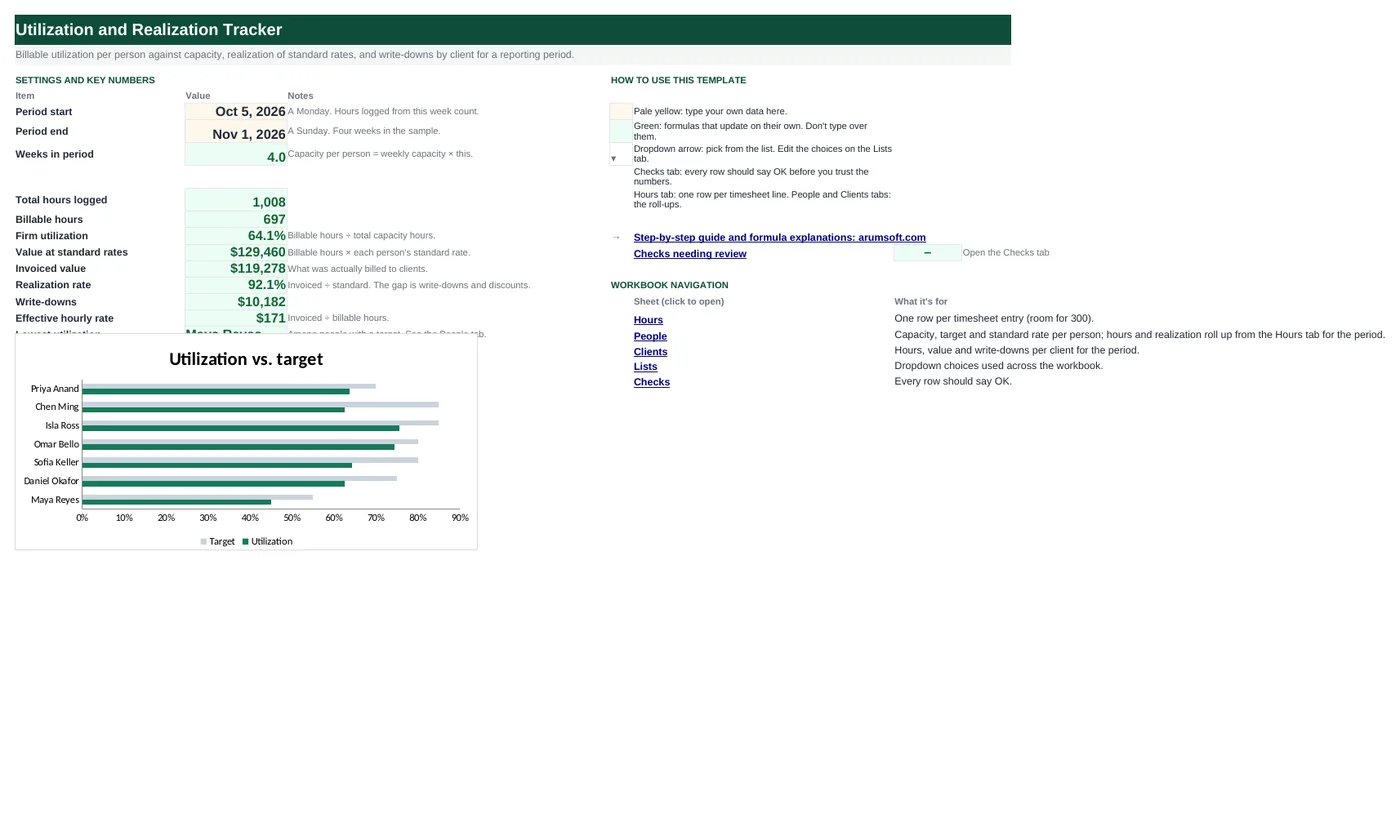
For agencies, consultancies and law firms: log hours once and see, for any period, who is billable enough, what the firm invoiced against standard rates, and which clients are getting the write-downs. Utilization is billable hours over capacity; realization is invoiced value over standard value; both roll up from one Hours tab.
- Sheets:
- 6
- Works with:
- Excel for Microsoft 365, Excel 2016 or later, Excel for Mac and Excel for the web
- Updated:
What you can do with it
- See utilization per person against capacity and target for any period
- See realization (invoiced ÷ standard) and write-downs per person and per client
- Get firm-wide utilization, realization and effective hourly rate
- Flag people below target with On target / Close / Below
What's inside
The workbook has 6 sheets. You only type on a few of them; the rest calculate.
| Sheet | What it's for | You enter | Calculated for you |
|---|---|---|---|
| Start Here | Period and firm-wide numbers | Period start and end | Weeks, hours, billable hours, utilization, standard and invoiced value, realization, write-downs, effective rate, lowest utilization |
| Hours | One row per timesheet entry (room for 300) | Week starting, person, client, type, hours, invoiced | Standard rate, value at standard, write-down, in period? |
| People | Per-person roll-up (20) | Person, role, weekly capacity, standard rate, target utilization | Capacity in period, hours, billable hours, utilization, standard and invoiced value, realization, status |
| Clients | Per-client roll-up (15) | Nothing: names come from Lists | Billable hours, standard, invoiced, realization, write-down, share |
| Lists | Dropdowns | Clients, types, roles | Nothing |
| Checks | Six data checks | Nothing | OK or Review |
Before you start
- Decide what capacity means: 40 hours a week is the usual base; some firms use 37.5 or subtract holidays. Put it in the People tab per person.
- Set a standard rate per person (what you quote) and a target utilization per role (partners lower, analysts higher).
- Export timesheets with week, person, client, billable flag and hours. Invoiced amounts can be filled in after billing.
Step-by-step guide
Set the period
Start Here B6 (a Monday) and B7 (a Sunday). Weeks in period calculates and multiplies every person's weekly capacity.
Set up People
Name, role, weekly capacity in hours, standard rate and target utilization. Everything else on the tab calculates from the Hours log.
Log hours
Hours tab: week starting, person (dropdown), client or project, type (Billable or Non-billable), hours. The standard rate is looked up from People; value at standard is hours × rate for billable rows. After invoicing, type what was actually billed in Invoiced; write-down is the difference.
Read the People tab
Utilization is billable hours ÷ capacity in period; status compares it with the target (On target, Close within 10 points, Below). Realization is invoiced ÷ standard per person.
Read the Clients tab
Billable hours, standard value, invoiced value, realization and write-down per client, plus each client's share of invoiced revenue. A client with low realization is being discounted; one with high hours and low share is under-billed.
Check the Checks tab
Whole-week period, people on the Hours tab exist on People, invoiced not above standard, non-billable rows not invoiced, nobody above 125% of capacity, and every person has a rate and target.
Formula map
Every formula in the workbook, grouped by the sheet and column it lives in. A column of copied formulas counts once; the range it covers is shown.
| Sheet | Cells | Functions | What it computes | Reads | Feeds |
|---|---|---|---|---|---|
| Hours | F5 copied down to row 304 | IF, IFERROR, INDEX, MATCH | Standard rate lookup | B5 | G5 multiplies hours by this. |
| Hours | G5 copied down to row 304 | IF | Value at standard | E5, F5, D5 | The denominator of realization everywhere. |
| Hours | J5 copied down to row 304 | IF, AND | In period? | A5 | People and Clients SUMIFS use it as a condition. |
| People | E5 copied down to row 24 | IF | Capacity in period | C5 | The denominator of utilization. |
| People | G5 copied down to row 24 | IF, SUMIFS | Billable hours | — | H5 divides this by capacity. |
| People | H5 copied down to row 24 | IF, OR | Utilization | G5, E5 | Compared with the target in M5; charted on Start Here. |
| People | L5 copied down to row 24 | IF, OR | Realization | K5, J5 | Firm realization on Start Here uses the same ratio on totals. |
| People | M5 copied down to row 24 | IF | Status | H5, I5 | Conditional formatting colors the three words. |
| Clients | G5 copied down to row 19 | IF, OR | Share of invoiced | D5 | Client concentration at a glance. |
| Start Here | B18 | IFERROR, INDEX, MATCH, MIN | Lowest utilization | — | The first conversation to have. |
| Checks | B7 | IF, SUMPRODUCT, IFERROR | Invoiced not above standard | — | Premium billing is legitimate but worth confirming. |
Every formula, explained
Each formula below is copied straight from the file, so what you read here is exactly what the cell contains. Click any cell in Excel to see it in the formula bar.
=IF(B5="", "", IFERROR(INDEX(People!$D$5:$D$24, MATCH(B5, People!$A$5:$A$24, 0)),
    0))
Finds the person on the People tab and returns their standard rate, so the rate lives in one place.
Piece by piece
MATCH(B5, People!$A$5:$A$24, 0)- The person's row.
INDEX(People!$D$5:$D$24, …)- Their standard rate.
IFERROR(…, 0)- An unknown name gives 0 rather than #N/A; the Checks tab flags it.
With the sample data: B5 = Maya Reyes → F5 result 320
How it is used: G5 multiplies hours by this.
How to change it: For rates that change over time, add a rate-by-date table and look up with the week.
Learn this: How to Use INDEX and MATCH in Excel →=IF(B5="", "", IF(D5="Billable", E5*F5, 0))Hours times the standard rate, but only for billable rows; non-billable time has no standard value.
Piece by piece
D5="Billable"- Type test.
E5*F5- Hours × rate.
0- Non-billable rows.
With the sample data: E5 = 4, F5 = 320, D5 = Billable → G5 result 1,280
How it is used: The denominator of realization everywhere.
How to change it: Nothing to change.
Learn this: How to Use the IF Function in Excel →=IF(A5="", "", IF(AND(A5>='Start Here'!$B$6, A5<='Start Here'!$B$7),
"Yes", "No"))Yes when the week-starting date falls between the Start Here dates, inclusive. Every roll-up filters on this column.
Piece by piece
A5>='Start Here'!$B$6- On or after the period start.
A5<='Start Here'!$B$7- On or before the period end.
AND(…)- Both.
With the sample data: A5 = Oct 5, 2026 → J5 result Yes
How it is used: People and Clients SUMIFS use it as a condition.
How to change it: Nothing to change.
Learn this: How to Use AND and OR in Excel →=IF(A5="", "", C5*'Start Here'!$B$8)Weekly capacity times the number of weeks in the period.
Piece by piece
C5- Weekly capacity hours.
'Start Here'!$B$8- Weeks in the period (absolute reference: the same for every row).
With the sample data: C5 = 40 → E5 result 160
How it is used: The denominator of utilization.
How to change it: Subtract holiday hours here if your policy excludes them from capacity.
Learn this: Relative, Absolute and Mixed References in Excel →=IF(A5="", "", SUMIFS(Hours!$E$5:$E$304,
Hours!$B$5:$B$304, A5, Hours!$J$5:$J$304,
"Yes", Hours!$D$5:$D$304,
"Billable"))Three conditions: the person, in period, and billable.
Piece by piece
Hours!$E$5:$E$304- Hours to sum.
Hours!$B$5:$B$304, A5- Person matches.
Hours!$J$5:$J$304, "Yes"- In period.
Hours!$D$5:$D$304, "Billable"- Billable only.
With the sample data: G5 result 72
How it is used: H5 divides this by capacity.
How to change it: Nothing to change.
Learn this: How to Use SUMIF and SUMIFS in Excel →=IF(OR(A5="", E5=0), "", G5/E5)Billable hours divided by capacity in the period.
Piece by piece
OR(A5="", E5=0)- No person or no capacity: blank.
G5/E5- Billable ÷ capacity.
With the sample data: G5 = 72, E5 = 160 → H5 result 45.0%
How it is used: Compared with the target in M5; charted on Start Here.
How to change it: Some firms use hours logged rather than capacity as the denominator; swap E5 for F5 if so.
Learn this: How to Write Basic Formulas in Excel →=IF(OR(A5="", J5=0), "", K5/J5)Invoiced value divided by value at standard. 100% means no write-downs; above 100% means premium billing.
Piece by piece
OR(A5="", J5=0)- Nothing at standard: blank.
K5/J5- Invoiced ÷ standard.
With the sample data: K5 = 21,616, J5 = 23,040 → L5 result 93.8%
How it is used: Firm realization on Start Here uses the same ratio on totals.
How to change it: Nothing to change.
Learn this: How to Write Basic Formulas in Excel →=IF(H5="", "", IF(H5>=I5,
"On target", IF(H5>=I5-0.1, "Close", "Below")))On target at or above the target, Close within ten points below it, otherwise Below.
Piece by piece
H5>=I5- At or above target.
H5>=I5-0.1- Within 10 percentage points.
"Below"- Further below.
With the sample data: H5 = 45.0%, I5 = 55.0% → M5 result Close
How it is used: Conditional formatting colors the three words.
How to change it: Change 0.1 to widen or narrow the Close band.
Learn this: How to Use the IF Function in Excel →=IF(OR(A5="", $D$20=0), "", D5/$D$20)This client's invoiced value as a share of all invoiced value in the period.
Piece by piece
D5- Client invoiced value.
$D$20- Total invoiced (the Total row), absolute.
With the sample data: D5 = 30,163 → G5 result 25.3%
How it is used: Client concentration at a glance.
How to change it: Nothing to change.
Learn this: Relative, Absolute and Mixed References in Excel →=IFERROR(INDEX(People!$A$5:$A$24,
MATCH(MIN(People!$H$5:$H$24), People!$H$5:$H$24, 0)),
"")Finds the smallest utilization on the People tab and returns the name on that row.
Piece by piece
MIN(People!$H$5:$H$24)- Lowest utilization.
MATCH(…, People!$H$5:$H$24, 0)- Its row.
INDEX(People!$A$5:$A$24, …)- The person.
With the sample data: B18 result Maya Reyes
How it is used: The first conversation to have.
How to change it: Change MIN to MAX for the most utilized person.
Learn this: How to Use INDEX and MATCH in Excel →=IF(SUMPRODUCT(IFERROR((Hours!$H$5:$H$304>Hours!$G$5:$G$304+0.5)*1, 0))=0,
"OK", "Review")Counts rows where the invoiced amount exceeds standard value by more than 50 cents. IFERROR skips blank rows, whose standard value is text.
Piece by piece
Hours!$H$5:$H$304>Hours!$G$5:$G$304+0.5- TRUE where invoiced exceeds standard.
IFERROR((…)*1, 0)- 1 for TRUE, 0 for FALSE or for blank rows.
SUMPRODUCT(…)=0- No such rows.
With the sample data: B7 result OK
How it is used: Premium billing is legitimate but worth confirming.
How to change it: Delete this row if you bill above standard routinely.
Learn this: How to Use SUMIF and SUMIFS in Excel →Tips and limits
- Capacity: 300 hours rows, 20 people, 15 clients. For a year of timesheets use Ctrl+H on formulas to replace $304 with $3004.
- Utilization targets by role are more useful than one firm-wide target: 55–60% for partners who sell, 75–85% for delivery staff.
- Enter invoiced amounts per row when you can; when an invoice covers many rows, spread it in proportion to standard value.
- Realization below 85% usually means scope creep or a rate card the market will not pay; the Clients tab shows which.
Learn the skills behind this template
Was this guide helpful? Spot a mistake? Send feedback · admin@arumsoft.com