Landed Cost and Import Duty Calculator for Excel
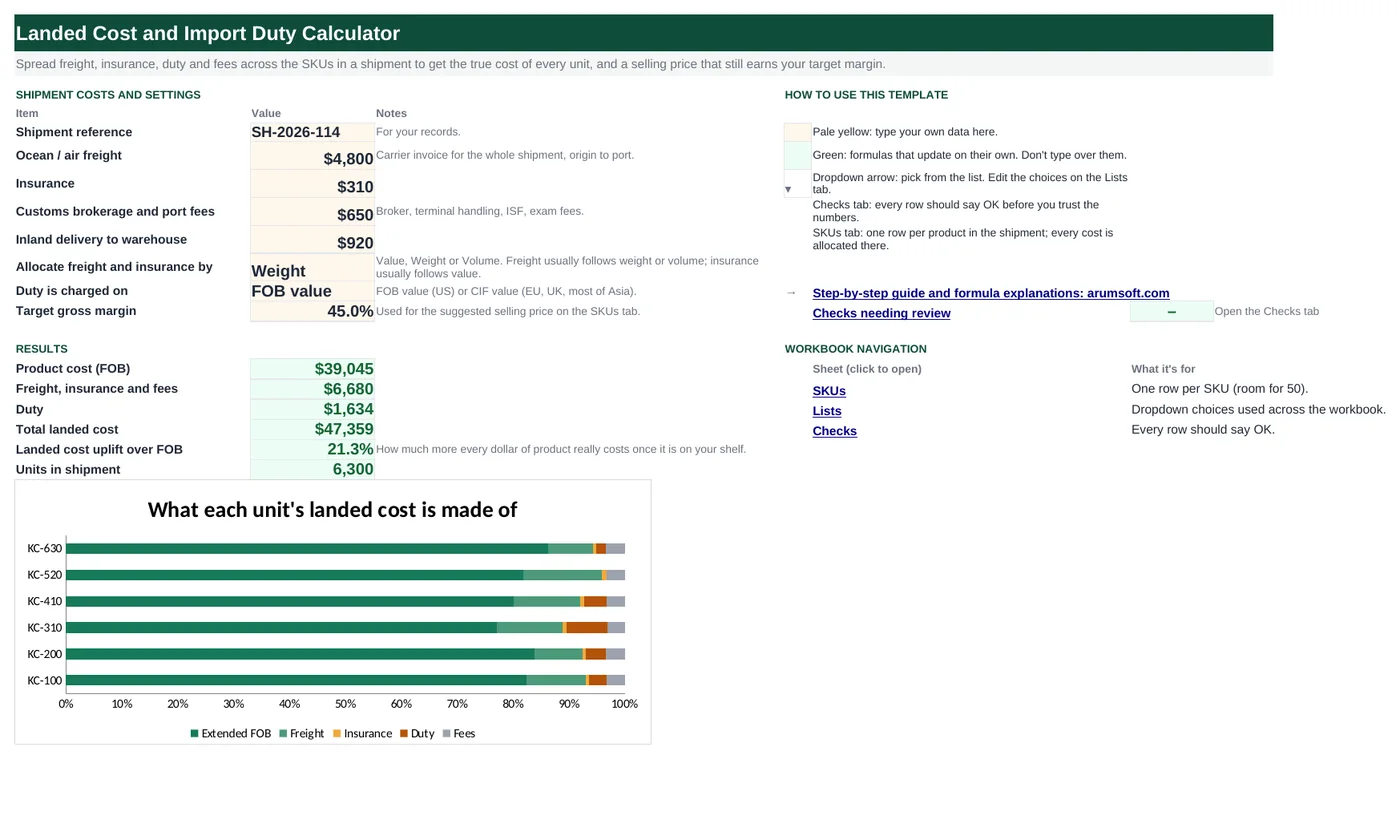
The FOB price on the supplier's invoice is not what a unit costs you. This workbook takes the shipment's freight, insurance, duty and fees and spreads them across every SKU in proportion to value, weight or volume (your choice), then shows the landed unit cost, the uplift over FOB, and the price that still earns your target margin. Filled in with a sample coffee-gear shipment.
- Sheets:
- 4
- Works with:
- Excel for Microsoft 365, Excel 2016 or later, Excel for Mac and Excel for the web
- Updated:
What you can do with it
- Allocate freight and insurance across SKUs by value, weight or volume
- Charge duty on FOB or CIF value at each SKU's rate
- See landed unit cost and uplift over FOB for every SKU
- Get a suggested selling price for your target gross margin
What's inside
The workbook has 4 sheets. You only type on a few of them; the rest calculate.
| Sheet | What it's for | You enter | Calculated for you |
|---|---|---|---|
| Start Here | Shipment costs, settings and totals | Freight, insurance, brokerage, inland delivery, allocation basis, duty basis, target margin | Product cost, costs and duty, total landed cost, uplift, units, highest-uplift SKU |
| SKUs | One row per product (room for 50) | SKU, description, quantity, unit cost, weight, volume, duty rate | Extended value, totals, allocation share, freight, insurance, duty, fees, landed total, uplift, landed unit cost, suggested price |
| Lists | Dropdowns | Allocation bases, duty bases | Nothing |
| Checks | Seven checks | Nothing | OK or Review |
Before you start
- Collect the shipment invoices: carrier (freight), insurer, customs broker (brokerage, port and exam fees) and the trucker (inland delivery).
- Get each SKU's duty rate from its HS code (the broker's entry summary lists them). Enter 5% as 0.05.
- Decide how to allocate: freight by weight for dense goods, by volume for bulky goods, by value when you have neither; insurance is usually by value.
Step-by-step guide
Enter the shipment costs
Start Here B7 to B10: freight, insurance, brokerage and port fees, inland delivery. These are the totals from the invoices.
Pick the allocation and duty basis
B11 decides whether freight and insurance follow value, weight or volume. B12 decides whether duty is charged on FOB value (US) or CIF value (EU, UK, most of Asia). B13 is the gross margin the suggested price aims for.
List the SKUs
SKUs tab: SKU, description, quantity, unit cost (FOB), weight per unit, volume per unit and duty rate. Extended value, total weight and total volume calculate.
Read the allocation
Allocation share is each SKU's portion of the shipment by the chosen basis; freight and insurance are the shipment totals × that share. Duty is the rate × FOB or CIF value. Fees (brokerage, port, inland) are always spread by value.
Read the landed cost
Landed total adds FOB, freight, insurance, duty and fees; uplift is how much above FOB that is; landed unit cost divides by quantity; suggested price is landed unit cost ÷ (1 − target margin).
Check the Checks tab
Shares adding to 100%, allocated costs equaling the shipment costs, quantities and costs present, weights or volumes present for the chosen basis, duty rates in range and the margin under 100%.
Formula map
Every formula in the workbook, grouped by the sheet and column it lives in. A column of copied formulas counts once; the range it covers is shown.
| Sheet | Cells | Functions | What it computes | Reads | Feeds |
|---|---|---|---|---|---|
| SKUs | J5 copied down to row 54 | IF | Allocation share | G5, F5 | Freight (K) and insurance (L) multiply the shipment totals by this. |
| SKUs | K5 copied down to row 54 | IF | Allocated freight | J5 | Part of the landed total. |
| SKUs | M5 copied down to row 54 | IF | Duty | N5, F5, K5, L5 | Summed on Start Here B18. |
| SKUs | O5 copied down to row 54 | IF | Allocated fees | F5 | Part of the landed total. |
| SKUs | P5 copied down to row 54 | IF | Landed total | F5, K5, L5, M5, O5 | Divided by quantity in R5; compared with FOB in Q5. |
| SKUs | Q5 copied down to row 54 | IF, OR | Uplift over FOB | P5, F5 | Start Here B22 finds the SKU with the highest uplift. |
| SKUs | S5 copied down to row 54 | IF | Suggested price | R5 | A floor for pricing, not a market price. |
| Start Here | B20 | IF | Landed cost uplift | B19, B16 | A single multiplier to apply to supplier quotes for quick estimates. |
| Checks | B6 | IF, ABS | Allocated costs equal shipment costs | — | A mismatch means a share is missing (a SKU without weight when allocating by weight, for example). |
Every formula, explained
Each formula below is copied straight from the file, so what you read here is exactly what the cell contains. Click any cell in Excel to see it in the formula bar.
=IF(A5="", "", IF('Start Here'!$B$11="Weight",
    G5/$G$55, IF('Start Here'!$B$11="Volume", I5/$I$55, F5/$F$55)))
The SKU's share of the shipment by the basis chosen on Start Here: its weight, volume or value divided by the shipment total of the same thing.
Piece by piece
'Start Here'!$B$11="Weight"- Basis test; then G5/$G$55 (weight ÷ total weight).
'Start Here'!$B$11="Volume"- Otherwise I5/$I$55 (volume ÷ total volume).
F5/$F$55- Otherwise value ÷ total value.
With the sample data: G5 = 660, F5 = 8,520 → J5 result 22.6%
How it is used: Freight (K) and insurance (L) multiply the shipment totals by this.
How to change it: To allocate freight and insurance on different bases, give L its own IF using value.
Learn this: How to Use the IF Function in Excel →=IF(A5="", "", J5*'Start Here'!$B$7)The shipment's freight bill times this SKU's share.
Piece by piece
J5- Allocation share.
'Start Here'!$B$7- Total freight, absolute.
With the sample data: J5 = 22.6% → K5 result 1,085.68
How it is used: Part of the landed total.
How to change it: Nothing to change.
Learn this: Relative, Absolute and Mixed References in Excel →=IF(A5="", "", N5*IF('Start Here'!$B$12="CIF value",
F5+K5+L5, F5))The SKU's duty rate times its dutiable value: FOB value, or FOB plus allocated freight and insurance when the duty basis is CIF.
Piece by piece
'Start Here'!$B$12="CIF value"- Basis test.
F5+K5+L5- CIF: value + freight + insurance.
F5- FOB: value only.
N5*…- Times the duty rate.
With the sample data: N5 = 3.7%, F5 = 8,520, K5 = 1,085.68, L5 = 70.12 → M5 result 315.24
How it is used: Summed on Start Here B18.
How to change it: Add anti-dumping or additional tariffs as a second rate column and add it here.
Learn this: How to Use the IF Function in Excel →=IF(A5="", "", F5/$F$55*('Start Here'!$B$9+'Start Here'!$B$10))Brokerage, port fees and inland delivery spread by value, the common broker convention, regardless of the freight basis.
Piece by piece
F5/$F$55- Value share.
'Start Here'!$B$9+'Start Here'!$B$10- Brokerage and port fees plus inland delivery.
With the sample data: F5 = 8,520 → O5 result 342.59
How it is used: Part of the landed total.
How to change it: To spread inland delivery by weight instead, split this into two terms.
Learn this: Relative, Absolute and Mixed References in Excel →=IF(A5="", "", F5+K5+L5+M5+O5)Everything the SKU cost to get onto your shelf.
Piece by piece
F5- FOB value.
K5+L5- Freight and insurance.
M5- Duty.
O5- Fees.
With the sample data: F5 = 8,520, K5 = 1,085.68, L5 = 70.12, M5 = 315.24, O5 = 342.59 → P5 result 10,333.62
How it is used: Divided by quantity in R5; compared with FOB in Q5.
How to change it: Nothing to change.
Learn this: How to Write Basic Formulas in Excel →=IF(OR(A5="", F5=0), "", P5/F5-1)How much more the landed cost is than the FOB cost, as a percentage.
Piece by piece
F5=0- No value: blank.
P5/F5-1- Landed ÷ FOB, minus one.
With the sample data: P5 = 10,333.62, F5 = 8,520 → Q5 result 21.3%
How it is used: Start Here B22 finds the SKU with the highest uplift.
How to change it: Nothing to change.
Learn this: How to Write Basic Formulas in Excel →=IF(R5="", "", R5/(1-'Start Here'!$B$13))Landed unit cost divided by one minus the target gross margin: the price at which the margin on landed cost equals the target.
Piece by piece
R5- Landed unit cost.
1-'Start Here'!$B$13- One minus the margin, e.g. 0.55 for 45%.
With the sample data: R5 = 17.22 → S5 result 31.31
How it is used: A floor for pricing, not a market price.
How to change it: For markup on cost instead of margin on price, use R5*(1+markup).
Learn this: How to Write Basic Formulas in Excel →=IF(B16=0, 0, B19/B16-1)Total landed cost over total FOB, minus one: the shipment-wide version of column Q.
Piece by piece
B16=0- No product cost: 0.
B19/B16-1- Landed ÷ FOB, minus one.
With the sample data: B19 = 47,358.84, B16 = 39,045 → B20 result 21.3%
How it is used: A single multiplier to apply to supplier quotes for quick estimates.
How to change it: Nothing to change.
Learn this: How to Write Basic Formulas in Excel →=IF(ABS(SKUs!$K$55+SKUs!$L$55+SKUs!$O$55-'Start Here'!$B$17)<0.05,
"OK", "Review")The sum of allocated freight, insurance and fees across all SKUs must equal the shipment totals entered on Start Here, within five cents of rounding.
Piece by piece
SKUs!$K$55+SKUs!$L$55+SKUs!$O$55- Allocated totals.
'Start Here'!$B$17- Freight, insurance and fees entered.
ABS(…)<0.05- Within rounding.
With the sample data: B6 result OK
How it is used: A mismatch means a share is missing (a SKU without weight when allocating by weight, for example).
How to change it: Nothing to change.
Learn this: How to Use the IF Function in Excel →Tips and limits
- Capacity: 50 SKUs. For bigger shipments use Ctrl+H on formulas to replace $55 and $54 with larger rows.
- Currency: enter everything in the currency you pay in. For a supplier invoice in another currency, convert the unit cost before entering it and note the rate on the Start Here sheet.
- Duty basis by country: the US charges duty on FOB (transaction value); the EU, UK, Canada, Australia and most of Asia use CIF. Check with your broker for your destination.
- VAT or sales tax on import is usually recoverable and is not part of landed cost for a registered business; add it as a row if you cannot recover it.
Learn the skills behind this template
Was this guide helpful? Spot a mistake? Send feedback · admin@arumsoft.com