PowerPoint Basics · Tutorial 8 of 8
Beginner Project: Build an 8-Slide Mini Lesson in PowerPoint
Put every beginner skill together: plan, build, present and export an 8-slide lesson that teaches a useful skill, then score it with a simple rubric.
- Level
- Beginner
- Time
- 13 min read
- Updated:
- Applies to:
- PowerPoint for Microsoft 365, PowerPoint 2024, PowerPoint 2021, PowerPoint for the web
What you'll learn
- Plan a short lesson around one audience and one purpose
- Build 8 slides with a consistent theme and at least three layouts
- Combine text, an image, an icon or shape row and a table or chart
- Add speaker notes, rehearse and export a PDF
- Score your own deck with a rubric and explain your choices
This is the project that pulls the whole beginner path together. You'll build an 8-slide mini lesson called "Teach a Useful Skill," present it, and export it as a PDF. Nothing here is new: every step uses something you practiced in an earlier tutorial.
Pick a skill you can actually teach in about 5 minutes. Good choices are concrete and have clear steps: making a simple weekly budget, tying a knot, repotting a plant, setting up two-step sign-in on a phone, or making cold brew. The example used on this page is "Make a Simple Weekly Budget."
The scenario
A community center has asked you to run a 5-minute mini lesson for adults who are new to the topic. They'll watch you present it on a projector, and the center wants a PDF afterward to share with people who missed it.
Before you open PowerPoint, write two sentences on paper:
- Audience: Who is in the room and what do they already know? Adults who have never written a budget.
- Purpose: What should they be able to do when you finish? Write a one-week budget on a single sheet of paper.
Every slide you make should help that purpose. If a slide doesn't, cut it.
Required slides
Your deck has exactly 8 slides, in this order. The layout column is a suggestion. Use at least three different layouts in total.
| # | Slide | What it does | Suggested layout |
|---|---|---|---|
| 1 | Title and learner promise | Names the skill and says what they'll be able to do | Title Slide |
| 2 | Why the skill matters | One reason, ideally with a picture | Two Content or Picture with Caption |
| 3 | Materials or prerequisites | What they need before starting | Title and Content with an icon row |
| 4 | Step 1 | The first action, as a takeaway title | Title and Content |
| 5 | Step 2 | The next action | Title and Content |
| 6 | Example or demo | A worked example, often a table or chart | Title Only or Title and Content |
| 7 | Common mistake and fix | What usually goes wrong and how to fix it | Comparison or Two Content |
| 8 | Recap and next step | What they learned and one thing to do next | Section Header or Title and Content |
Example: the budget lesson, title by title
Before building anything, it helps to see a full set of titles. If you read only these 8 lines, you should already understand the lesson. That's the test your own titles need to pass.
- Make a Simple Weekly Budget (subtitle: By the end, you'll have a one-page plan for next week's money)
- A budget shows where your money goes before it's gone
- You need three things: a pen, paper and last week's receipts
- Write down every expense for one week
- Subtract expenses from income to see what's left
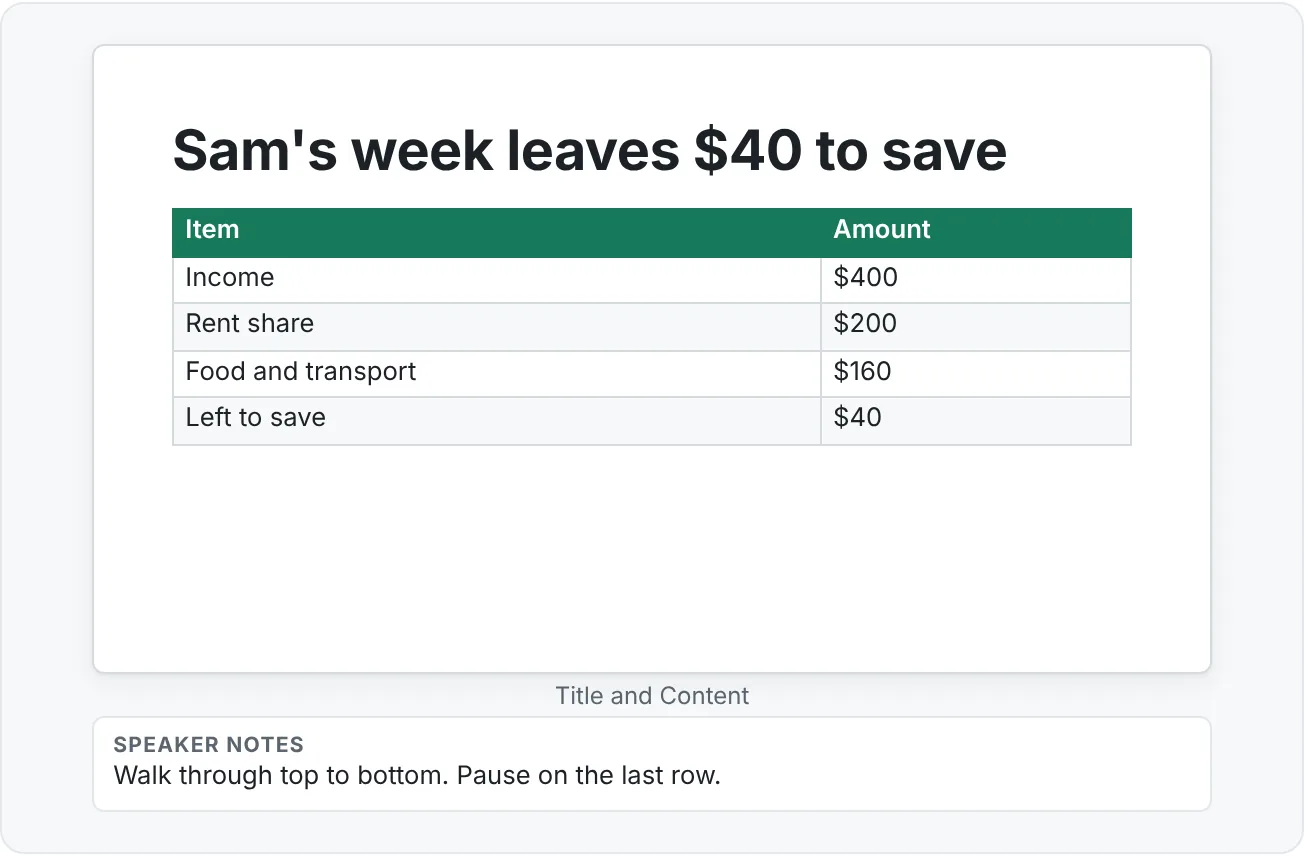
- Sam's week leaves $40 to save
- Forgetting small purchases breaks most budgets
- Tonight, write your budget for next week
Notice what these titles do. Slide 2 gives one reason, not five. Slides 4 and 5 start with a verb, because they are actions. Slide 6 states the result of the example instead of saying "Example." Slide 7 names the mistake and points toward the fix, which goes in the slide body (for example, "Add a 'small stuff' line of $15"). Slide 8 ends with a specific action and a time.
Now compare with a typical first draft: Budgeting, Why?, Materials, Step 1, Step 2, Example, Mistakes, Thank you. Every one of those is a label. The deck might contain the same information, but the audience has to work it out for themselves.
Requirements checklist
Your finished deck must meet all of these. Tick them off as you go.
- One consistent theme applied to all 8 slides (no second theme, no fonts typed by name).
- At least three slide layouts, chosen from Home then Slides then Layout.
- One image that supports the message, inserted without stretching and cropped if needed.
- One simple shape or icon row, for example three icons with labels on the materials slide.
- One table or chart with a takeaway title.
- Speaker notes on at least four slides, with reminders, examples, transitions or timing.
- Exported as PDF.
Also check the habits from earlier tutorials:
- Titles are takeaways, not labels ("Write down every expense for one week" instead of "Expenses").
- Body text is at least 18 pt and fits without shrinking.
- Titles sit in the same place on every content slide.
- No leftover placeholder text such as Click to add text.
Step-by-step build plan
Give yourself about 2 to 3 hours in total, split across two sessions if you can. The full click-by-click version is in the practice section below. Here is the plan at a glance:
- Plan on paper (15 min). Write the audience and purpose. Draft all 8 titles as takeaways.
- Set up the file (10 min). New blank presentation, save it with a clear name, apply one theme.
- Build the skeleton (20 min). Add 8 slides with the right layouts and type all 8 titles. Read only the titles in order: do they tell the story?
- Add content (45 min). Fill in bullets, the image, the icon row and the table or chart.
- Make it consistent (15 min). Reset slides, check Slide Sorter, fix fonts and colors.
- Write notes (20 min). At least four slides, with reminders, examples, transitions and timing.
- Rehearse (20 min). Present twice with Alt+F5, fix what you notice.
- Export and check (10 min). Export a PDF, open it and scroll through every page.
- Score and reflect (15 min). Use the rubric and answer the reflection questions.
Rubric
Score your deck on each row. Ready is the goal for finishing the beginner path. Strong shows you're ready for the intermediate path.
| Criterion | Emerging | Ready | Strong |
|---|---|---|---|
| Purpose | Topic is present but vague. | Audience and purpose are clear. | Every slide supports the purpose. |
| Layout | Slides feel random. | Layouts are used consistently. | Layouts guide attention naturally. |
| Text | Too much text or inconsistent formatting. | Text is readable and concise. | Titles and bullets are audience-focused. |
| Visuals | Visuals are stretched or decorative. | Visuals support the message. | Visuals make the explanation easier. |
| Delivery | Presenter relies on slide text. | Notes support delivery. | Delivery feels rehearsed and clear. |
How to use it honestly:
- Score each row on its own. A great chart doesn't make up for a vague purpose.
- If you're between two levels, pick the lower one and write down what would move it up.
- Better still, ask a friend to watch you present and score the Delivery row. It's the hardest one to judge on your own.
Reflection prompts
Write a short answer (two or three sentences) to each question. Explaining your choices is how you find out whether you made them on purpose.
- Who was your audience, and which slide do you think helped them most? Why?
- Which three layouts did you use, and why did each one fit its slide?
- Why did you choose a table or a chart for your example, and what did you remove to make it clearer?
- Pick one of your speaker notes. What does it give you that the slide doesn't?
- Which rubric row scored lowest, and what is one specific change that would raise it?
- If you had 10 more minutes, what would you cut, not add?
Common mistakes in beginner projects
- Choosing a skill that's too big. "How to cook" doesn't fit in 8 slides. "How to make a 5-minute omelette" does.
- Label titles. "Step 1," "Example," "Conclusion" tell the audience nothing. Write what they should take away.
- Decorative images. A stock photo of smiling people in an office doesn't help someone write a budget. A photo of a filled-in budget sheet does.
- Notes written last-minute. Notes added after rehearsal are usually a copy of the slide. Write them before you rehearse and update them after.
- Forgetting to check the PDF. Hidden slides, leftover ink and cut-off text show up in the export. Open it before you send it.
- A recap with no next step. End with one specific action, such as "Write your budget for next week tonight."
Practice
Practice
Build the Teach a Useful Skill deck
- On paper, write your audience, purpose and 8 takeaway titles that match the required slides.
- Create a blank presentation and save it with a name like Mini Lesson - Weekly Budget.pptx.
- Apply one theme from Design then Themes. If you change fonts or colors, use Design then Variants then More then Fonts or Colors so the whole deck changes together.
- Add 8 slides with Home then Slides then New Slide, choosing a layout for each. Use at least three different layouts.
- Type all 8 titles. Open View then Presentation Views then Outline View and read the titles in order. Fix any that are labels instead of takeaways.
- On slide 2, insert one image with Insert then Images then Pictures. Resize from a corner handle and crop if needed so it isn't stretched.
- On slide 3, build an icon or shape row of 3 or 4 items with Insert then Illustrations then Icons or Shapes, each with a short label.
- On slide 6, insert a table or chart with Insert then Tables then Table or Insert then Illustrations then Chart. Clean it up: takeaway title, no extra legend, one highlight.
- Select all slides in the thumbnail pane and click Home then Slides then Reset if titles have drifted. Check View then Presentation Views then Slide Sorter.
- Add slide numbers with Insert then Text then Header & Footer, skipping the title slide.
- Open View then Show then Notes and write notes on at least four slides.
- Rehearse twice in Presenter View with Alt+F5. Aim for about 5 minutes.
- Export with File then Export then Create PDF/XPS Document. Open the PDF and check every page.
- Score yourself with the rubric and write your reflection answers.
Check your understanding0 of 4 correct
Pick an answer to see whether it's right and why.
You've built all 8 slides but your rubric score for Purpose is Emerging. Which change will raise it most?
Purpose is about the audience and goal. Clarifying them and making every slide serve them is what moves this row up.
On your materials slide, which visual best meets the "shape or icon row" requirement and supports the lesson?
A labeled icon row shows exactly what learners need, which makes the explanation easier rather than just decorating the slide.
A friend watches your rehearsal and says you mostly read the slides aloud. Which rubric row does this affect, and what is the fix?
Relying on slide text is the Emerging level of Delivery. Notes hold your script so the slides can stay short.
The community center wants a PDF for people who missed the session and need to understand it without you there. What should you export?
Readers who weren't there need what you said, and notes pages include it under each slide.
You're ready to move on when
Tick each one off as you go. Your ticks are saved in this browser only.
Related
Sources and further reading
Was this guide helpful? Spot a mistake? Send feedback · admin@arumsoft.com