PowerPoint Basics · Tutorial 6 of 8
How to Add Simple Tables and Charts in PowerPoint
Decide when a table or a chart fits your data, insert one in PowerPoint, and clean it up so your audience can read it in seconds.
- Level
- Beginner
- Time
- 15 min read
- Updated:
- Applies to:
- PowerPoint for Microsoft 365, PowerPoint 2024, PowerPoint 2021, PowerPoint for the web
What you'll learn
- Decide whether your data belongs in a table, a chart or a single sentence
- Insert a table and format it with a header row, light borders and one highlight
- Choose a column, bar, line or pie chart based on what you want to show
- Insert a chart and type your own data into its worksheet
- Remove chart clutter: clear title, fewer labels, no unnecessary legend, one highlight color
Numbers on slides go wrong in two ways. Either someone pastes a 15-row spreadsheet onto a slide that nobody can read, or someone drops in a default chart with a vague title, a legend, gridlines and six colors, and leaves the audience to figure out the point.
This tutorial teaches the beginner version of data slides: pick the right format, insert it, and strip it down until the message is obvious. The running example is a "Class Survey Results" slide, where 30 students answered the question "How do you usually get to school?"
Table, chart or sentence? Decide first
Before you click anything, decide what your audience needs to do with the numbers.
| Your audience needs to... | Use | Example |
|---|---|---|
| Look up or compare exact values | A table | Bus fares for three routes |
| See a pattern, ranking or trend | A chart | Which way most students get to school |
| Remember one number | A sentence or a big number | "Half the class walks." |
If the slide has one important number, you don't need a table or a chart at all. Write it in the title or use a large number with a short label.
Tables are useful when people need the exact figure or need to compare categories side by side. Charts are useful when the shape of the data is the message: one bar is much taller, a line goes up, one slice dominates.
Build a simple table
Here is the survey data as a paragraph, the way it often arrives in an email:
"Of the 30 students surveyed, 15 walk, 8 take the bus, 5 are driven by family and 2 ride a bike."
That sentence is hard to compare. A table makes it scannable.
- Add a slide with the Title and Content layout.
- Click the Insert Table icon in the content placeholder, or go to Insert then Tables then Table.
- Choose 2 columns and 5 rows (one header row plus four data rows).
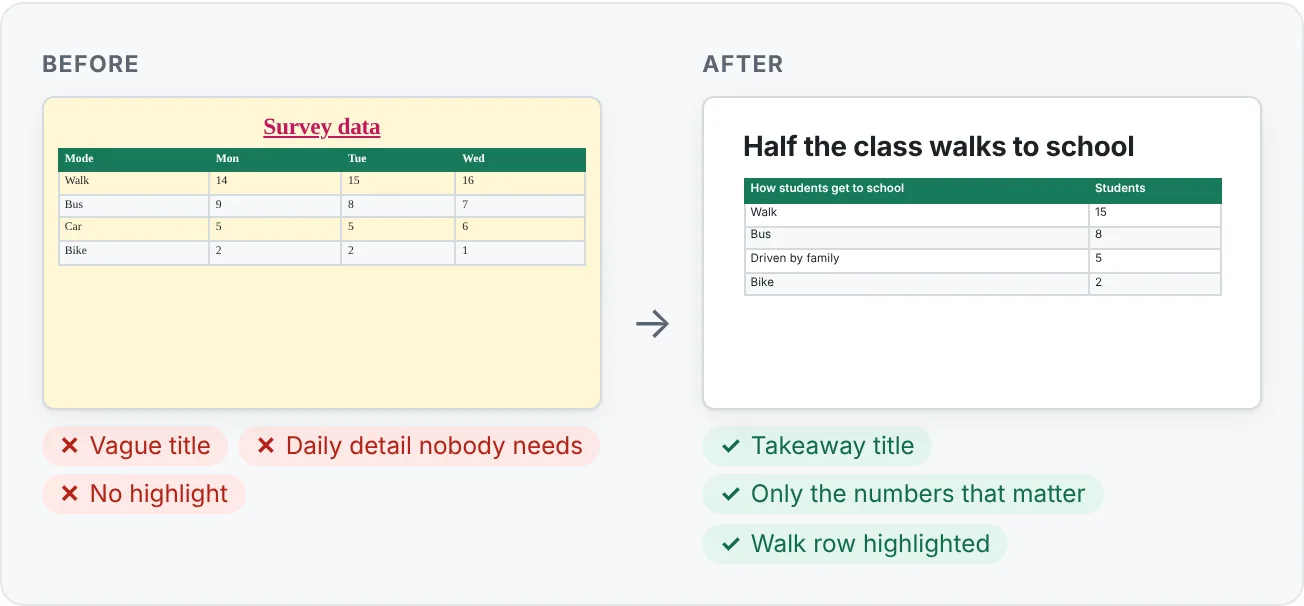
- Type the headers How students get to school and Students, then fill in the four rows.
- Press Tab to move to the next cell. Pressing Tab in the last cell adds a new row, so stop there.
Keep tables short
A slide table works best with roughly 3 to 7 rows. If you have 20 rows, ask what the audience really needs. Often it's the top few rows, or a total. Put the full table in a handout or a linked file instead.
Format a table so people can scan it
When you click inside a table, two extra tabs appear: Table Design and Layout. You need only a few buttons from each.
Header row and banding
On Table Design then Table Style Options, keep Header Row checked so the first row stands out. Banded Rows shades every other row, which helps on wider tables but can look busy on a 4-row table. Try it on and off and keep whichever reads more easily.
Pick a light style
In Table Design then Table Styles, open the gallery and choose a light style from the top rows. Light styles use the theme colors, so the table matches the rest of your deck.
Reduce gridlines
Heavy borders around every cell make tables look like a spreadsheet. Select the whole table, then use Table Design then Table Styles then Borders and choose No Border. Then select only the header row and add a Bottom Border. One line under the header is often all you need.
Align for reading
Select the table and use the Layout tab:
- Left-align text columns and right-align number columns (Layout then Alignment then Align Right) so digits line up.
- Use Center Vertically so text sits in the middle of each row.
- Make rows taller with Cell Size > Height if the table feels cramped.
Highlight the important row
Select the row that carries your message (Walk, 15) and apply Table Design then Table Styles then Shading using your accent color, or make the text bold. Highlight one row or column, not several. If everything is highlighted, nothing is.
Choose the right chart type
You only need four chart types as a beginner. Pick by what you want the audience to see:
| Chart | Use it for | Survey example |
|---|---|---|
| Column | Comparing a few categories | Students per travel mode |
| Bar (horizontal) | Comparing categories with long labels | "Driven by a family member" fits on the axis |
| Line | A trend over time | Students who walk, September to June |
| Pie | Simple parts of a whole, 2 to 4 slices | Walk vs. everything else |
A few rules of thumb:
- If the labels are long, use a bar chart so the words read left to right.
- If the x-axis is time (months, years, weeks), use a line chart.
- Use a pie only when the slices add up to a meaningful whole and there are only a few of them. Comparing five similar slices by eye is hard. A column or bar chart shows the same data more clearly.
- Skip 3D charts. The perspective makes bars look bigger or smaller than they are.
Insert a chart and enter your data
- Add a Title and Content slide, then click the Insert Chart icon in the placeholder or go to Insert then Illustrations then Chart.
- In the Insert Chart dialog, pick Column or Bar, then the first option (Clustered Column or Clustered Bar). Click OK.
- A small worksheet opens with sample data. Replace the category names in column A with Walk, Bus, Driven by family, Bike.
- Replace the numbers in column B with 15, 8, 5, 2. Change the B1 header to Students.
- The sample data has extra series columns (Series 2 and Series 3). Delete those columns, or drag the blue outline in the worksheet so it only covers columns A and B.
- Close the worksheet. You can reopen it later with Chart Design then Data then Edit Data.
If the data already lives in Excel, you can copy the cells and paste them into the chart's worksheet. Linking a chart so it updates from an Excel file is covered later in the Advanced path.
Clean up a default chart
A default chart is a starting point, not a finished slide. Clean it in this order.
1. Write a clear title. Put the takeaway in the slide title ("Most students walk to school"), then delete the chart's own title. Select the chart, click the Chart Elements button (the + next to the chart) and clear Chart Title. One title is enough.
2. Remove the legend if there's only one series. A legend that says "Students" next to a chart with one color adds nothing. Clear Legend in Chart Elements.
3. Use fewer labels. Pick one way to read values. Either keep the value axis and gridlines, or turn on Data Labels and remove the gridlines and value axis. Showing both repeats the same information.
4. Use one highlight color. Click a bar once to select the whole series, then set Format then Shape Styles then Shape Fill to a neutral gray. Now click the Walk bar once more so only that bar is selected, and fill it with your accent color.
5. Make the text big enough. Select the chart and use the Home tab to raise the font size of the whole chart to 16 pt or more. Axis labels on default charts are often too small to read on a projector.
6. Test from a distance. Step back from your screen, or zoom the slide to about 50 percent. If you can still name the biggest bar and read its number in a few seconds, the chart is ready. If not, remove something else.
Common mistakes with tables and charts
- Pasting a whole spreadsheet. Show only the rows that support your point. Move the rest to a handout.
- Vague titles like "Results" or "Data." Write the takeaway: "Half the class walks to school."
- Rainbow charts. Different colors for every bar suggest the categories mean different things. Use gray plus one accent.
- Pie charts with many slices. If you have more than about four slices, switch to a bar chart.
- 3D effects. They distort the size of bars and slices. Use flat 2D charts.
- Tiny text. Axis labels and table text should be readable from the back of the room. Make them bigger or show less data.
- Leftover sample data. "Series 2" or "Category 4" in the legend is a sign the worksheet still has sample columns.
Practice
Practice
Build a Class Survey Results slide
Guided practice
- Add a Two Content slide and title it with a takeaway, for example "Half the class walks to school."
- In the left placeholder, insert a table with 2 columns and 5 rows and enter the survey data (Walk 15, Bus 8, Driven by family 5, Bike 2).
- Format the table: keep Header Row, choose a light style, remove borders except a line under the header, right-align the numbers and shade the Walk row with your accent color.
- In the right placeholder, insert a Clustered Bar chart with the same data.
- Clean the chart: delete the chart title and legend, turn on Data Labels, remove gridlines and the value axis, make all bars gray and the Walk bar your accent color.
- Present the slide with Shift+F5. Ask yourself whether someone in the back row could read every number.
Independent challenge: a 3-slide mini report
Use this data: monthly library visits by one class were 40 (Sep), 52 (Oct), 61 (Nov), 58 (Dec). Most popular sections were Fiction 45, Science 22, History 14, Comics 30.
- Slide 1: a takeaway title and one big number.
- Slide 2: the best chart for the monthly visits (hint: it's a trend).
- Slide 3: the best chart or table for the sections, with the top section highlighted.
- Write one sentence per slide explaining why you chose that format.
Check your understanding0 of 4 correct
Pick an answer to see whether it's right and why.
You want to show how the number of students walking to school changed each month from September to June. Which chart fits best?
Change over time is a trend, and line charts show trends most clearly.
Your bar chart shows one data series called "Students" with a legend, gridlines, data labels and a chart title that repeats the slide title. What should you remove first?
With one series, the legend adds nothing, and the slide title already carries the message, so both are clutter.
A teammate's slide has a 14-row table in 11 pt text. The point of the slide is that two products sold best. What is the best fix?
Slide tables should be short. Trim to what supports the takeaway, highlight it, and move the full data elsewhere.
Your category labels are long, such as "Driven by a family member." In a column chart they wrap into several lines. What should you do?
Bar charts put category labels on the vertical axis, where long text has room to read left to right.
You're ready to move on when
Tick each one off as you go. Your ticks are saved in this browser only.
Related
Sources and further reading
Was this guide helpful? Spot a mistake? Send feedback · admin@arumsoft.com