How to Use the Quick Analysis Tool in Excel
Select some data and press Ctrl+Q to preview and add conditional formatting, a chart, totals, a table or sparklines in one or two clicks.
- Level
- Beginner
- Time
- 8 min read
- Updated:
- Applies to:
- Excel for Microsoft 365, Excel 2021, Excel 2019 (Windows)
What you'll learn
- Open Quick Analysis with the button or Ctrl+Q
- Preview and apply formatting, charts, totals, tables and sparklines
- Add a row or column of SUM or AVERAGE formulas to a block of numbers
- Find the same commands on the ribbon when you need more options
Before you start
Quick Analysis is a small menu that appears when you select a block of data. It offers the things you most often do next (highlight values, draw a chart, add totals, turn the range into a table, add sparklines) and shows a live preview as you point at each one. Select your data and press Ctrl+Q, or click the button at the bottom-right corner of the selection.
The examples use three months of sales for four regions in A1:D5.
| A | B | C | D | |
|---|---|---|---|---|
| 1 | Region | Jan | Feb | Mar |
| 2 | North | 4,200 | 3,900 | 4,600 |
| 3 | South | 3,100 | 3,500 | 3,300 |
| 4 | East | 5,200 | 4,800 | 5,600 |
| 5 | West | 2,800 | 3,000 | 3,400 |
Where to find it
Quick Analysis isn't on the ribbon. It lives next to your selection:
- Select a range that contains data, such as A1:D5. A selection of one cell or of empty cells doesn't show it.
- Click the Quick Analysis button that appears just outside the bottom-right corner of the selection, or press Ctrl+Q.
- Choose a tab along the top (Formatting, Charts, Totals, Tables or Sparklines), then point at an option to preview it and click to apply it.
Every option is a shortcut to a ribbon command, which you can use whenever you need more choices. Formatting, for example, uses the same rules as Conditional Formatting:
Highlight values with Formatting
Select the numbers
Select B2:D5, the sales figures only. Including the headings doesn't break anything, but the rule is only meant for numbers.
Open the Formatting tab
Press Ctrl+Q. Formatting is the first tab. For numbers it offers Data Bars, Color Scale, Icon Set, Greater Than, Top 10% and Clear Format. Point at each one to see a preview on the sheet; nothing changes until you click.
Choose Greater Than
Click Greater Than. A dialog asks for the value. Type
4000, leave the format as Light Red Fill with Dark Red Text and click OK.Quick Analysis opens the same Greater Than dialog as Conditional Formatting. A B C D 1 Region Jan Feb Mar 2 North 4,200 3,900 4,600 3 South 3,100 3,500 3,300 4 East 5,200 4,800 5,600 5 West 2,800 3,000 3,400 Five values over 4,000 are highlighted: North in January and March, and East in every month.
The result is an ordinary conditional formatting rule. To change or remove it later, go to Home then Styles then Conditional Formatting then Manage Rules, or select the cells and choose Clear Format in Quick Analysis.
Add totals with one click
The Totals tab writes formulas for you. Each option comes in two versions: one adds a row of results below the data, the other adds a column of results to the right. Point at an option and the preview shows which.
Select the block
Select B2:D5 again.
Choose Sum for the row below
Press Ctrl+Q, open Totals and click the Sum option that adds a row underneath (the preview fills row 6).
Check the formulas
Row 6 now holds formulas, not typed numbers. Click B6 and the formula bar shows
=SUM(B2:B5): January's total is 15,300, February's 15,200 and March's 16,900. If you change a sale, the total updates.A B C D 1 Region Jan Feb Mar 2 North 4,200 3,900 4,600 3 South 3,100 3,500 3,300 4 East 5,200 4,800 5,600 5 West 2,800 3,000 3,400 6 15,300 15,200 16,900 Quick Analysis added a SUM formula under each month. B6 adds B2:B5.
The Totals tab also has Average, Count, % Total and Running Total. The arrow at the right end of the options scrolls to the column versions. If you want a label such as Total next to the results, type it yourself if Excel hasn't added one.
What each tab offers
| Tab | What you get | The ribbon equivalent |
|---|---|---|
| Formatting | Data bars, color scales, icon sets, a Greater Than rule, the top 10%. For text and dates, the choices change to suit them (for example, duplicate values in a list of names). | Home then Styles then Conditional Formatting |
| Charts | A few charts Excel recommends for this data, plus a button that opens the full list. | Insert then Charts then Recommended Charts |
| Totals | Sum, Average, Count, % Total and Running Total, below or to the right. | Formulas you type, or Home then Editing then AutoSum |
| Tables | Turn the range into an Excel table, or start one of a few suggested PivotTables. | Insert then Tables then Table or PivotTable |
| Sparklines | Line, column or win/loss sparklines in the column to the right of the data. | Insert then Sparklines |
The suggestions depend on what you selected, so a column of dates, a list of names and a block of numbers each get different options.
Real-world scenarios
Yearly cost per team
A finance assistant has four quarters of costs for three teams in B2:E4 and needs a yearly total for each team. Select B2:E4, press Ctrl+Q, open Totals and pick the Sum that adds a column on the right.
| A | B | C | D | E | F | |
|---|---|---|---|---|---|---|
| 1 | Team | Q1 | Q2 | Q3 | Q4 | |
| 2 | Design | 1,800 | 2,100 | 1,950 | 2,400 | 8,250 |
| 3 | Support | 900 | 1,100 | 1,050 | 1,200 | 4,250 |
| 4 | Sales | 3,200 | 2,900 | 3,600 | 4,100 | 13,800 |
Sales costs 13,800 for the year, Design 8,250 and Support 4,250. Each cell in column F is a normal SUM formula, so it can be edited or copied like any other.
Class average for each test
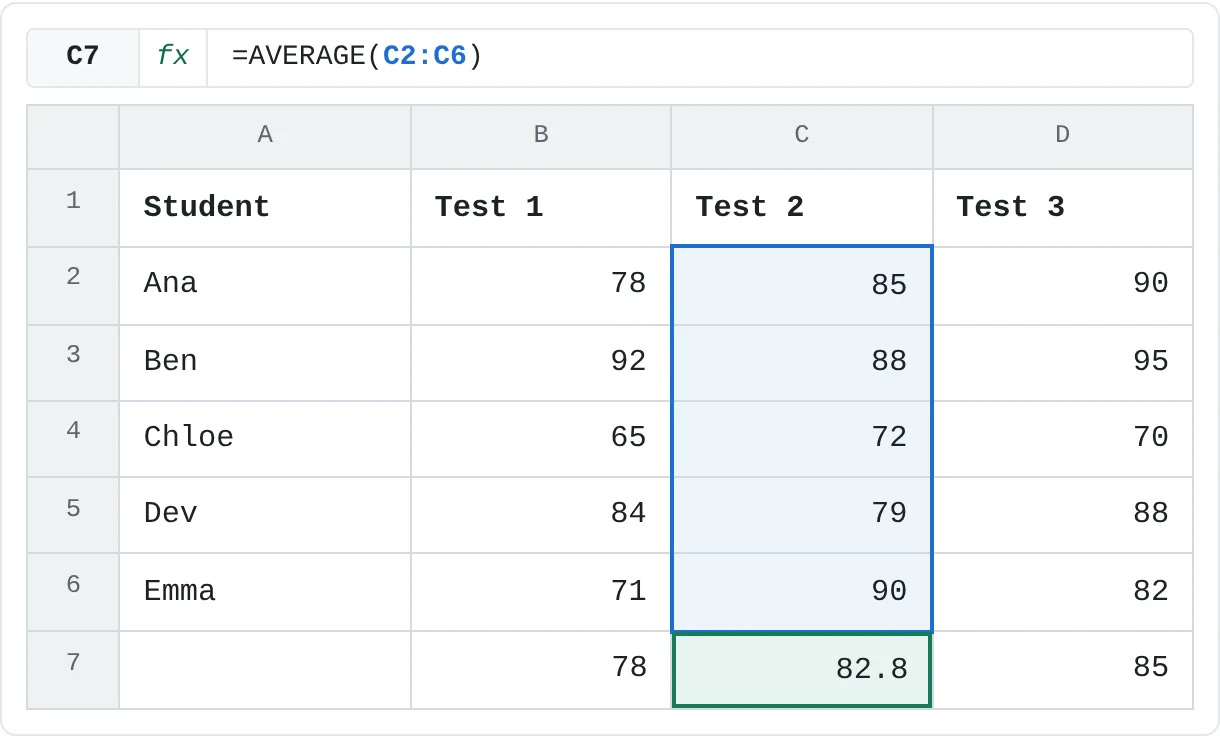
A teacher has five students' scores for three tests. To see how hard each test was, select B2:D6 and choose Average (the row version) on the Totals tab.
| A | B | C | D | |
|---|---|---|---|---|
| 1 | Student | Test 1 | Test 2 | Test 3 |
| 2 | Ana | 78 | 85 | 90 |
| 3 | Ben | 92 | 88 | 95 |
| 4 | Chloe | 65 | 72 | 70 |
| 5 | Dev | 84 | 79 | 88 |
| 6 | Emma | 71 | 90 | 82 |
| 7 | 78 | 82.8 | 85 |
Test 1 has the lowest average, 78; Test 2 averages 82.8 and Test 3 85. Then, with the same scores selected, the Color Scale option on the Formatting tab shades the weakest scores so they stand out.
Your biggest spending day
You logged what you spent on each of ten days. Select B2:B11, open Formatting and choose Top 10%. With ten values, the top 10% is one day.
| A | B | |
|---|---|---|
| 1 | Day | Spent |
| 2 | 2026-09-01 | 23 |
| 3 | 2026-09-02 | 41 |
| 4 | 2026-09-03 | 18 |
| 5 | 2026-09-04 | 120 |
| 6 | 2026-09-05 | 35 |
| 7 | 2026-09-06 | 27 |
| 8 | 2026-09-07 | 52 |
| 9 | 2026-09-08 | 30 |
| 10 | 2026-09-09 | 19 |
| 11 | 2026-09-10 | 44 |
September 4, at 120, is more than twice any other day. Point at Data Bars before you click anything to compare all ten days at a glance, then pick whichever view you prefer.
Tips and common mistakes
- Nothing happens when I press Ctrl+Q. Select at least two cells with data first. If the selection is empty, there's nothing to analyze.
- The Totals went in the wrong place. Each total comes in a row version and a column version. Undo with Ctrl+Z, point at the options again and watch the preview before you click.
- The headings were included in the totals. Select only the numbers if Excel puts the results in an odd place, or check the formula's range afterwards.
- A chart or table from Quick Analysis looks different from what you wanted. It's a starting point. Change it with the Chart Design or Table Design tab like any other chart or table.
- Preview isn't the same as applying. Moving the mouse away removes the preview. You have to click an option to keep it.
Practice
Practice
Try every tab on one table
- Type the regional sales table from the top of this page into a new sheet.
- Select B2:D5, press Ctrl+Q and point at each option on the Formatting tab without clicking. Then apply Greater Than with
4000. - Open Totals and add a Sum row underneath. Check that D6 shows 16,900.
- Select A1:D5, open Charts and insert the clustered column chart, if it's offered, or another chart you like.
- Select B2:D5 and add Line sparklines from the Sparklines tab.
- Remove the highlighting with Clear Format and undo the rest with Ctrl+Z.
Related
Was this guide helpful? Spot a mistake? Send feedback · admin@arumsoft.com