How to Add Sparklines in Excel
Draw a tiny line, column or win/loss chart inside a cell next to each row of numbers, mark the high and low points, and compare rows on the same scale.
- Level
- Beginner
- Time
- 8 min read
- Updated:
- Applies to:
- Excel for Microsoft 365, Excel 2021, Excel 2019, Excel for Mac
What you'll learn
- Insert line sparklines for several rows at once
- Switch sparklines between Line, Column and Win/Loss
- Mark the high, low and negative points
- Put every sparkline on the same vertical scale so rows can be compared
- Remove sparklines with Clear
Before you start
A sparkline is a chart small enough to fit inside one cell. Put one at the end of each row and you can see at a glance which numbers are rising, falling or jumping around, without building a full chart for every row. Sparklines update when the numbers change, and they print with the sheet.
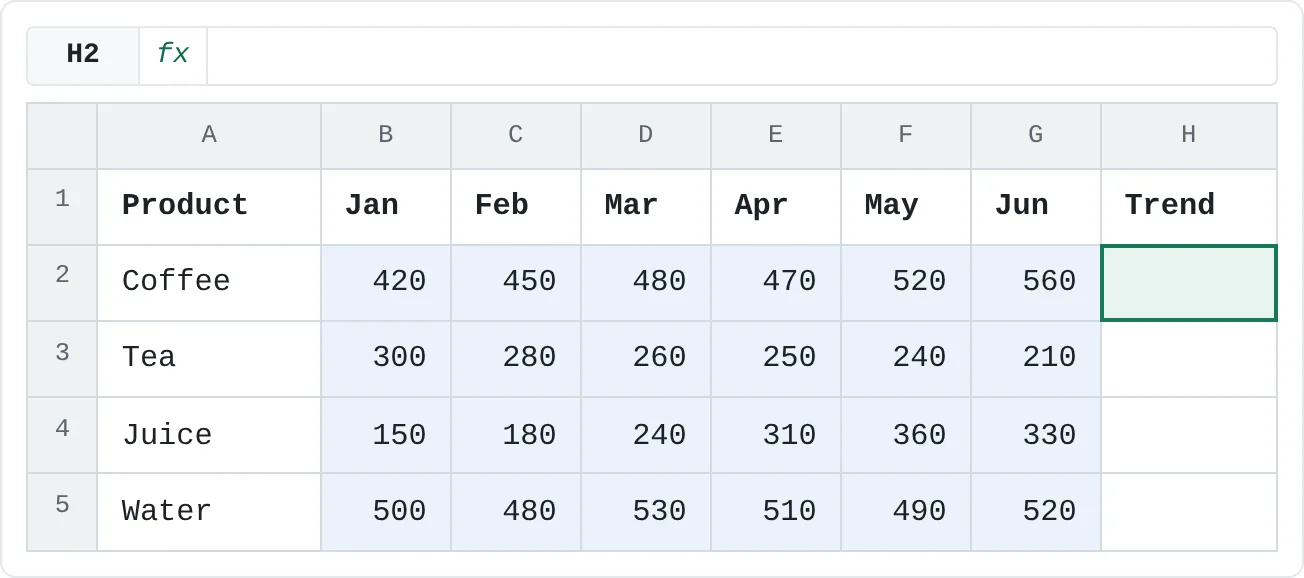
The examples use six months of sales for four products. The numbers are in B2:G5, and the sparklines will go in column H.
| A | B | C | D | E | F | G | H | |
|---|---|---|---|---|---|---|---|---|
| 1 | Product | Jan | Feb | Mar | Apr | May | Jun | Trend |
| 2 | Coffee | 420 | 450 | 480 | 470 | 520 | 560 | |
| 3 | Tea | 300 | 280 | 260 | 250 | 240 | 210 | |
| 4 | Juice | 150 | 180 | 240 | 310 | 360 | 330 | |
| 5 | Water | 500 | 480 | 530 | 510 | 490 | 520 |
Where to find it
Sparklines are on the Insert tab, in the Sparklines group: Insert then Sparklines then Line, Column or Win/Loss. There's no keyboard shortcut. You can also select the numbers, press Ctrl+Q for Quick Analysis and choose Sparklines.
Add line sparklines to every row
Select the cells for the sparklines
Select H2:H5, one cell for each row of numbers. Selecting them first means the location is filled in for you.
Choose Line
Go to Insert then Sparklines then Line. The Create Sparklines dialog opens.
Pick the data
Click in Data Range and select B2:G5: the numbers only, without the month headings or the product names. Location Range already shows
$H$2:$H$5. Click OK.The data range holds the numbers; the location range holds one cell per sparkline. Read the sparklines
Each cell in column H now holds a small line. Coffee climbs to its best month in June, Tea falls every month, and Juice peaks in May.
A B C D E F G H 1 Product Jan Feb Mar Apr May Jun Trend 2 Coffee 420 450 480 470 520 560 ▁▃▄▃▆█ 3 Tea 300 280 260 250 240 210 █▆▅▄▃▁ 4 Juice 150 180 240 310 360 330 ▁▂▄▆█▇ 5 Water 500 480 530 510 490 520 ▄▁█▅▂▇ One sparkline per product (the shape of each line is sketched here with bars). Water looks the most dramatic, even though its sales barely move.
The data range and the location range must match: four rows of data need four location cells. If you only need one sparkline, select one row of numbers and one cell. To extend sparklines to new rows later, drag the fill handle of the last sparkline cell down, just as you would copy a formula.
Format sparklines
Click any sparkline cell and the Sparkline tab appears on the ribbon. Sparklines you created together form a group, so a change to one applies to all of them.
| Command on the Sparkline tab | What it does |
|---|---|
| Line, Column, Win/Loss | Change the type of the whole group. Win/Loss draws every positive value as an up block and every negative value as a down block, ignoring their size. |
| High Point, Low Point | Colour the highest and lowest values, which is often the only thing the reader needs. |
| Negative Points | Colour values below zero. Useful for profit and loss. |
| First Point, Last Point | Colour the start and end of the period. |
| Markers | Draw a dot on every value (line sparklines only). |
| Sparkline Color, Marker Color | Change the colours, or pick a ready-made style from the gallery. |
| Edit Data | Change the data or location range, or decide how empty cells and hidden rows are shown (Hidden & Empty Cells). |
| Ungroup | Split the group so you can format one sparkline on its own. |
Compare rows on the same scale
By default every sparkline is scaled to its own lowest and highest value. That's why Water looked so lively in the picture above: its sales only move between 480 and 530, but that small range fills the whole cell.
To compare rows fairly, click a sparkline, go to Axis in the Group section of the Sparkline tab, and choose Same for All Sparklines under both Vertical Axis Minimum Value Options and Vertical Axis Maximum Value Options.
| A | B | C | D | E | F | G | H | |
|---|---|---|---|---|---|---|---|---|
| 1 | Product | Jan | Feb | Mar | Apr | May | Jun | Trend |
| 2 | Coffee | 420 | 450 | 480 | 470 | 520 | 560 | ▆▆▇▆▇█ |
| 3 | Tea | 300 | 280 | 260 | 250 | 240 | 210 | ▄▃▃▃▃▂ |
| 4 | Juice | 150 | 180 | 240 | 310 | 360 | 330 | ▁▂▃▄▅▄ |
| 5 | Water | 500 | 480 | 530 | 510 | 490 | 520 | ▇▇▇▇▇▇ |
Neither view is wrong. The default shows the shape of each row; a shared scale shows how big each row is compared with the others. Pick the one that answers your question, and mention it in a label if readers might assume the other.
Real-world scenarios
Weekly profit by store
A manager tracks each store's weekly profit or loss. Only one thing matters at a glance: which weeks made money. Select H2:H4, choose Insert then Sparklines then Win/Loss and use B2:G4 as the data range.
| A | B | C | D | E | F | G | H | |
|---|---|---|---|---|---|---|---|---|
| 1 | Store | W1 | W2 | W3 | W4 | W5 | W6 | Win/Loss |
| 2 | North | 120 | -40 | 80 | 60 | -20 | 90 | ▀▄▀▀▄▀ |
| 3 | South | -30 | -50 | 40 | -10 | 70 | 30 | ▄▄▀▄▀▀ |
| 4 | Central | 200 | 150 | -60 | 110 | 90 | 130 | ▀▀▄▀▀▀ |
South lost money in three of the first four weeks, then recovered. Central's one bad week (W3) stands out. Win/Loss shows only whether a week made money, not how much. Tick Negative Points to colour the losses red.
Quiz scores across a term
A teacher adds line sparklines next to six quiz scores (out of 20) for each student and ticks High Point and Low Point.
| A | B | C | D | E | F | G | H | |
|---|---|---|---|---|---|---|---|---|
| 1 | Student | Q1 | Q2 | Q3 | Q4 | Q5 | Q6 | Progress |
| 2 | Ana | 12 | 14 | 13 | 16 | 17 | 19 | ▁▃▂▅▆█ |
| 3 | Ben | 18 | 17 | 15 | 14 | 15 | 13 | █▇▄▂▄▁ |
| 4 | Chloe | 10 | 15 | 11 | 16 | 12 | 17 | ▁▆▂▇▃█ |
| 5 | Dev | 15 | 15 | 16 | 15 | 16 | 16 | ▁▁█▁██ |
Ben's line falls from 18 to 13: a cue to check in with him. Dev's scores only move between 15 and 16, but with the default scale his sparkline jumps from bottom to top, so this is a case for Same for All Sparklines.
Where the money goes each month
A household budget has one row per spending category and one column per month. Column sparklines in H2:H4 show which category is creeping up.
| A | B | C | D | E | F | G | H | |
|---|---|---|---|---|---|---|---|---|
| 1 | Category | Jan | Feb | Mar | Apr | May | Jun | Trend |
| 2 | Groceries | 320 | 300 | 340 | 310 | 330 | 350 | ▄▁▇▂▅█ |
| 3 | Eating out | 120 | 90 | 150 | 200 | 180 | 240 | ▂▁▄▆▅█ |
| 4 | Transport | 80 | 85 | 60 | 70 | 90 | 75 | ▆▇▁▃█▅ |
Eating out went from 90 in February to 240 in June. Groceries and transport go up and down but stay in a narrow band. You can still type in a sparkline cell, so add a short note such as "check" right on top of the chart.
Tips and common mistakes
- Pressing Delete doesn't remove a sparkline. Select the cells and use Clear in the Group section of the Sparkline tab (it can clear the selected sparklines or the whole group).
- The sparklines are too small to read. A sparkline fills its cell, so make the column wider and the row taller. Merged cells work too.
- One sparkline formats differently from the rest. Sparklines in a group share their settings. Select the one you want and click Ungroup first.
- The data range includes headings or totals. A Total column at the end of each row becomes the last point of the line and makes every row look like it shot up. Select only the period values.
- Empty months show as gaps. By default an empty cell leaves a gap in the line. Change this in Edit Data › Hidden & Empty Cells, or fill in the missing values.
Practice
Practice
Add sparklines to your own figures
- Type the product sales table from the top of this page into a new sheet, or use any table with one row per item and one column per month.
- Select H2:H5, choose Insert then Sparklines then Line and set the data range to B2:G5.
- On the Sparkline tab, tick High Point and Low Point. Which month was best for each product?
- Change the type to Column, then back to Line.
- Set both vertical axis options to Same for All Sparklines and compare Water's sparkline before and after.
- Remove the sparklines with Clear, then press Ctrl+Z to bring them back.
Related
Was this guide helpful? Spot a mistake? Send feedback · admin@arumsoft.com