Commercial Sublease Consent Letter Template for Word
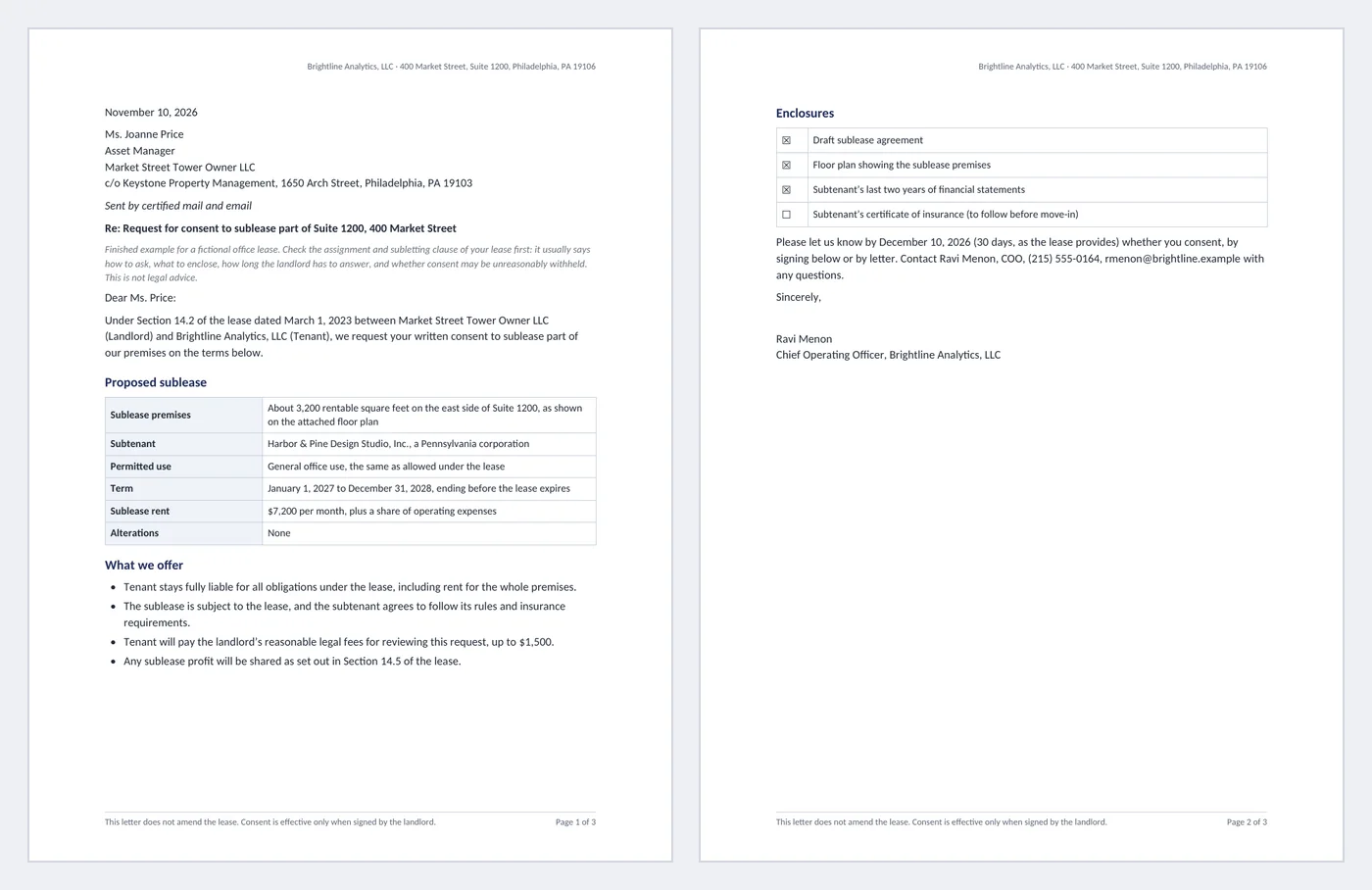
Most commercial leases let a tenant sublet only with the landlord’s written consent, and many give the landlord a fixed time to answer once a complete request arrives. A clear request letter with every term the landlord needs, plus a consent page ready to countersign, gets a faster yes. This template is a finished three-page example for a fictional office sublease: a two-page request letter and a landlord consent page signed by landlord, tenant and subtenant.
- Pages:
- 3
- Works with:
- Word for Microsoft 365, Word 2016 or later, Word for Mac (Word for the web can fill in fields)
- Updated:
Commercial Sublease Consent Letter.docx
Free to download. No sign-up needed. No macros.
What you can do with it
- Tenant letterhead in the header and a footer stating consent is effective only when the landlord signs
- Landlord name and address fields, a delivery method dropdown and lease section and date fields
- Proposed sublease table: premises, subtenant, use, term date pickers, rent and an alterations dropdown
- Enclosures checklist, response date picker, and a consent page with decision dropdown, conditions and three signatures
What's inside
The document has 3 pages. Each part below is a heading in the file, so you can jump to it from the Navigation Pane (View > Navigation Pane).
| Part | What it covers | What you write |
|---|---|---|
| Letter opening | Who asks whom, under which clause | Date, landlord address, delivery method, Re line, lease section and date |
| Proposed sublease | The deal the landlord is asked to approve | Premises, subtenant, use, term, rent, alterations |
| What we offer and enclosures | Why the landlord can say yes | Tenant stays liable, fees, profit sharing; sublease draft, plan, financials, insurance |
| Landlord consent page | The answer, ready to sign | Decision dropdown, conditions, reason if withheld, three signatures |
Before you start
- Read the lease’s assignment and subletting clause: notice method, required documents, response period, recapture rights and profit sharing.
- Have the draft sublease, a floor plan of the subleased space and the subtenant’s financial statements ready.
- Agree the main terms with the subtenant first, so the landlord reviews a final deal.
Step-by-step guide
Fill in the letter opening
Pick the date and delivery method, and type the landlord’s name, title, company and notice address exactly as the lease requires.
Cite the lease
Type the subletting clause number and pick the lease date.
Describe the sublease
Fill in premises, subtenant, use, rent, pick the start and end dates and the alterations option. The term must end before your lease does.
State your commitments
Edit the bullets to match the lease: continued liability, fee reimbursement cap and profit-sharing clause.
Attach and set a deadline
Tick the enclosures you are sending and pick the response date the lease allows.
Send and countersign
Sign the letter, send it by the notice method in the lease, and have the landlord complete and sign the consent page.
Field and control map
Every content control and field in the document, in the order they appear. Gray-boxed fields in Word are the content controls.
| Name | Type | Where | Value in the sample |
|---|---|---|---|
| Tenant header | Text | Header | Brightline Analytics, LLC |
| Letter date | Date picker | Body | November 10, 2026 |
| Landlord name | Text | Body | Ms. Joanne Price |
| Landlord title | Text | Body | Asset Manager |
| Landlord company | Text | Body | Market Street Tower Owner LLC |
| Landlord address | Text | Body | c/o Keystone Property Management, 1650 Arch Street, Philadelphia, PA 19103 |
| Delivery method | Dropdown | Body | Sent by certified mail and email (Sent by certified mail and email / Sent by overnight courier / Delivered by hand) |
| Salutation | Text | Body | Ms. Price |
| Lease section | Text | Body | 14.2 |
| Lease date | Date picker | Body | March 1, 2023 |
| Sublease premises | Text | Body | About 3,200 rentable square feet on the east side of Suite 1200, as shown on the attached floor plan |
| Subtenant | Text | Body | Harbor & Pine Design Studio, Inc., a Pennsylvania corporation |
| Sublease start | Date picker | Body | January 1, 2027 |
| Sublease end | Date picker | Body | December 31, 2028 |
| Sublease rent | Text | Body | $7,200 per month, plus a share of operating expenses |
| Alterations | Dropdown | Body | None (None / Minor, cosmetic only / Subject to separate landlord approval) |
| Fee cap | Text | Body | $1,500 |
| Profit section | Text | Body | 14.5 |
| Enc sublease | Checkbox | Body | checked |
| Enc plan | Checkbox | Body | checked |
| Enc financials | Checkbox | Body | checked |
| Enc insurance | Checkbox | Body | unchecked |
| Response date | Date picker | Body | December 10, 2026 |
| Tenant contact | Text | Body | Ravi Menon, COO, (215) 555-0164, rmenon@brightline.example |
| Tenant signer | Text | Body | Ravi Menon |
| Tenant signer title | Text | Body | Chief Operating Officer, Brightline Analytics, LLC |
| Landlord decision | Dropdown | Body | Consent with conditions (Consent / Consent with conditions / Consent withheld) |
| Landlord conditions | Text | Body | Subtenant to deliver a certificate of insurance naming Landlord before occupancy; no change to building security access without Landlord approval. |
| Reason withheld | Text | Body | Give the reason if consent is withheld |
| Sig landlord | Text | Body | Joanne Price, Asset Manager, for Market Street Tower Owner LLC |
| Signed date | Date picker | Body | 3 fields: Click or tap to enter a date. |
| Sig tenant | Text | Body | Ravi Menon, COO, Brightline Analytics, LLC |
| Sig subtenant | Text | Body | Elena Ruiz, President, Harbor & Pine Design Studio, Inc. |
{ PAGE } | Field | Footer | 1 |
{ NUMPAGES } | Field | Footer | 3 |
Every field, control and style, explained
The code in each card is read straight from the .docx file (the XML Word stores, or the field code you see with Alt+F9), so it is exactly what the template contains.
Page { PAGE } of { NUMPAGES }The footer counts pages with two fields: PAGE is the current page and NUMPAGES is the total. Both recalculate when the document is printed, saved as PDF or scrolled in Print Layout.
Piece by piece
PAGE- The number of the page the field sits on.
NUMPAGES- The total number of pages in the document.
In the sample: Page 1 of 3 on the first page
How it is used: Nothing to do: add or delete pages and the numbers follow.
How to change it: Double-click the footer to edit the text around the fields. Insert > Page Number > Format Page Numbers sets the starting number.
Learn this: How to Set Up Pages in Word: Margins, Breaks, Headers, Footers, and Page Numbers →<w:sdtPr>
<w:alias w:val="Landlord name"/>
<w:tag w:val="landlord_name"/>
<w:text/>
</w:sdtPr>Names, numbers and other details people change every time are plain text content controls. Click one and type: the text replaces the sample, keeps the formatting, and the field still shows its name when selected.
Piece by piece
<w:alias w:val="…"/>- The title shown on the control’s tab when you click it.
<w:tag w:val="…"/>- A machine-readable name, useful for mail merge or code.
<w:text/>- Plain text: one line, one format, so pasted text cannot break the layout.
<w:showingPlcHdr/>- Present when the field shows gray placeholder text instead of a value.
In the sample: Landlord name = Ms. Joanne Price
How it is used: 20 in this template: Tenant header, Landlord name, Landlord title, Landlord company, Landlord address, Salutation, Lease section, Sublease premises, Subtenant, Sublease rent, Fee cap, Profit section, Tenant contact, Tenant signer, Tenant signer title, Landlord conditions, Reason withheld, Sig landlord, Sig tenant, Sig subtenant. Use Developer > Design Mode to see every control at once, or the Selection Pane to jump between them.
How to change it: Developer > Properties changes the title, tag and placeholder. To show the Developer tab: File > Options > Customize Ribbon > Developer.
Learn this: How to Create Fillable Forms with Content Controls in Word →<w:sdtPr>
<w:alias w:val="Letter date"/>
<w:tag w:val="letter_date"/>
<w:date w:fullDate="2026-11-10T00:00:00Z">
<w:dateFormat w:val="MMMM d, yyyy"/>
<w:lid w:val="en-US"/>
<w:storeMappedDataAs w:val="dateTime"/>
<w:calendar w:val="gregorian"/>
</w:date>
</w:sdtPr>Dates are date picker content controls: click the arrow to pick from a calendar, or type a date in any format and Word shows it as "November 2, 2026".
Piece by piece
w:fullDate- The stored date, independent of how it is shown.
<w:dateFormat w:val="MMMM d, yyyy"/>- Display format: full month name, day, four-digit year.
<w:lid w:val="en-US"/>- Language used for month names.
<w:storeMappedDataAs w:val="dateTime"/>- Stores a real date value if the control is mapped to data.
In the sample: Letter date = November 10, 2026
How it is used: 8 in this template: Letter date, Lease date, Sublease start, Sublease end, Response date, Signed date. Pick the date from the calendar so every date in the document has the same format.
How to change it: Developer > Properties > Display the date like this, for example d MMMM yyyy or yyyy-MM-dd.
Learn this: How to Create Fillable Forms with Content Controls in Word →<w:sdtPr>
<w:alias w:val="Delivery method"/>
<w:tag w:val="delivery_method"/>
<w:dropDownList>
<w:listItem w:displayText="Sent by certified mail and email" w:value="Sent by certified mail and email"/>
<w:listItem w:displayText="Sent by overnight courier" w:value="Sent by overnight courier"/>
<w:listItem w:displayText="Delivered by hand" w:value="Delivered by hand"/>
</w:dropDownList>
</w:sdtPr>Fields with a fixed set of answers are dropdown list content controls, so everyone uses the same words (useful when you search or count documents later).
Piece by piece
<w:dropDownList>- A list the reader must pick from (no free typing).
<w:listItem w:displayText="…" w:value="…"/>- One choice: the text shown and the value stored.
In the sample: Delivery method = Sent by certified mail and email (Sent by certified mail and email / Sent by overnight courier / Delivered by hand)
How it is used: 3 in this template: Delivery method, Alterations, Landlord decision. Click the field and choose from the list.
How to change it: Developer > Properties > Add, Modify or Remove choices. Use a Combo Box instead if people need to type their own answer.
Learn this: How to Create Fillable Forms with Content Controls in Word →<w:sdtPr>
<w:alias w:val="Enc sublease"/>
<w:tag w:val="enc_sublease"/>
<w14:checkbox>
<w14:checked w14:val="1"/>
<w14:checkedState w14:val="2612" w14:font="MS Gothic"/>
<w14:uncheckedState w14:val="2610" w14:font="MS Gothic"/>
</w14:checkbox>
</w:sdtPr>Checklist boxes are checkbox content controls: click to tick or untick. They print as ☒ and ☐.
Piece by piece
<w14:checked w14:val="…"/>- 1 when ticked, 0 when not.
<w14:checkedState w14:val="2612"/>- Symbol for ticked: U+2612 ☒.
<w14:uncheckedState w14:val="2610"/>- Symbol for unticked: U+2610 ☐.
In the sample: 3 of 4 ticked in the sample
How it is used: 4 in this template: Enc sublease, Enc plan, Enc financials, Enc insurance. Click the box. Checkboxes need Word 2010 or later; very old versions show a static symbol.
How to change it: Developer > Properties > Checked symbol > Change, for example to ✓ (Wingdings 2).
Learn this: How to Create Fillable Forms with Content Controls in Word →<w:style w:type="paragraph" w:styleId="Callout">
<w:name w:val="Callout"/>
<w:basedOn w:val="Normal"/>
<w:pPr>
<w:pBdr>
<w:left w:val="single" w:color="F2A93B" w:sz="24" w:space="8"/>
</w:pBdr>
<w:shd w:fill="EEF2F8" w:color="auto" w:val="clear"/>
<w:spacing w:after="160" w:before="120"/>
<w:ind w:left="180" w:right="180"/>
</w:pPr>
<w:rPr>
<w:sz w:val="21"/>
</w:rPr>
</w:style>Notes and warnings use a paragraph style named Callout: tinted background, amber bar on the left, indented on both sides. Because it is a style, every callout matches and you can restyle them all at once.
Piece by piece
<w:shd w:fill="EEF2F8"/>- Light blue-gray background.
<w:left w:val="single" w:sz="24" w:color="F2A93B"/>- Amber bar, 3 pt wide, on the left edge.
<w:ind w:left="180" w:right="180"/>- Indented 1/8 inch on each side.
In the sample: Used for the notes, tips and warnings in the body.
How it is used: Put the cursor in a paragraph and pick Callout in the Styles gallery.
How to change it: Right-click Callout in the Styles gallery > Modify > Format > Border or Shading. All callouts change together.
Learn this: How to Use Styles and the Navigation Pane in Word →<w:style w:type="paragraph" w:styleId="Guidance">
<w:name w:val="Guidance"/>
<w:basedOn w:val="Normal"/>
<w:pPr>
<w:spacing w:after="100"/>
</w:pPr>
<w:rPr>
<w:i/>
<w:iCs/>
<w:color w:val="6B7280"/>
<w:sz w:val="19"/>
</w:rPr>
</w:style>Instructions for whoever fills in the template use a Guidance style (gray italics). Delete them before you send the document; with a style, Find and Replace can remove them all at once.
Piece by piece
<w:i/>- Italic.
<w:color w:val="6B7280"/>- Gray text.
In the sample: One note under the title block.
How it is used: Home > Replace > More > Format > Style > Guidance finds every note.
How to change it: Right-click Guidance in the Styles gallery > Modify.
Learn this: How to Use Styles and the Navigation Pane in Word →Tips and limits
- Send the request to the notice address in the lease, not just to the property manager’s email.
- An incomplete request often does not start the landlord’s response clock; include everything the clause lists.
- Some leases let the landlord take back (recapture) the space instead of consenting. Check before you sign with a subtenant.
- Keep the consent limited to this sublease, as the Effect callout says.
- This template is not legal advice. Have a real estate lawyer review leases and subleases.
Learn the skills behind this template
Was this guide helpful? Spot a mistake? Send feedback · admin@arumsoft.com