Event Run-of-Show Template for Excel
A run of show is the one document everyone on an event follows: stage manager, AV, talent and the client. In this workbook each cue has a duration and its start time follows from the cue before it, so moving a speaker or trimming a panel reflows everything after. Cues that must happen at a clock time (a livestream, a dinner service) hold that time and tell you whether the plan reaches them early or late. During the show, type actual start times and the sheet tells you how far behind you are.
- Sheets:
- 6
- Works with:
- Excel for Microsoft 365, Excel 2016 or later, Excel for Mac and Excel for the web
- Updated:
What you can do with it
- Start and end times that reflow from durations, plus hard starts that hold a fixed clock time
- Overrun and gap warnings for every hard start, and the buffer before the venue hard out
- Audio, video and lighting cue for every line, on a printable booth cue sheet
- Segment totals, TBC items, and live late/early tracking from actual start times
What's inside
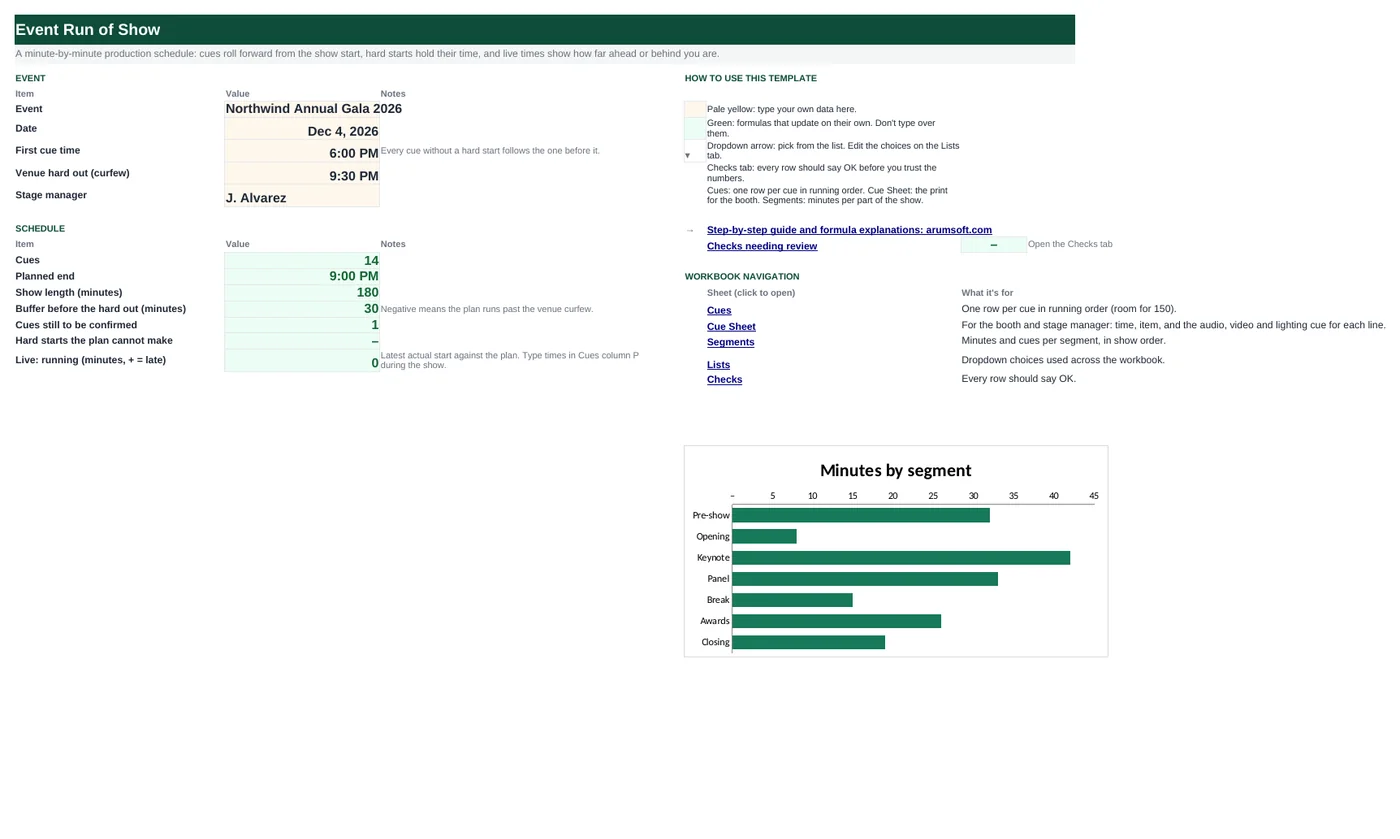
The workbook has 6 sheets. You only type on a few of them; the rest calculate.
| Sheet | What it's for | You enter | Calculated for you |
|---|---|---|---|
| Start Here | Event details and summary | Event, date, first cue time, venue hard out, stage manager | Cues, planned end, show length, buffer to hard out, TBC cues, overrun hard starts, live running time |
| Cues | Running order (150 cues) | Segment, item, talent, location, duration, hard start, audio, video, lighting, notes, status, actual start | Cue number, start, end, running total, hard-start check, late/early |
| Cue Sheet | Booth print | Nothing | Cue, time, item, talent and the audio, video and lighting cues |
| Segments | Totals by segment | Nothing | Cues, minutes, start and end per segment |
| Lists | Dropdowns | Segments, statuses | Nothing |
| Checks | Six data checks | Nothing | OK or Review |
Before you start
- Get the fixed times first: doors, livestream start, dinner service, venue curfew.
- Ask each speaker for their real length, not the hoped-for one, and add transitions (walk-ups, resets) as their own cues.
- Agree cue wording with the AV team so the cue sheet uses their terms.
Step-by-step guide
Set the frame
Start Here B6–B10: event, date, first cue time, venue hard out and stage manager.
Build the running order
Cues tab: one row per cue with segment, item, talent, location and duration in minutes.
Pin fixed times
Type a time in Hard start only where a cue must begin at a clock time. Column Q says On time, Gap or Overrun.
Add the technical cues
Audio, video/graphics and lighting for each line, and notes for the stage manager.
Print for the crew
Cue Sheet tab for the booth; Cues tab for the stage manager.
Run the show
Type actual start times in column P; Start Here B20 shows how many minutes late or early you are.
Formula map
Every formula in the workbook, grouped by the sheet and column it lives in. A column of copied formulas counts once; the range it covers is shown.
| Sheet | Cells | Functions | What it computes | Reads | Feeds |
|---|---|---|---|---|---|
| Cues | G6 copied down to row 154 | IF | Start time | I6, H5 | Change any duration and every later start moves. |
| Cues | H5 copied down to row 154 | IF | End time | G5, F5 | The next cue starts here. |
| Cues | Q7 copied down to row 154 | IF, OR, ROUND | Hard start check | H6, I7 | Start Here B19 counts overruns; the check requires none. |
| Cues | N5 copied down to row 154 | IF, ROUND | Running total | H5 | Useful for timing calls: "we are 85 minutes in". |
| Cues | R5 copied down to row 154 | IF, OR, ROUND | Late or early | P5, G5 | Start Here B20 shows the latest one. |
| Start Here | B20 | IFERROR, LOOKUP | Live running time | — | One number for the stage manager to call. |
| Segments | D5 copied down to row 16 | IF, MINIFS | Segment start | — | E5 uses MAXIFS for the end. |
| Start Here | B17 | ROUND | Buffer before the hard out | B9, B15 | Negative means the plan runs past the curfew; the check flags it. |
Every formula, explained
Each formula below is copied straight from the file, so what you read here is exactly what the cell contains. Click any cell in Excel to see it in the formula bar.
=IF(C6="", "", IF(I6<>"",
    I6, IF(H5="", 'Start Here'!$B$8, H5)))
A hard start if one is set; otherwise the end of the previous cue.
Piece by piece
I6<>""- Hard start given: use it.
IF(H5="", Start Here!$B$8, H5)- Otherwise the previous end (or the first cue time).
With the sample data: I6 = —, H5 = 18:30:00 → G6 result 18:30:00
How it is used: Change any duration and every later start moves.
How to change it: Nothing to change.
Learn this: How to Use the IF Function in Excel →=IF(C5="", "", G5+N(F5)/1440)Start plus the duration in minutes converted to a fraction of a day.
Piece by piece
G5- Start.
+N(F5)/1440- Minutes ÷ 1,440 minutes per day.
With the sample data: G5 = 18:00:00, F5 = 30 → H5 result 18:30:00
How it is used: The next cue starts here.
How to change it: Nothing to change.
Learn this: Text and Date Functions in Excel →=IF(OR(C7="", I7=""), "",
IF(N(H6)>I7+1/86400, "Overrun "&ROUND((H6-I7)*1440, 0)&" min",
IF(N(H6)<I7-1/86400, "Gap "&ROUND((I7-H6)*1440, 0)&" min", "On time")))Compares the previous cue's end with this cue's fixed time: Overrun if the plan arrives late, Gap if early, On time if exact.
Piece by piece
N(H6)>I7+1/86400- Previous end later than the hard start (a one-second tolerance).
ROUND((H6-I7)*1440, 0)- Minutes of overrun.
N(H6)<I7- Arriving early: a gap to fill.
With the sample data: H6 = 18:32:00, I7 = 18:35:00 → Q7 result Gap 3 min
How it is used: Start Here B19 counts overruns; the check requires none.
How to change it: Trim earlier cues or move the hard start.
Learn this: How to Use the IF Function in Excel →=IF(C5="", "", ROUND((H5-'Start Here'!$B$8)*1440, 0))Minutes from the first cue to the end of this one.
Piece by piece
(H5-'Start Here'!$B$8)*1440- Elapsed time in minutes.
ROUND(…, 0)- Whole minutes.
With the sample data: H5 = 18:30:00 → N5 result 30
How it is used: Useful for timing calls: "we are 85 minutes in".
How to change it: Nothing to change.
Learn this: How to Write Basic Formulas in Excel →=IF(OR(C5="", P5=""), "", ROUND((P5-G5)*1440, 0))Actual start minus planned start, in minutes.
Piece by piece
(P5-G5)*1440- Positive = late, negative = early.
With the sample data: P5 = —, G5 = 18:00:00 → R5 result —
How it is used: Start Here B20 shows the latest one.
How to change it: Type actual times in column P during the show.
Learn this: How to Write Basic Formulas in Excel →=IFERROR(LOOKUP(2, 1/(Cues!$P$5:$P$154<>""),
Cues!$R$5:$R$154), 0)The late/early value of the last cue that has an actual start time.
Piece by piece
1/(Cues!$P$5:$P$154<>"")- 1 where an actual time exists, an error elsewhere.
LOOKUP(2, …, Cues!$R$5:$R$154)- LOOKUP for 2 never finds it, so it returns the last match: the latest cue started.
With the sample data: B20 result 0
How it is used: One number for the stage manager to call.
How to change it: Nothing to change.
Learn this: Lookup Formulas in Excel: XLOOKUP, VLOOKUP and INDEX/MATCH →=IF(A5="", "", MINIFS(Cues!$G$5:$G$154, Cues!$B$5:$B$154, A5))The earliest start time among the segment's cues.
Piece by piece
MINIFS(Cues!$G$5:$G$154, Cues!$B$5:$B$154, A5)- Earliest start in this segment.
With the sample data: D5 result 18:00:00
How it is used: E5 uses MAXIFS for the end.
How to change it: Nothing to change.
Learn this: How to Use MIN and MAX in Excel →=ROUND((B9-B15)*1440, 0)Minutes between the planned end and the venue curfew.
Piece by piece
(B9-B15)*1440- Hard out − planned end, in minutes.
With the sample data: B9 = 21:30:00, B15 = 21:00:00 → B17 result 30
How it is used: Negative means the plan runs past the curfew; the check flags it.
How to change it: Change the hard out in B9.
Learn this: How to Write Basic Formulas in Excel →Tips and limits
- Capacity: 150 cues. Insert rows inside the table to add cues; formulas follow.
- Times are stored as fractions of a day, so durations are entered in minutes and divided by 1,440.
- Keep transitions (walk-ups, stage resets, award walk-offs) as their own cues; they are where shows run long.
- For a multi-day event, copy the Cues tab per day and change the first cue time.
- Mark items TBC until confirmed; Start Here counts them for the final production meeting.
Learn the skills behind this template
Was this guide helpful? Spot a mistake? Send feedback · admin@arumsoft.com