Clinical Trial Patient Enrollment and Visit Window Calculator for Excel
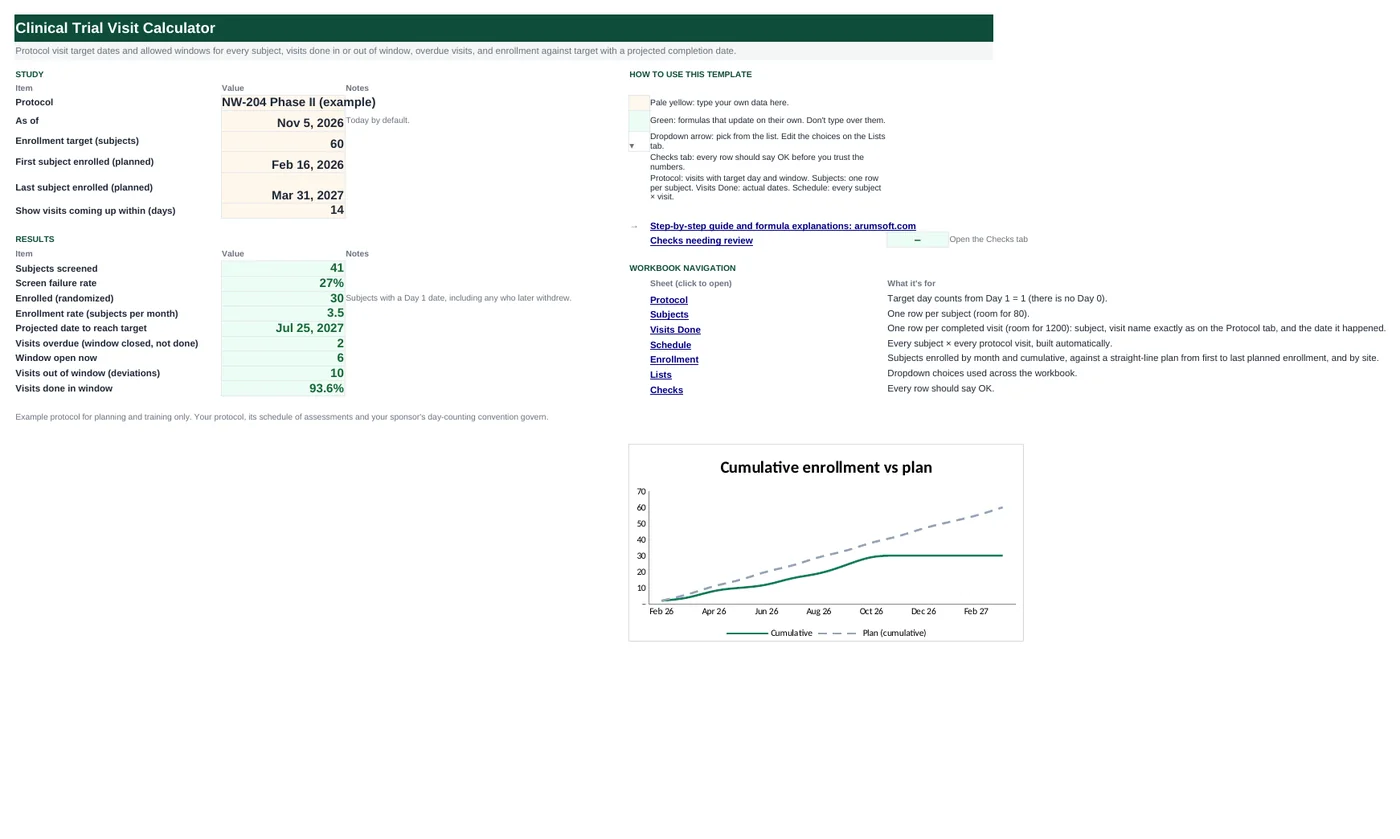
Every protocol visit has a target day and a window, and a visit outside it is a deviation. Working those dates out by hand for every subject invites off-by-one errors, starting with whether Day 1 counts as day one or day zero. In this workbook the protocol is entered once. Add a subject's Day 1 and the schedule tab generates every visit's target date and window, pulls in the visit dates you record, and marks each one Done in window, Done out of window, Window open, Upcoming or Missed. An enrollment tab tracks recruitment against plan.
- Sheets:
- 8
- Works with:
- Excel for Microsoft 365, Excel 2016 or later, Excel for Mac and Excel for the web
- Updated:
What you can do with it
- Protocol table: target day and minus/plus window per visit, with Day 1 = 1 (no Day 0)
- Every subject × visit generated automatically with target date, window open and close, and weekend flag
- Status from recorded visit dates: in window, out of window (deviation), window open, upcoming, missed
- Enrollment by month against a straight-line plan, screen failure rate, projected date to target, and results by site
What's inside
The workbook has 8 sheets. You only type on a few of them; the rest calculate.
| Sheet | What it's for | You enter | Calculated for you |
|---|---|---|---|
| Start Here | Study settings and results | Protocol name, as-of date (today), enrollment target, planned first and last enrollment, look-ahead days | Screened, screen failure rate, enrolled, enrollment rate, projected target date, missed, window open, out of window, % in window |
| Protocol | Visit schedule (15) | Visit, target day, window minus, window plus | Nothing |
| Subjects | One row per subject (80) | Subject ID, site, consent, screening, Day 1, status, withdrawal date | Next visit, its target date, consistency check |
| Visits Done | Completed visits (1,200) | Subject, visit, date | Check |
| Schedule | Every subject × visit (1,200) | Nothing | Target date, window, weekend flag, actual date, days from target, status |
| Enrollment | Recruitment | Site names and targets | Enrolled per month, cumulative vs plan, screened, screen failures; by site |
| Lists | Dropdowns | Subject statuses, sites | Nothing |
| Checks | Six data checks | Nothing | OK or Review |
Before you start
- Take the visit schedule and windows from the protocol's schedule of assessments.
- Confirm your study's day-counting convention. This workbook uses Day 1 = the day of randomization or first dose and no Day 0; screening visits use negative days.
- Use subject IDs exactly as in your EDC so the log can be reconciled.
Step-by-step guide
Enter the protocol
Protocol tab: each visit with its target day and how many days early and late it may be done.
Set the enrollment plan
Start Here B8–B10: target subjects and the planned first and last enrollment dates.
Add subjects
Subjects tab: ID, site, consent, screening and Day 1 dates, and status.
Record visits
Visits Done tab: subject, visit name exactly as on the Protocol tab, and the date.
Work the schedule
Schedule tab: filter Status for Window open, Upcoming and Missed. Weekend targets are flagged so you can book inside the window.
Track recruitment
Enrollment tab and Start Here: enrolled against plan, screen failures and the projected date to reach target.
Formula map
Every formula in the workbook, grouped by the sheet and column it lives in. A column of copied formulas counts once; the range it covers is shown.
| Sheet | Cells | Functions | What it computes | Reads | Feeds |
|---|---|---|---|---|---|
| Schedule | A5 copied down to row 1204 | IFERROR, INDEX, INT, ROW, COUNTA | Subject for each row | — | K5 uses MOD(ROW()-5, visits)+1 for the visit number in the same way. |
| Schedule | E6 copied down to row 1204 | IF, OR, INDEX | Target date | D6, K6 | The window is built around it. |
| Schedule | F6 copied down to row 1204 | IF, INDEX | Window opens | E6, K6 | G6 adds the window plus for the close date. |
| Schedule | I6 copied down to row 1204 | IF, COUNTIFS, MAXIFS | Actual visit date | A6, B6 | Status compares it with the window. |
| Schedule | L6 copied down to row 1204 | IF, AND, INDEX, INT, ROW, COUNTA | Visit status | I6, F6, G6 | Counts on Start Here; withdrawn subjects' later visits show Not applicable. |
| Subjects | I5 copied down to row 84 | IF, OR, MINIFS | Next visit target | A5 | H5 finds the visit name with MATCH(1, INDEX((subject)*(date), 0), 0). |
| Start Here | B19 | IF, IFERROR | Projected date to reach target | B8, B17, B18 | Compare with the planned last enrollment in B10. |
| Enrollment | D5 copied down to row 18 | ROUND, MAX, MIN, EOMONTH | Planned cumulative enrollment | — | Charted against actual cumulative enrollment. |
Every formula, explained
Each formula below is copied straight from the file, so what you read here is exactly what the cell contains. Click any cell in Excel to see it in the formula bar.
=IFERROR(INDEX(Subjects!$A$5:$A$84,
         INT((ROW()-5)/COUNTA(Protocol!$A$5:$A$19))+1)&"",
         "")
Repeats each subject once per protocol visit: rows 1–10 are the first subject, 11–20 the second.
Piece by piece
ROW()-5- Row number from 0.
COUNTA(Protocol!$A$5:$A$19)- Visits in the protocol (10).
INT(…/…)+1- Which subject.
INDEX(Subjects!$A$5:$A$84, …)- Its ID.
With the sample data: A5 result 104-001
How it is used: K5 uses MOD(ROW()-5, visits)+1 for the visit number in the same way.
How to change it: Nothing to change; add subjects or visits and the schedule grows.
Learn this: How to Use INDEX and MATCH in Excel →=IF(OR(A6="", N(D6)=0), "",
D6+INDEX(Protocol!$B$5:$B$19,
K6)-IF(INDEX(Protocol!$B$5:$B$19, K6)>0,
1, 0))Day 1 plus the visit's target day, minus 1 for positive days because Day 1 is the first day (no Day 0).
Piece by piece
D6- Subject's Day 1 date.
+INDEX(Protocol!$B$5:$B$19, K6)- Target day for this visit (15 for Week 2).
-IF(…>0, 1, 0)- Day 15 is 14 days after Day 1; negative screening days are not shifted.
With the sample data: D6 = Feb 17, 2026, K6 = 2 → E6 result Feb 17, 2026
How it is used: The window is built around it.
How to change it: If your sponsor counts from Day 0, remove the −1.
Learn this: How to Use INDEX and MATCH in Excel →=IF(E6="", "", E6-INDEX(Protocol!$C$5:$C$19, K6))Target date minus the allowed days early.
Piece by piece
E6- Target date.
-INDEX(Protocol!$C$5:$C$19, K6)- Window minus for this visit.
With the sample data: E6 = Feb 17, 2026, K6 = 2 → F6 result Feb 17, 2026
How it is used: G6 adds the window plus for the close date.
How to change it: Edit windows on the Protocol tab.
Learn this: How to Use INDEX and MATCH in Excel →=IF(A6="", "", IF(COUNTIFS('Visits Done'!$A$5:$A$1204, A6, 'Visits Done'!$B$5:$B$1204, B6)=0,
"", MAXIFS('Visits Done'!$C$5:$C$1204, 'Visits Done'!$A$5:$A$1204, A6, 'Visits Done'!$B$5:$B$1204, B6)))Pulls the date recorded on the Visits Done tab for this subject and visit.
Piece by piece
COUNTIFS('Visits Done'!$A$5:$A$1204, A6, 'Visits Done'!$B$5:$B$1204, B6)=0- Not recorded: blank.
MAXIFS('Visits Done'!$C$5:$C$1204, …A6, …B6)- The date for this subject and visit.
With the sample data: A6 = 104-001, B6 = Day 1 (Baseline) → I6 result Feb 17, 2026
How it is used: Status compares it with the window.
How to change it: Nothing to change.
Learn this: How to Use MIN and MAX in Excel →=IF(A6="", "", IF(I6<>"",
IF(AND(I6>=F6, I6<=G6), "Done - in window", IF(E6="", "Done", "Done - out of window")),
IF(E6="", "Not enrolled", IF(AND(INDEX(Subjects!$G$5:$G$84, INT((ROW()-5)/COUNTA(Protocol!$A$5:$A$19))+1)<>"", INDEX(Subjects!$G$5:$G$84, INT((ROW()-5)/COUNTA(Protocol!$A$5:$A$19))+1)<=F6), "Not applicable", IF('Start Here'!$B$7>G6, "Missed", IF('Start Here'!$B$7>=F6, "Window open", IF(F6-'Start Here'!$B$7<='Start Here'!$B$11, "Upcoming", "Scheduled")))))))Done in or out of window when a date is recorded; otherwise Missed if the window has closed, Window open if today is inside it, Upcoming if it opens soon, Scheduled if later.
Piece by piece
AND(I6>=F6, I6<=G6)- Done - in window.
I6<>""- Otherwise Done - out of window (a deviation).
'Start Here'!$B$7>G6- Missed.
'Start Here'!$B$7>=F6- Window open.
F6-'Start Here'!$B$7<='Start Here'!$B$11- Upcoming.
With the sample data: I6 = Feb 17, 2026, F6 = Feb 17, 2026, G6 = Feb 17, 2026 → L6 result Done - in window
How it is used: Counts on Start Here; withdrawn subjects' later visits show Not applicable.
How to change it: Change the look-ahead on Start Here B11.
Learn this: How to Use the IF Function in Excel →=IF(OR(A5="", F5<>"Enrolled"),
"", IF(MINIFS(Schedule!$E$5:$E$1204, Schedule!$A$5:$A$1204, A5, Schedule!$I$5:$I$1204, "", Schedule!$G$5:$G$1204, ">="&'Start Here'!$B$7)=0,
"", MINIFS(Schedule!$E$5:$E$1204, Schedule!$A$5:$A$1204, A5, Schedule!$I$5:$I$1204, "", Schedule!$G$5:$G$1204, ">="&'Start Here'!$B$7)))Earliest target date among this subject's visits not yet done whose window has not closed.
Piece by piece
MINIFS(Schedule!$E$5:$E$1204, Schedule!$A$5:$A$1204, A5, Schedule!$I$5:$I$1204, "", Schedule!$G$5:$G$1204, ">="&as-of)- Earliest open or future visit.
With the sample data: A5 = 104-001 → I5 result Oct 27, 2026
How it is used: H5 finds the visit name with MATCH(1, INDEX((subject)*(date), 0), 0).
How to change it: Nothing to change.
Learn this: How to Use MIN and MAX in Excel →=IF(B17>=B8, "Target reached",
IFERROR(B7+(B8-B17)/B18*30.4375,
""))Today plus the subjects still needed divided by the monthly enrollment rate so far.
Piece by piece
B8-B17- Subjects still to enroll.
/B18- At the current subjects per month.
*30.4375- Months to days.
With the sample data: B8 = 60, B17 = 30, B18 = 3.49 → B19 result Jul 25, 2027
How it is used: Compare with the planned last enrollment in B10.
How to change it: Nothing to change.
Learn this: How to Write Basic Formulas in Excel →=ROUND(MAX(0, MIN(1, (EOMONTH(A5, 0)-'Start Here'!$B$9)/('Start Here'!$B$10-'Start Here'!$B$9)))*'Start Here'!$B$8,
0)A straight line from 0 at the planned first enrollment to the target at the planned last enrollment.
Piece by piece
(EOMONTH(A5, 0)-'Start Here'!$B$9)/('Start Here'!$B$10-'Start Here'!$B$9)- Share of the enrollment period passed by month end.
MAX(0, MIN(1, …))- Kept between 0 and 100%.
*'Start Here'!$B$8- × target subjects.
With the sample data: D5 result 2
How it is used: Charted against actual cumulative enrollment.
How to change it: Replace with your own monthly plan if it is not linear.
Learn this: How to Use MIN and MAX in Excel →Tips and limits
- Capacity: 80 subjects × 15 protocol visits, and 1,200 recorded visits.
- Visit names on the Visits Done tab must match the Protocol tab exactly; the Check column catches typos.
- Unscheduled visits are not part of the schedule; log them in your EDC, or add a row on the Protocol tab with a wide window.
- Weekend flags help booking; most protocols allow the window to absorb weekends, but check yours.
- This is a planning aid. The protocol, your sponsor's conventions and the EDC are the record.
Learn the skills behind this template
Was this guide helpful? Spot a mistake? Send feedback · admin@arumsoft.com