Debt Snowball Calculator for Excel: Snowball vs Avalanche Payoff Plan
List your debts, add what extra you can pay each month and pick a method. You get a month-by-month payoff schedule, your debt-free date, the total interest and a side-by-side comparison of both methods.
- Sheets:
- 6
- Works with:
- Excel for Microsoft 365, Excel 2016 or later, Excel for Mac and Excel for the web
- Updated:
What you can do with it
- Plan the payoff of up to 10 debts over as long as 30 years
- Switch between Snowball and Avalanche with one dropdown
- See your debt-free date and the total interest you will pay
- Compare both methods and the cost of paying only minimums
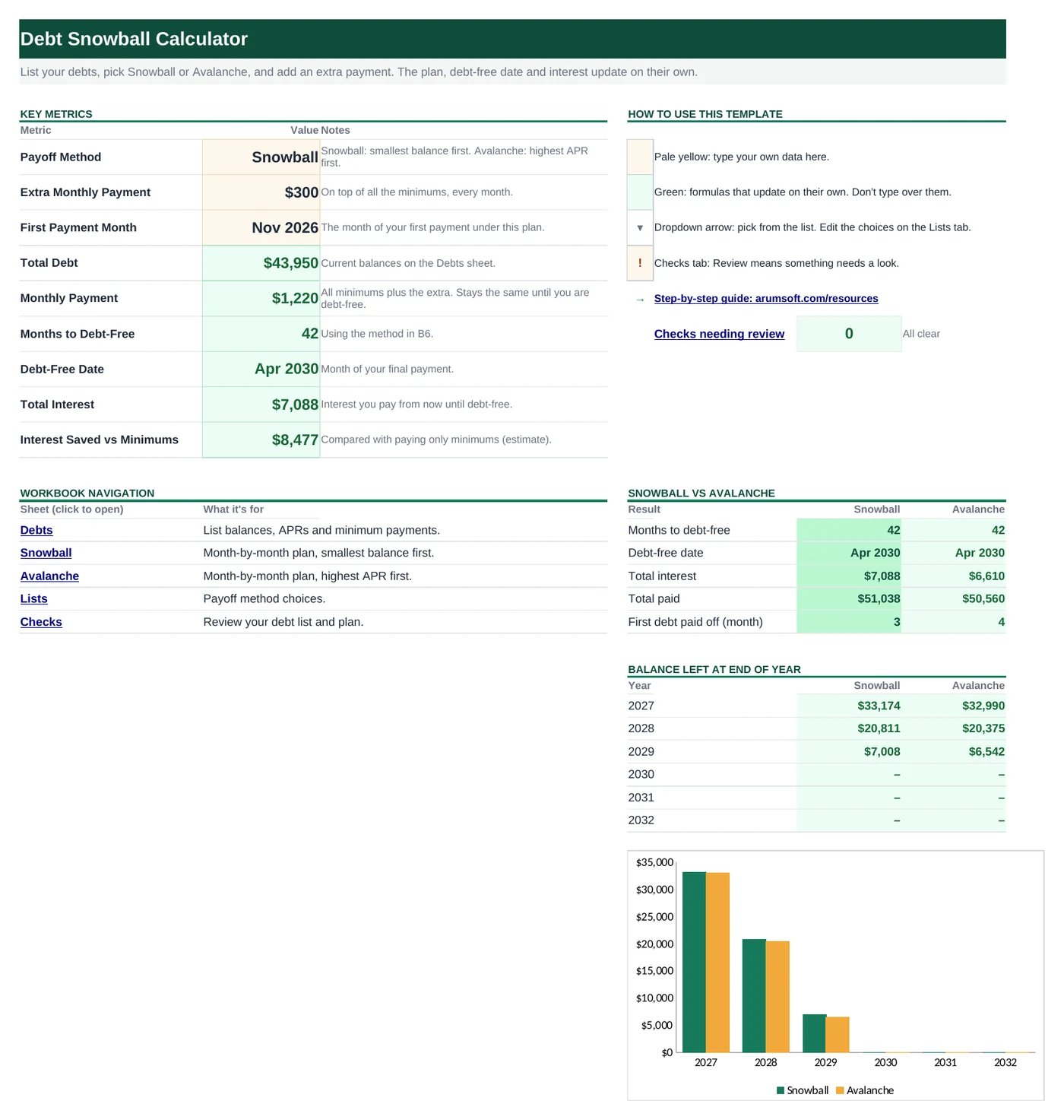
What's inside
The workbook has 6 sheets. You only type on a few of them; the rest calculate.
| Sheet | What it's for | You enter | Calculated for you |
|---|---|---|---|
| Start Here | Your plan settings, key results and the method comparison | Payoff method, extra monthly payment, first payment month | Total debt, monthly payment, months to debt-free, debt-free date, total interest, interest saved, balance by year |
| Debts | One row per debt (room for 10) | Debt name, balance, APR, minimum payment | Snowball and Avalanche order, payoff month and date, interest paid, minimums-only estimate |
| Snowball | 360-month schedule, smallest balance first | Nothing | Payment and balance for every debt, every month |
| Avalanche | 360-month schedule, highest APR first | Nothing | Payment and balance for every debt, every month |
| Lists | Payoff method choices | Nothing | Nothing |
| Checks | Six checks on your debt list and plan | Nothing | OK or Review for each check |
Before you start
The template works as soon as you open it. Cell colors tell you what each cell is for:
- Open the file. If Excel shows a yellow Protected View bar, click Enable Editing. Files downloaded from the internet always open this way.
- Save your own copy with File› then Save As so you always have the original to start over from.
- Replace the sample debts on Debts with your own: overwrite the yellow cells, and clear unused rows with Delete.
Step-by-step guide
Work through these in order the first time. After that, you'll mostly repeat the regular update steps.
List your debts
On Debts, add one row per debt: a Debt name, the current Balance, the APR and the Minimum Payment. You can find all three on a recent statement.
Type APR as a percentage, for example
19.99%. If you type19.99, Excel reads it as 1,999% and Checks flags it.Choose your extra payment and method
On Start Here, set the three yellow cells:
- Payoff Method: Snowball pays the smallest balance first for quick wins. Avalanche pays the highest APR first, which usually costs less interest.
- Extra Monthly Payment: what you can add on top of all the minimums.
- First Payment Month: when the plan starts.
Monthly Payment is all the minimums plus the extra. It stays the same every month until you are debt-free: when one debt is paid off, its minimum rolls into the next one. That rollover is the snowball.
Read your results
The dashboard shows Months to Debt-Free, the Debt-Free Date, the Total Interest you will pay and the Interest Saved vs Minimums, an estimate of what this plan saves compared with paying only minimums.
Back on Debts, each row shows its Snowball Order and Avalanche Order, plus the Payoff Month, Payoff Date and Interest Paid for the method you chose.
Compare the two methods
The Snowball vs Avalanche table on Start Here puts months to debt-free, debt-free date, total interest, total paid and the month your first debt is paid off side by side. The column for your chosen method is highlighted. Below it, Balance left at end of year and the chart show how fast each plan brings the total down.
Look at the monthly schedule
Snowball and Avalanche list every month for up to 30 years: the total paid, the interest, the balance left, and the payment and balance for each debt. Row 3 shows each debt's order and the month it is paid off, and the month a debt reaches zero is highlighted.
Columns Z to AS on those sheets are helper columns the formulas use. You can ignore them.
Update it as you go
Every few months, type your current balances on Debts and set First Payment Month to the coming month. The plan recalculates from where you are now. Check Checks for missing values, an APR typed as a whole number, a minimum that doesn't cover the interest, or a plan that takes longer than 30 years.
How the formulas work
You don't need to understand the formulas to use the template, but they're a good way to learn. Click any cell in Excel to see its formula in the formula bar.
=IF(N(C5)<=0, "", COUNTIFS($C$5:$C$14, ">0", $C$5:$C$14, "<"&C5)
   + COUNTIFS($C$5:$C$14, C5, $A$5:$A$14, "<"&A5) + 1)
Counts how many debts have a smaller balance, then adds 1. The second COUNTIFS breaks ties by row number, so two equal balances never get the same order. Avalanche Order works the same way using APR.
Learn this: How to Use COUNTIF and COUNTIFS in Excel →=AJ5 + MIN(Z5-AJ5, MAX(0, 'Start Here'!$B$10 - SUM($AJ5:$AS5)
- SUMPRODUCT(($Z$3:$AI$3<Z$3)*($Z5:$AI5-$AJ5:$AS5))))Each debt gets its minimum (AJ5). Whatever is left of the monthly payment after all minimums goes to debts in order: SUMPRODUCT adds what the higher-priority debts still need, and this debt gets what remains, up to its balance. Z5 is the balance plus this month's interest.
Learn this: SUMPRODUCT function playground →=IF(N(Debts!$C$5)<=0, "", IF(COUNTIF(P$5:P$364, ">0.005")>=360, "Over 30 yrs",
COUNTIF(P$5:P$364, ">0.005") + 1))Once a debt is paid off its balance stays at zero, so counting the months with a balance above half a cent and adding 1 gives the month it reaches zero.
Learn this: How to Use COUNTIF and COUNTIFS in Excel →=IF(N(C5)<=0, "", IFERROR(ROUNDUP(NPER(N(D5)/12, -N(E5), C5), 0), "Never"))NPER works out how many payments the minimum alone needs. If the minimum doesn't even cover the interest, NPER returns an error and IFERROR shows Never.
Learn this: How to Use IFERROR in Excel →Tips and limits
- Interest is calculated monthly as balance × APR ÷ 12, rounded to cents. Your lender may use daily interest or a different statement date, so real figures will differ a little.
- The plan assumes your minimums stay the same. Credit card minimums often fall as the balance falls; this template keeps paying the original amount, which pays debts off faster.
- Interest Saved vs Minimums is an estimate. It treats every minimum-only payment as a full payment, so it slightly overstates the interest of that path.
- Capacity: 10 debts and 360 months. Promotional 0% rates that end later are not modeled; use the rate that will apply for most of the payoff.
Learn the skills behind this template
Was this guide helpful? Spot a mistake? Send feedback · admin@arumsoft.com