Excel lookup functions cheat sheet: XLOOKUP, VLOOKUP, INDEX MATCH and FILTER
Which lookup function should you use? This one-page guide shows the syntax of each, a small worked example, how to look up by two criteria, and how to fix #N/A, #REF! and #SPILL!.
- Length:
- 1 page, US Letter
- Works with:
- All Excel versions (XLOOKUP, XMATCH and FILTER need Excel 2021 or later)
- Updated:
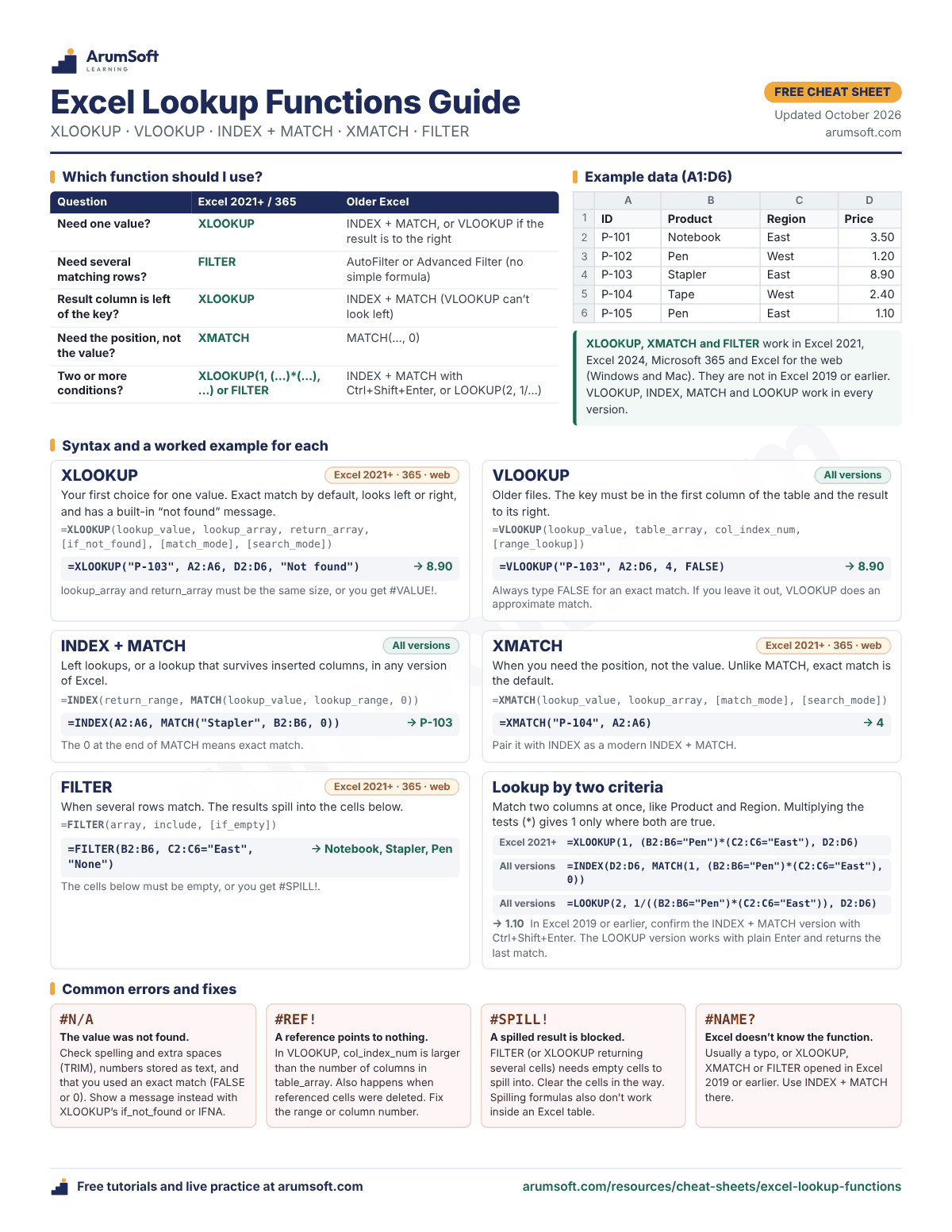
Which lookup function should I use?
Start with your question. The middle column is for Excel 2021 or later and Microsoft 365; the right column is for Excel 2019 and earlier.
| Question | Excel 2021+ / 365 | Older Excel |
|---|---|---|
| Need one value? | XLOOKUP | INDEX + MATCH, or VLOOKUP if the result is to the right |
| Need several matching rows? | FILTER | AutoFilter or Advanced Filter (no simple formula) |
| Result column is left of the key? | XLOOKUP | INDEX + MATCH (VLOOKUP can’t look left) |
| Need the position, not the value? | XMATCH | MATCH(…, 0) |
| Two or more conditions? | XLOOKUP(1, (…)*(…), …) or FILTER | INDEX + MATCH with Ctrl+Shift+Enter, or LOOKUP(2, 1/…) |
Which versions have which function
XLOOKUP, XMATCH and FILTER work in Excel 2021, Excel 2024, Microsoft 365 and Excel for the web (Windows and Mac). They are not in Excel 2019 or earlier. VLOOKUP, INDEX, MATCH and LOOKUP work in every version.
Example data
Every example below uses this small table in A1:D6.
| Row | A: ID | B: Product | C: Region | D: Price |
|---|---|---|---|---|
| 2 | P-101 | Notebook | East | 3.50 |
| 3 | P-102 | Pen | West | 1.20 |
| 4 | P-103 | Stapler | East | 8.90 |
| 5 | P-104 | Tape | West | 2.40 |
| 6 | P-105 | Pen | East | 1.10 |
Syntax and a worked example for each
XLOOKUP
Excel 2021+ · 365 · web=XLOOKUP(lookup_value, lookup_array, return_array, [if_not_found], [match_mode], [search_mode])=XLOOKUP("P-103", A2:A6, D2:D6, "Not found")Your first choice for one value. Exact match by default, looks left or right, and has a built-in “not found” message. lookup_array and return_array must be the same size, or you get #VALUE!.
Result: 8.90
Learn this: How to use XLOOKUP →VLOOKUP
All versions=VLOOKUP(lookup_value, table_array, col_index_num, [range_lookup])=VLOOKUP("P-103", A2:D6, 4, FALSE)Older files. The key must be in the first column of the table and the result to its right. Always type FALSE for an exact match. If you leave it out, VLOOKUP does an approximate match.
Result: 8.90
Learn this: How to use VLOOKUP →INDEX + MATCH
All versions=INDEX(return_range, MATCH(lookup_value, lookup_range, 0))=INDEX(A2:A6, MATCH("Stapler", B2:B6, 0))Left lookups, or a lookup that survives inserted columns, in any version of Excel. The 0 at the end of MATCH means exact match.
Result: P-103
Learn this: How to use INDEX and MATCH →XMATCH
Excel 2021+ · 365 · web=XMATCH(lookup_value, lookup_array, [match_mode], [search_mode])=XMATCH("P-104", A2:A6)When you need the position, not the value. Unlike MATCH, exact match is the default. Pair it with INDEX as a modern INDEX + MATCH.
Result: 4
Learn this: XMATCH in the live playground →FILTER
Excel 2021+ · 365 · web=FILTER(array, include, [if_empty])=FILTER(B2:B6, C2:C6="East", "None")When several rows match. The results spill into the cells below. The cells below must be empty, or you get #SPILL!.
Result: Notebook, Stapler, Pen
Learn this: Dynamic arrays and FILTER →Lookup by two criteria
=XLOOKUP(1, (B2:B6="Pen")*(C2:C6="East"), D2:D6)
=INDEX(D2:D6, MATCH(1, (B2:B6="Pen")*(C2:C6="East"), 0))
=LOOKUP(2, 1/((B2:B6="Pen")*(C2:C6="East")), D2:D6)
Match two columns at once, like Product and Region. Multiplying the tests (*) gives 1 only where both are true. From the top: Excel 2021 or later, any version (INDEX + MATCH), any version (LOOKUP). In Excel 2019 or earlier, confirm the INDEX + MATCH version with Ctrl+Shift+Enter. The LOOKUP version works with plain Enter and returns the last match.
Result: 1.10
Learn this: Advanced lookups with multiple criteria →Common errors and how to fix them
| Error | What it means | How to fix it |
|---|---|---|
#N/A | The value was not found. | Check spelling and extra spaces (TRIM), numbers stored as text, and that you used an exact match (FALSE or 0). Show a message instead with XLOOKUP’s if_not_found or IFNA. |
#REF! | A reference points to nothing. | In VLOOKUP, col_index_num is larger than the number of columns in table_array. Also happens when referenced cells were deleted. Fix the range or column number. |
#SPILL! | A spilled result is blocked. | FILTER (or XLOOKUP returning several cells) needs empty cells to spill into. Clear the cells in the way. Spilling formulas also don’t work inside an Excel table. |
#NAME? | Excel doesn’t know the function. | Usually a typo, or XLOOKUP, XMATCH or FILTER opened in Excel 2019 or earlier. Use INDEX + MATCH there. |
Print tips
- The sheet is sized for one US Letter page. In the print dialog, keep the scale at Actual size (100%).
- Printing on A4, or seeing the edges cut off? Choose Fit to page. Everything still fits; the text gets a little smaller. There is also a Korean A4 version.
- It reads fine in black and white. Color makes the groups easier to scan.
- You will look at it often, so heavier paper or a laminated copy next to your keyboard works well.
Related tutorials and lessons
Was this cheat sheet helpful? Spot a mistake? Send feedback · admin@arumsoft.com