Cheat sheet (PDF)Excel
Top 50 Excel keyboard shortcuts cheat sheet (Windows and Mac)
The 50 shortcuts that save the most time in everyday Excel work, grouped by task, with the Windows and Mac keys side by side. One printable page, free to download.
- Length:
- 1 page, US Letter
- Works with:
- Excel for Microsoft 365 on Windows and Mac
- Updated:
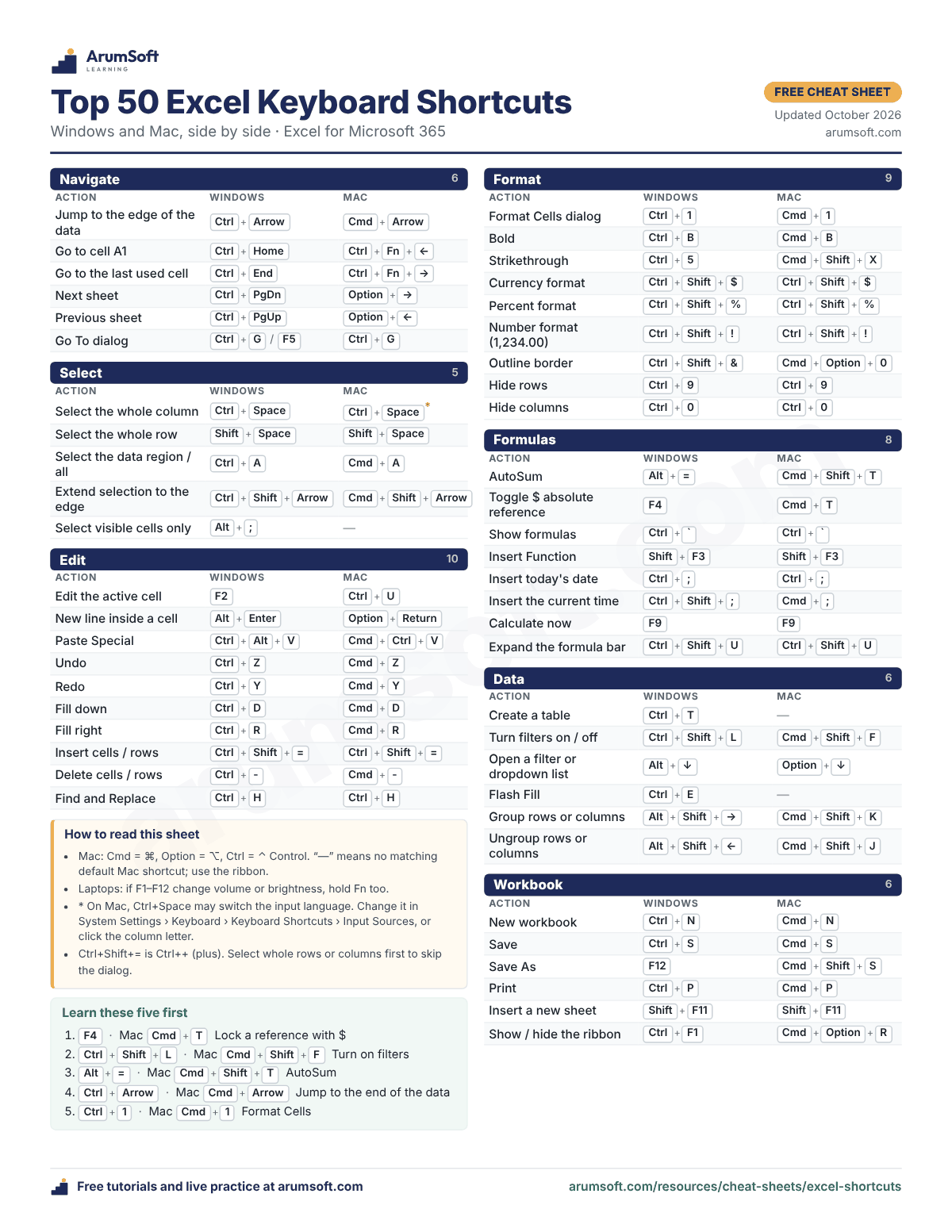
All 50 shortcuts
The Windows column is for Excel for Microsoft 365 on Windows and the Mac column for Excel for Microsoft 365 on Mac. A dash (—) means there is no matching default shortcut on Mac.
Navigate shortcuts
| Action | Windows | Mac |
|---|---|---|
| Jump to the edge of the data | Ctrl+Arrow | Cmd+Arrow |
| Go to cell A1 | Ctrl+Home | Ctrl+Fn+← |
| Go to the last used cell | Ctrl+End | Ctrl+Fn+→ |
| Next sheet | Ctrl+PgDn | Option+→ |
| Previous sheet | Ctrl+PgUp | Option+← |
| Go To dialog | Ctrl+G or F5 | Ctrl+G |
Select shortcuts
| Action | Windows | Mac |
|---|---|---|
| Select the whole column | Ctrl+Space | Ctrl+Space* |
| Select the whole row | Shift+Space | Shift+Space |
| Select the data region / all | Ctrl+A | Cmd+A |
| Extend selection to the edge | Ctrl+Shift+Arrow | Cmd+Shift+Arrow |
| Select visible cells only | Alt+; | —no Mac shortcut |
Edit shortcuts
| Action | Windows | Mac |
|---|---|---|
| Edit the active cell | F2 | Ctrl+U |
| New line inside a cell | Alt+Enter | Option+Return |
| Paste Special | Ctrl+Alt+V | Cmd+Ctrl+V |
| Undo | Ctrl+Z | Cmd+Z |
| Redo | Ctrl+Y | Cmd+Y |
| Fill down | Ctrl+D | Cmd+D |
| Fill right | Ctrl+R | Cmd+R |
| Insert cells / rows | Ctrl+Shift+= | Ctrl+Shift+= |
| Delete cells / rows | Ctrl+- | Cmd+- |
| Find and Replace | Ctrl+H | Ctrl+H |
Format shortcuts
| Action | Windows | Mac |
|---|---|---|
| Format Cells dialog | Ctrl+1 | Cmd+1 |
| Bold | Ctrl+B | Cmd+B |
| Strikethrough | Ctrl+5 | Cmd+Shift+X |
| Currency format | Ctrl+Shift+$ | Ctrl+Shift+$ |
| Percent format | Ctrl+Shift+% | Ctrl+Shift+% |
| Number format (1,234.00) | Ctrl+Shift+! | Ctrl+Shift+! |
| Outline border | Ctrl+Shift+& | Cmd+Option+0 |
| Hide rows | Ctrl+9 | Ctrl+9 |
| Hide columns | Ctrl+0 | Ctrl+0 |
Formulas shortcuts
| Action | Windows | Mac |
|---|---|---|
| AutoSum | Alt+= | Cmd+Shift+T |
| Toggle $ absolute reference | F4 | Cmd+T |
| Show formulas | Ctrl+` | Ctrl+` |
| Insert Function | Shift+F3 | Shift+F3 |
| Insert today's date | Ctrl+; | Ctrl+; |
| Insert the current time | Ctrl+Shift+; | Cmd+; |
| Calculate now | F9 | F9 |
| Expand the formula bar | Ctrl+Shift+U | Ctrl+Shift+U |
Data shortcuts
| Action | Windows | Mac |
|---|---|---|
| Create a table | Ctrl+T | —no Mac shortcut |
| Turn filters on / off | Ctrl+Shift+L | Cmd+Shift+F |
| Open a filter or dropdown list | Alt+↓ | Option+↓ |
| Flash Fill | Ctrl+E | —no Mac shortcut |
| Group rows or columns | Alt+Shift+→ | Cmd+Shift+K |
| Ungroup rows or columns | Alt+Shift+← | Cmd+Shift+J |
Workbook shortcuts
| Action | Windows | Mac |
|---|---|---|
| New workbook | Ctrl+N | Cmd+N |
| Save | Ctrl+S | Cmd+S |
| Save As | F12 | Cmd+Shift+S |
| Ctrl+P | Cmd+P | |
| Insert a new sheet | Shift+F11 | Shift+F11 |
| Show / hide the ribbon | Ctrl+F1 | Cmd+Option+R |
Notes for Mac and laptops
- Mac: Cmd = ⌘, Option = ⌥, Ctrl = ⌃ Control. “—” means no matching default Mac shortcut; use the ribbon.
- Laptops: if F1–F12 change volume or brightness, hold Fn too.
- * On Mac, Ctrl+Space may switch the input language. Change it in System Settings › Keyboard › Keyboard Shortcuts › Input Sources, or click the column letter.
- Ctrl+Shift+= is Ctrl++ (plus). Select whole rows or columns first to skip the dialog.
Learn these five first
- F4 (Mac Cmd+T): Locks a reference with $ so it stays put when you copy the formula.
- Ctrl+Shift+L (Mac Cmd+Shift+F): Turns the filter arrows on the header row on and off.
- Alt+= (Mac Cmd+Shift+T): Inserts a SUM of the numbers above or to the left.
- Ctrl+Arrow (Mac Cmd+Arrow): Jumps to the end of a long list in one keystroke.
- Ctrl+1 (Mac Cmd+1): Opens Format Cells, where number, date, alignment and border settings live.
Print tips
- The sheet is sized for one US Letter page. In the print dialog, keep the scale at Actual size (100%).
- Printing on A4, or seeing the edges cut off? Choose Fit to page. Everything still fits; the text gets a little smaller. There is also a Korean A4 version.
- It reads fine in black and white. Color makes the groups easier to scan.
- You will look at it often, so heavier paper or a laminated copy next to your keyboard works well.
Related tutorials and lessons
Was this cheat sheet helpful? Spot a mistake? Send feedback · admin@arumsoft.com