Ask Questions About Your Data: Analyze Data and Copilot in Excel
Get your data ready, ask Analyze Data or Copilot questions in plain language, and check every answer with a formula before you rely on it.
- Level
- Beginner
- Time
- 11 min read
- Updated:
- Applies to:
- Excel for Microsoft 365 (Windows, Mac), Excel for the web; Copilot needs a plan or license that includes it
What you'll learn
- Explain what Analyze Data and Copilot do, and what each needs to work
- Prepare a list so both tools can read it correctly
- Write clear questions and requests for your data
- Check an answer with SUMIFS, COUNTIFS or AVERAGEIFS before you use it
- Decide what data you're allowed to send to an online AI service
Before you start
Excel can now answer questions about your data in plain language. Analyze Data looks at a table and suggests charts, PivotTables and short findings, and answers simple questions such as "total sales by region". Copilot is Microsoft's AI assistant: besides answering questions, it can write formulas, add columns, highlight rows, and build charts and PivotTables when you ask. Both are online services that change often and depend on your Microsoft 365 plan, so this guide focuses on what they do, how to ask, and above all how to check what they tell you.
What you need
| Analyze Data | Copilot | |
|---|---|---|
| What it does | Suggests charts, PivotTables and findings; answers short questions about a table | Answers questions, explains and writes formulas, adds columns, highlights, sorts and filters, creates charts and PivotTables |
| Who has it | Microsoft 365 subscribers | Microsoft 365 plans that include Copilot, or a Microsoft 365 Copilot license on a work or school account |
| Where it runs | Excel for Windows, Mac and the web | Excel for Windows, Mac and the web, and some mobile apps |
| Needs internet | Yes | Yes |
| How it changes your sheet | Only when you insert one of its results | It can add or change content in the workbook, so check each change |
Depending on your version, plan and account, you may see Analyze Data, Copilot, both or neither. Microsoft adds and moves these features frequently, so the exact buttons and panes may look different from what's described here.
Where to find it
When they're available, both commands are buttons near the right end of the Home tab: Analyze Data, and Copilot. Each one opens a pane on the right side of the window. Neither has a standard keyboard shortcut.
Before you click either one, turn your list into an Excel table. Both tools read tables most reliably, and a table tells them exactly where the data starts and ends.
Get your data ready
Both tools guess what your columns mean from the headings and the values. Clean data gets correct answers; messy data gets confident wrong ones.
Keep one row of headings and one record per row
Each column needs a short, unique heading, such as Region or Sales. No title rows above the headings, no merged cells, no blank rows inside the list, and no Total row at the bottom.
A B C D E 1 Date Region Product Units Sales 2 2026-03-02 East Coffee 40 320 3 2026-03-03 West Tea 25 150 4 2026-03-05 West Coffee 60 480 5 2026-03-09 North Juice 30 210 6 2026-03-10 East Tea 35 210 7 2026-03-12 West Juice 20 140 8 2026-03-16 North Coffee 45 360 9 2026-03-18 East Juice 50 350 A list both tools can read: one heading row, one order per row, real dates and numbers, and no totals inside the data. Store numbers and dates as numbers and dates
Numbers stored as text (often left-aligned with a green triangle) are treated as words, so they're left out of sums. Fix them before you ask anything.
Format the list as a table
Click any cell in the list and press Ctrl+T. Check that My table has headers is ticked and click OK.
The Create Table dialog: the range Excel found, and the box that tells it row 1 holds headings.
Ask Analyze Data
Open the pane
Click any cell in the table and click Analyze Data on the Home tab. The pane opens with a set of suggested results, each a small chart, PivotTable or sentence.
Ask a question
Type a question in the box at the top of the pane, such as
total sales by regionorwhich product has the most units. Short questions that use your column headings work best. Plain-language questions have worked best in English; other languages may not be supported.Insert what's useful
Under a result you want to keep, click the button to insert it. Excel adds it to the workbook, usually as a PivotTable or chart on a new sheet, where you can check and change it like any other.
Ask Copilot
Open Copilot
Click a cell in the table, then click Copilot on the Home tab. The Copilot pane opens with a box for your request and, usually, a few suggested prompts.
Describe what you want
Type a request in plain language and press Enter. Name the columns as they're written in your headings, and say exactly what to include: "sales in March for the West region" is better than "recent West numbers".
Review before you accept
Copilot answers in the pane. For a change, such as a new formula column or a chart, it either shows a preview with a button to insert it or makes the change directly, depending on your version and the request. Either way, check the new cells. If it isn't what you wanted, undo it with Ctrl+Z or ask Copilot to adjust it.
Requests that tend to work well:
| You want to… | Try asking |
|---|---|
| Get one number | "What were total Sales for the East region?" |
| Find the top item | "Which Product has the most Units? Show the total for each product." |
| Add a calculated column | "Add a column that divides Sales by Units to show the price per unit." |
| Highlight rows | "Highlight the rows where Sales is more than 300." |
| Summarize | "Create a PivotTable of total Sales by Region and Product." |
| Understand a formula | "Explain the formula in H2 step by step." |
Asking for the formula behind an answer is a good habit: a formula shows exactly which cells and conditions were used, and it keeps working when the data changes.
Check every answer
AI answers can be wrong in ways that look right. A tool may pick the wrong column, include a Total row, miss rows that are filtered out, or read an ambiguous word ("recent", "best") differently from you. For anything you'll report or act on, recompute it yourself.
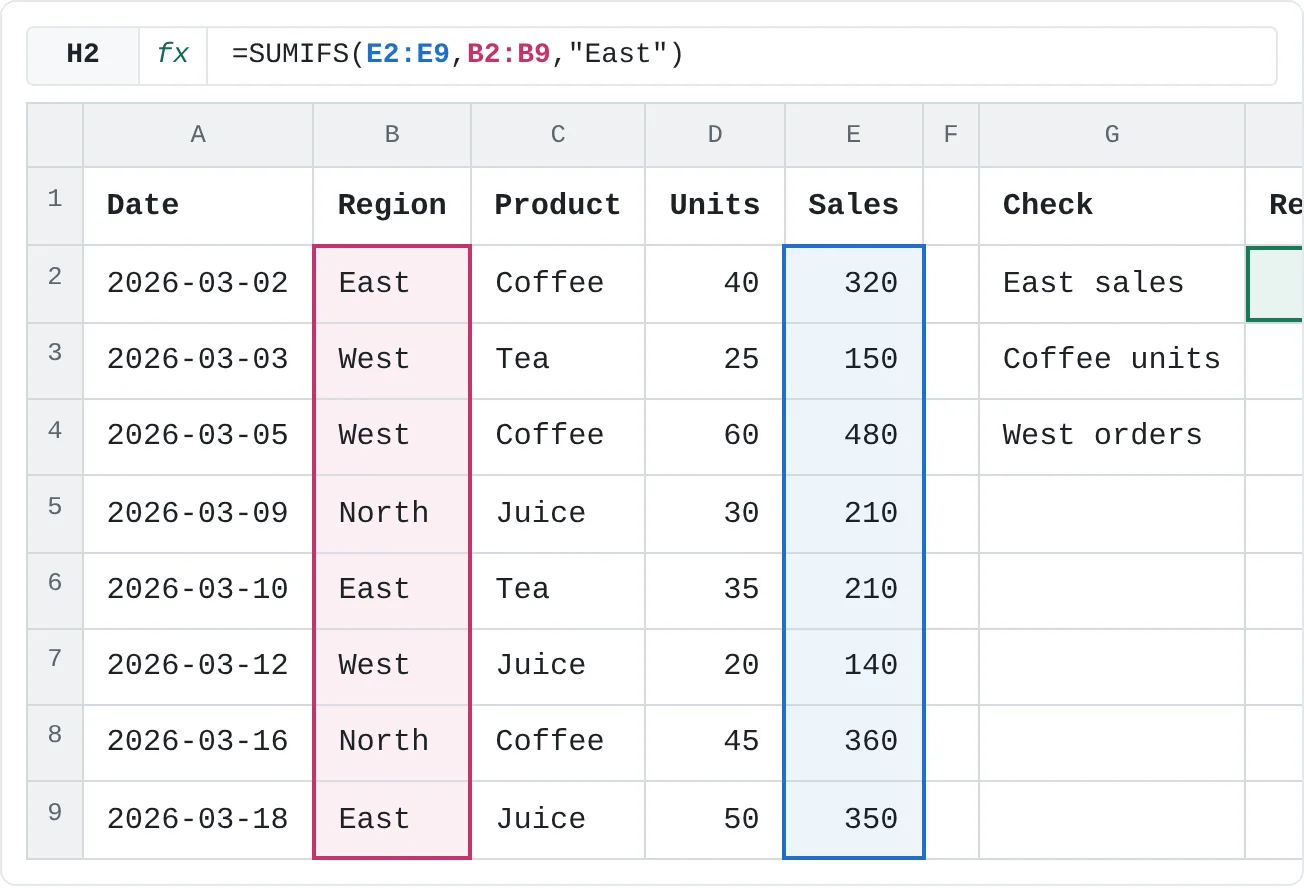
Suppose Copilot says East had 880 in sales, Coffee sold 145 units, and West placed 3 orders. Three formulas next to the table confirm it:
| A | B | C | D | E | F | G | H | |
|---|---|---|---|---|---|---|---|---|
| 1 | Date | Region | Product | Units | Sales | Check | Result | |
| 2 | 2026-03-02 | East | Coffee | 40 | 320 | East sales | 880 | |
| 3 | 2026-03-03 | West | Tea | 25 | 150 | Coffee units | 145 | |
| 4 | 2026-03-05 | West | Coffee | 60 | 480 | West orders | 3 | |
| 5 | 2026-03-09 | North | Juice | 30 | 210 | |||
| 6 | 2026-03-10 | East | Tea | 35 | 210 | |||
| 7 | 2026-03-12 | West | Juice | 20 | 140 | |||
| 8 | 2026-03-16 | North | Coffee | 45 | 360 | |||
| 9 | 2026-03-18 | East | Juice | 50 | 350 |
=SUMIFS(E2:E9,B2:B9,"East")returns 880: it adds column E for the rows whose Region is East.=SUMIFS(D2:D9,C2:C9,"Coffee")returns 145 units (40 + 60 + 45).=COUNTIFS(B2:B9,"West")returns 3 orders.
Other quick checks: select a column and read the Sum and Count on the status bar; filter the table to the rows in question; or build a small PivotTable and compare. If your check and the AI answer disagree, ask the tool which rows or formula it used. The difference usually points to a messy value or a question that could be read two ways.
Privacy and license notes
- Your data leaves your computer. Both features send the data they analyze to Microsoft's online services to produce answers. They're part of Office's "connected experiences", which an organization can switch off.
- Follow your organization's or school's rules. Work and school accounts are covered by your organization's settings and agreements with Microsoft; personal accounts by Microsoft's consumer terms. If you aren't sure whether a file may be used with AI, ask before you do.
- Leave out what you don't need. Remove names, ID numbers or other personal details from the copy you analyze when the question doesn't need them.
- Licenses vary. Analyze Data comes with Microsoft 365 subscriptions. Copilot needs a plan that includes it: some consumer plans, such as Microsoft 365 Personal and Family, include it with a monthly usage limit, and work or school accounts usually need a Microsoft 365 Copilot license assigned by an administrator. Some work accounts see a more limited Copilot Chat without that license.
Real-world scenarios
Open support tickets
A team lead asks Copilot, "How many tickets have Status Open, and which Agent has the most open tickets?" Say it answers 4 open tickets, with Mia holding the most. Two COUNTIFS formulas confirm it before the number goes into the weekly update.
| A | B | C | D | E | F | G | |
|---|---|---|---|---|---|---|---|
| 1 | Ticket | Agent | Status | Hours | Check | Result | |
| 2 | T-101 | Mia | Open | 3 | Open tickets | 4 | |
| 3 | T-102 | Sam | Closed | 1 | Open for Mia | 2 | |
| 4 | T-103 | Mia | Closed | 2 | |||
| 5 | T-104 | Leo | Open | 5 | |||
| 6 | T-105 | Sam | Open | 2 | |||
| 7 | T-106 | Mia | Open | 4 | |||
| 8 | T-107 | Leo | Closed | 1 |
=COUNTIFS(C2:C8,"Open") returns 4. Adding a second condition, =COUNTIFS(B2:B8,"Mia",C2:C8,"Open"), returns 2, more than Leo and Sam with one each.
Sleep survey for a class project
A student collects how many hours eight classmates sleep and asks Analyze Data for "average sleep by grade". Say it suggests a chart showing that grade 10 sleeps about 7.8 hours and grade 12 about 6.3. Before putting the numbers in the report, the student checks them exactly.
| A | B | C | D | E | F | |
|---|---|---|---|---|---|---|
| 1 | Student | Grade | Sleep (h) | Check | Result | |
| 2 | S1 | 10 | 7.5 | Grade 10 average | 7.75 | |
| 3 | S2 | 12 | 6 | Grade 12 average | 6.25 | |
| 4 | S3 | 10 | 8 | |||
| 5 | S4 | 12 | 6.5 | |||
| 6 | S5 | 10 | 7 | |||
| 7 | S6 | 12 | 7 | |||
| 8 | S7 | 10 | 8.5 | |||
| 9 | S8 | 12 | 5.5 |
The chart was right but rounded: =AVERAGEIFS(C2:C9,B2:B9,10) gives 7.75 and the grade 12 version 6.25. Report the exact figures, and say that eight students is a small sample.
Grocery spending in May
You ask Copilot, "How much did I spend on Groceries in May?" Say it answers 187, but your own SUMIFS says 175. The difference of 12 is the refund on May 28: an answer of 187 has left out the negative amount.
| A | B | C | D | E | F | |
|---|---|---|---|---|---|---|
| 1 | Date | Category | Amount | Check | Result | |
| 2 | 2026-05-02 | Groceries | 64 | Groceries | 175 | |
| 3 | 2026-05-04 | Transport | 30 | Eating out | 83 | |
| 4 | 2026-05-09 | Groceries | 52 | |||
| 5 | 2026-05-11 | Eating out | 38 | |||
| 6 | 2026-05-17 | Groceries | 71 | |||
| 7 | 2026-05-23 | Eating out | 45 | |||
| 8 | 2026-05-28 | Groceries | -12 |
=SUMIFS(C2:C8,B2:B8,"Groceries") adds 64 + 52 + 71 − 12 = 175. Neither answer is "wrong" until you decide whether refunds count. Say so in the question: "including refunds (negative amounts)".
Common mistakes
- Using an answer without checking it. Recompute important numbers with a formula, the status bar or a PivotTable, as shown above.
- Vague questions. "How are sales?" can be answered many ways. Name the column, the filter and the period you mean.
- Messy source data. Title rows, merged cells, Total rows and numbers stored as text all lead to wrong answers. Clean the list and make it a table first.
- Forgetting that the data changes. A typed-in answer from the pane doesn't update. Ask for a formula, or insert the PivotTable so you can refresh it.
- Sending data you shouldn't. Personal, confidential or exam data may be off limits. Check the rules first, and remove columns you don't need.
Practice
Practice
Ask, then verify
- Type the orders list from this page (Date, Region, Product, Units, Sales) into a new workbook and press Ctrl+T to make it a table.
- If you have Analyze Data or Copilot, ask: "What were total Sales for each Region?" and "Which Product sold the most Units?" Write down the answers.
- Check them with
SUMIFSnext to the table. Do they match? - Ask one question that's vague on purpose, such as "Which region is best?", and see how the tool interprets "best". Then ask it again precisely.
- If you don't have either tool, do step 3 in the practice sheet below: the formulas are the part that keeps you safe.
Try it0 of 3 done
- In H2, add up the sales in E2:E9 for the East region.
- In H3, add up the units of Coffee.
- In H4, count the orders from the West region.
Click a dashed cell, type a formula in the bar and press Enter.
| A | B | C | D | E | F | G | H | |
|---|---|---|---|---|---|---|---|---|
| 1 | Date | Region | Product | Units | Sales | Check | Result | |
| 2 | 2026-03-02 | East | Coffee | 40 | 320 | East sales | ||
| 3 | 2026-03-03 | West | Tea | 25 | 150 | Coffee units | ||
| 4 | 2026-03-05 | West | Coffee | 60 | 480 | West orders | ||
| 5 | 2026-03-09 | North | Juice | 30 | 210 | |||
| 6 | 2026-03-10 | East | Tea | 35 | 210 | |||
| 7 | 2026-03-12 | West | Juice | 20 | 140 | |||
| 8 | 2026-03-16 | North | Coffee | 45 | 360 | |||
| 9 | 2026-03-18 | East | Juice | 50 | 350 |
Related
Was this guide helpful? Spot a mistake? Send feedback · admin@arumsoft.com