What you can do with it
- Numbered learning objectives written as "you will be able to"
- Timed agenda chevrons and a why-it-matters slide with three numbers
- Three lesson formats: reference table, step cards, bullets with a numbers panel
- Practice scenarios as three cards with a discussion instruction
- Quick-check table and a takeaways slide with the next module
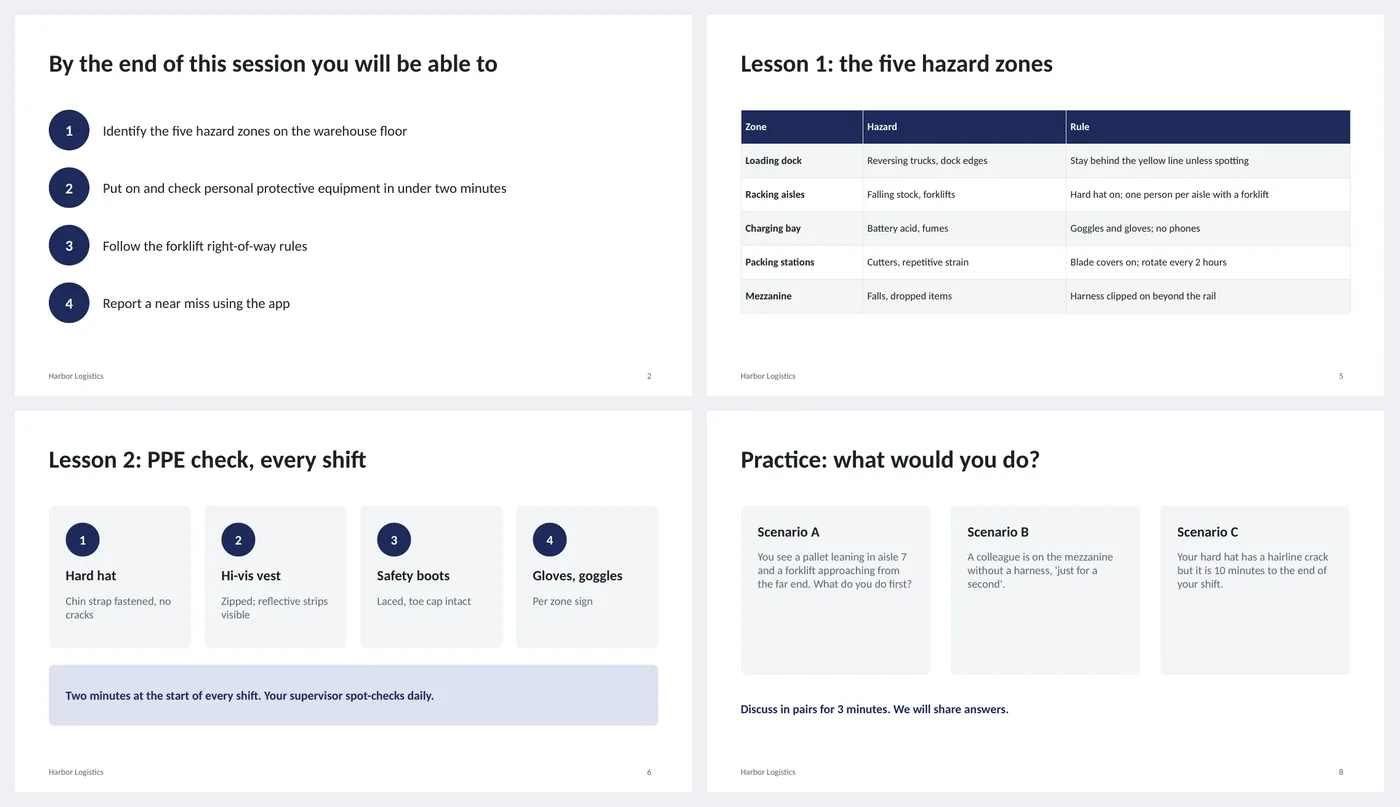
Slide by slide: what to write
Title
Module name, where it sits in the series, length and trainer. Learners want to know how long it is.
Objectives
Three or four, each starting with a verb they can be tested on: identify, put on, follow, report. Not "understand".
Agenda
Minutes per block. Practice gets its own block; sessions that skip practice are forgotten by Friday.
Why this matters
Three numbers and one sentence connecting the module to something real. Zero is a powerful number when it is true.
Lesson 1 (table)
A reference table learners will come back to: zone, hazard, rule. Tables are for things to look up, not to memorize.
Lesson 2 (step cards)
Numbered cards for a procedure, with the check for each step, and a note on how often it happens.
Lesson 3 (bullets and numbers)
Five rules as bullets and a dark panel with the three numbers to remember.
Practice
Three scenarios with no right answer printed. Pairs, three minutes, share. This is where the learning happens.
Quick check
Four or five questions with answers. Show the questions first, reveal answers by advancing.
Takeaways
Four lines and the next module with its date and room.
What's in the template
The deck is a finished example, not a blank frame: every slide is filled in for a fictional company so you can see the length, tone and level of detail that works, then overwrite it.
Editing the slide in PowerPoint
Reorder lessons
View › Slide Sorter and drag. The lesson numbers are text; update them.
Hide answers in the quiz
Select the answer column cells, Animations › Appear, and set to start On Click so answers reveal one by one.
Add speaker notes
The slides hold what learners see; your script goes in the notes pane below each slide (View › Notes).
Change the colors
Design › Variants › Colors. Every shape, table and chart uses theme colors, so one change recolors the whole deck. The green, amber and red status words are fixed on purpose.
How the slide is built
Three layouts (title, content, dark closing) with placeholders, footer and slide numbers, built on a named theme so Design › Variants recolors every slide at once. Objectives are numbered ellipses with text; the lesson table and quiz are PowerPoint tables; step cards and scenarios are rounded rectangles; the numbers panel is a dark rounded rectangle with bullets.
Frequently asked questions
Is this for live training or self-paced?
Live. For self-paced, add a slide after each lesson with a one-question check and put the practice answers in notes.
How many slides for a 45-minute session?
Ten to twelve, with practice taking a quarter of the time. More slides usually means more talking and less doing.
Can I use it for software training?
Yes. Lesson slides become screenshots with numbered callouts; practice becomes tasks to complete in the software.
How do I make a quiz with scoring?
PowerPoint cannot score. Use the quick-check slide for discussion and a form tool for a graded quiz.
Is the sample company real?
No. The company, people and numbers are invented so the deck can show realistic length and tone. Replace all of it.
Learn the skills behind this template
Was this guide helpful? Spot a mistake? Send feedback · admin@arumsoft.com