What you can do with it
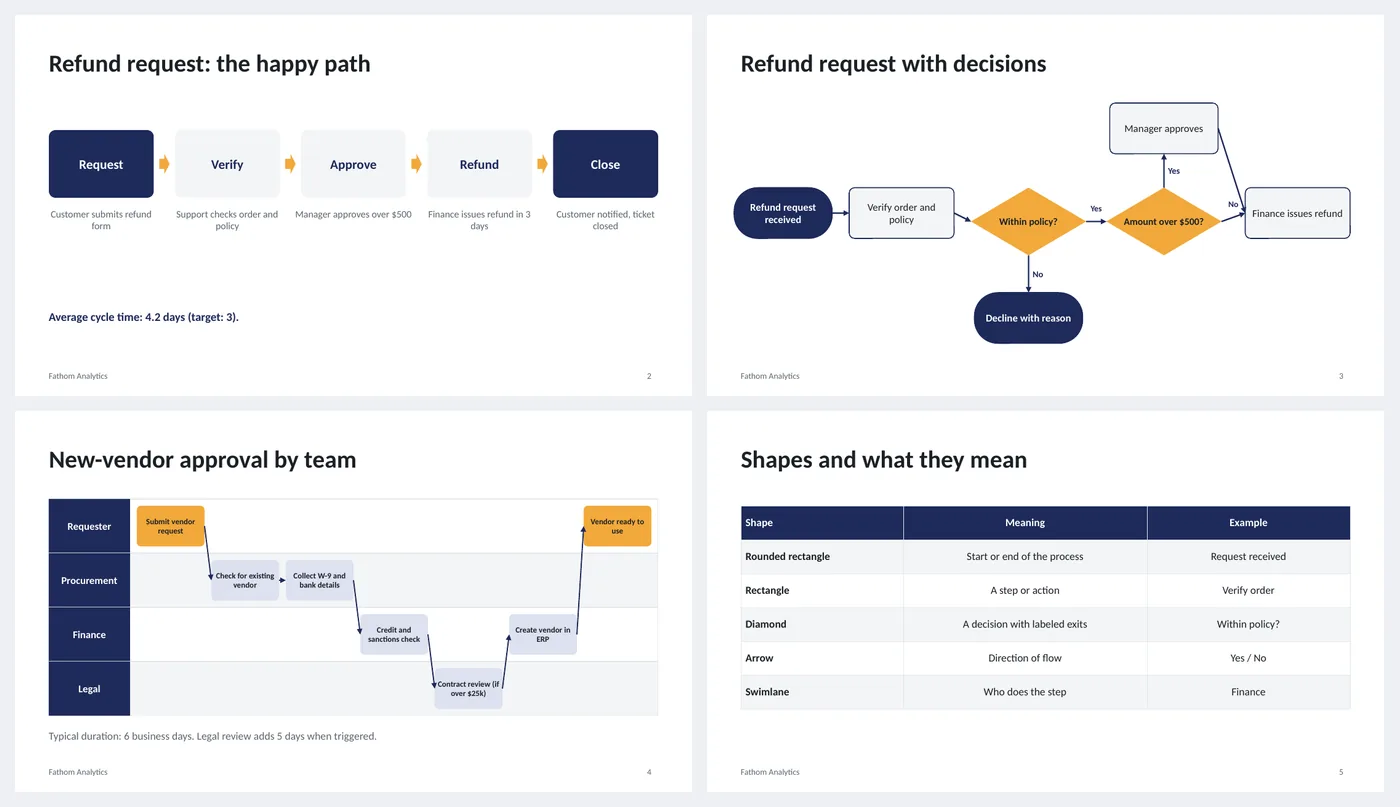
- Linear flow: five rounded steps with arrows and a one-line description under each
- Decision flowchart: start/end pills, process boxes, two diamonds with Yes/No labels
- Swimlane diagram: four lanes with task boxes and connecting arrows
- Shape legend table: what each shape means
- Every shape is a native PowerPoint shape; connectors are lines with arrowheads
Slide by slide: what to write
Title
Which processes the deck documents and who owns them.
Linear flow
The happy path only: five steps, a verb for each, one line under it. Finish with the cycle time so readers know whether the process is fast or slow.
Decision flow
Start and end as pills, steps as rectangles, questions as diamonds with a Yes and a No exit. Keep to two diamonds per slide; more belongs on a second slide.
Swimlanes
One lane per team or role, steps placed in the lane that does them, arrows left to right. The slide answers "who is waiting on whom".
Legend
The shapes and what they mean. Keep it when the deck goes to people who do not read flowcharts often.
What's in the template
The deck is a finished example, not a blank frame: every slide is filled in for a fictional company so you can see the length, tone and level of detail that works, then overwrite it.
Editing the slide in PowerPoint
Move a shape
Drag it. Connectors are straight lines, so after moving a box, select the line and drag its ends to the new edges (or delete it and draw a new one with Insert › Shapes › Line Arrow).
Add a step to the linear flow
Copy a step box with its arrow, paste, then select all boxes and use Shape Format › Align › Distribute Horizontally.
Add a lane
Copy the lane rectangle and its label, paste below, and resize all lanes to fit; the slide fits five comfortably.
Change the colors
Design › Variants › Colors. Every shape, table and chart uses theme colors, so one change recolors the whole deck. The green, amber and red status words are fixed on purpose.
How the slide is built
Three layouts (title, content, dark closing) with placeholders, footer and slide numbers, built on a named theme so Design › Variants recolors every slide at once. Steps are rounded rectangles, decisions are diamond shapes, start and end are fully rounded pills; connectors are line shapes with triangle arrowheads; lanes are rectangles with a dark label block. Nothing is a picture or a SmartArt, so everything can be edited and recolored.
Frequently asked questions
Why not SmartArt?
SmartArt is quick but hard to control: labels cannot sit on connectors, diamonds are awkward, and swimlanes are not available. Plain shapes take a minute longer and do what you want.
How many steps fit on one slide?
Five to seven for a linear flow, about seven nodes for a decision flow, and seven to eight tasks across four lanes. Beyond that, split into "part 1" and "part 2".
Can the connectors snap to shapes?
Yes, if you redraw them as connectors: Insert › Shapes › Elbow Connector and drag from one shape's handle to another. The template uses plain lines for compatibility with Keynote and Google Slides.
Can I make the swimlanes vertical?
Yes. Rotate the thinking, not the shapes: make lanes tall columns, put the label block at the top and run the arrows top to bottom.
Is the sample company real?
No. The company, people and numbers are invented so the deck can show realistic length and tone. Replace all of it.
Learn the skills behind this template
Was this guide helpful? Spot a mistake? Send feedback · admin@arumsoft.com