Nonprofit Grant Burn Tracker for Excel
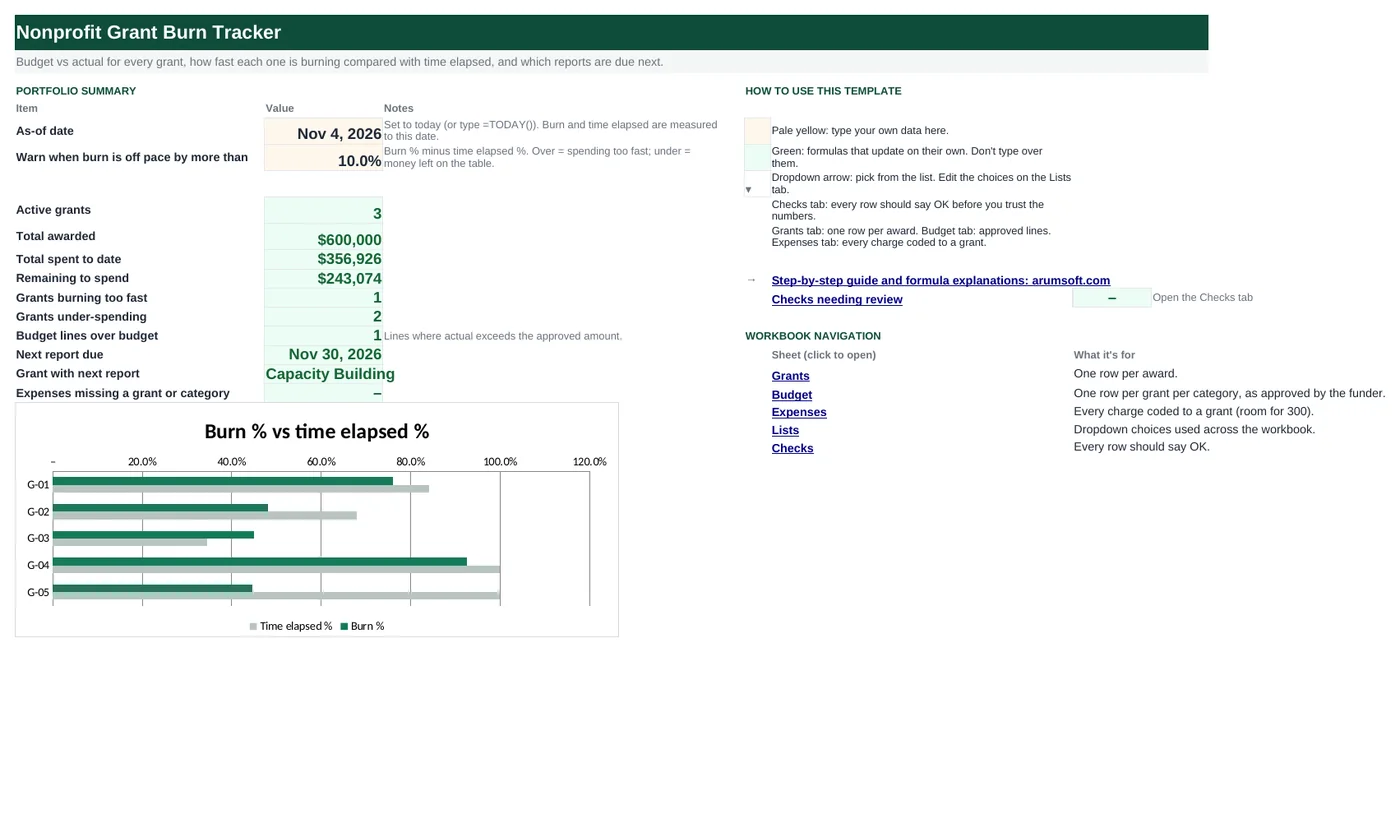
Funders ask two questions: are you spending the money on what you said, and will you spend it all before the grant ends? This workbook answers both. A grant register holds each award and its dates, the Budget tab holds the approved lines, and every expense is coded to a grant and a category. Burn % is compared with the share of the grant period that has elapsed, and each grant is flagged On pace, Over pace or Under pace. The next report due date is worked out from the funder's reporting cycle.
- Sheets:
- 6
- Works with:
- Excel for Microsoft 365, Excel 2016 or later, Excel for Mac and Excel for the web
- Updated:
What you can do with it
- Budget vs actual by grant and by budget category, with committed amounts and available balance
- Burn % versus time elapsed %, with a pace flag you can tune
- A coding check on every expense so nothing lands on a line that does not exist
- Next report due by grant, from monthly, quarterly, semi-annual or final-only reporting
What's inside
The workbook has 6 sheets. You only type on a few of them; the rest calculate.
| Sheet | What it's for | You enter | Calculated for you |
|---|---|---|---|
| Start Here | As-of date, pace tolerance and the portfolio summary | As-of date, pace tolerance | Active grants, awarded, spent, remaining, grants over and under pace, lines over budget, next report due and for which grant, miscoded expenses |
| Grants | One row per award (10) | ID, program, funder, start, end, awarded, reporting cycle | Budgeted, spent to date, remaining, burn %, time elapsed %, pace, next report due |
| Budget | Approved lines by grant and category (60) | Grant ID, category, approved amount, committed | Actual to date, available, variance, used % |
| Expenses | Every charge coded to a grant (room for 300) | Date, grant ID, category, source, amount, reference, description | Coding check |
| Lists | Dropdowns | Categories, reporting cycles, sources | Nothing |
| Checks | Six data checks | Nothing | OK or Review |
Before you start
- Collect each award letter: amount, period start and end, reporting schedule.
- Type each approved budget by category exactly as the funder approved it; the category names must match your expense coding.
- Export grant-coded expenses from your accounting system with date, grant, category and amount.
Step-by-step guide
Set the as-of date and tolerance
Start Here B6 is the date burn and time elapsed are measured to (type =TODAY() to keep it live). B7 is how far burn may differ from time elapsed before a grant is flagged (10% in the sample).
Register the grants
Grants tab: ID, program, funder, start and end dates, amount awarded, reporting cycle (dropdown). Everything else on the row calculates.
Enter the approved budget
Budget tab: one row per grant per category with the approved amount. Add committed amounts (signed contracts not yet paid) in column E so the available balance is realistic.
Log expenses
Expenses tab: date, grant ID, category, source, amount, reference. The coding check says OK when the grant and category pair exists on the Budget tab, Check when it does not.
Read the pace flags
Grants column L: Over pace means you will run out early; Under pace means money will be left unspent (or a no-cost extension is needed). Start Here counts both.
Plan the reports
Grants column M gives the next report due date; Start Here B16–B17 show the nearest one. The Checks tab catches miscoded expenses, budgets that do not add up to the award, expenses dated outside the grant period, grants with no budget lines, expenses without a date or amount, and duplicate IDs.
Formula map
Every formula in the workbook, grouped by the sheet and column it lives in. A column of copied formulas counts once; the range it covers is shown.
| Sheet | Cells | Functions | What it computes | Reads | Feeds |
|---|---|---|---|---|---|
| Grants | H5 copied down to row 14 | IF, SUMIFS | Spent to date | A5 | Remaining, burn % and the chart all use it. |
| Grants | K5 copied down to row 14 | IF, MAX, MIN | Time elapsed % | D5, E5 | The yardstick that burn % is compared with. |
| Grants | L5 copied down to row 14 | IF | Pace | J5, K5 | Counted on Start Here B13 and B14; colored by conditional formatting. |
| Grants | M5 copied down to row 14 | IF, EOMONTH, CEILING | Next report due | D5, E5, N5 | Start Here B16 takes the earliest one on or after the as-of date. |
| Budget | D5 copied down to row 64 | IF, SUMIFS | Actual to date by budget line | A5, B5 | Available, variance and used % come from it. |
| Budget | F5 copied down to row 64 | IF | Available | C5, D5, E5 | Negative means the line is already over. |
| Expenses | H5 copied down to row 304 | IF, COUNTIFS | Coding check | B5, C5 | Counted on Start Here B18 and on the Checks tab. |
| Start Here | B9 | COUNTIFS | Active grants | B6 | A headline count. |
| Start Here | B16 | IFERROR, MINIFS | Next report due | B6 | B17 looks up which grant it belongs to. |
| Checks | B7 | IF, SUMPRODUCT, IFERROR, SUMIF | No expense is dated outside its grant period | — | Funders disallow costs outside the period; this catches them before the report does. |
Every formula, explained
Each formula below is copied straight from the file, so what you read here is exactly what the cell contains. Click any cell in Excel to see it in the formula bar.
=IF(A5="", "", SUMIFS(Expenses!$E$5:$E$304,
    Expenses!$B$5:$B$304, A5,
    Expenses!$A$5:$A$304, "<="&'Start Here'!$B$6))
Adds expenses for this grant dated on or before the as-of date.
Piece by piece
Expenses!$E$5:$E$304- Amounts.
Expenses!$B$5:$B$304, A5- Grant ID matches.
Expenses!$A$5:$A$304, "<="&'Start Here'!$B$6- Dated on or before the as-of date.
With the sample data: A5 = G-01 → H5 result 136,739.44
How it is used: Remaining, burn % and the chart all use it.
How to change it: Nothing to change.
Learn this: How to Use SUMIF and SUMIFS in Excel →=IF(A5="", "", MAX(0, MIN(1, ('Start Here'!$B$6-D5)/(E5-D5+1))))Days from the grant start to the as-of date, divided by the length of the grant period, clamped between 0% and 100%.
Piece by piece
'Start Here'!$B$6-D5- Days elapsed.
E5-D5+1- Days in the period (inclusive).
MIN(1, …)- Never above 100% after the grant ends.
MAX(0, …)- Never below 0% before it starts.
With the sample data: D5 = Jan 1, 2026, E5 = Dec 31, 2026 → K5 result 84.1%
How it is used: The yardstick that burn % is compared with.
How to change it: Nothing to change.
Learn this: How to Use MIN and MAX in Excel →=IF(J5="", "", IF(J5-K5>'Start Here'!$B$7,
"Over pace", IF(K5-J5>'Start Here'!$B$7, "Under pace", "On pace")))Over pace when burn exceeds time elapsed by more than the tolerance; Under pace when it trails by more than the tolerance; On pace otherwise.
Piece by piece
J5-K5>'Start Here'!$B$7- Burn ahead of time by more than the tolerance.
K5-J5>'Start Here'!$B$7- Burn behind time by more than the tolerance.
With the sample data: J5 = 76.0%, K5 = 84.1% → L5 result On pace
How it is used: Counted on Start Here B13 and B14; colored by conditional formatting.
How to change it: Tighten or loosen the tolerance on Start Here rather than editing the formula.
Learn this: How to Use the IF Function in Excel →=IF(A5="", "", IF(N5="Final only",
E5+30, IF(N5="Monthly", EOMONTH('Start Here'!$B$6, 0)+15, IF(N5="Quarterly", EOMONTH(D5-1, CEILING(('Start Here'!$B$6-D5+1)/91.3125, 1)*3)+30, EOMONTH(D5-1, CEILING(('Start Here'!$B$6-D5+1)/182.625, 1)*6)+30))))Works out the end of the current reporting period from the start date and the cycle, then adds 30 days (15 for monthly). For quarterly, CEILING of elapsed days ÷ 91.3 gives the quarter number; EOMONTH from the month before the start, 3 months per quarter, gives the period end.
Piece by piece
N5="Final only"- Final report: grant end + 30 days.
N5="Monthly"- End of the current month + 15 days.
CEILING(('Start Here'!$B$6-D5+1)/91.3125, 1)- Which quarter of the grant we are in (182.625 for semi-annual).
EOMONTH(D5-1, quarter*3)+30- End of that quarter, plus 30 days.
With the sample data: D5 = Jan 1, 2026, E5 = Dec 31, 2026, N5 = Quarterly → M5 result Jan 30, 2027
How it is used: Start Here B16 takes the earliest one on or after the as-of date.
How to change it: Change +30 to your funder's terms; if quarters run from a fixed calendar date rather than the grant start, replace D5 with that date.
Learn this: Text and Date Functions in Excel →=IF(A5="", "", SUMIFS(Expenses!$E$5:$E$304,
Expenses!$B$5:$B$304, A5,
Expenses!$C$5:$C$304, B5,
Expenses!$A$5:$A$304, "<="&'Start Here'!$B$6))Like the grant total, but also matching the category, so each approved line shows its own spending.
Piece by piece
Expenses!$B$5:$B$304, A5- Grant matches.
Expenses!$C$5:$C$304, B5- Category matches.
Expenses!$A$5:$A$304, "<="&'Start Here'!$B$6- Through the as-of date.
With the sample data: A5 = G-01, B5 = Personnel → D5 result 80,641.08
How it is used: Available, variance and used % come from it.
How to change it: Nothing to change.
Learn this: How to Use SUMIF and SUMIFS in Excel →=IF(A5="", "", C5-D5-E5)Approved minus actual minus committed: what you can still spend on this line.
Piece by piece
C5- Approved.
-D5- Actual to date.
-E5- Committed but not yet paid.
With the sample data: C5 = 96,000, D5 = 80,641.08, E5 = 0 → F5 result 15,358.92
How it is used: Negative means the line is already over.
How to change it: Nothing to change.
Learn this: How to Write Basic Formulas in Excel →=IF(A5="", "", IF(COUNTIFS(Budget!$A$5:$A$64, B5, Budget!$B$5:$B$64, C5)=1,
"OK", "Check"))Counts Budget rows with this grant and category; exactly one means the expense is coded to an approved line.
Piece by piece
Budget!$A$5:$A$64, B5- Grant matches.
Budget!$B$5:$B$64, C5- Category matches.
=1- Exactly one line found.
With the sample data: B5 = G-04, C5 = Other direct → H5 result OK
How it is used: Counted on Start Here B18 and on the Checks tab.
How to change it: Nothing to change.
Learn this: How to Use COUNTIF and COUNTIFS in Excel →=COUNTIFS(Grants!$D$5:$D$14,
"<="&B6, Grants!$E$5:$E$14,
">="&B6)Grants whose period contains the as-of date.
Piece by piece
Grants!$D$5:$D$14, "<="&B6- Started on or before the as-of date.
Grants!$E$5:$E$14, ">="&B6- Ending on or after it.
With the sample data: B6 = Nov 4, 2026 → B9 result 3
How it is used: A headline count.
How to change it: Nothing to change.
Learn this: How to Use COUNTIF and COUNTIFS in Excel →=IFERROR(MINIFS(Grants!$M$5:$M$14,
Grants!$M$5:$M$14, ">="&B6),
"")The earliest report date on or after the as-of date, across all grants.
Piece by piece
Grants!$M$5:$M$14- Next report dates.
Grants!$M$5:$M$14, ">="&B6- Only dates on or after today.
MINIFS(…)- The earliest of those.
With the sample data: B6 = Nov 4, 2026 → B16 result Nov 30, 2026
How it is used: B17 looks up which grant it belongs to.
How to change it: Nothing to change.
Learn this: How to Use MIN and MAX in Excel →=IF(SUMPRODUCT((Expenses!$A$5:$A$304<>"")*IFERROR((Expenses!$A$5:$A$304<SUMIF(Grants!$A$5:$A$14, Expenses!$B$5:$B$304, Grants!$D$5:$D$14))+(Expenses!$A$5:$A$304>SUMIF(Grants!$A$5:$A$14, Expenses!$B$5:$B$304, Grants!$E$5:$E$14)), 0))=0,
"OK", "Review")For every expense, looks up the grant's start and end with SUMIF (which works like a lookup when IDs are unique) and tests the date against them.
Piece by piece
SUMIF(Grants!$A$5:$A$14, Expenses!$B$5:$B$304, Grants!$D$5:$D$14)- Each expense's grant start date.
Expenses!$A$5:$A$304<…- Dated before the start.
…>end- Dated after the end.
SUMPRODUCT(…)=0- No such expenses.
With the sample data: B7 result OK
How it is used: Funders disallow costs outside the period; this catches them before the report does.
How to change it: Nothing to change.
Learn this: How to Use SUMIF and SUMIFS in Excel →Tips and limits
- Capacity: 10 grants, 60 budget lines, 300 expenses. For more, extend the ranges with Ctrl+H ($14, $64, $304).
- Keep the as-of date on =TODAY() for day-to-day use; type a fixed date when you prepare a report so the numbers do not shift while you write.
- Under pace is as much a problem as over pace: funders notice unspent money, and a no-cost extension has to be requested before the end date.
- Committed amounts (column E on the Budget tab) are what separate "budget left" from "money you can actually spend". Update them when contracts are signed.
- The sample's next-report logic assumes periods run from the grant start date. If your funder reports on calendar quarters, point the formula at a fixed date.
Learn the skills behind this template
Was this guide helpful? Spot a mistake? Send feedback · admin@arumsoft.com