PowerPoint Basics · Tutorial 2 of 8
How to Build Your First Presentation in PowerPoint
Plan a deck around your audience and purpose, pick the right slide layouts, and put your slides in an order that makes sense to listeners.
- Level
- Beginner
- Time
- 14 min read
- Updated:
- Applies to:
- PowerPoint for Microsoft 365, PowerPoint 2024, PowerPoint 2021, PowerPoint for the web
What you'll learn
- Write a one-sentence brief that names your audience, purpose, and main takeaway
- Choose a deck type that fits the job, such as a lesson, report, or announcement
- Add slides with the right built-in layout and change a layout after the fact
- Arrange slides into an opening, main points, example, summary, and next step
- Reorder slides in Slide Sorter view
Before you start
Most weak presentations go wrong before the first slide is made. The person opens PowerPoint, types a title, and keeps adding slides as ideas come to mind. The result is a pile of slides in the order the author thought of them, not the order the audience needs.
This page gives you a short planning routine and the PowerPoint skills to carry it out: layouts and slide order. You will turn the Video Calls Made Easy file from Get started with PowerPoint into a six-slide workshop outline.
Start with audience, purpose, and takeaway
Before you add a single slide, answer four questions. Write the answers down; they take two minutes and save an hour.
- Audience: who is this for? Be specific. "Everyone" is not an audience. "Adults at the community center who have a phone but have never joined a video call" is.
- Purpose: what is the deck's job? Pick one main verb: inform, teach, persuade, report, celebrate, or sell.
- Response: what should they do afterward? Understand something, believe something, decide something, or do something.
- Takeaway: what one sentence should they remember? If they forget everything else, this is what sticks.
Then join the answers into a one-sentence brief:
This deck helps [audience] [purpose verb] so they can [response]. The one thing to remember: [takeaway].
For the running example:
This deck helps adults new to video calls learn the basics so they can join a call with family by themselves. The one thing to remember: tap the link, then check your camera and microphone before you say hello.
Turn a vague topic into a purpose
| Vague topic | Audience-facing purpose |
|---|---|
| "Video calls" | Teach first-time users to join and leave a call on their own phone |
| "Budget update" | Show the board we are on track and ask them to approve one change |
| "Our new volunteer program" | Persuade current volunteers to sign up for one shift this month |
| "Recycling" | Teach residents which three items go in the blue bin |
Choose a presentation type
Different jobs need different slide structures. Pick the type that matches your purpose, then let it suggest your slides.
| Deck type | Purpose | Typical slides |
|---|---|---|
| Informational | Inform | Topic, key facts, what it means, where to learn more |
| Lesson | Teach | Goal, why it matters, steps, example, practice, recap |
| Pitch | Persuade or sell | Problem, solution, proof, cost or ask, next step |
| Progress report | Report | Goal, status, wins, issues, decisions needed |
| Portfolio | Show work | About me, project slides (one per project), contact |
| Event or announcement | Inform and invite | What, when, where, who it is for, how to join |
The Video Calls Made Easy workshop teaches a skill, so it is a lesson deck. That one choice already gives you a skeleton: goal, why it matters, steps, an example, and a recap.
A common trap is mixing types. A progress report that turns into a pitch halfway through confuses the audience. If you have two jobs, consider two short decks, or a clear section break between them.
Add slides and pick layouts
A layout is a ready-made arrangement of placeholders on a slide: where the title goes, where the content goes, and how many content areas there are. Using layouts instead of drawing your own text boxes keeps slides consistent and makes them easier to edit later.
To add a slide with a specific layout, click the arrow on New Slide (not the top half of the button) and choose from the gallery.
The layouts you will use most:
| Layout | Use it for |
|---|---|
| Title Slide | The first slide: deck title and subtitle |
| Title and Content | One idea with a short list, a picture, a table, or a chart |
| Section Header | A divider between parts of a longer deck |
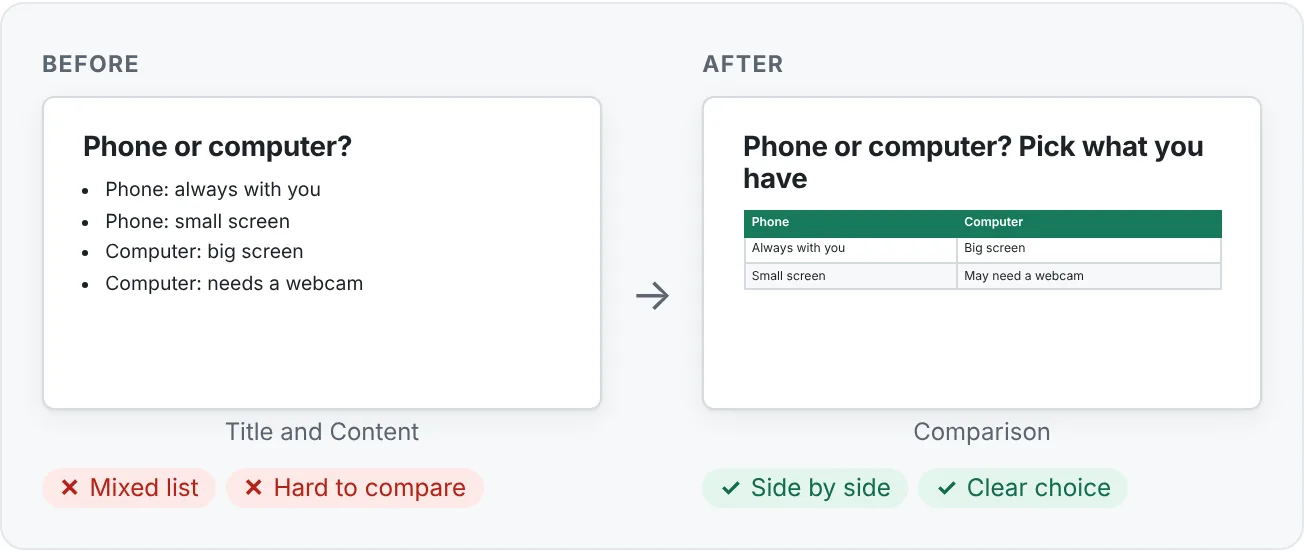
| Two Content | Two things side by side, such as text and a picture |
| Comparison | Two things side by side, each with its own heading (before/after, option A/B) |
| Title Only | A title plus something you place yourself, like a diagram |
| Picture with Caption | One strong picture with a short explanation |
| Blank | Rarely. A full-slide photo or video. It has no title, which makes navigation harder |
Clicking the top half of New Slide (or pressing Ctrl+M) adds a slide with the same layout as the current one, except after a Title Slide, where it adds Title and Content.
Change a layout you already chose
You do not have to get the layout right the first time. Select the slide in the thumbnail pane, then go to Home then Slides then Layout and pick a different one. PowerPoint moves your existing text and pictures into the new layout's placeholders.
If you have dragged placeholders around and the slide looks messy, select it and click Home then Slides then Reset. Reset puts placeholders back where the layout defines them and resets their formatting, but keeps your content.
Put slides in the order your audience needs
Ideas rarely arrive in the order an audience can follow. Use this simple sequence for almost any beginner deck:
- Opening: what this is and who it is for
- Context: why it matters to them
- Main points: two to four steps, reasons, or facts, one per slide
- Example: show it working in a real situation
- Summary: the main points again, briefly
- Next step: what to do now
Here is the workshop deck as a six-slide outline, with a layout chosen for each:
| # | Slide title | Role | Layout |
|---|---|---|---|
| 1 | Video Calls Made Easy | Opening | Title Slide |
| 2 | Video calls keep you close to family | Context (why it matters) | Title and Content |
| 3 | Step 1: Tap the link to join | Main point | Two Content |
| 4 | Step 2: Check your camera and microphone | Main point | Two Content |
| 5 | Example: Rosa's Sunday call with her grandson | Example | Picture with Caption |
| 6 | Recap: link, camera, microphone, hello | Summary and next step | Title and Content |
Notice the example comes after the steps. Beginners need to know what the steps are before a story about someone using them makes sense. And the deck ends on something to do, not on "Questions?".
Draft the whole outline fast in Outline View
Once you know your order, you can type all six titles in one go instead of clicking New Slide six times.
- Go to View then Presentation Views then Outline View. The thumbnail pane turns into a text outline.
- Click after the first slide's title and press Enter. PowerPoint starts a new slide.
- Type the next title and press Enter again. Repeat for every slide.
- To add a bullet under a title instead of a new slide, press Tab after Enter. Press Shift+Tab to turn a bullet back into a new slide.
- Return to View then Presentation Views then Normal and set each slide's layout.
This is the quickest way to test your structure. If the titles alone tell the story when you read them top to bottom, the order is working. If they do not, fix the order now, while it costs nothing.
Reorder slides in Slide Sorter
You can drag thumbnails up and down in Normal view, but with more than a few slides, Slide Sorter is easier because you see everything at once.
- Go to View then Presentation Views then Slide Sorter, or click the Slide Sorter button on the status bar.
- Drag a slide to its new position. A vertical line shows where it will land.
- To move several slides, hold Ctrl and click each one, then drag them together.
- Double-click any slide to open it in Normal view.
Other useful moves, in either view:
- Duplicate a slide: right-click it and choose Duplicate Slide, or press Ctrl+D with the thumbnail selected. Great for step slides that share a layout.
- Delete a slide: select it and press Delete.
- Hide a slide without deleting it: right-click and choose Hide Slide. It stays in the file but is skipped in Slide Show.
Common mistakes when building a first deck
| Mistake | Why it hurts | Fix |
|---|---|---|
| Adding slides in the order ideas occurred | The audience gets the example before the steps, or the "why" at the end | Write the six-part outline first, then check it in Slide Sorter |
| No clear audience | The deck is too basic for some and too hard for others | Name a specific group in your brief |
| Using Blank for everything | Slides lose titles, consistency, and screen reader structure | Start with Title and Content or Two Content |
| Drawing your own text boxes on top of a layout | Text ends up in random places and the reading order breaks | Type into the placeholders; use Reset to clean up |
| Ending on "Questions?" | The last thing people see has no action | End with the recap and one next step; take questions while it is showing |
| Mixing deck types | A report turns into a sales pitch and the audience loses trust | Pick one type, or split into sections with Section Header slides |
Practice
Practice
Outline a six-slide lesson deck
Guided practice: "Teach Me Something Simple"
- Open
video-call-workshop.pptx(or start a new blank deck about any simple skill you know). - In slide 1's Notes pane, write your one-sentence brief: audience, purpose, response, takeaway.
- Build these six slides with Home then Slides then New Slide, choosing the layout each time:
- Title (Title Slide)
- Why it matters (Title and Content)
- Step 1 (Two Content)
- Step 2 (Two Content; try duplicating slide 3 with Ctrl+D and editing it)
- Example (Picture with Caption)
- Recap (Title and Content)
- Use at least four different layouts in total.
- Change slide 2's layout to Comparison with Home then Slides then Layout, look at the result, then change it back.
- Open Slide Sorter. Drag the Example slide in front of Step 1, look at the flow, then move it back after Step 2. Which order would a beginner follow more easily?
- Save with Ctrl+S.
Fix this deck: a friend's six slides are in this order: Recap, Step 2, Title, Example, Why it matters, Step 1. Write the correct order on paper, then rebuild it in Slide Sorter.
Independent challenge
Create a 6-slide mini lesson about a hobby, school topic, business idea, or something you could teach a friend. Write the brief first, choose a deck type, and use at least four layouts.
Reflect: for each slide, write one short sentence saying what that slide's job is. If two slides have the same job, merge them.
Check your understanding0 of 4 correct
Pick an answer to see whether it's right and why.
Which is the strongest purpose statement for a deck?
It names a specific audience, a purpose (teach), and the response you want. The others are topics, not purposes.
You need to show two video-call apps side by side, each with its own heading and a short list. Which layout fits best?
Comparison gives you two content areas, each with its own heading, which is exactly what a side-by-side choice needs.
A colleague's deck goes: example story, the three steps, why it matters, title. What is the main problem?
The audience needs the opening and context before the steps, and the steps before the example. Reorder it in Slide Sorter.
You dragged the title and content boxes around on a slide and it now looks different from the others. What is the quickest fix that keeps your text?
Reset puts placeholders back to the positions and formatting the layout defines, without removing your content.
You're ready to move on when
Tick each one off as you go. Your ticks are saved in this browser only.
Related
Sources and further reading
Was this guide helpful? Spot a mistake? Send feedback · admin@arumsoft.com