PowerPoint Basics · Tutorial 1 of 8
How to Get Started with PowerPoint: Workspace, Views, and Saving
Learn what each part of the PowerPoint window does, switch between views, and create, save, and export your first file without losing work.
- Level
- Beginner
- Time
- 13 min read
- Updated:
- Applies to:
- PowerPoint for Microsoft 365, PowerPoint 2024, PowerPoint 2021, PowerPoint for the web
What you'll learn
- Explain what a slide deck is for and why each slide should carry one idea
- Name the main parts of the PowerPoint window and find commands on the ribbon
- Switch between Normal, Slide Sorter, Reading, and Slide Show views
- Create a new presentation and save it with a clear file name in the right place
- Choose between PPTX and PDF when you share a deck
- Find any command on your own with the search box and tooltips
Before you start
- Nothing. This is a good first page.
If you have ever opened PowerPoint, stared at the ribbon, and wondered where anything is, this page is for you. You do not need to memorize every button. You need a mental map of the window, a few reliable habits for saving, and a way to find commands when you forget where they live.
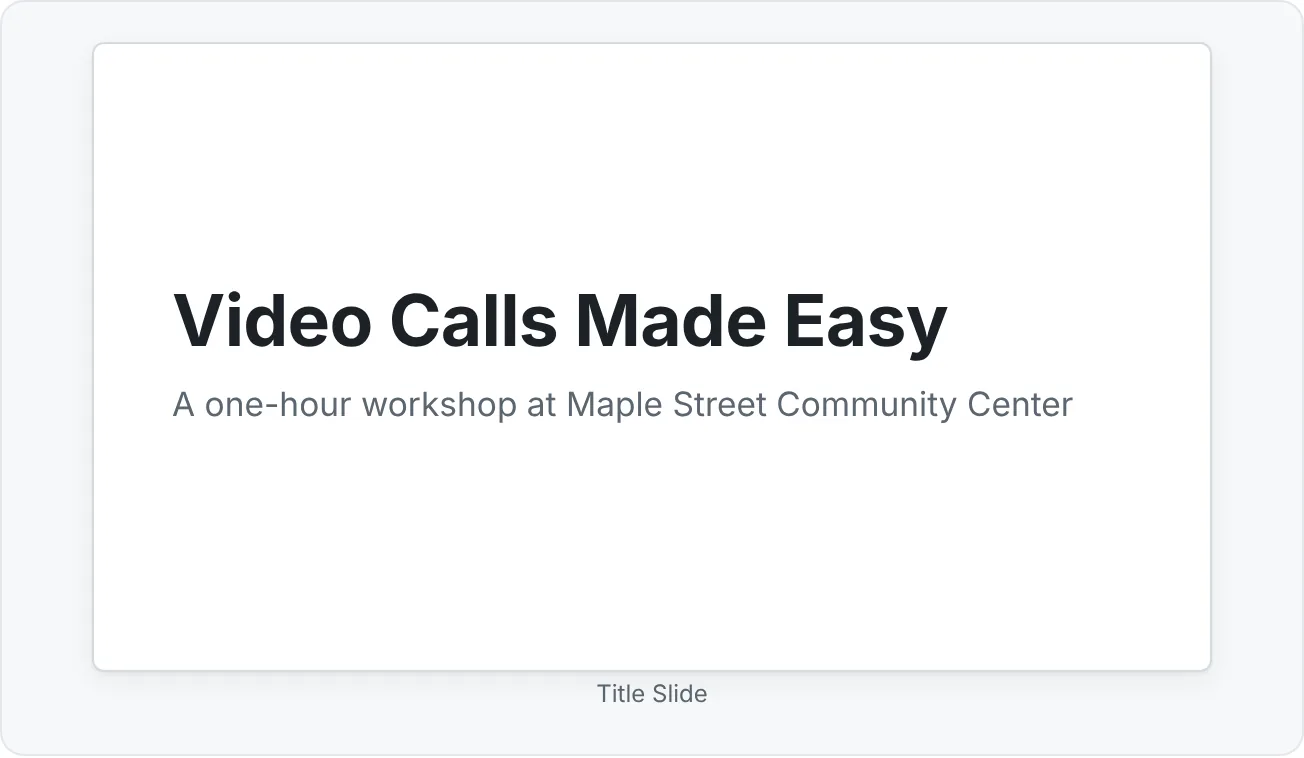
Across the Beginner path you will build one deck: a short workshop called Video Calls Made Easy for a community center. On this page you will create that file, save it properly, and get comfortable moving around it.
What PowerPoint is for
PowerPoint is a tool for building a presentation (also called a deck): a sequence of slides that supports something you say, show, or share. That one fact explains most good and bad slides.
A Word document is meant to be read top to bottom. A slide is meant to be glanced at while someone talks, or read quickly on its own. So the core rule is simple: each slide should carry one main idea.
The same tool makes many kinds of decks:
- A talk you give live, like a workshop or a class
- A handout or report people read on their own
- A lesson a learner clicks through at their own pace
- A pitch, a progress update, a portfolio, or an event announcement
You will choose between these on purpose in Build your first presentation. For now, notice the difference between a slide that works like a page of an essay and one that supports a speaker.
Three beginner habits to drop early:
- Treating slides like pages of an essay. If you would need to read it aloud word for word, it belongs in your notes, not on the slide.
- Putting every spoken word on the slide. Your audience can either read or listen, not both at once.
- Adding effects before you know the message. Animations and fancy fonts come last, if at all.
A tour of the PowerPoint window
Open PowerPoint and choose Blank Presentation. Here is what you are looking at, from top to bottom.
| Part | Where it is | What it does |
|---|---|---|
| Search box | Top center, in the title bar | Finds any command by name |
| Quick Access Toolbar | Top left, or under the ribbon | One-click Save, Undo, Redo (you can add more) |
| Ribbon | The wide strip of buttons | Holds almost every command |
| Tabs | Across the top of the ribbon | Home, Insert, Design, and so on |
| Groups | Labeled sections inside each tab | Related buttons, like Slides or Font |
| Thumbnail pane | Left side | Small previews of every slide, for selecting and reordering |
| Slide canvas | Center | The slide you are editing |
| Notes pane | Under the canvas | Private speaker notes (click Notes on the status bar if hidden) |
| Status bar | Very bottom | Slide number, Notes, view buttons, zoom slider |
The ribbon is organized into tabs, and each tab is split into groups. When this site writes Home then Slides then Layout, it means: click the Home tab, look in the Slides group, click Layout.
A quick map of the main tabs:
- Home: new slides, layouts, fonts, paragraphs, basic drawing and arranging
- Insert: pictures, shapes, icons, tables, charts, text boxes, video
- Design: themes, variants, slide size, background
- Transitions and Animations: movement between and on slides
- Slide Show: start presenting, rehearse, set up the show
- Record: record narration and video of yourself presenting
- Review: spelling, comments, accessibility checks
- View: switch views, show the ruler and guides, open the Slide Master
Some tabs only appear when you select something. Click a picture and a Picture Format tab appears. Click a shape and you get Shape Format. If you cannot find a formatting command, select the object first.
Switch views to see your deck differently
A view is a way of looking at the same deck. You never lose content by switching views. You can change views on the View tab, or with the small buttons on the right side of the status bar.
- Normal is the editing view: thumbnails on the left, one big slide in the middle, notes below. You will spend most of your time here.
- Slide Sorter shows every slide as a tile. Use it to see the whole deck at once and drag slides into a new order.
- Reading View plays the deck inside the PowerPoint window, with your taskbar still visible. It is handy for checking your work without going full screen.
- Slide Show fills the screen, the way your audience sees it. Press F5 to start from the first slide or Shift+F5 to start from the current slide. Press Esc to stop.
Try it now: press F5, click through, press Esc, then open View then Presentation Views then Slide Sorter. Double-click any tile to jump back to that slide in Normal view.
Create a new presentation
You have two ways to start:
- Blank Presentation gives you a plain white deck with a title slide. Choose this when you want to learn the basics or plan your content first.
- A template (from File then New) gives you a designed deck with colors, fonts, and sample slides. Templates save time, but they also come with decisions someone else made. You will learn to choose them carefully in a later tutorial.
For this path, start blank:
- Open PowerPoint, or if it is already open, go to File then New.
- Click Blank Presentation.
- Click into Click to add title and type
Video Calls Made Easy. - Click into the subtitle box and type
A one-hour workshop at Maple Street Community Center.
- Add a second slide with Home then Slides then New Slide or Ctrl+M. Give it the title
What you will be able to do today.
Those dotted boxes that say Click to add title are called placeholders. They come from the slide's layout and you will use them a lot. You will learn more about them in Write slide text people can read.
Save and Save As without losing work
Saving trips up more beginners than any design choice. Learn these three ideas once.
Save vs. Save As. Save (Ctrl+S) updates the file you are already in. Save As (File then Save As, or F12 on Windows) creates a new file with a new name, location, or format, and leaves the old one as it was. Use Save As when you want a copy, a new version, or a different format.
Where the file lives. You can save to OneDrive (or SharePoint at work or school) or to a folder on your computer. If you save to OneDrive, AutoSave turns on: the switch in the top-left corner saves changes every few seconds, and you can open the file from other devices. If you save locally, AutoSave is off and you must press Ctrl+S yourself.
File names. A good name tells you what the file is without opening it. Use lowercase words, hyphens instead of spaces, and a version or date if you will keep several copies.
| Weak name | Better name |
|---|---|
| Presentation1.pptx | video-call-workshop.pptx |
| final FINAL new.pptx | video-call-workshop-v2.pptx |
| slides.pdf | video-call-workshop-handout-2026-10.pdf |
Save your example now:
- Press Ctrl+S. The first time, PowerPoint asks where to save.
- Choose OneDrive or a folder you will remember, such as Documents > Workshops.
- Name it
video-call-workshop.pptxand click Save.
PPTX or PDF: which to send
PowerPoint can save your deck in several formats. The two you will use most are:
| PPTX (PowerPoint presentation) | ||
|---|---|---|
| Can the receiver edit it? | Yes | Not easily |
| Keeps animations, video, notes? | Yes | No, it is a fixed snapshot |
| Looks the same everywhere? | Mostly, if fonts are available | Yes |
| Needs PowerPoint to open? | PowerPoint or a compatible app | Any PDF reader or browser |
| Best for | Co-workers who will edit or present | Handouts, printing, reading, archiving |
Ask one question: does the person need to change it or present it? If yes, send the PPTX. If they only need to read or print it, send a PDF.
To make a PDF copy of your example:
- Go to File then Export then Create PDF/XPS Document and click Create PDF/XPS.
- Pick the same folder and name it
video-call-workshop.pdf. - Click Publish.
Your PPTX is untouched. You now have two files: one to edit, one to share.
Find any command with search and tooltips
You will forget where things are. Everyone does. The skill that matters is finding a command in seconds without asking someone.
Use the search box. Click the search box at the top of the window (or press Alt+Q) and type what you want to do in plain words. The results include the command itself, so you can click it right there.
Try these four searches in your example deck:
crop: finds the Crop command (it only works when a picture is selected)align: finds Align Left, Align Center, and other alignment toolspresenter view: finds the setting to show your notes while presentingexport: takes you to the Export options in the File menu
Hover for tooltips. Rest your pointer on any ribbon button for a second. A tooltip appears with the command name, a short description, and often a keyboard shortcut.
Read command names carefully. Reset (in the Slides group) puts placeholders back where the layout says. Reset Picture undoes picture formatting. Similar words, different jobs.
Use Microsoft Support. For step-by-step help, search the web for PowerPoint plus your task, and prefer results from support.microsoft.com.
Common beginner mistakes and quick fixes
| Mistake | What happens | Fix |
|---|---|---|
| Saving in the wrong folder | You cannot find the file next week | Save once to a named folder like Workshops, then use File then Open and Recent |
| Never saving a local file | A crash loses an hour of work | Press Ctrl+S often, or save to OneDrive so AutoSave is on |
| Editing the only copy of a template | The clean original is gone | Save As (or Save a Copy) before editing |
| Sending a PDF to someone who must edit | They cannot change anything | Send the PPTX, and a PDF too if they also need a handout |
| Hunting through every tab | Slow, frustrating work | Use the search box or Alt+Q |
| Panicking after a mistake | You start over | Press Ctrl+Z to undo, as many times as you need |
Practice
Practice
Build and save a 3-slide starter deck
Guided practice
- Create a new Blank Presentation.
- Slide 1 (Title Slide): title
Video Calls Made Easy, subtitle with your name and today's date. - Add slide 2 with Ctrl+M. Title:
What I want to learn about PowerPoint. Add three short bullets. - Add slide 3. Title:
My next presentation. Write one bullet each for the audience, the topic, and the date. - Save it as
beginner-practice-yourfirstname.pptxin a folder you choose on purpose. - Switch to Slide Sorter, then Reading View, then press F5 for Slide Show. Press Esc to return.
- Use the search box to find Crop, Align, Presenter View, and Export. Do not run them; just find them.
- Export a PDF copy with File then Export then Create PDF/XPS Document.
Independent challenge
Open any older deck you have (or one a friend sends you). Before changing anything, use Save As to make a clean copy with a better file name. Add one new slide that states the purpose of the deck in one sentence, then export the copy as a PDF.
Reflect: in one or two sentences, explain who you would send the PPTX to and who would get the PDF, and why.
Check your understanding0 of 4 correct
Pick an answer to see whether it's right and why.
A volunteer asks you for the workshop slides so she can present them on Thursday and change the date on slide 1. What should you send?
She needs to edit and present, which requires the editable PowerPoint file. A PDF is a fixed snapshot meant for reading or printing.
Your coworker sends you a template deck to reuse. What should you do first?
Making your own copy first protects the original template. Otherwise your edits overwrite the only clean version.
You have 15 slides and want to see whether they are in a sensible order. Which view helps most?
Slide Sorter shows every slide as a tile at once, so you can see the flow and drag slides into a new order.
Which slide follows the one-idea rule best?
It carries one clear idea the audience can grasp at a glance. The others either cram many ideas onto one slide or put the spoken script on screen.
You're ready to move on when
Tick each one off as you go. Your ticks are saved in this browser only.
Related
Sources and further reading
Was this guide helpful? Spot a mistake? Send feedback · admin@arumsoft.com