Employee Skills Matrix Template for Excel
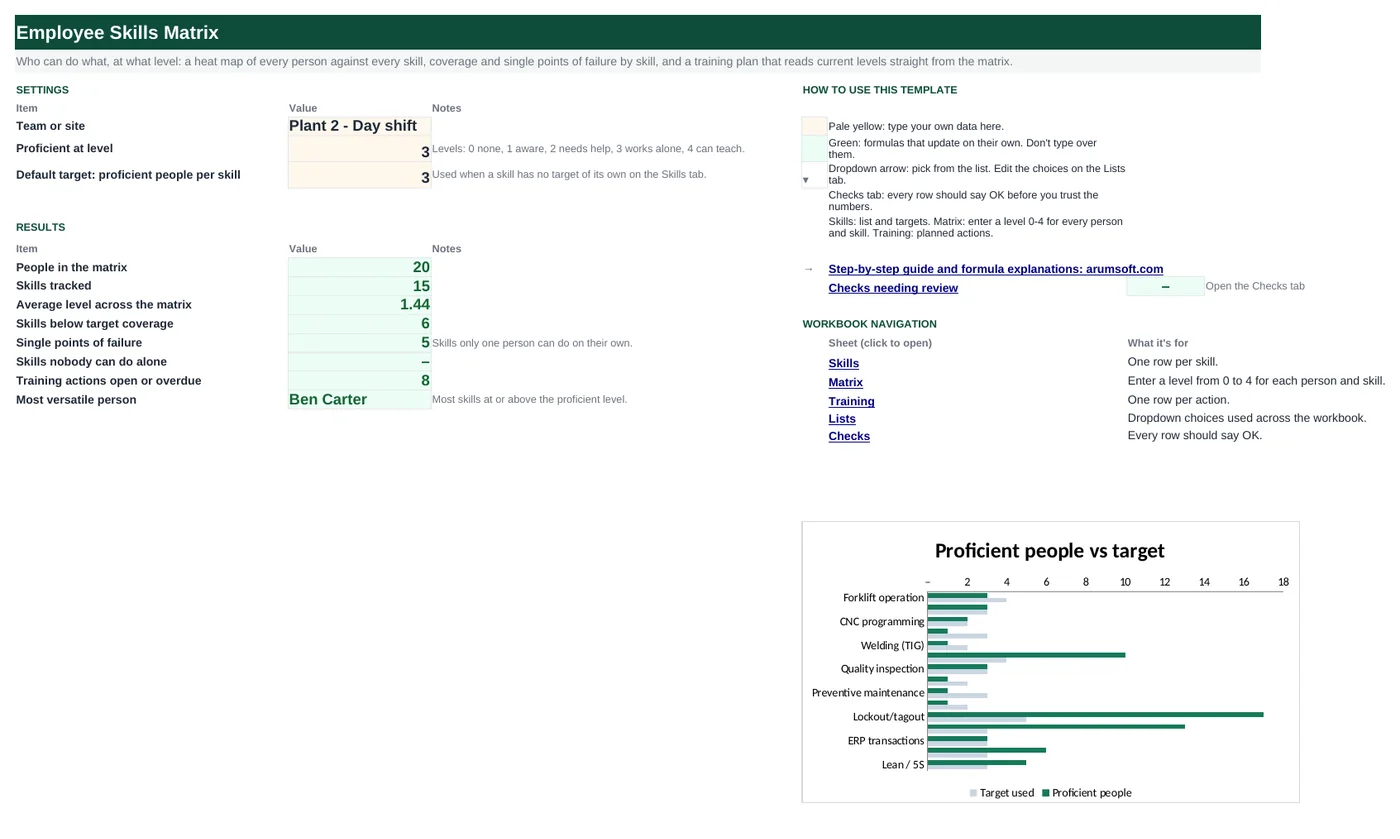
When the one person who can program the CNC is on holiday, the line waits. A skills matrix shows that risk before it bites. Rate each person on each skill from 0 (none) to 4 (can teach), and this workbook counts how many people can do each skill on their own, compares it with the cover you want, flags single points of failure, and keeps a training plan that knows each person's current level and marks an action Reached as soon as you raise it in the matrix.
- Sheets:
- 6
- Works with:
- Excel for Microsoft 365, Excel 2016 or later, Excel for Mac and Excel for the web
- Updated:
What you can do with it
- People × skills heat map with levels 0–4 (none, aware, needs help, works alone, can teach)
- Proficient people and experts per skill against a target, with gap and status
- Single points of failure and skills with no coverage flagged automatically
- Training plan with current level from a two-way INDEX/MATCH and status Open, Overdue or Reached
What's inside
The workbook has 6 sheets. You only type on a few of them; the rest calculate.
| Sheet | What it's for | You enter | Calculated for you |
|---|---|---|---|
| Start Here | Settings and the coverage summary | Team name, proficient level, default target per skill | People, skills, average level, skills below target, single points of failure, skills with no cover, open training actions, most versatile person |
| Skills | Skill list and coverage (15) | Skill, category, target (optional) | Proficient people, experts, average level, target used, gap, status |
| Matrix | People × skills (30 × 15) | Name, role, team, a level 0–4 per skill | Average level, proficient skills, expert skills, strongest skill |
| Training | Training actions (40) | Employee, skill, target level, method, due date, completed | Current level, status |
| Lists | Dropdowns | Training methods, Yes/No | Nothing |
| Checks | Six data checks | Nothing | OK or Review |
Before you start
- Agree on what each level means for your skills, with an example for 3 (works alone) and 4 (can teach). Write it on the Start Here sheet.
- Rate with the person and their supervisor together; self-ratings alone run high.
- For each skill, decide how many people you need able to do it alone to cover shifts, holidays and turnover.
Step-by-step guide
Set the levels and target
Start Here B6–B8: team name, the level that counts as proficient (3) and the default number of proficient people per skill.
List the skills
Skills tab: skill name, category and, where it differs from the default, a target of its own. The names become the matrix headers.
Rate everyone
Matrix tab: name, role, team, then a level from 0 to 4 under each skill. The cells color from red to green.
Find the risks
Skills tab column I: No coverage, Single point of failure, Below target or OK. Start Here counts them.
Plan the training
Training tab: who should learn what, to which level, how and by when. Current level is read from the matrix.
Update as people learn
Raise the level in the matrix and the training row turns to Reached; coverage and the chart update.
Formula map
Every formula in the workbook, grouped by the sheet and column it lives in. A column of copied formulas counts once; the range it covers is shown.
| Sheet | Cells | Functions | What it computes | Reads | Feeds |
|---|---|---|---|---|---|
| Skills | D5 copied down to row 19 | IF, COUNTIF, INDEX, MATCH | Proficient people per skill | A5 | Compared with the target for the gap and status. |
| Skills | G5 copied down to row 19 | IF | Target used | C5 | Gap = target used − proficient people. |
| Skills | I5 copied down to row 19 | IF | Coverage status | D5, H5 | Colored by severity; counted on Start Here B15–B17. |
| Matrix | T5 copied down to row 34 | IF, COUNTIF | Proficient skills per person | A5 | The most versatile person on Start Here B19 is the highest count. |
| Matrix | V5 copied down to row 34 | IF, OR, COUNT, INDEX, MATCH, MAX | Strongest skill | A5 | A quick view of who to ask about what. |
| Training | C5 copied down to row 44 | IF, OR, IFERROR, INDEX, MATCH | Current level (two-way lookup) | A5, B5 | Compared with the target level for the status. |
| Training | H5 copied down to row 44 | IF, AND, TODAY | Training status | C5, D5, G5, F5 | Open and Overdue are counted on Start Here B18. |
| Start Here | B16 | COUNTIF | Single points of failure | — | The headline risk for the team. |
Every formula, explained
Each formula below is copied straight from the file, so what you read here is exactly what the cell contains. Click any cell in Excel to see it in the formula bar.
=IF(A5="", "", COUNTIF(INDEX(Matrix!$D$5:$R$34, 0, MATCH(A5, Matrix!$D$4:$R$4, 0)),
    ">="&'Start Here'!$B$7))
Finds this skill's column in the matrix by name and counts the levels at or above the proficient level.
Piece by piece
MATCH(A5, Matrix!$D$4:$R$4, 0)- Which matrix column is this skill.
INDEX(Matrix!$D$5:$R$34, 0, …)- That whole column.
COUNTIF(…, ">="&'Start Here'!$B$7)- Levels 3 and 4.
With the sample data: A5 = Forklift operation → D5 result 3
How it is used: Compared with the target for the gap and status.
How to change it: Change the proficient level on Start Here B7.
Learn this: How to Use COUNTIF and COUNTIFS in Excel →=IF(A5="", "", IF(C5="", 'Start Here'!$B$8, C5))The skill's own target if you entered one, otherwise the default from Start Here.
Piece by piece
C5=""- No target of its own.
'Start Here'!$B$8- Default target.
With the sample data: C5 = 4 → G5 result 4
How it is used: Gap = target used − proficient people.
How to change it: Type a number in column C to override.
Learn this: How to Use the IF Function in Excel →=IF(A5="", "", IF(D5=0, "No coverage",
IF(D5=1, "Single point of failure", IF(H5>0, "Below target", "OK"))))Checks the worst case first: nobody proficient, then only one person, then any gap to target.
Piece by piece
D5=0- "No coverage".
D5=1- "Single point of failure".
H5>0- "Below target".
"OK"- Target met.
With the sample data: D5 = 3, H5 = 1 → I5 result Below target
How it is used: Colored by severity; counted on Start Here B15–B17.
How to change it: Nothing to change.
Learn this: How to Use the IF Function in Excel →=IF(A5="", "", COUNTIF(D5:R5, ">="&'Start Here'!$B$7))Counts how many skills on this row are at or above the proficient level.
Piece by piece
D5:R5- This person's 15 levels.
">="&'Start Here'!$B$7- Proficient or better.
With the sample data: A5 = Ana Ruiz → T5 result 2
How it is used: The most versatile person on Start Here B19 is the highest count.
How to change it: Nothing to change.
Learn this: How to Use COUNTIF and COUNTIFS in Excel →=IF(OR(A5="", COUNT(D5:R5)=0),
"", INDEX($D$4:$R$4, MATCH(MAX(D5:R5), D5:R5, 0)))Finds the highest level on the row and returns the skill heading above it (the first one if tied).
Piece by piece
MAX(D5:R5)- Highest level.
MATCH(…, D5:R5, 0)- Its position along the row.
INDEX($D$4:$R$4, …)- The skill name from the header.
With the sample data: A5 = Ana Ruiz → V5 result CNC setup
How it is used: A quick view of who to ask about what.
How to change it: Nothing to change.
Learn this: How to Use INDEX and MATCH in Excel →=IF(OR(A5="", B5=""), "",
IFERROR(INDEX(Matrix!$D$5:$R$34, MATCH(A5, Matrix!$A$5:$A$34, 0), MATCH(B5, Matrix!$D$4:$R$4, 0)),
"Not found"))Looks up the cell where this person's row meets this skill's column in the matrix.
Piece by piece
MATCH(A5, Matrix!$A$5:$A$34, 0)- Row of the employee.
MATCH(B5, Matrix!$D$4:$R$4, 0)- Column of the skill.
INDEX(Matrix!$D$5:$R$34, row, column)- The level where they cross.
IFERROR(…, "Not found")- A misspelled name or skill.
With the sample data: A5 = Ana Ruiz, B5 = CNC programming → C5 result 1
How it is used: Compared with the target level for the status.
How to change it: Nothing to change; pick names and skills from the dropdowns to avoid typos.
Learn this: How to Use INDEX and MATCH in Excel →=IF(A5="", "", IF(C5="Not found",
"Check name or skill", IF(C5>=D5, "Reached", IF(G5="Yes", "Done - update matrix", IF(AND(F5<>"", F5<TODAY()), "Overdue", "Open")))))Reached once the matrix level meets the target; Done – update matrix if marked complete but the level is still low; Overdue if past the due date; otherwise Open.
Piece by piece
C5="Not found"- Fix the name or skill.
C5>=D5- Reached.
G5="Yes"- Training done, matrix not updated.
F5<TODAY()- Overdue.
With the sample data: C5 = 1, D5 = 3, G5 = No, F5 = Dec 15, 2026 → H5 result Open
How it is used: Open and Overdue are counted on Start Here B18.
How to change it: Nothing to change.
Learn this: How to Use TODAY and NOW in Excel →=COUNTIF(Skills!$I$5:$I$19, "Single point of failure")Counts skills whose status is "Single point of failure".
Piece by piece
Skills!$I$5:$I$19- Status column.
"Single point of failure"- Exact text to count.
With the sample data: B16 result 5
How it is used: The headline risk for the team.
How to change it: Nothing to change.
Learn this: How to Use COUNTIF and COUNTIFS in Excel →Tips and limits
- Capacity: 30 people and 15 skills. To add skills, insert columns inside D:R on the Matrix tab and rows inside the Skills table, then copy the formulas.
- Re-rate every six months, and after any training, certification or new hire.
- Some skills need a minimum per shift, not per team. Make one copy of the matrix per shift if so.
- Use the Experts count (level 4) to choose trainers for the training plan.
- Keep certification expiry dates in a separate column or tracker; this matrix tracks capability, not paperwork.
Learn the skills behind this template
Was this guide helpful? Spot a mistake? Send feedback · admin@arumsoft.com